
A BitLocker recovery key is a 48-digit number that unlocks an encrypted Windows drive when the PC cannot confirm it is safe to start normally. The blue recovery screen usually appears after a BIOS update, a hardware change, or several wrong PIN attempts.
The key almost always exists somewhere. This guide shows where to look, in the order most likely to find it.
On another phone or computer, go to aka.ms/myrecoverykey and sign in with the Microsoft account used on the locked PC. Find the key whose ID matches the first 8 characters shown on the recovery screen. If the PC was ever used with a work or school account, try aka.ms/aadrecoverykey. Also check printouts and USB drives. Microsoft support cannot recover a lost key for you.
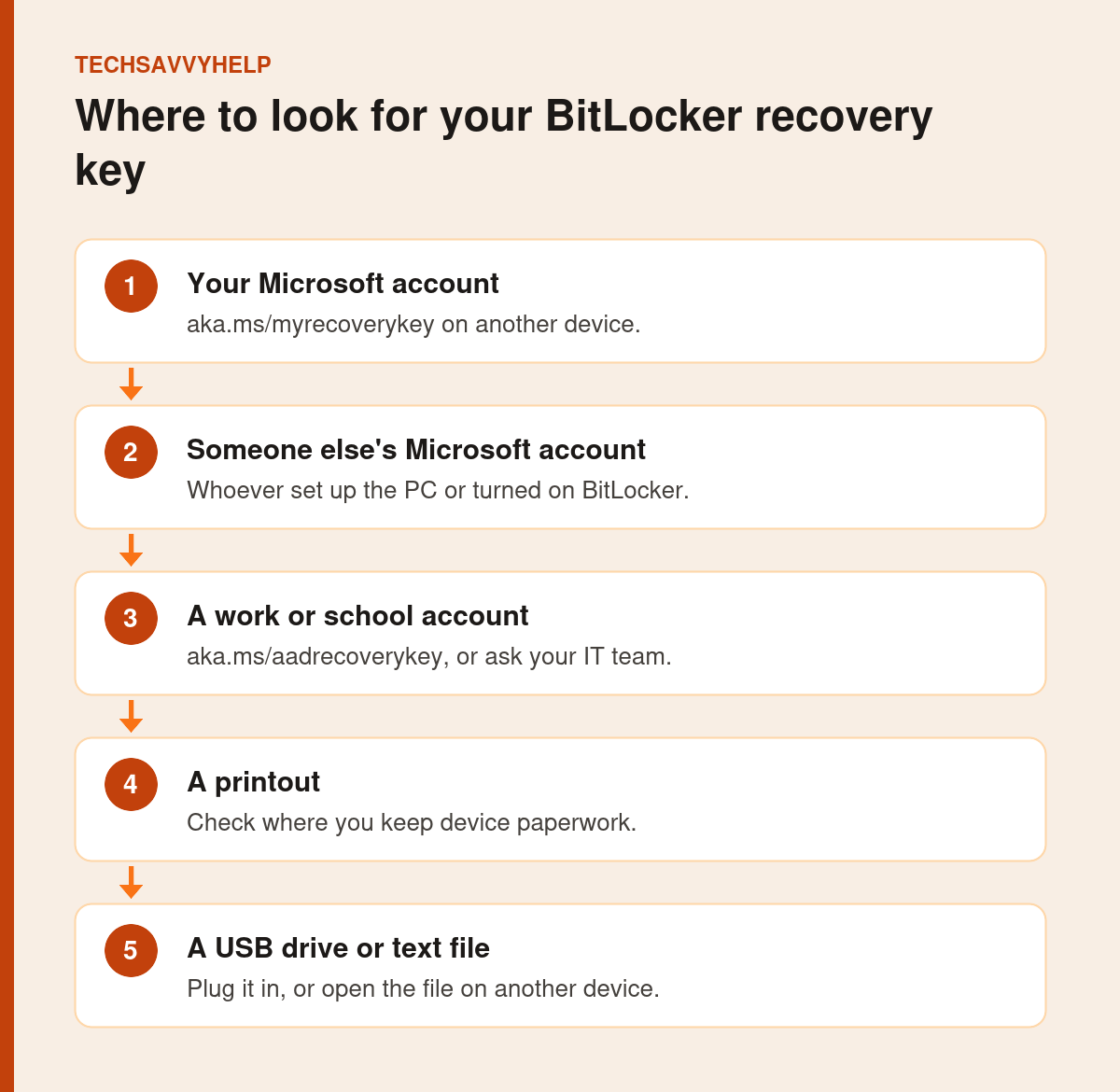
Table of Contents
ToggleBefore You Start: Note the Key ID
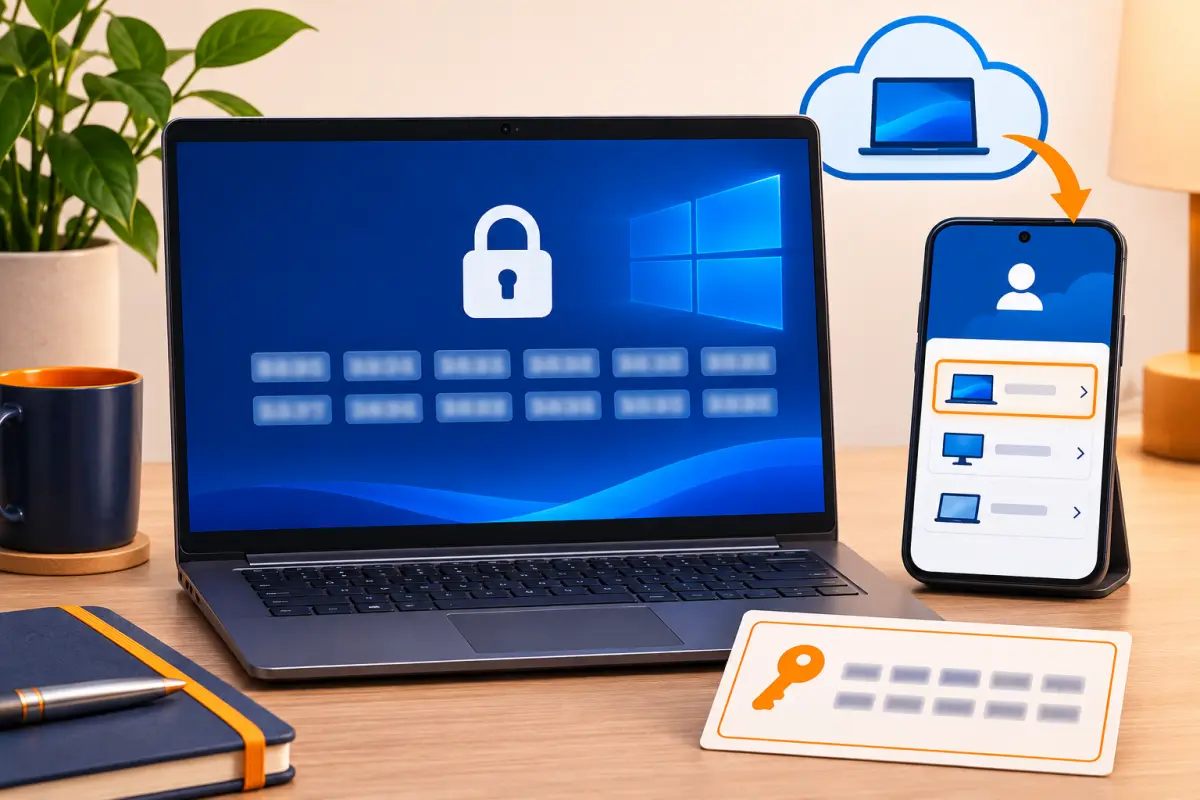
The recovery screen shows a Recovery key ID. Write down its first 8 characters. Microsoft says this helps you pick the right key if your account holds several. On Windows 11 version 24H2 and later, the screen also shows a hint of the Microsoft account the key is saved to.
Way 1: Find Your BitLocker Recovery Key in Your Microsoft Account
- On another device, go to aka.ms/myrecoverykey.
- Sign in with the Microsoft account you used on the locked PC.
- Find the entry whose Key ID matches the one on the recovery screen.
- Type the 48-digit recovery key on the locked PC and press Enter.
This comes from Microsoft’s Find your BitLocker recovery key guide. Windows 11 often turns on device encryption automatically when you sign in with a Microsoft account, so the key may be there even if you never set BitLocker up yourself.
Way 2: Check Another Person's Microsoft Account
Microsoft notes that if someone else set up the device or turned on BitLocker, the key may be in their account. Ask the family member, shop or person who set up the PC to check aka.ms/myrecoverykey with their own sign-in.
Way 3: Check a Work or School Account
If the PC was ever connected to an organisation with a work or school account, go to aka.ms/aadrecoverykey, sign in, open Devices, expand your device and select View BitLocker keys. For managed PCs, your IT department can retrieve the key.
Way 4: Look for a Printout
You may have printed the key when BitLocker was turned on. Check folders with receipts, warranties and other device paperwork.
Way 5: Check USB Drives and Saved Files
If the key was saved to a USB flash drive, plug it into the locked PC and follow the prompts. If it was saved as a text file, open it on another device. The file name usually starts with BitLocker Recovery Key followed by the key ID.
If Your BitLocker Recovery Key Is Lost
Microsoft states plainly that its support team cannot retrieve, provide or recreate a lost BitLocker recovery key. If you cannot find it, and cannot undo the change that triggered recovery, the only option is to reset the PC with a Windows recovery option.
Microsoft warns that resetting the device removes all files. Only a backup can bring them back. If the recovery screen appeared after a BIOS or hardware change, try undoing that change first.
Why the Recovery Screen Appears
- A BIOS or firmware update.
- Changes to Secure Boot or the TPM security chip.
- New hardware, such as a different drive or motherboard repair.
- Too many wrong PIN attempts. If your PIN is the problem, see Windows Hello PIN not working.
Save Your Key Before You Need It
While Windows is working, check that your key is in your Microsoft account at aka.ms/myrecoverykey, and keep a printed copy somewhere safe. Pair that with a proper 3-2-1 backup plan so a lost key never means lost files.
Other startup errors that block Windows from loading.
Frequently Asked Questions
Where is my BitLocker recovery key?
Most often in the Microsoft account used on the PC, at aka.ms/myrecoverykey. It can also be in a work account, a printout, a USB drive or someone else’s Microsoft account.
Can Microsoft give me my BitLocker recovery key?
No. Microsoft support cannot retrieve, provide or recreate a lost key. You have to find it in one of the places it was saved.
Why is my PC asking for a BitLocker recovery key?
Usually after a BIOS update, hardware change, security setting change or several wrong PIN attempts.
What happens if I cannot find my BitLocker recovery key?
You can reset the PC, but Microsoft warns this removes all files. Restore them from a backup afterwards.