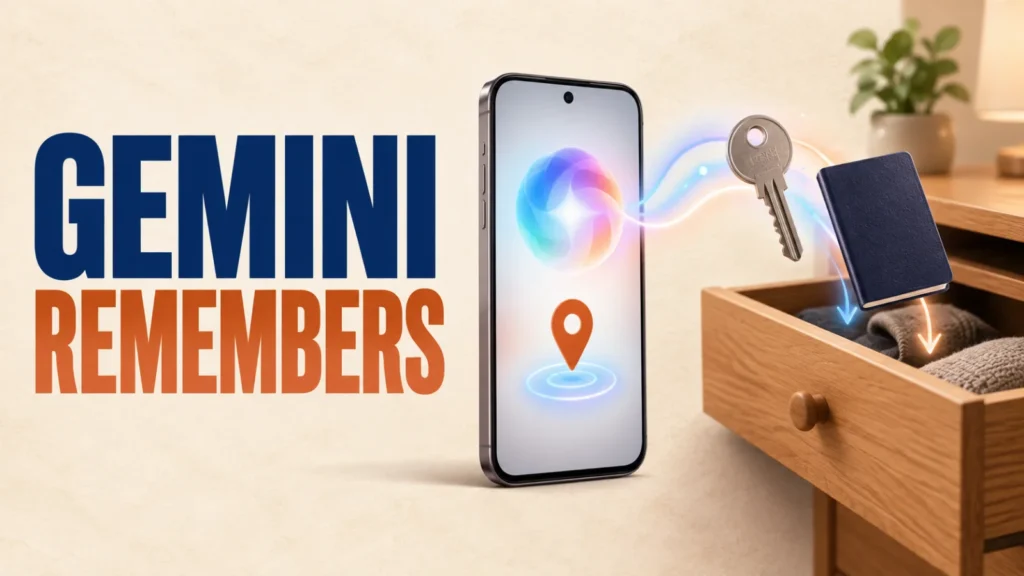
The Gemini Find Hub Remembered tab lets you save where you put everyday things, such as a passport, spare keys or a charger, without a tracker tag. Google announced it in the September 2026 Android Drop, and it reached the Find Hub app from mid-September.
You can add items by asking Gemini or by typing them in, and attach a photo for reference.
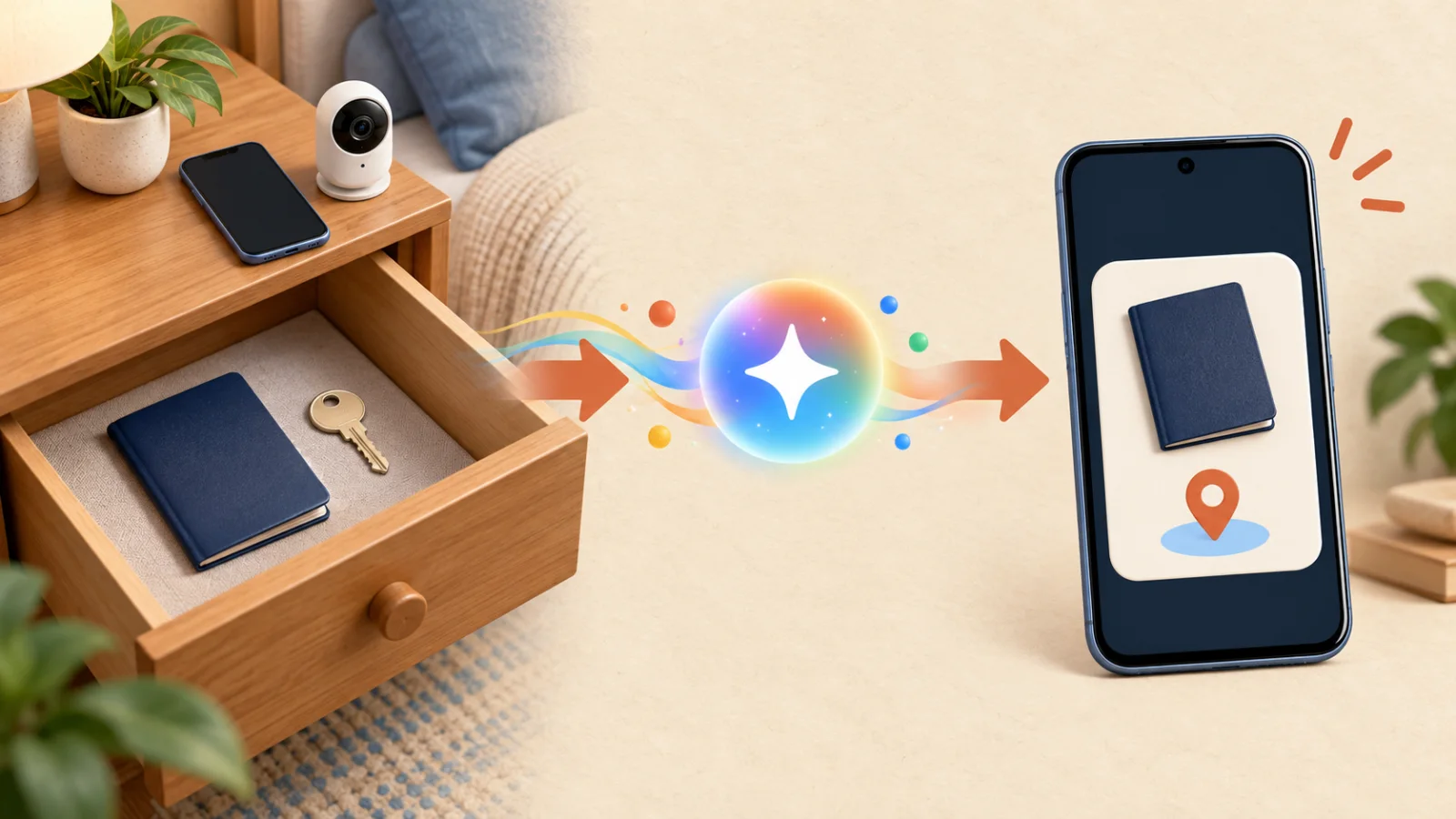
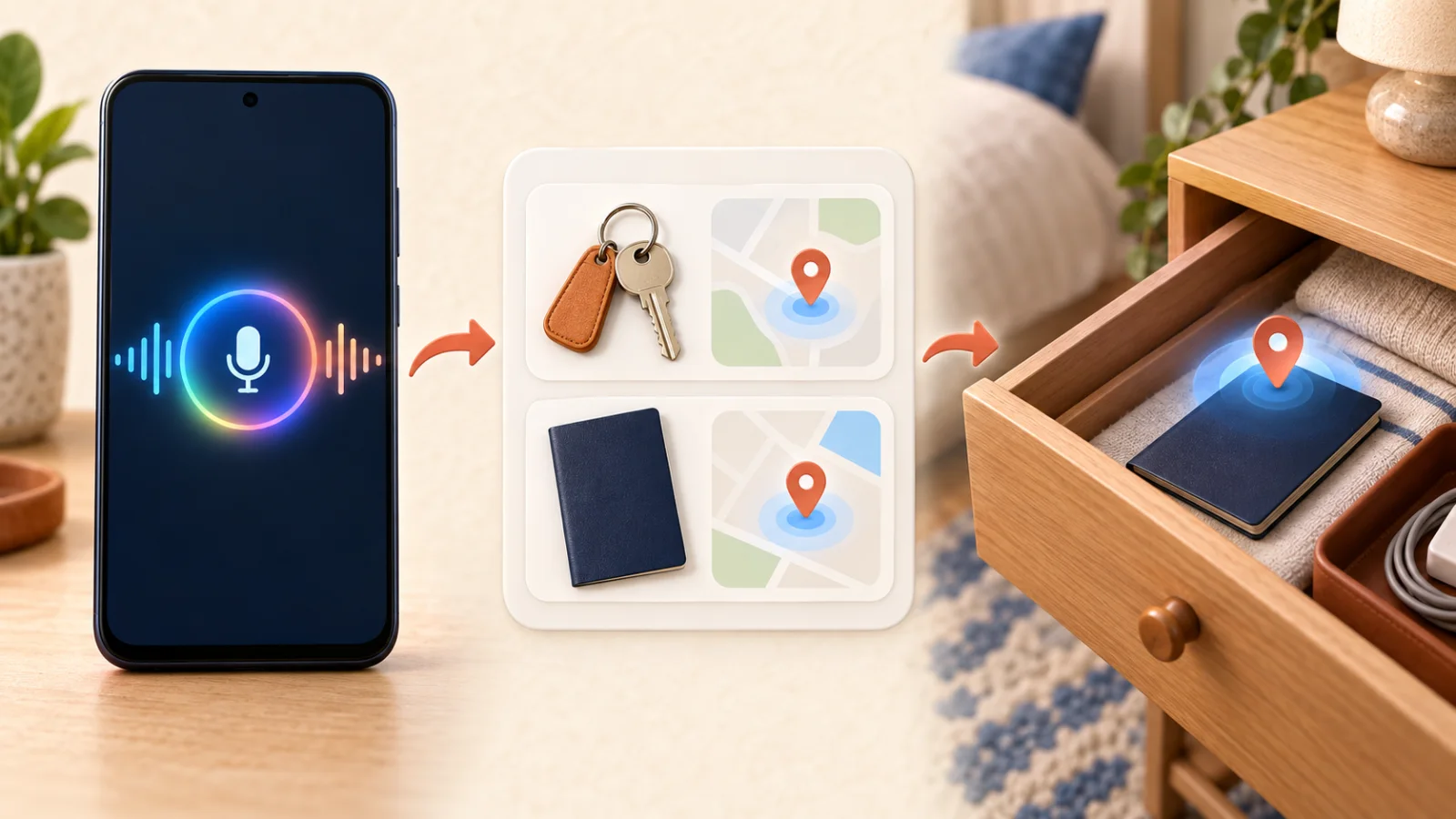
Say something like, “Hey Google, remember that I put my passport in my bedroom drawer.” Gemini saves it to the Remembered tab in Find Hub. Later, ask “Where did I put my passport?” or open the Remembered tab.
If the tab is missing, update the Find Hub app from the Play Store.
Table of Contents
ToggleHow the Gemini Find Hub Feature Works
This is a memory aid, not real-time tracking. The Gemini Find Hub feature stores the location you provided for an item.
It won’t show a live location on a map the way a Bluetooth tracker tag does.
What You Need to Use It
Google says the feature is for Android 16 or newer in supported countries, as announced in the September 2026 Android Drop. It arrived in Find Hub version 3.1.732-02, so update Find Hub from the Play Store if you do not see a Remembered tab alongside Devices and People.
Keep the phone itself updated too; see our guide on checking your Android security patch level.
How to Save an Item’s Location
Say “Hey Google” or open Gemini, then describe where you placed the item, for example: “Remember that I put my spare keys in the kitchen drawer.” Gemini confirms it and saves it to the Remembered tab.
To add an item without Gemini, open the Remembered tab, tap the add button and choose Manual entry. Enter a name and a storage spot, then optionally add a photo, a location such as Home, and notes.
Adding a Photo for Context
You can attach a photo to an item, which helps with things that look alike or are tucked away in a box or drawer.
The photo is saved with the item in the Remembered tab, so you can check it when you go looking.
How to Ask Gemini Where Something Is
Just ask, “Hey Google, where did I put my passport?”
Gemini reads back the note you saved, along with the photo if you added one.
This feature works well alongside physical trackers, not instead of them.
Use a Bluetooth tag for things you might lose outside the house, and Gemini’s memory for items you simply forget where you put.
Privacy: What’s Saved and How to Delete It
Remembered item locations are stored through Find Hub. Review the remembered-items tab and remove a location you no longer want saved.
Avoid saving sensitive location details on a shared or unlocked phone.
Keep the rest of your phone secure too — see our full mobile device security guide.
If the Remembered Tab Is Missing or Gemini Can’t Find an Item
- No Remembered tab: update Find Hub from the Play Store and check that the phone runs Android 16 or newer. The feature is limited to supported countries.
- Gemini answers but nothing is saved: say “remember” clearly, then open the Remembered tab to check the entry. If it is not there, add it with Manual entry.
- Old location: Gemini only knows what you last saved. When you move something, delete the old entry and save the new spot.
If you use Android for daily tasks, it’s worth browsing our list of useful mobile apps too.
Frequently Asked Questions
Does this replace a Bluetooth tracker tag?
No. It’s a memory aid based on what you tell Gemini, not live GPS or Bluetooth tracking.
Can I use this without Android 16?
No. Google lists Android 16 or newer, and the feature is only available in supported countries.
Can I delete a saved item location?
Yes. Open the Remembered tab in Find Hub and remove any note you no longer need.
Do I need to add a photo?
No, a photo is optional but can make the note easier to recognize later.
Bottom Line
This is a small but genuinely useful addition for anyone who regularly misplaces small items.
It won’t replace a tracker tag, but it fills the gap for everything that doesn’t have one.