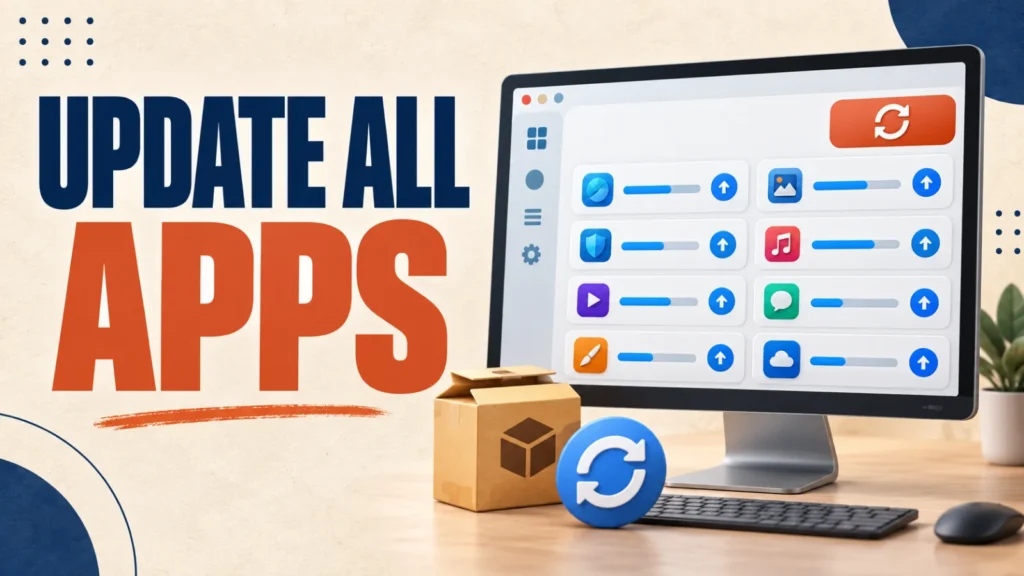
UniGetUI can update all Windows apps recognized by its enabled package managers from one dashboard.
It saves time, but it cannot update every program installed on a PC. Review the available list before starting a bulk update.
Install UniGetUI, let it scan for supported installed apps, review the Updates list, and then start the selected updates.
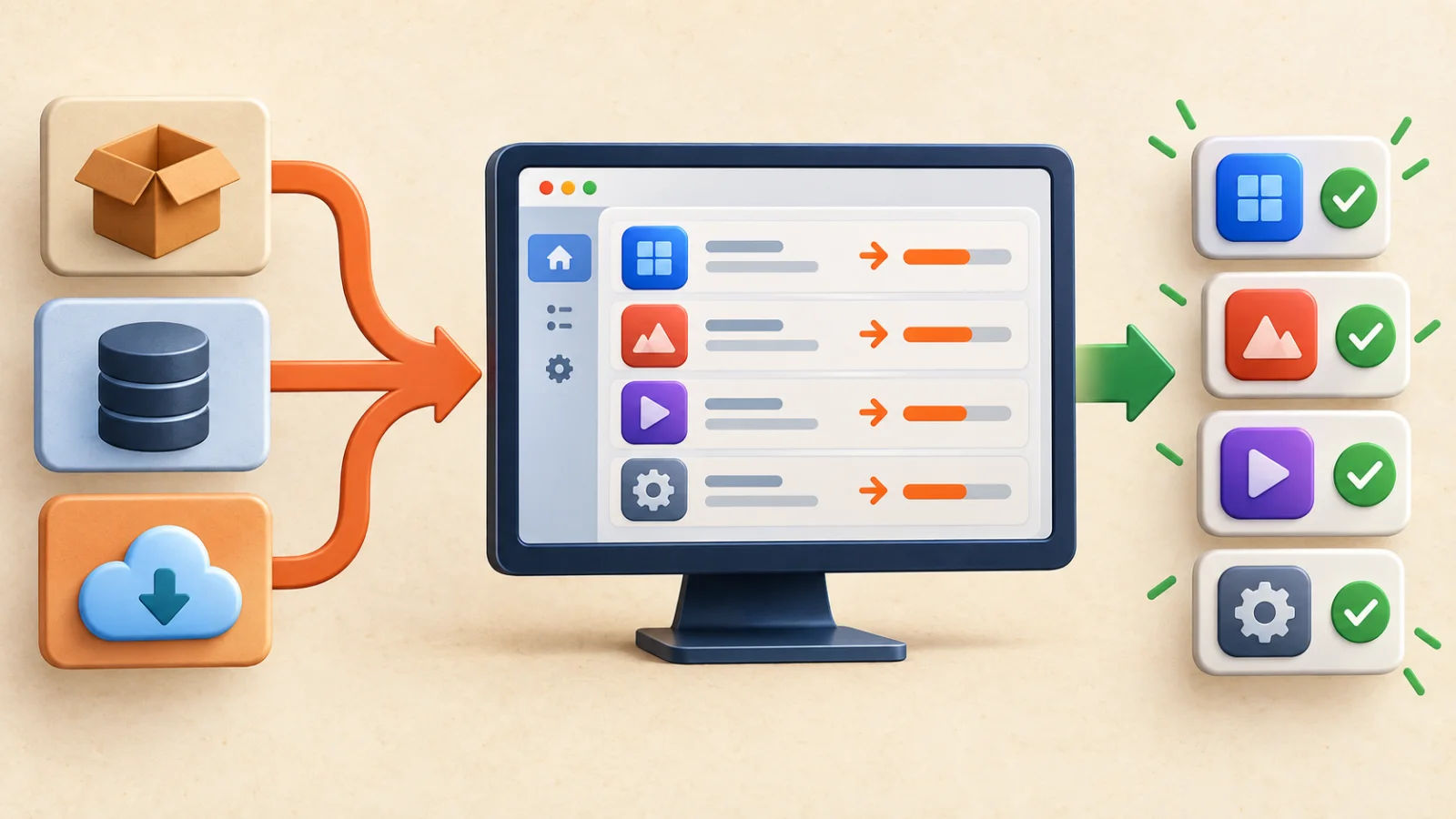
It works by sitting on top of WinGet, Chocolatey, Scoop, and other package managers already on your PC — it doesn’t replace them.
Table of Contents
ToggleWhat UniGetUI Actually Is
UniGetUI is a free, open-source interface for the package managers already built into or available for Windows.
It was created by developer Martí Climent and is now maintained in the Devolutions GitHub organization. The project remains free and open source.
For more background on getting a new PC set up, see our free Windows software picks for a new laptop.
Is It Safe to Use
UniGetUI is open source and its code is publicly available on GitHub. However, package safety also depends on the package manager, repository, publisher, and installer selected.
UniGetUI starts install, update, or removal operations through the enabled package managers, so review unfamiliar packages and publisher details before approving them.
How to Install It
Download UniGetUI from its official site or the Microsoft Store.
You can also install it through WinGet itself by running winget install --id Devolutions.UniGetUI in Terminal.
Not sure what else you actually need on a new PC? See our guide on Windows software for a new PC.
First-Time Setup: Enabling Package Managers
On first launch, UniGetUI detects which package managers are already on your system, usually WinGet by default.
Open Settings > Package Managers to enable Chocolatey, Scoop, or others if you use them.
Viewing and Updating Outdated Apps
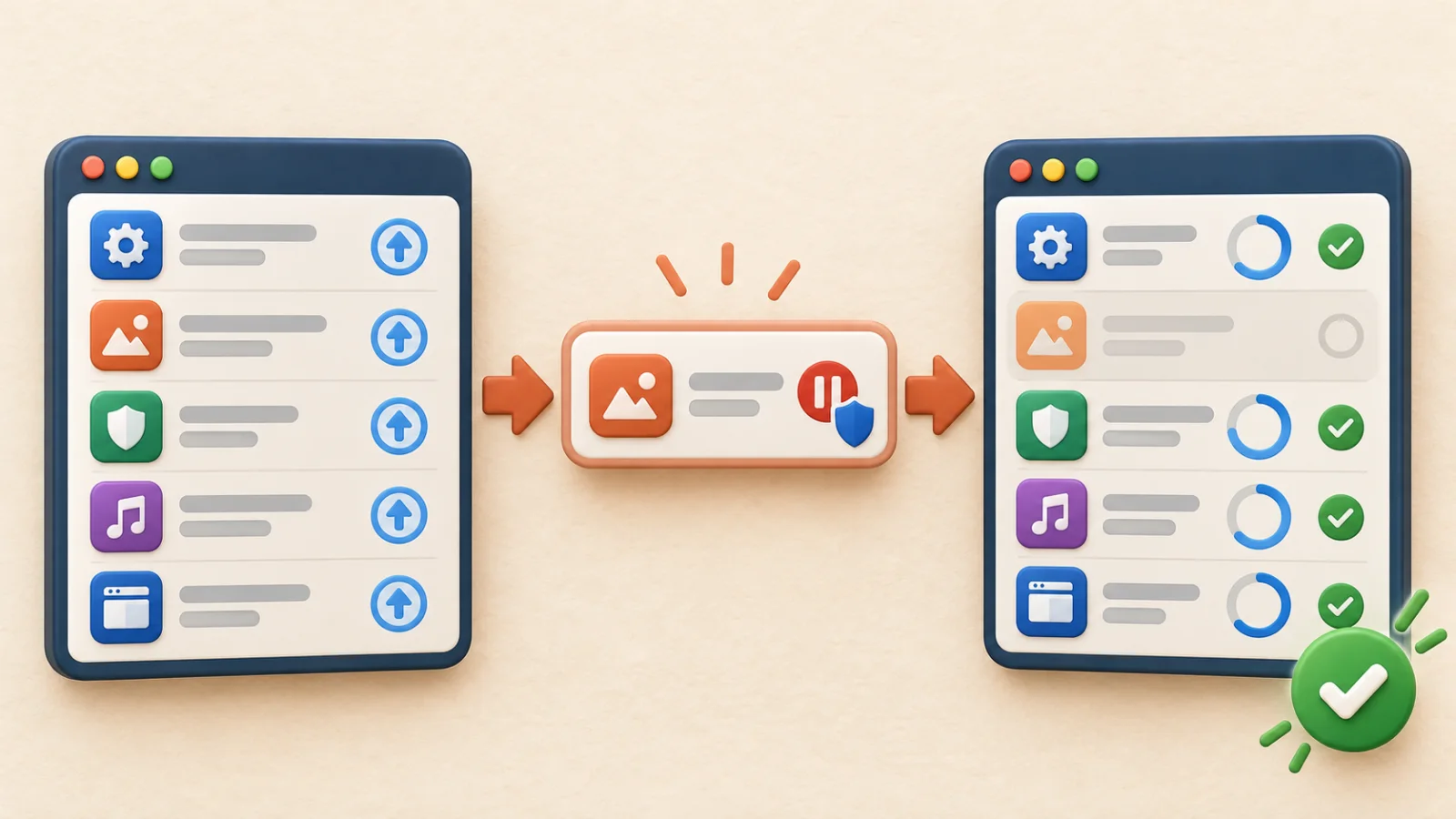
The Updates page lists supported installed packages for which an enabled package manager reports a newer version.
Before you update all Windows apps, review the list. Then update selected apps individually or queue all currently upgradable packages. This is the safest way to update all Windows apps that UniGetUI can manage.
Setting It to Check Automatically
In Settings > General, turn on automatic update checks so UniGetUI notifies you when new versions are available.
Automatic checks and unattended operations can be convenient, but review the settings before enabling background changes.
Right-click any app in the Updates list and choose Skip this version or Ignore updates to exclude it.
This is useful for software you intentionally keep on an older version.
Packages across WinGet, Chocolatey, Scoop, and other sources are provided by third parties and can theoretically be compromised.
Prefer trusted publishers, review package metadata, and preview available updates before running a bulk operation.
Alternative: Updating From Terminal
If you don’t want a separate app, WinGet alone can update everything from Terminal.
Microsoft recommends running winget upgrade first to preview available upgrades. Then use winget upgrade --all to attempt updates for all eligible WinGet-managed applications.
UniGetUI mainly adds a visual interface and support for more package managers at once.
See more free tools worth having on a new PC in our Windows utilities roundup.
Frequently Asked Questions
Is UniGetUI made by Microsoft?
No. It’s an independent open-source project, now maintained by Devolutions, not an official Microsoft tool.
Does it cost anything?
No. UniGetUI is free and open source under the MIT license.
Will it update apps installed outside a package manager?
No. It can only update apps installed through, or tracked by, one of its supported package managers.
Is Chocolatey or Scoop required?
No. WinGet alone, which ships with Windows 10 and 11, is enough to get started.
Bottom Line
UniGetUI does not replace every vendor updater, but it can update all Windows apps recognized by the package managers you enable.
Preview the update list, exclude anything sensitive, and then run the selected updates from one dashboard.