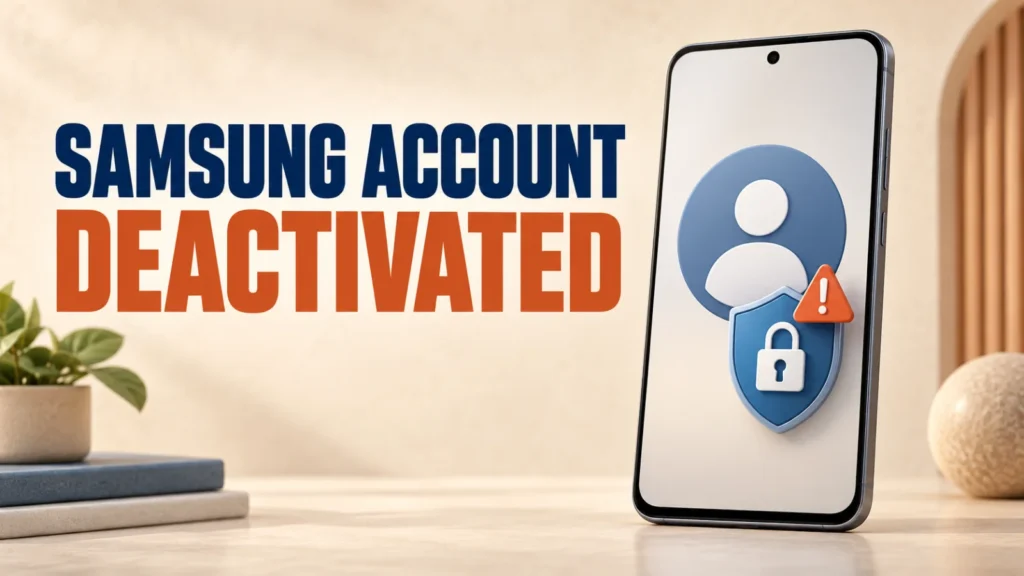
A Samsung account deactivated for security reasons cannot always be restored with a password reset alone. Samsung has now acknowledged that some accounts may have been deactivated because of potential risks linked to alias email addresses.
The supported recovery route is to contact Samsung Account Support, complete identity verification, and ask the team to review the account for reactivation.
If you see Samsung account deactivated for security reasons, do not delete the account or create a replacement first. Contact Samsung through its official regional support page. In the United States, a Samsung Community Manager directs affected users to Samsung Accounts Support at 855-795-0509. After verifying your identity, the team can review the account and assist with reactivation.
Table of Contents
ToggleSamsung Account Deactivated for Security Reasons: Why It Happens
A Samsung Community Manager says some accounts may have been deactivated as a protective measure because of potential risks associated with alias email addresses.
An alias can include a plus sign or another variation that still delivers mail to the same inbox. Samsung has not published a complete technical explanation or said that every deactivated account used an alias, so do not assume the email format is the cause in your individual case.
Important: Removing a “+” or “.” from an email address is not an official self-service reactivation method. The Samsung response tells affected users to contact its account team for review.
Use these mobile-security basics while you wait, especially if Samsung Find, Wallet, Pass, or cloud services are unavailable.
Before You Contact Samsung Support
Record the exact message and where it appears. Note the email address used for the account, your country or region, the affected Galaxy device model, and when the lockout began.
Use only contact details reached through Samsung Gulf support or Samsung’s official site for your country. Do not send a password, one-time verification code, backup code, or payment information by email or community post.
Before updating to One UI 9, make sure you can still sign in to your Samsung account. If the last major update drained your battery, see our One UI 8.5 battery drain fixes.
Security note: For a Samsung account deactivated for security reasons review, a support agent may need to verify your identity, but legitimate support should not ask you to reveal your password or a one-time sign-in code.
Be wary of messages claiming to be account support; the signs of a fake Google security alert apply to Samsung accounts too.

How to Request Samsung Account Reactivation
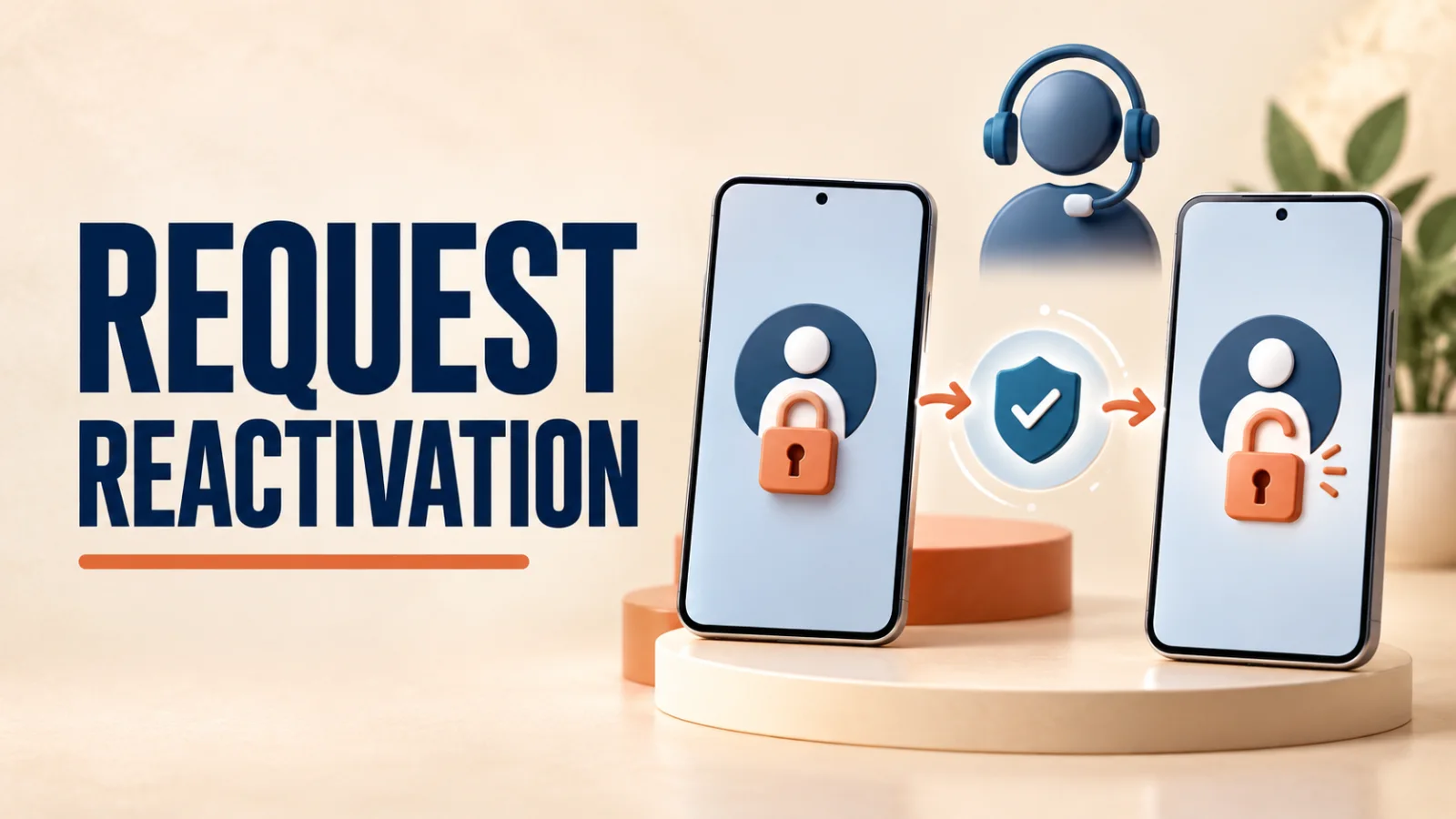
For the Samsung account deactivated for security reasons message, there is no public self-service reactivation button. Use Samsung’s account-support channel:
- Open Samsung’s official support page for your region and choose chat or phone support.
- Say that the exact error is “Account deactivated for security reasons.”
- Provide the account email and other ownership information requested through the secure support process.
- Ask the Samsung Accounts team to review the account for reactivation.
- Keep the case or ticket number and wait for the team’s response. Samsung has not published a guaranteed completion time.
US users can use the account-support number published by Samsung’s Community Manager: 855-795-0509. Users elsewhere should use their regional Samsung contact page rather than assuming the US number handles their account.
If It Is a Normal Sign-In or Verification Problem
If you do not see Samsung account deactivated for security reasons, use Samsung’s ordinary recovery tools. The steps below apply to a forgotten ID, forgotten password, missing verification code, or outdated two-step verification number—not an account that Samsung has deactivated.
- Forgotten ID: On a Galaxy device, open Settings, tap Samsung account, then choose Forgot password or don’t have an account? and Forgot ID.
- Forgotten password: Go to Samsung Account, choose Forgot password, and complete the available email or phone verification.
- No verification code: Check your connection, blocked messages, spam folders, and whether another signed-in Galaxy device can receive the prompt.
- Old phone number: Choose Need to change your phone number? on the verification screen and follow Samsung’s reset process.
After you regain access and update, see the One UI 9 battery drain fixes if the battery runs down faster.
Two-week safeguard: Samsung says changing a two-step verification phone number can take two weeks. Submitting another request restarts that waiting period. This delay is separate from reactivation of an account deactivated for security reasons.
After access is restored, use a unique password and secure your recovery details to reduce the impact of future account problems.
Samsung Account Deactivated: Frequently Asked Questions
Why was my Samsung account deactivated for security reasons?
Samsung says some accounts may have been deactivated as a protective measure because of potential risks associated with alias email addresses. It has not published a complete technical explanation for every case.
Can I reactivate the account by changing an alias email address?
No confirmed self-service fix is available. Samsung directs affected users to its account-support team for identity verification, account review, and possible reactivation.
Will resetting my password reactivate the account?
Not necessarily. A password reset handles a forgotten password, but it does not reverse a security deactivation. Contact Samsung if the deactivation message remains.
How long does Samsung account reactivation take?
Samsung has not published a guaranteed reactivation time. Keep your ticket number and follow the instructions from the account-support team.
How do I recover a forgotten Samsung account ID or password?
Use Samsung’s official ID and password recovery flow in Settings or at account.samsung.com. If you cannot access the registered email and phone number, contact Samsung Customer Support.