One UI 9 battery drain can come from post-update background work, an app that is running too often, weak mobile signal, or a setting that changed during the upgrade. Samsung began the official One UI 9 rollout to the Galaxy S26, S26+, and S26 Ultra on September 16, 2026, with availability varying by market and carrier.
Samsung has not announced one universal battery fault affecting every upgraded Galaxy phone. Start by checking what is actually using power, then apply the targeted fixes below from safest to most disruptive.
Open Settings > Battery > View details and identify the top app or system activity. Update One UI, Galaxy Store apps, and Play Store apps, then restart and run Settings > Device care > Optimize now. Galaxy S26 owners should update Samsung Keyboard if it appears near the top. Use Power saving or Light performance mode to test, and contact Samsung before factory-resetting a phone that still drains quickly while idle.
Table of Contents
ToggleOne UI 9 Battery Drain: Check These Three Things First
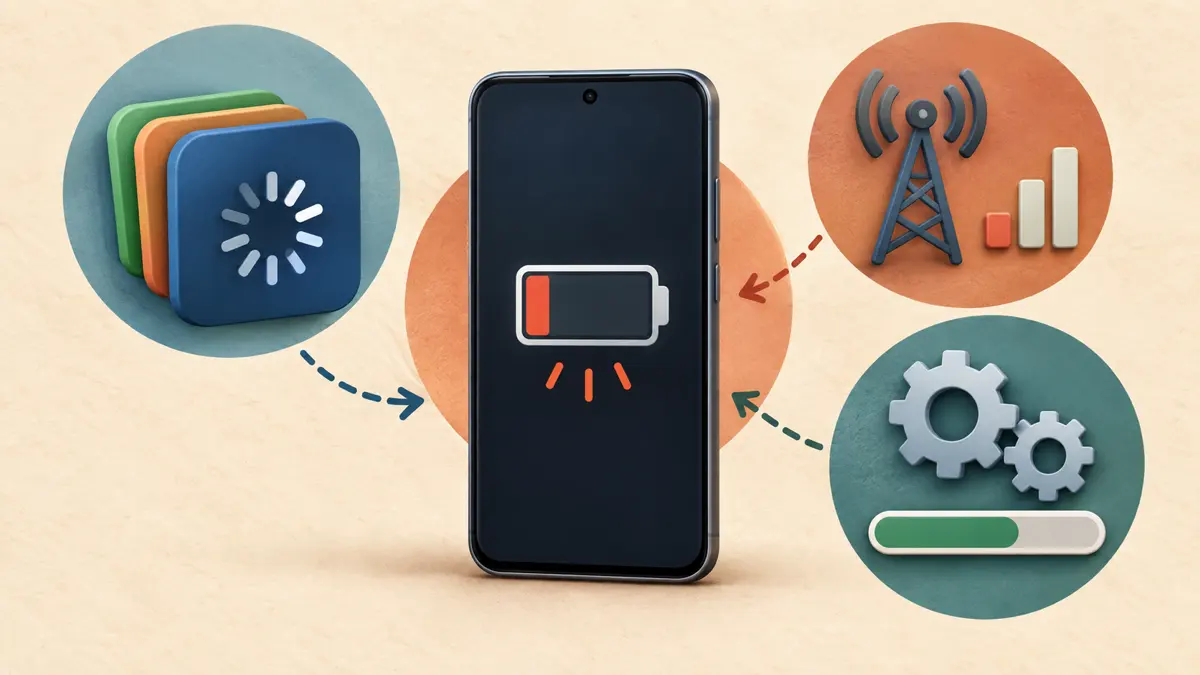
- Confirm the timing. Mild drain immediately after a major update can reflect app updates, account sync, media scanning, and optimization. Give the phone one normal charge cycle if it is otherwise stable.
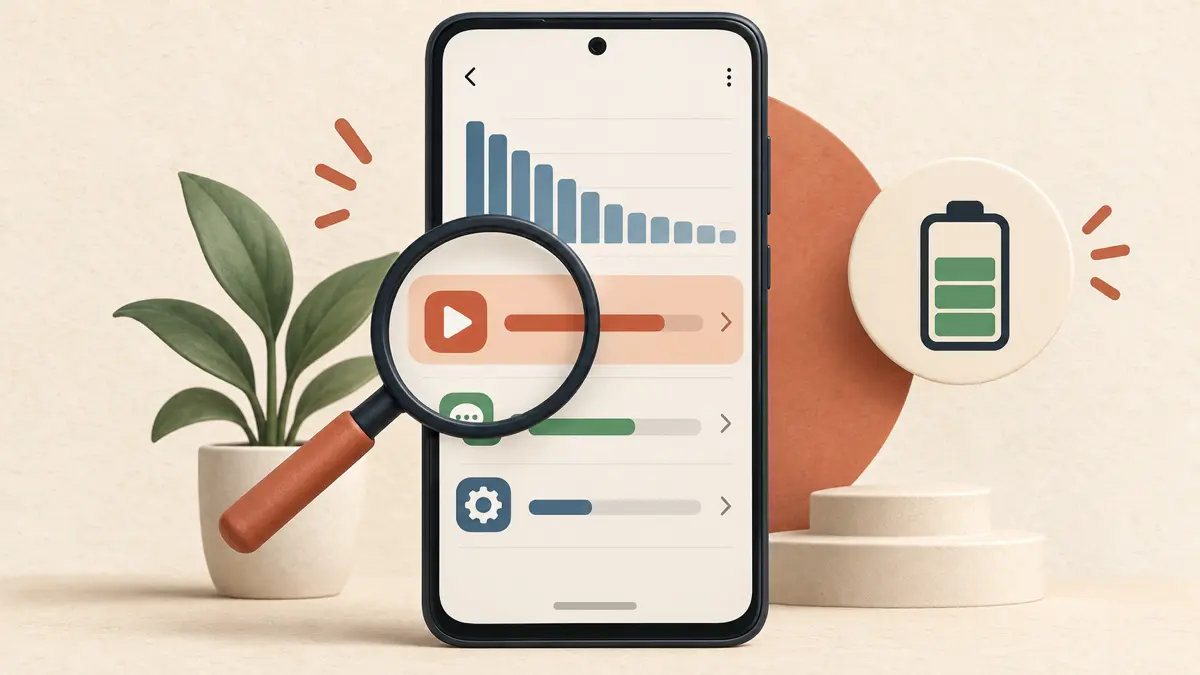
- Check the battery graph. Go to Settings > Battery > View details. Look for an app with unusually high background use, excessive screen use, or mobile-network activity.
- Check signal strength and heat. Weak or overlapping signals make the modem work harder. Unexpected warmth while the screen is off is a stronger warning sign than a shorter day caused by heavy camera, gaming, navigation, or hotspot use.
Take a screenshot of the battery graph before changing settings. It gives you a baseline and useful evidence if you later contact Samsung Support.
Galaxy S26: Update Samsung Keyboard First
Samsung has published a specific Galaxy S26 support notice for rapid drain when Samsung Keyboard shows high battery usage. The documented fix is to update Samsung Keyboard through the Galaxy Store to version 5.9.30.81 or later, subject to regional and carrier availability.
- Open Galaxy Store.
- Search for Samsung Keyboard.
- Install the available update.
- Return to Settings > Battery > View details and monitor usage after the next charge.
If Samsung Keyboard is not consuming unusual power, do not clear its data or change keyboards only because you own an S26. Continue with the broader checks below. See Samsung’s Galaxy S26 keyboard battery guidance for the current documented fix.
Fix 1: Update One UI and Every App Store
A system update can expose an app compatibility problem, while a later app or firmware update may contain the real fix.
- Open Settings > Software update > Download and install.
- Open Galaxy Store > Menu > Updates and update Samsung apps.
- Open Google Play Store > profile picture > Manage apps & device and install pending updates.
- Restart the phone after the updates finish.
Do not assume the September 16 rollout date means every device receives the same build on the same day. Samsung says availability varies by model, country, network, and carrier. Our One UI 9 update guide tracks the wider rollout without duplicating the troubleshooting steps here.
Fix 2: Use Device Care and Find the Draining App
Samsung’s Device Care tool can identify apps using excessive battery in the background and close unnecessary processes.
- Open Settings > Device care.
- Tap Optimize now, then review any reported issue.
- Open Battery > View details.
- Tap the app using unexpected power and compare its screen-on and background activity.
Update the app first. If the drain began after that app was installed or updated, temporarily uninstall it and compare one full day of similar use. Avoid restricting messaging, health, security, navigation, or authentication apps without understanding which notifications or background tasks will stop.
Fix 3: Put Rarely Used Apps to Sleep
Open Settings > Battery > Background usage limits. Add genuinely infrequent apps to Sleeping apps or Deep sleeping apps. Deep sleeping apps run only when you open them, so they may not deliver timely notifications or complete background sync.
Also inspect Never sleeping apps. Remove apps that do not need unrestricted background access. Samsung notes that apps on this list can use additional battery because the phone will not put them to sleep automatically.
Fix 4: Test Power Saving and Light Performance Mode
Turn on Settings > Battery > Power saving for a controlled test. Depending on the model, this can limit background network use, syncing, CPU speed, brightness, Always On Display, and available background apps.
On supported Galaxy models, open Settings > Device care > Performance profile and select Light. Samsung says Light mode prioritizes battery life and cooling efficiency without applying to game performance. If drain improves sharply, re-enable features one at a time to identify the expensive setting rather than leaving every restriction enabled.
Fix 5: Check Mobile Signal, Display, and Location
- Weak signal: compare drain on stable Wi-Fi with drain in the problem location. Poor coverage can keep the modem active.
- Always On Display: temporarily disable it through Power saving or its Lock screen settings.
- Brightness and refresh rate: use Adaptive brightness and avoid maximum brightness unless needed.
- Location: review apps with constant location access and change nonessential apps to allow access only while in use.
- Hotspot, Bluetooth, and nearby-device scanning: turn off features you are not using, then compare the battery graph.
These tests are most useful when you change one group at a time. Our mobile battery management guide covers longer-term battery habits after the update-specific problem is resolved.
Fix 6: Clear the Cache of One Problem App
If the battery graph points to one app that also freezes, crashes, or syncs continuously, clear only that app’s cache.
- Open Settings > Apps.
- Select the problem app.
- Tap Storage > Clear cache.
- Restart and monitor the same app again.
Do not tap Clear data casually. Samsung warns that clearing app data resets the app and can remove its saved settings, accounts, files, or progress. Update or reinstall the app before resetting its data when possible.
A cache-partition wipe and factory reset are not first-line battery fixes. They add complexity without proving which app or service caused the drain. Use Samsung’s battery graph, app updates, Device Care, and diagnostics first.
When One UI 9 Battery Drain Is Not Normal
Escalate the problem when the phone becomes hot while idle, loses a large amount of charge overnight with the screen off, restarts unexpectedly, shows battery swelling, or continues draining rapidly after updates and app isolation.
Open Samsung Members > Support > Phone diagnostics and run the battery and device tests available on your model. Samsung also exposes diagnostics through Device Care on supported software. If the problem started immediately after One UI 9, send an error report through Samsung Members soon after reproducing it so the report can include useful system logs.
Do not describe community reports as proof of a confirmed global bug. They can show that other users have similar symptoms, but the cause may be a specific app, carrier build, radio condition, or device fault.
Last Resort: Back Up Before Resetting or Requesting Service
Before a reset, back up photos, files, messages, authenticator recovery information, and important app data. Confirm that you know the Samsung and Google Account credentials used on the phone.
A factory reset erases local data and should follow Samsung diagnostics or support advice, not replace basic troubleshooting. If the phone is swollen, unusually hot, damaged, or losing power even when turned off, stop charging it and arrange authorized service instead of repeatedly resetting the software.
For broader performance problems that accompany the drain, use our mobile device optimization guide.
Use the earlier guide when overheating is as important as battery drain or when the phone has not yet received One UI 9.
One UI 9 Battery Drain FAQs
How long should battery drain last after installing One UI 9?
Samsung does not publish one guaranteed settling period for every update. Mild extra activity during the first charge cycle can be normal, but persistent heat, heavy idle drain, or one app dominating the battery graph should be investigated immediately.
Does One UI 9 have a confirmed battery drain bug?
Samsung has not announced one universal One UI 9 battery defect affecting every upgraded phone. Reports can have different causes, including app updates, weak signal, background sync, or a model-specific issue.
What should Galaxy S26 owners check first?
Check Settings > Battery > View details. If Samsung Keyboard shows unusually high use, update it from Galaxy Store to version 5.9.30.81 or later where available, following Samsung’s official S26 support notice.
Should I factory reset my Galaxy phone for battery drain?
Not as an early step. Update the system and apps, use Device Care, isolate high-usage apps, test signal and power-saving settings, and run Samsung Members diagnostics first. Back up everything before any reset.
One UI 9 Battery Drain: What to Do Next
Start with evidence, not a reset. Check the battery graph, update the system and both app stores, fix any high-usage app, and compare drain under a stable signal with Power saving or Light performance mode enabled.
Galaxy S26 owners have one documented app-specific check: update Samsung Keyboard when it appears as a major consumer. If the phone still runs hot or drains rapidly while idle, use Samsung Members diagnostics and contact Samsung with the battery screenshot and software version.