Windows 11 KB5124008 is the September 8, 2026 cumulative security update for versions 24H2 and 25H2. It moves Windows 11 24H2 to build 26100.9445 and 25H2 to build 26200.9445.
The update fixes several August problems, including black desktop backgrounds, cursor settings that reset, and Teams or the new Outlook closing on Arm64 PCs. Microsoft has since confirmed several known issues linked to KB5124008 and later updates. Some are fixed, some are mitigated and one new issue is still open, so check the dated status table below.
AMD graphics users should also read about AMD graphics issues after KB5124008.
Install KB5124008 through Settings > Windows Update, then restart. It adds September security fixes and repairs several August bugs. It also has known issues: the Remote Desktop and Plan9 problems are fixed by KB5129195, File History is fixed by KB5124010, USB audio is only partly fixed, domain trust and virtual-desktop black screens are mitigated, and a new AC-3 audio app-crash issue is still open.
Our Windows 11 update problems page tracks the status of each one month by month.
Table of Contents
ToggleWindows 11 KB5124008 Build Numbers and Release Details
Microsoft released KB5124008 on September 8, 2026 for all editions of Windows 11 24H2 and 25H2. The correct installed build depends on the Windows version:
- Windows 11 24H2: OS build 26100.9445
- Windows 11 25H2: OS build 26200.9445
KB5124008 is cumulative. If you install it successfully, you also receive eligible fixes and improvements from earlier updates, including the August 27 preview update KB5120998. You do not need to install that preview separately.
Windows 11 24H2 Home and Pro reach end of updates on October 13, 2026. Enterprise and Education remain supported until October 12, 2027. If you use Home or Pro, read our Windows 11 24H2 end-of-support guide and plan the move to a supported version.
What KB5124008 Changes and Fixes
Microsoft lists security improvements plus a focused set of reliability fixes. The most useful changes for everyday PCs are below.
- Desktop personalization: fixes a problem that could make the wallpaper turn black or prevent other personalization settings from loading correctly.
- Mouse customization: restores pointer style and color choices that could reset or display incorrectly, particularly on non-English Windows installations.
- Teams and Outlook on Arm64: fixes crashes or launch failures affecting Microsoft Teams and the new Outlook for Windows on Arm64-based PCs.
- Remote Desktop audio: fixes configurations where audio from a remote session did not play on the local computer.
- Secure Boot: adds more device-targeting data for the continuing rollout of updated Secure Boot certificates.
- Date and time: adjusts Morocco Standard Time for the planned transition to permanent UTC+00:00 on September 20, 2026.
- Device management: improves OMA-DM client diagnostic logging for troubleshooting management-server connections.
On supported Copilot+ PCs, Microsoft also updates the Image Search, Content Extraction, Semantic Analysis, and Settings Model AI components to version 1.2608.951.0. These AI component packages do not apply to every Windows PC.

Microsoft says devices that have not yet received newer Secure Boot certificates will continue to start, and normal Windows updates will continue to install. Do not disable Secure Boot merely because you see the certificate-expiration notice.
KB5124008 Fixes Earlier August Update Problems
The September update resolves several issues people may associate with KB5120998 or KB5121003.
If your wallpaper became black or desktop settings stopped loading after KB5120998, install KB5124008 before attempting a rollback. Our black wallpaper after Windows Update guide explains the recovery steps and when rollback is only a fallback.
KB5124008 also fixes the Arm64 issue where Microsoft Teams and the new Outlook could fail to launch or close unexpectedly after the August security update KB5121003. The issue was most likely on new or freshly imaged Arm64 PCs that had not yet received current Microsoft Store packages.
The separate RGB-driver game-crash investigation connected with the August update was already addressed through a compatibility block. See our KB5121003 problems guide for the driver-specific details.
KB5124008 Known Issues: Status Updated October 6, 2026
Microsoft’s Windows release health page lists the issues below for KB5124008 and later updates. The table reflects the official status as of October 6, 2026. Installing the newest cumulative update gives you every fix released so far.
If Bluetooth devices stopped working after an update, see how to fix Bluetooth in Windows 11.
| Issue | Started with | Status (Oct 6, 2026) | What to do |
|---|---|---|---|
| Remote Desktop Services stops responding or RDP sessions drop | KB5124008 (Sept 8) | Resolved by KB5129195 (Sept 14) | Install KB5129195 or later. See Remote Desktop not connecting fixes. |
| Hyper-V Plan9 host folder shares missing in Linux VMs and WSL | KB5124008 (Sept 8) | Resolved by KB5129195 (Sept 14) | Install KB5129195 or later and restart. |
| USB Audio Class 1.0 devices show Code 10, no sound or stuck volume | KB5124008 (Sept 8) | Mitigated, partly fixed | KB5129195 fixes only the 8-channel and 3D audio symptom. Try 2-channel mode; see our USB audio fixes. |
| Domain-joined PCs lose their secure trust relationship | KB5124008 (Sept 8) | Mitigated | IT admins should disable Machine Identity Isolation where domain controllers are not Windows Server 2025 level, then repair the secure channel. |
| Black screen or desktop not loading after sign-in on virtual desktops | KB5120998 (Aug 27) and later | Mitigated | Mostly Azure Virtual Desktop with FSLogix. Start explorer.exe from Task Manager, or apply Microsoft’s Known Issue Rollback. |
| File History fails to back up or restore | KB5124008 (Sept 8) | Resolved by KB5124010 (Sept 22) and later | Install KB5124010 or a later update, then run a backup. See our File History fix guide. |
| Apps that need AC-3 (Dolby Digital) decoding close unexpectedly | KB5124010 (Sept 22) and later | Confirmed, not fixed | Mainly legacy games and media players. Use the app’s own audio settings or an updated version; do not download codecs from unofficial sites. Details here. |
Before following a fix from a forum or video, compare the reported Windows version, build number, hardware architecture, and error code with your own PC. Similar symptoms can have different causes.
How to Install KB5124008 Safely
- Save your work. Close important documents and ongoing downloads.
- Connect power. Plug in a laptop and keep the internet connection stable.
- Open Windows Update. Go to Settings > Windows Update.
- Check for updates. Select Check for updates. Windows should download the correct x64 or Arm64 package automatically.
- Install and restart. Allow the update to finish and restart when Windows requests it.
- Return to Windows Update. Confirm there is no pending restart or failed-installation message.
Do not force the computer off while Windows displays an installation or restart progress screen. The September security update is a baseline release for hotpatch-enrolled devices, so those devices also require a restart.
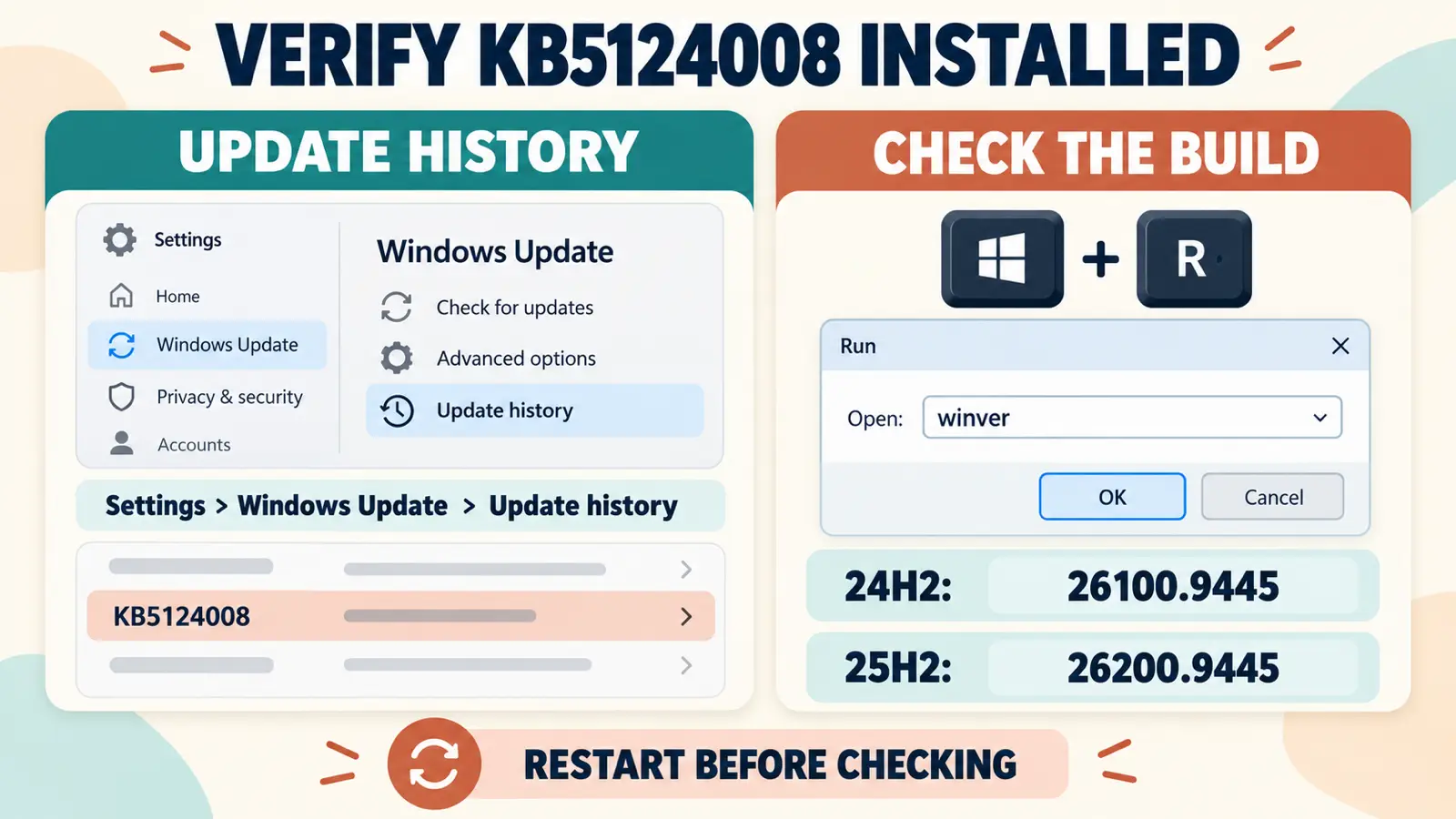
How to Check Whether KB5124008 Installed
Use either of these checks after restarting:
- Open Settings > Windows Update > Update history.
- Look under Quality Updates for 2026-09 Cumulative Update for Windows 11 with KB5124008.
- Alternatively, press Windows + R, enter
winver, and select OK.
A fully updated Windows 11 24H2 PC should show build 26100.9445. Windows 11 25H2 should show build 26200.9445. A later build can also contain the same fixes because Windows cumulative updates include earlier corrections.
What to Do If KB5124008 Will Not Install
Start with low-risk checks rather than deleting update files or changing the registry:
- Restart Windows once, then retry Windows Update.
- Disconnect nonessential USB storage and accessories.
- Check that the system drive has enough free space under Settings > System > Storage.
- Run Settings > System > Troubleshoot > Other troubleshooters > Windows Update.
- Record the exact error code before using a more advanced repair.
If Windows reports error 0x80073712, follow our Windows Update error 0x80073712 guide. It explains DISM and System File Checker in a safer order.
If the PC shows a blue screen after the update, note the stop code and use our Windows BSOD troubleshooting guide. Do not assume the cumulative update is the cause until you check recent drivers and the stop-code evidence.
How to Install KB5124008 Manually
Use manual installation only if Windows Update repeatedly fails and the PC can otherwise start normally.
- Open Settings > System > About and confirm Windows 11 24H2 or 25H2 plus x64 or Arm64 architecture.
- Open the official Microsoft Update Catalog results for KB5124008.
- Download the package matching the Windows version and architecture.
- Follow Microsoft’s package instructions. Some installations require multiple MSU files to remain together or to be installed in the documented order.
- Restart and verify the final build with
winver.
Do not download MSU packages from third-party update sites. Administrators updating installation media should also follow Microsoft’s boot.stl guidance because mismatched deployment files can cause error 0xc0430001.
Should You Install KB5124008?
Yes, for most supported Windows 11 24H2 and 25H2 PCs. It is a security update, carries forward previous cumulative improvements, and resolves several confirmed August problems.
If your organization manages Windows updates, follow its deployment schedule. On a personal computer, use Windows Update so Microsoft can select the correct package, and prefer the newest cumulative update because it includes the later fixes for Remote Desktop, Plan9 sharing and File History. Back up important files first, and check the known-issues table above if you depend on USB audio or older apps that use AC-3 audio.
If you cannot print or save PDFs after installing, see this PDF printing fix.
Frequently Asked Questions
What is KB5124008?
KB5124008 is Microsoft’s September 8, 2026 cumulative security update for Windows 11 versions 24H2 and 25H2. It includes security improvements and fixes several confirmed August problems.
What build number does KB5124008 install?
It installs build 26100.9445 on Windows 11 24H2 and build 26200.9445 on Windows 11 25H2.
Does KB5124008 have known issues?
Yes. Microsoft has confirmed several issues. Remote Desktop and Plan9 sharing are fixed by KB5129195, and File History is fixed by KB5124010. USB audio is only partly fixed, domain trust and virtual-desktop black screens are mitigated, and an AC-3 audio app-crash issue from KB5124010 is still open. See the status table above.
Does KB5124008 fix the black wallpaper problem?
Yes. Microsoft says KB5124008 fixes the issue where desktop backgrounds and other personalization settings could fail to load correctly after KB5120998 or later updates.
Does KB5124008 fix Teams and Outlook on Arm64 PCs?
Yes. Microsoft lists a fix for Teams and the new Outlook unexpectedly closing or failing to launch on Arm64-based PCs.
Can I uninstall KB5124008?
Windows may offer an uninstall option, but removal also removes its security and reliability fixes. Troubleshoot the specific symptom first and use uninstall only as a temporary recovery step when evidence points to this update.
Keep Windows 11 Updated and Verify the Build
KB5124008 is more than a routine version-number change: it closes the September security gap and resolves several confirmed problems from August. Install it through Windows Update, restart, and verify build 26100.9445 on 24H2 or 26200.9445 on 25H2.
Because Microsoft can revise known-issue information, use the official KB5124008 release notes as the final source for any later status change.