Windows 11, version 25H2 is available for eligible Home and Pro PCs through Windows Update. If your computer is already running Windows 11 24H2, the update installs in minutes, because it uses a small “enablement package” instead of a full reinstall.
This guide covers what is actually new in Windows 11 25H2, how to check which version your PC has, how to get the update now if Windows Update has not offered it yet, and whether it makes sense to upgrade right away.
Windows 11 25H2 is a light update, not a redesign. Most of what is new, including Quick Machine Recovery, File Explorer and Task Manager tweaks, and Wi-Fi 7 support, already arrived through earlier monthly updates and was simply switched on. Because it shares the same code as 24H2, the upgrade is usually much quicker than a full feature update. If your PC is already on 24H2, back up important files and install 25H2 when Windows Update offers it.
Table of Contents
ToggleWhat Is Windows 11 25H2?
Windows 11, version 25H2 is Microsoft’s annual feature update, and it is now generally available for eligible PCs. Unlike some past feature updates, it does not behave like a brand-new operating system install.
Windows 11 24H2 and 25H2 share the same underlying build and servicing branch. According to Microsoft’s official 25H2 documentation, most of the files needed for 25H2 already exist on a 24H2 PC that has recent updates installed. Many of the new features sit dormant until an enablement package switches them on.
That is why 25H2 typically installs with a single restart instead of a lengthy download and setup process, as long as your PC is already running 24H2.

What’s Actually New in Windows 11, Version 25H2
Because 25H2 reuses the 24H2 codebase, many of its “new” features were already delivered through monthly updates over the past year and were sitting inactive until this update turned them on. Here is what changes, based on Microsoft’s official release notes.
Features You’ll Actually Notice
- Quick Machine Recovery. If your PC repeatedly fails to start, Windows can automatically search for a fix in the cloud and apply it, instead of leaving you stuck in the recovery environment.
- File Explorer improvements. A “New Folder” option now appears when you right-click in the left-hand navigation pane, you can choose to reopen your previous folder windows at sign-in, and extracting large .7z or .rar archives is noticeably faster.
- Task Manager changes. Memory speed now displays in MT/s instead of MHz, processes close and release resources faster, and the app is easier to resize and navigate with a screen reader. If you preferred the old CPU usage number, you can re-enable it as an optional “CPU Utility” column.
- Taskbar and permission prompts. The taskbar automatically shrinks icons to fit more apps when space runs low, and prompts asking for camera, microphone, or location access use a clearer, redesigned dialog.
- Windows Hello and passkeys. Sign-in screens were redesigned to make it clearer when you are choosing between a PIN, fingerprint, face recognition, or a passkey on another device.
Changes Mostly for IT Admins and Businesses
Several 25H2 changes matter more for managed workplace PCs than home use:
- Policy-based removal of preinstalled Microsoft Store apps on Enterprise and Education editions.
- Support for Wi-Fi 7 enterprise access points.
- Windows Backup for Organizations is now generally available for easier device-to-device migrations.
- Taskbar pinning policies now apply without restarting explorer.exe, and admins can manage Energy Saver settings through Microsoft Intune.
If you are on a personal, unmanaged PC, none of this requires any action from you.
What Got Removed
Two components are gone in Windows 11 25H2:
- PowerShell 2.0 is no longer included. If you rely on old scripts written for it, update them to run on a current version of PowerShell.
- WMIC (the Windows Management Instrumentation command-line tool) is uninstalled by this update. It can still be reinstalled through optional features or DISM, but Microsoft has said it will be fully removed in a future release, so it is worth updating any scripts that still depend on it.
You may also see mentions of Recall, Click to Do, and other AI features tied to 25H2. These are real, but they are not new to this release: they are exclusive to Copilot+ PCs and arrived through earlier 24H2 updates. Windows 11 25H2 does not add new AI capabilities of its own to standard PCs.
How to Check If You Have Windows 11 25H2
Two quick ways to confirm your current version:
- Settings. Go to Settings > System > About, then check the “Version” field under Windows specifications. It will read 25H2 once the update has installed.
- Winver. Press Windows key + R, type
winver, and press Enter. Windows 11 24H2 is OS Build 26100; Windows 11 25H2 is OS Build 26200 or higher.
If Settings and winver briefly disagree right after an update, trust the version shown in Settings, and check again after your next restart.
How to Get Windows 11 25H2 Now
If your eligible PC has not received the update yet, start with Windows Update and do not bypass a compatibility hold.
Check for It Manually
Go to Settings > Windows Update and select Check for updates. If your PC is ready, you will see the option to Download and install Windows 11, version 25H2.
Microsoft uses an intelligent rollout, so availability depends on whether the device is ready. A missing offer can indicate a compatibility hold rather than a Windows Update problem.
Use the Installation Assistant
If you do not want to wait, download the official Windows 11 Installation Assistant from Microsoft’s Download Center, run it, select Accept and install, then restart when prompted. This also works for an eligible Windows 10 PC that wants to move straight to Windows 11 25H2.
Skip this step if Windows Update is deliberately withholding the update from your PC. Microsoft sometimes places a compatibility hold on specific hardware or driver combinations until a fix is ready, and forcing the install past a hold can cause the exact problem it was meant to prevent.
Before You Upgrade: A Quick Prep Checklist
Windows 11 25H2 is designed to keep your files, apps, and most settings in place. A few minutes of preparation still lowers the odds of a bumpy update, especially if your PC has not restarted or updated in a while.
- Back up anything irreplaceable. Copy important files to OneDrive, an external drive, or another cloud service before any feature update, just in case.
- Install current updates first. Go to Settings > Windows Update and clear any pending monthly updates before installing 25H2. This is also what makes the enablement package install so quickly.
- Free up disk space. Aim for at least a few gigabytes of free space so the update has room to stage files and create a rollback point.
- Check for a compatibility hold. If Windows Update is not offering 25H2 yet, it may be intentional. Search your PC model plus “25H2 known issue” before forcing the install with the Installation Assistant.
- Note your current build number. Write down the version shown by
winverbefore you start, so you have something to compare against if you need to troubleshoot afterward.
If you manage more than one PC, install 25H2 on a single, less critical device first. Use it normally for a few days before rolling the update out to the rest of your machines.
Still running 24H2 and not sure why the deadline matters? This explains the exact support date and what happens if you do not move to a supported version.
Current Known Issues to Watch For
As of early September 2026, Microsoft lists several confirmed issues on top of the latest monthly updates for Windows 11 24H2 and 25H2. None of them are caused by moving to version 25H2 itself, but they are worth knowing about before you install the newest updates.
- Desktop backgrounds turning black. After installing the August 27, 2026 update (KB5120998), some desktop background and slideshow settings fail to load and default to a plain black screen.
- Teams and Outlook not launching on some ARM PCs. After the August 11, 2026 security update (KB5121003), Teams and the new Outlook can fail to open on ARM-based devices such as Surface Pro 11 and Surface Laptop 7. Microsoft’s workaround is updating the Auto Super Resolution package through the Microsoft Store. For more on this update, see our guide to KB5121003 problems.
- Mouse cursor settings resetting on non-English Windows installations after the same August 27 update.
- False “Defender is turned off” notifications after a recent Microsoft Defender Antivirus update, even though Defender is still active and working normally.
Microsoft is tracking all of these on its Windows 11, version 25H2 release health page, which is the most current source for new issues as they are confirmed or resolved.
Should You Upgrade to Windows 11 25H2 Now?
For most Home and Pro PCs already running 24H2, upgrading is reasonable when Windows Update offers it. The enablement package is smaller and quicker than a traditional full feature upgrade, but normal backup and compatibility precautions still apply.
A few situations call for a short pause instead:
- Windows Update shows a compatibility hold. Do not force the upgrade with installation media; wait until Microsoft or the device maker resolves the affected driver or app issue.
- You use an ARM-based PC, such as a Surface Pro 11 or Surface Laptop 7, and rely on Teams or the new Outlook. Install Microsoft Store updates, including Auto Super Resolution Package version 1.0.19.0 or later.
- You are affected by the current black-background or cursor-reset issue. Check Microsoft’s release-health page before installing the latest monthly update because those problems remain confirmed as of September 2026.
- You manage several business PCs. Pilot 25H2 on a few machines, confirm line-of-business software works, and then expand deployment.
If you are still on Windows 10 and eligible to move to Windows 11, there is no reason to install 24H2 first. Go straight to 25H2, since it is the current supported version.
Still deciding between staying on Windows 10 or moving to Windows 11? This breaks down your options and the extended security update deadline.
Windows 11 25H2 vs. 24H2 vs. the Upcoming 26H2
It helps to know where 25H2 sits in Microsoft’s release calendar:
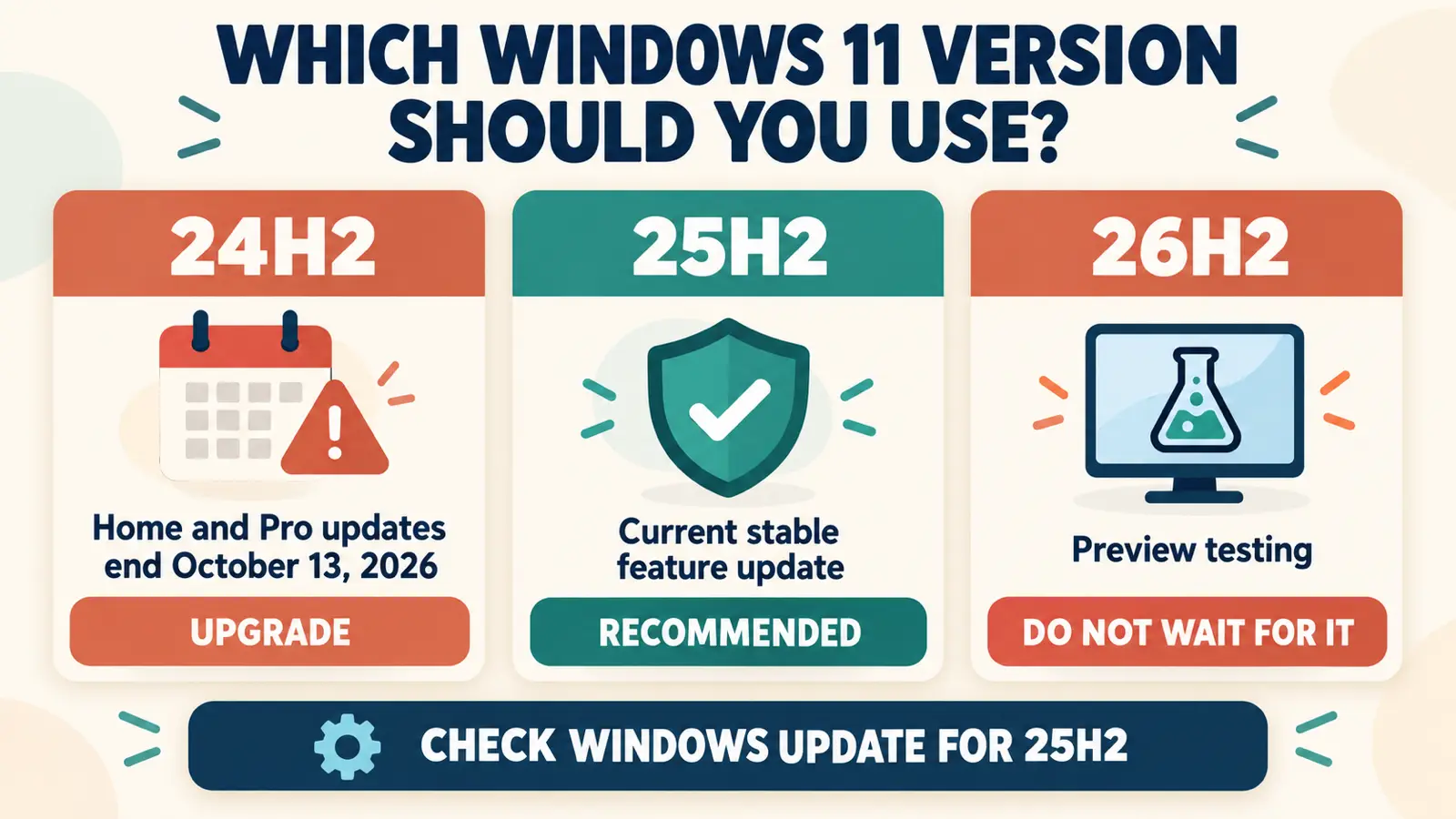
- Windows 11 24H2 (OS Build 26100): released in 2024. Home and Pro editions stop receiving updates on October 13, 2026.
- Windows 11 25H2 (OS Build 26200): the current annual update, rolling out now as a fast, low-risk switch-on for 24H2 PCs.
- Windows 11 26H2: Microsoft’s next annual update, already in preview and expected to begin its own rollout later in 2026.
For most 24H2 Home and Pro PCs, waiting for 26H2 offers little advantage because 24H2 reaches end of updates on October 13, 2026. Install 25H2 when offered unless a compatibility hold or a business testing requirement gives you a reason to wait.
Frequently Asked Questions
What Windows build number is Windows 11 25H2?
Windows 11 25H2 corresponds to OS Build 26200 and higher. Windows 11 24H2 is OS Build 26100. You can check yours by pressing Windows key + R, typing winver, and pressing Enter.
Is Windows 11 25H2 a major update?
No. Because it shares the same code as 24H2, it installs through a small enablement package rather than a full feature-update download, and most of its individual changes already arrived through earlier monthly updates.
Do I have to do anything to install it?
No. Windows Update installs it automatically for eligible Home and Pro PCs through a gradual rollout. You can force a check under Settings > Windows Update, or use the Installation Assistant if you do not want to wait.
Will installing Windows 11 25H2 delete my files or apps?
No. It is a feature update, not a clean install, so your files, apps, and most settings carry over automatically.
What happens to Windows 11 24H2 once 25H2 is out?
24H2 keeps receiving updates until its own support deadline of October 13, 2026 for Home and Pro editions, but Microsoft recommends moving to 25H2 as the supported path forward.
Should I wait for Windows 11 26H2 instead?
Usually not. Microsoft has placed 26H2 in the Release Preview Channel ahead of general availability later in 2026. Because 24H2 Home and Pro support ends on October 13, 2026, install 25H2 when offered unless your PC has a compatibility hold.
The Bottom Line
Windows 11 25H2 is a comparatively small feature update for PCs already running 24H2. Most of what is new already arrived quietly over the past year, and this release just switches those features on for good.
For a typical Home or Pro PC already running 24H2, back up important files, check Settings > Windows Update, and install 25H2 when it is offered. If Windows Update withholds it, do not force the upgrade past a compatibility hold.