


Mobile storage running low is one of the most frustrating problems on a phone, especially when a storage full message appears while you are trying to take a photo or install an update. Low mobile storage slows your phone down and blocks everyday tasks.
The good news is that most phones are full of files you do not need. A short clean-up can often recover several gigabytes without deleting anything you care about.
This guide covers the quickest wins first, then the deeper clean-ups, and finishes with habits that stop your mobile storage filling up again.
Mobile storage fills up fast because photos, videos, app caches, and downloads pile up quietly in the background. The good news is you can usually free up several gigabytes in minutes by clearing caches, removing duplicate photos, backing up media to the cloud, and deleting apps you no longer use. This guide walks through every step for both Android and iPhone, starting with the fixes that free the most space.
Table of Contents
ToggleWhy Your Mobile Storage Fills Up So Fast
Modern phones take large, high-resolution photos and videos, and a single minute of 4K video can use several hundred megabytes.
Apps also grow over time. They store cached data, downloads, and offline content that can swell to gigabytes without you noticing.
Messaging apps are a common culprit, quietly saving every photo, video, and voice note people send you.
Add downloads, old files, and system data on top, and it is easy to see why mobile storage disappears faster than expected.
How to Check What Is Using Your Mobile Storage
Before deleting anything, it helps to see where your space has gone. Both Android and iPhone have a built-in breakdown.
On Android, open Settings, then Storage. You will see categories for apps, photos, videos, and files, with the biggest users near the top.
On iPhone, open Settings, then General, then iPhone Storage. A colour bar shows what is using space, along with tailored suggestions.
Start with whatever is largest. Fixing the biggest category first frees the most mobile storage for the least effort.
Android’s own storage help guide covers a few more built-in tools worth knowing about.
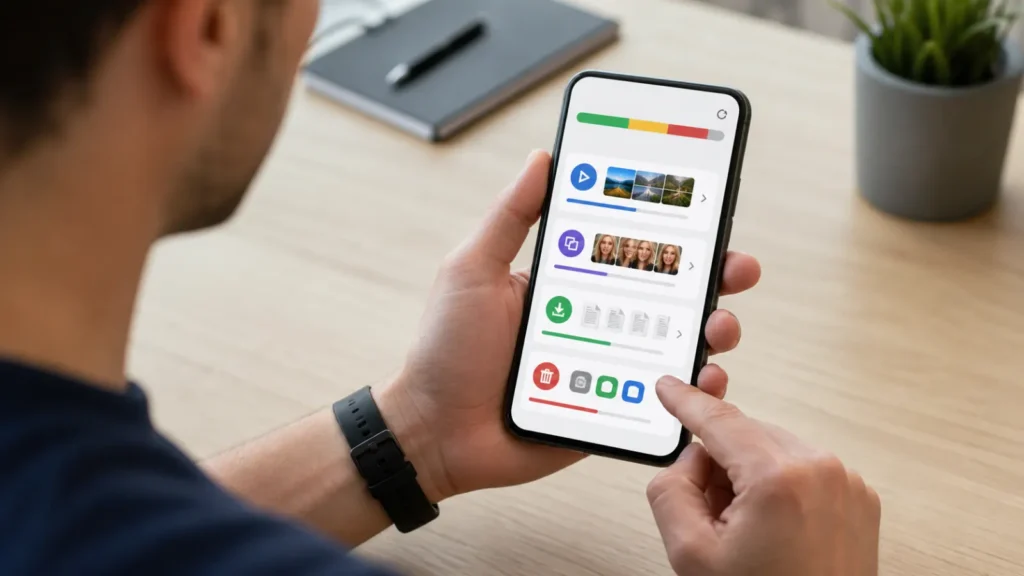
Take a screenshot of your storage breakdown before you start. Comparing it afterwards shows exactly how much space you recovered.
Best Ways to Free Up Mobile Storage
Clear the App Cache to Reclaim Mobile Storage
Cached files help apps load faster, but they build up and can take gigabytes over time. Clearing them is safe and does not delete your accounts or content.
On Android, open Settings, then Apps, choose an app, tap Storage, and select Clear cache. Do this for your biggest apps like the browser and social media.
iPhone does not have a single clear-cache button, but you can offload an app or clear cache from within some apps, such as a browser’s settings.
Cache clearing is a great first move because the space comes back immediately and the apps simply rebuild what they need.
Delete Duplicate and Blurry Photos
Your camera roll is usually the single biggest user of mobile storage, and much of it is duplicates, screenshots, and near-identical shots.
Scroll through and delete obvious repeats, blurry photos, and screenshots you no longer need. Even a few hundred photos can add up to a gigabyte.
Apps like Google Photos and Files by Google can find duplicates for you, which makes the job far quicker.
Remember to empty the Recently Deleted or Trash folder afterwards, or the space will not actually free up for up to 30 days.
Back Up Photos and Videos to the Cloud
The safest way to free large amounts of mobile storage is to back up your media to the cloud, then remove the local copies.
Google Photos, iCloud, and OneDrive all back up automatically and let you view your pictures any time you have a connection.
Once a backup finishes, use the free up space option to remove copies already stored safely online.
This can recover many gigabytes at once while keeping every photo and video safe.

Remove Apps You No Longer Use
Unused apps take space, run in the background, and clutter your home screen. Removing them is one of the easiest wins.
On Android, press and hold an app, then choose Uninstall. On iPhone, press and hold, then tap Remove App.
iPhone also has an Offload App option that removes the app but keeps its data, so you can reinstall later without losing your place.
Be honest about what you actually open. If you have not used an app in a few months, you probably will not miss it.
Clear Downloads and the Files Folder
The Downloads folder is a hidden hoard of PDFs, images, and installers you saved once and forgot.
Open your Files or Downloads app, sort by size, and delete anything you no longer need.
Old installer files, saved documents, and one-off downloads often reclaim a surprising amount of mobile storage.
Make this a monthly habit and the folder will never balloon again.
Manage WhatsApp and Other Chat App Media
Chat apps save every photo, video, and voice note automatically, and over months this becomes one of the largest space users on your phone.
In WhatsApp, open Settings, then Storage and data, then Manage storage. It shows the largest files and lets you delete them in bulk.
Turn off automatic media downloads in the same settings so new files no longer save without your say-so.
Doing this once and adjusting the settings can free gigabytes and stop the problem returning.
Offload Large Videos and Games
Videos and games are often the biggest single files on a phone, so moving or removing them frees the most mobile storage.
Copy long videos to a computer or cloud drive, then delete them from the phone.
For games you have finished, uninstall them and reinstall later if you return. Your progress is usually saved to your account.
Just two or three large games can easily take up more space than hundreds of photos.
Use a Storage Cleaner App Safely
Cleaner apps can help, but they need care. Some are useful, while others are full of ads or make vague promises.
Files by Google is a trustworthy, free option that suggests safe items to delete, such as junk files and duplicates.
Avoid apps that demand lots of permissions or claim to dramatically speed up your phone, as these often do little and may harm privacy.
When in doubt, stick to the built-in storage tools, which are safe and effective for most people.
Use Built-In Storage Tools
Mobile Storage Tips for Android
Android gives you extra control over mobile storage that is worth knowing about.
- Use the built-in Free up space tool in Settings, Storage
- Move photos and files to a microSD card if your phone supports one
- Turn on Smart Storage to auto-remove backed-up photos
- Use Files by Google to find and clear junk
These options make it easy to keep an Android phone lean without much ongoing effort.
Mobile Storage Tips for iPhone
iPhone has its own set of helpful storage features built into Settings.
- Turn on Optimise iPhone Storage so full-resolution photos live in iCloud
- Use Offload Unused Apps to remove apps automatically while keeping their data
- Review the personalised recommendations in iPhone Storage
- Empty the Recently Deleted album in Photos
Enabling these once means your iPhone quietly manages much of its own storage from then on.
Add a microSD Card or USB Drive
If you have an Android phone with a microSD slot, a memory card is a cheap way to add lots of storage.
You can move photos, videos, and some apps to the card, freeing the built-in storage for the system and everyday apps.
For iPhones and phones without a slot, a small USB drive or wireless drive lets you offload large files when travelling.
Hardware like this is optional, but it is a simple fix if you regularly run out of space.
Habits to Keep Your Mobile Storage Free
Freeing space once is good, but a few simple habits stop the problem returning.
Turn on cloud photo backup so pictures never pile up locally.
Review your downloads and chat media once a month, which takes only a few minutes.
Delete apps as soon as you stop using them, rather than letting them gather.
With these habits, your mobile storage stays comfortable and you avoid the dreaded storage full message.
A clean phone is a fast phone. Pair these storage tips with a full performance tune-up.
Common Mistakes When Freeing Up Storage
A few missteps can cost you data or waste your effort.
The first is deleting photos without checking they are backed up first. Always confirm the cloud copy before removing local ones.
The second is forgetting the Recently Deleted folder, which still holds files for up to 30 days and keeps using space.
The third is installing several cleaner apps, which adds clutter and sometimes does more harm than good.
Once your storage is sorted, keep your battery lasting longer with these tips.
What to Do When Your Phone Says Storage Full During an Update
A common moment of panic is seeing storage full right when a system update wants to install.
Updates need temporary space to unpack, so even a few hundred megabytes can block them. Clearing app caches is the fastest way to make room.
Deleting one or two large videos or games usually frees enough space for the update to continue.
Once the update finishes, you can reinstall anything you removed, so this is a safe short-term fix.
Frequently Asked Questions
How do I free up mobile storage quickly?
Start by clearing app caches, deleting duplicate photos, and backing up your camera roll to the cloud before removing the local copies. These three steps usually free the most space in the least time.
Does clearing the cache delete my data?
No. Clearing the cache only removes temporary files that apps rebuild automatically. Your accounts, messages, and saved content stay untouched.
Why is my phone full when I have deleted so much?
Check the Recently Deleted or Trash folder, which keeps files for up to 30 days. Emptying it releases the space. Chat app media and app caches are also common hidden culprits.
Should I use a storage cleaner app?
You can, but stick to trusted options like Files by Google. Avoid apps that demand lots of permissions or promise dramatic speed boosts, as these often do little and may risk your privacy.
What uses the most mobile storage?
Photos and videos are usually the largest, followed by games, app caches, and chat app media. Checking your storage breakdown in Settings shows the biggest users on your phone.
Can I add more storage to my phone?
Many Android phones accept a microSD card for extra space. iPhones and phones without a slot cannot, but you can offload files to a USB drive or the cloud instead.








One Response