Virtual Machines Explained: 7 Powerful Ways to Use VMs

Anwar AlamAnwar AlamAug 4, 202613 min read0 comments
VIRTUAL MACHINES EXPLAINED.

Virtual machines explained simply: a virtual machine (VM) is a complete, software-based computer that runs inside your physical computer. It has its own operating system, applications, virtual storage, memory, and network connection, while a hypervisor controls how it uses the host machine’s hardware.

A VM is most useful when you need an isolated place to test software, learn Linux, run an older operating system, reproduce a technical problem, or build a clean development environment. It is less suitable for modern gaming, heavy video editing, or any workload that needs full access to the graphics card.

This guide explains how virtualization works, the difference between host and guest systems, which virtual machine software makes sense for Windows, macOS, and Linux, how much RAM and storage to allocate, and the security limits beginners should understand before they start.

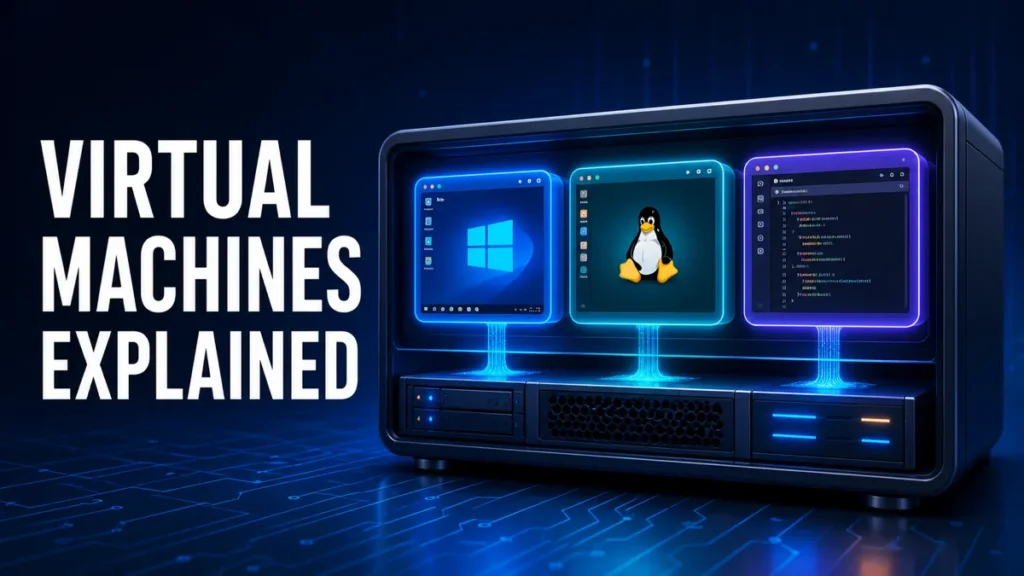
Virtual machines explained with multiple isolated operating systems
Quick Answer

A virtual machine is a software-based computer that runs a separate operating system inside your current computer. It is useful for testing software, learning Linux, running legacy applications, and building isolated labs, but it shares the host computer’s processor, memory, and storage.

Developer using a computer environment for virtual machine software testing
Photo: Rob Wingate / Unsplash

A physical computer contains a processor, memory, storage, network hardware, and other components. A virtual machine receives software-defined versions of those same components.

When you create a VM, you normally choose the guest operating system, the amount of virtual RAM, the number of virtual processor cores, the size of the virtual disk, the network mode, and whether the guest can use USB devices or shared folders.

The guest operating system sees these resources as if they were real hardware. Its virtual hard disk is normally stored as one or more files on the host computer, but it appears as a normal drive inside the guest.

The physical computer and its main operating system are called the host. The operating system installed inside the VM is called the guest. The virtualization layer that creates and controls the VM is called the hypervisor.

Several VMs can run on one physical computer if the host has enough processing power, memory, and storage. One VM might run Ubuntu for programming, another might run Windows for compatibility testing, and a third could reproduce a customer’s software configuration.

This separation is one of the main benefits of virtualization. Changes inside one VM normally do not alter another VM or the host. However, isolation is not absolute. Shared folders, shared clipboards, USB passthrough, network connections, unpatched software, and incorrect permissions can create paths between the guest and host.

The result is that the guest behaves like a separate computer, even though every resource it uses comes from the host.

VirtualBox, VMware or Hyper-V: Which Should You Choose?

Physical server racks hosting multiple virtual machines in a data center
Photo: Panumas Nikhomkhai / Pexels

There is no single best hypervisor for every computer.

Oracle VirtualBox is a practical starting point for personal and educational projects. It supports common host platforms and provides snapshots, virtual networking, shared folders, and guest utilities. Compatibility depends on the host processor architecture, so an Arm-based computer cannot automatically run every x86 operating-system image as a normal hardware-virtualized VM.

VMware Workstation Pro is designed for Windows and Linux hosts, while VMware Fusion Pro serves macOS. Broadcom made Workstation and Fusion free for commercial, educational, and personal use in November 2024. This corrects the outdated statement in the original article that described VMware Workstation simply as a paid alternative.

Microsoft Hyper-V is built into supported Windows editions. Microsoft lists desktop Hyper-V for Windows Pro, Enterprise, and Education editions. It is not normally available as the full Hyper-V feature in Windows Home. Hyper-V is a strong choice for Windows-focused development, testing, server administration, and PowerShell management.

KVM is part of the Linux kernel and is commonly used with QEMU, libvirt, and graphical management applications. It is an important option for Linux hosts and enterprise virtualization.

Before installing a hypervisor, check the vendor’s current documentation for supported operating systems, processor architectures, hardware requirements, and licence conditions.

For most beginners, compatibility and ease of use matter far more than choosing the most advanced tool.


Can a Virtual Machine Protect You From Malware?

A VM can reduce risk by placing software in a separate environment, but it does not make untrusted software safe.

Malware inside a VM may still steal information entered inside the guest, attack other devices through the network, access shared folders, read a shared clipboard, use passed-through USB devices, or exploit an unpatched hypervisor vulnerability. It can also encrypt any files that the guest is permitted to reach.

When examining genuinely suspicious software, disable shared folders, clipboard sharing, drag-and-drop, unnecessary USB access, and bridged networking. Keep the host operating system and hypervisor fully updated. Use an isolated virtual network when possible, and never sign in to personal accounts from a malware-testing VM.

Deleting the VM after testing can remove that virtual environment, but it cannot reverse information that was already transmitted or damage done to accessible devices. A VM is therefore a useful security layer, not a guarantee.

Snapshots help you return a test machine to an earlier condition, but a snapshot is not a complete backup. Restoring one can discard files and changes created after it. Keep separate backups of any important data and store them somewhere the guest cannot modify.

If the main Windows system has already been infected, disconnect it from the network and follow a dedicated malware or ransomware recovery process and clean it with reputable antivirus software instead of relying on a new VM.

Isolation reduces risk, but it never removes it completely.

The safest approach is to create one conservative test VM before attempting advanced networking or multiple guests.

What Are Virtual Machines Actually Good For?

Virtual machines solve several real problems, but they are not necessary for every computer user.

Trying Linux is one of the best beginner uses. A VM lets you install Ubuntu, Linux Mint, Fedora, or another distribution without repartitioning the main drive. You can learn the desktop, practise terminal commands, install applications, and experiment with settings while keeping Windows available. If you decide Linux is not for you, remove the VM without changing the host’s boot configuration.

Developers and support teams use VMs to test applications in clean operating-system environments. A fresh VM helps determine whether software works without existing applications, extensions, or configuration changes interfering. A saved clean snapshot can make repeated testing faster.

Virtual machines are also useful for development. One project can have its own operating system, tools, dependencies, and settings without changing another project or the host. Containers are often lighter for individual services, but a VM remains valuable when a project requires a complete operating system or a different kernel.

IT learners can build controlled labs containing a Windows client, Linux server, and management machine on one physical computer. This is useful for learning administration and networking. Intentionally vulnerable systems must remain isolated and should never be exposed directly to the public internet.

A VM can sometimes run legacy business software that requires an older operating system. However, unsupported systems should be kept offline whenever possible, and software that depends on specialist graphics, security devices, or industrial hardware may still need a real compatible computer.

These real-world uses show where a VM genuinely helps — and where it is simply unnecessary.

Virtual Machines vs Containers: What Is the Difference?

A virtual machine includes a complete guest operating system. It has its own kernel, virtual hardware, system services, applications, and allocated resources.

A container packages an application and its dependencies while sharing the host operating system’s kernel. Containers usually start faster and consume fewer resources than full VMs, but they solve a different problem.

Choose a virtual machine when you need a complete operating system, a different operating-system kernel, an older OS, a desktop interface, stronger workload separation, or control over virtual hardware.

Choose a container when you need a lightweight application environment, fast startup, consistent software deployment, several isolated application services, or efficient use of host resources.

The two technologies can work together. Containers frequently run inside cloud virtual machines, combining VM-level infrastructure separation with lightweight application deployment.

A VM is also different from dual-booting. Dual-booting installs operating systems side by side and runs one at a time directly on the hardware. A virtual machine runs inside the current OS, allowing the host and guest to operate simultaneously. This is more convenient for testing, although the guest does not receive the same unrestricted hardware performance.

If your only goal is to organize open applications, Windows virtual desktops may be sufficient. Virtual desktops arrange windows into separate workspaces; they do not run a second operating system.

In short: a VM includes a full guest operating system, while a container shares the host kernel.

Related guide

A Beginner’s Guide to Using Virtual Desktops in Windows

Virtual desktops organize one Windows workspace; virtual machines run a separate operating system. Learn when the simpler option is enough.

How Much RAM, Storage and Processing Power Does a VM Need?

Multiple computer monitors used for virtual machine development and performance testing
Photo: Jakub Żerdzicki / Unsplash

The correct VM allocation depends on the guest operating system and what you plan to do inside it.

A lightweight Linux desktop may be usable with 2GB to 4GB of virtual RAM, while a modern Windows guest generally benefits from more memory. Always check the guest operating system’s official requirements instead of treating one number as suitable for every VM.

A computer with 8GB of total RAM has limited room for a modern desktop VM because the host also needs memory. A system with 16GB provides more flexibility for one general-purpose VM. Running several demanding VMs can require 32GB or more.

Do not assign every processor core or nearly all available RAM to the guest. Leave enough resources for the host operating system, browser, security software, and background processes. If the host begins swapping memory to disk, both systems can become very slow.

A dynamically allocated virtual disk grows as data is added up to its configured maximum. It saves physical space initially, but the host must still have enough free storage as the virtual disk expands. An SSD noticeably improves installation, startup, updating, and general responsiveness.

Virtual graphics support varies between hypervisors and host systems. Competitive gaming, high-end video production, and workloads needing unrestricted GPU access are usually poor VM candidates. Dual-booting or running directly on compatible hardware normally provides better performance for those jobs.

Whatever you allocate, always leave enough memory and processing power for the host.

i
Pro tip

Start conservatively: leave enough RAM and processor capacity for the host computer. A snapshot helps you roll back a VM, but it is not a replacement for a separate backup.

How to Create Your First Virtual Machine

The exact interface differs between hypervisors, but the general process is similar.

First, confirm that hardware virtualization is enabled. Choose a hypervisor compatible with the host operating system and processor architecture. Download the guest operating system’s ISO image from its official source.

Create a new VM and select the correct guest type. Allocate a conservative amount of RAM and processor capacity, create a virtual disk with sufficient free space, and attach the official ISO installation image. Start the VM and install the operating system just as you would on a physical computer.

After installation, add the hypervisor’s guest tools or integration utilities. These can improve display resizing, pointer behaviour, time synchronization, device support, and other integrations. Apply all operating-system and security updates before using the guest for regular work.

Create a clean snapshot before experimentation, but keep separate backups of valuable files. Snapshots depend on the underlying VM files and can consume increasing amounts of storage.

If the VM refuses to start, check whether virtualization is enabled in the computer’s UEFI or BIOS settings. Also check whether another hypervisor, security feature, or incompatible configuration is already using hardware virtualization.

Download operating-system images and virtualization software only from official vendors or projects. A hypervisor normally does not provide the guest OS or any licence required to use it. Force-powering off a VM is similar to pulling the power cable from a physical computer, so shut down the guest normally whenever possible.

Are Virtual Machines Worth Using?

Virtual machines are worth using when you have a specific need for a separate operating-system environment.

They are excellent for learning Linux, testing software, developing applications, reproducing technical problems, running some legacy programs, and building controlled IT labs. They are less suitable for graphics-intensive work or any task that needs the physical hardware’s full performance.

Start with one VM, allocate resources conservatively, keep the host and hypervisor updated, and treat snapshots as temporary recovery points rather than permanent backups. Disable unnecessary sharing features when isolation matters.

Ultimately, a VM is a compromise: you gain flexibility, repeatability, and useful separation in exchange for storage, memory, and processor overhead, plus another operating system to maintain.

If you only need separate spaces for organizing applications, use Windows virtual desktops instead. If you only need an isolated application service, a container may be lighter. Choose a VM when you genuinely need the behaviour and control of a complete, separate computer.

The official references below cover hypervisor architecture, Windows virtualization, and cloud VM planning, and the related TechSavvyHelp guides help you compare desktop organization and monitor host performance.

Official virtualization references:

Microsoft Hyper-V overview

Microsoft Azure virtual machines overview

Related TechSavvyHelp guides:

Windows virtual desktops guide

Windows Task Manager performance guide

Virtual Machines Explained: Popular Software for Windows

Choose based on your Windows edition, hardware and workload. These are the most practical options:

Oracle VirtualBox

Free and open source. A straightforward choice for Windows Home users, learners and cross-platform labs. It can host Windows, Linux, BSD and other supported guest systems.

VMware Workstation Pro

A polished option for developers, testing and advanced virtual networking on Windows or Linux hosts.

Microsoft Hyper-V

Built into Windows 10 and 11 Pro or Enterprise. It is a strong choice for Windows administration, development labs and server-style workloads.

Other guest OS choices include Linux distributions, older Windows releases and BSD systems, provided the selected hypervisor supports the guest and your processor architecture.

Virtual Machines Explained: Popular Software for macOS

macOS users can choose between polished commercial tools and flexible free alternatives:

Parallels Desktop

The easiest mainstream choice for running Windows 11 on Apple silicon Macs, with strong desktop integration and guided setup.

VMware Fusion Pro

A capable free-for-all-use option for technical users who want Windows or Linux guests on macOS.

UTM

A free and open-source choice built around Apple virtualization and QEMU. It is useful for Linux guests and architecture experimentation.

Oracle VirtualBox

A familiar cross-platform option, especially on Intel Macs. Check current Apple silicon guest limitations before choosing it.

Other guest OS choices include ARM editions of Windows and Linux on Apple silicon, while Intel Macs can support a broader range of x86 guest systems.

Virtual Machines Explained: Popular Software for Linux

Linux provides both beginner-friendly desktop tools and powerful native virtualization stacks:

QEMU and KVM

The strongest native Linux combination for performance, automation and advanced networking. It suits developers, laboratories and server workloads.

GNOME Boxes

A simple graphical front end for quickly creating desktop virtual machines with minimal configuration.

Oracle VirtualBox

A familiar cross-platform desktop option with an approachable interface and broad guest support.

VMware Workstation Pro

A polished alternative for development, snapshots and complex virtual networks on supported Linux hosts.

Other guest OS choices include Windows, BSD and many Linux distributions. Architecture compatibility still matters: an ARM host normally requires ARM guests unless software emulation is used.

i
Pro tip

→ READ NEXTWindows Task Manager Guide: Monitor Performance and ResourcesBefore running a VM, use Task Manager to check available memory, CPU load, and the impact on your host computer.

Frequently Asked Questions

Is running a VM the same as dual-booting?

No. Dual-booting installs multiple operating systems on the physical drive and runs one at a time. The selected system uses the hardware directly, which can provide better performance. A virtual machine runs inside the current operating system, allowing the host and guest to operate simultaneously. A VM is more convenient for testing and short sessions, while dual-booting may be better when the second operating system regularly needs unrestricted graphics or hardware performance.

Do I need a powerful PC to run a virtual machine?

Not necessarily. A modern computer with 16GB of RAM and an SSD can often run one general-purpose VM comfortably, provided enough memory remains for the host. A lightweight Linux guest may need less memory than a modern Windows guest. Multiple VMs, development tools, databases, graphics-heavy applications, and server labs require more RAM, processing capacity, and storage. Always start with conservative allocations and increase them only when the guest needs more.

Can a virus inside a VM infect my real computer?

It is possible. Virtual machines provide useful isolation, but they are not impenetrable security boundaries. Shared folders, shared clipboards, drag-and-drop, USB passthrough, bridged networking, and unpatched hypervisor vulnerabilities can expose the host or other devices. When testing suspicious software, disable unnecessary integrations, use an isolated network, keep the hypervisor updated, and never access personal accounts or important files from the guest.

Facebook
X
LinkedIn

Get the Weekly Fix

One email a week. Real fixes, no fluff.

Subscription Form

Join the discussion

Leave a Reply

Your email address will not be published. Required fields are marked *