Seeing a message that your Windows license will expire soon can be alarming, especially when the PC seems to be working fine.
The wording is specific for a reason. It almost always means Windows is running on a Key Management Service (KMS) activation that needs to renew, not that the copy is fake or about to stop working.
This guide explains what the message actually means, then walks through the fixes in order, from the simplest to the more technical.
The Windows license will expire soon message means a KMS-based activation has not renewed within its 180-day validity window, not that the copy is fake. Restart the PC, check Settings > System > Activation, run the Activation troubleshooter, and restart the Software Protection service. If those do not clear it, reactivate with a product key or digital license, or ask your IT administrator if this is a work PC.
Table of Contents
ToggleWhat “Windows License Will Expire Soon” Actually Means
This specific wording, with a day count attached, is a signature of Key Management Service (KMS) activation rather than a generic “not activated” state.
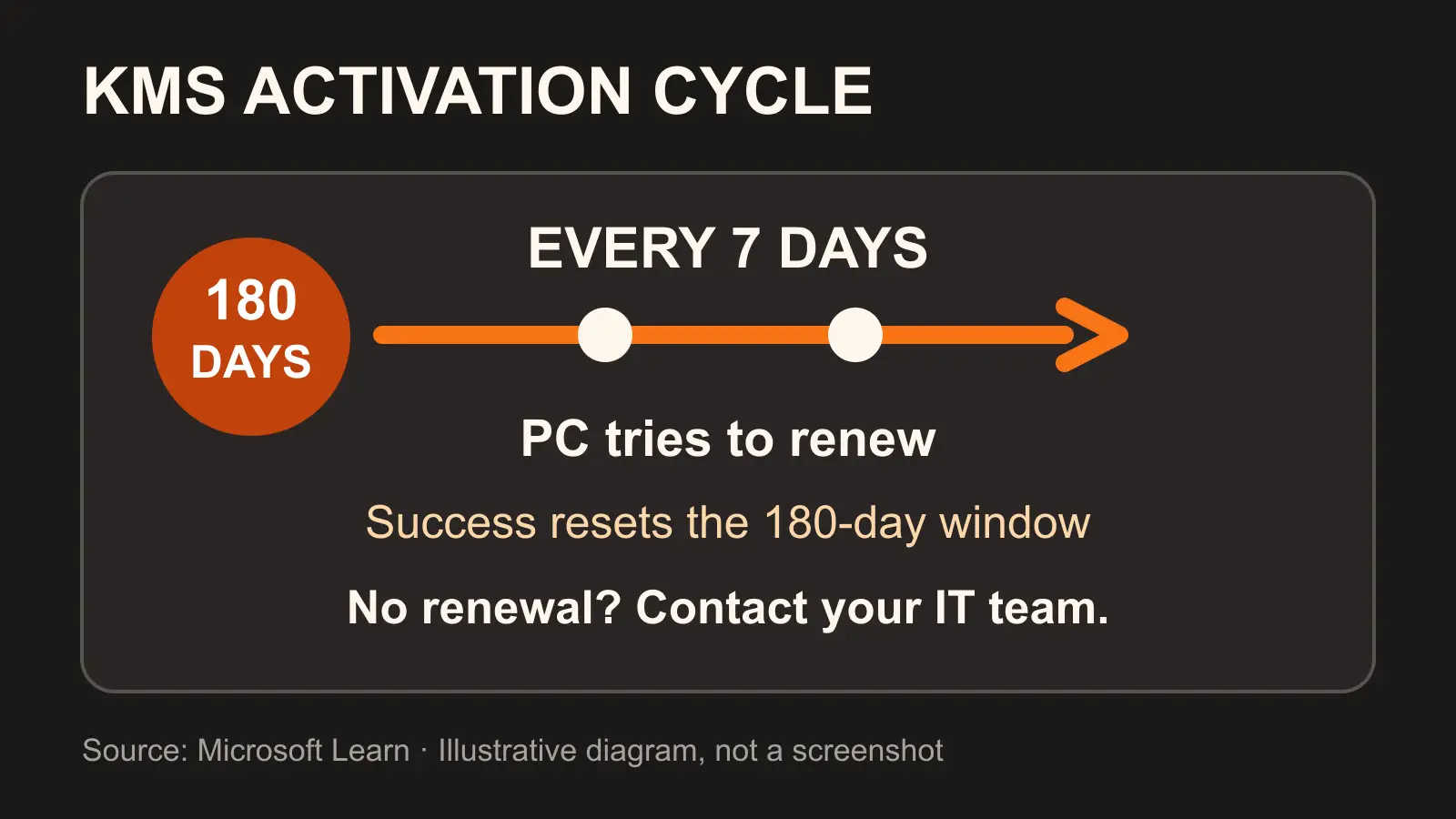
Microsoft’s own volume activation documentation confirms that a KMS-activated copy of Windows stays valid for 180 days and quietly tries to renew itself every 7 days by contacting a KMS host. If it cannot reach that host before the 180 days run out, Windows starts counting down and shows this warning.
KMS activation turns up in a few places: organization-managed work PCs, evaluation or Insider builds, virtual machines cloned from a KMS-activated image, and, very commonly, PCs that were “activated” with an unofficial KMS-emulator tool instead of a genuine license.
Why This Message Appears
A few situations trigger it:
- An organization-managed PC has lost contact with its company’s KMS server
- An unofficial activation tool was used instead of a genuine license, and its fake KMS server is not running
- A recent Windows update reset or interrupted activation data
- A hardware change, such as a new motherboard, unlinked the license
- The Software Protection service stopped or failed to start
The fixes below work regardless of which one applies, but the KMS-emulator case is worth knowing about: the message keeps returning until the PC is running on a genuine license.
KMS-emulator activators and cracks are a common cause of this exact message, and they are also a common source of malware. If one was used on this PC, the safest fix is a genuine product key or digital license, not another download of the same kind of tool.
Fix 1: Restart Your PC
A simple restart is worth trying first, and it clears the message more often than you would expect.
Save your work and do a full restart rather than sleeping the PC. That lets the Software Protection service and the KMS renewal check start fresh.
If the message returns after restarting, move on to checking your activation status.
Fix 2: Check Your Activation Status
- Open Settings with
Windows + I - Go to System, then Activation
- Read the exact status shown
Windows shows one of a few specific messages here: “Windows is activated”, “Windows is activated with a digital license”, one that says it is linked to your Microsoft account, or “Windows is not activated”. Note any error code shown too; it points to the right fix.
Fix 3: Run the Windows Activation Troubleshooter
- Open Settings, then System, then Troubleshoot
- Run the Activation troubleshooter if it is offered
- Choose the option that matches your situation, such as a recent hardware change or a digital license that needs activating
- Restart if asked
This is the tool Microsoft recommends first. It can relink a digital license to your account after a hardware change and fix edition mismatches, such as a Pro license on a Home installation, without any command-line steps.
Fix 4: Restart the Software Protection Service
- Press
Windows + R, typeservices.msc, and press Enter - Find Software Protection in the list
- Right-click it and choose Restart, or Start if it has stopped
- Close the window and check the message again
This service handles licensing checks in the background. If it stopped for any reason, restarting it can clear the warning right away.
Fix 5: Reset the Activation Timer
- Open Command Prompt as an administrator
- Type
slmgr /rearmand press Enter - Wait for the confirmation message
- Restart your PC
This is a genuine, built-in Windows tool that resets the activation timer. It is one of the more reliable fixes for a KMS-related countdown message.
The rearm command can only be run a limited number of times on a given Windows installation, so save it for when the simpler fixes above have not worked.
Fix 6: Update Windows
- Open Settings, then Windows Update
- Select Check for updates
- Install anything waiting, then restart
A buggy update can trigger this error, and a newer one often fixes it. Staying current also prevents other activation glitches from turning up later.
Fix 7: Reactivate With Your Product Key or Digital License
If the message is still showing, reactivating directly is the reliable fix.
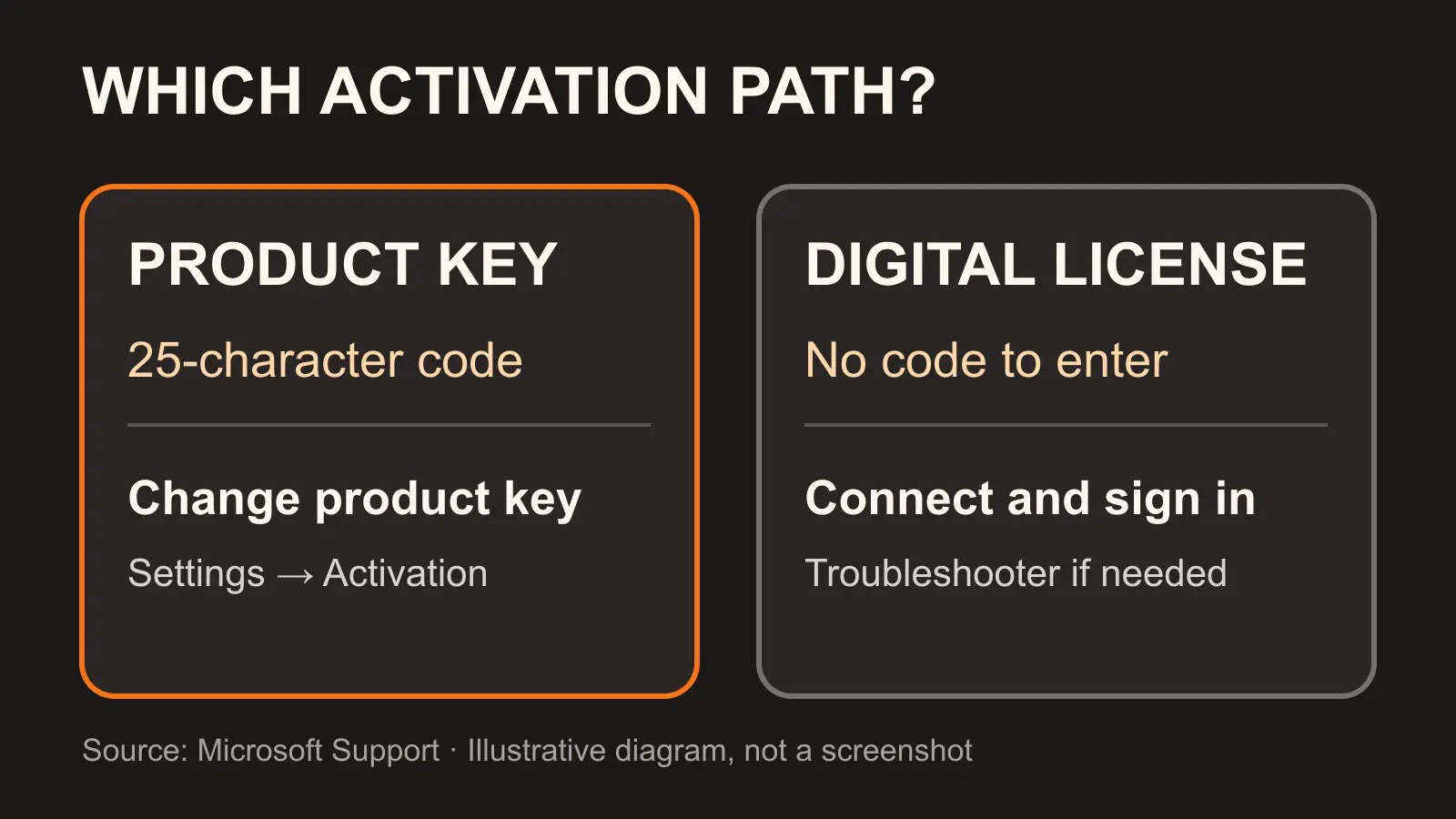
For a product key, go to Settings, System, Activation, choose Change product key, and enter your 25-character code.
For a digital license, sign in with the Microsoft account it is linked to, then run the Activation troubleshooter again. It can reactivate a digital license without any key at all.
Reactivating After a Hardware Change
Replacing major hardware, especially the motherboard, is a common reason a digital license stops matching. If your license is linked to your Microsoft account, the Activation troubleshooter can relink it: choose the option for a recent hardware change and select your device from the list.
On a new PC, the license is normally built into the hardware and the troubleshooter restores it automatically. On a second-hand PC, the previous owner’s license may not transfer, so you may need a license of your own.
Product Key vs Digital License: Which Do You Have
A product key is a 25-character code, usually on a sticker, in an email, or on the packaging.
A digital license has no code to enter. It is tied to your hardware and, ideally, your Microsoft account. Most modern PCs and upgraded copies of Windows 10 or 11 use a digital license, which is why linking it to an account matters: it makes reactivation after a change far easier.
On a Work or Organization PC?
If this is a company-managed device, Microsoft’s own guidance is direct about this exact message: it typically appears on PCs using a volume license managed by an organization, and the fix is usually on the IT side, not yours.
Contact your system administrator rather than reactivating it yourself. They can confirm the device still has network access to the company’s KMS host, or reissue activation another way.
If You Also See a “Windows Is Not Genuine” Message
Sometimes this warning appears alongside a message saying Windows is not genuine, which is a related but different problem.
That usually means the product key was already used on another PC, or the copy was never properly activated in the first place. A genuine key or digital license resolves it; a shared or invalid one will not.
What Happens If Activation Fully Lapses
If activation does lapse, Windows does not lock you out or delete anything.
A small watermark appears in the corner of the screen, and a few personalization options, like changing the wallpaper or accent color, become unavailable. Your files, apps, and everyday use keep working normally.
Security updates keep installing either way, so acting on the warning early is about convenience, not risk.
How to Prevent This From Happening Again
Link your digital license to a Microsoft account, so it can be restored automatically after a reinstall or hardware change.
Keep Windows updated, since that patches most activation-related bugs.
Keep your product key or purchase receipt somewhere safe, and avoid unofficial activation tools. They are the single most common cause of this warning coming back again and again.
A properly activated, updated Windows is also easier to keep secure — lock yours down with these 12 steps.
Once activation is sorted, Task Manager is the next tool worth knowing if your PC still feels slow.
Frequently Asked Questions
What does the Windows license will expire soon message actually mean?
It means Windows is running on a KMS-based activation that has not renewed within its 180-day validity window, not that your copy is fake. It is common on work PCs, evaluation builds, and PCs activated with unofficial tools.
How do I fix the Windows license will expire soon error?
Restart your PC, check Settings > System > Activation, run the Activation troubleshooter, restart the Software Protection service, and reactivate with your product key or digital license if it is still showing.
Does slmgr /rearm fix the error?
Often, yes. Run slmgr /rearm in an administrator Command Prompt and restart. It resets the activation timer, but it only works a limited number of times per installation.
Why do I see this message if I never bought a volume license?
On a personal PC, the most common cause is an unofficial KMS-emulator activation tool. Its fake activation server needs to keep running in the background, and the warning returns whenever it does not.
Will my files be deleted if the license expires?
No. At worst, an unactivated Windows shows a watermark and limits some personalization. Your files and data stay exactly as they are.
Can a hardware change cause this error?
Yes. Replacing major parts like the motherboard can unlink a digital license. Use the Activation troubleshooter and choose the hardware-change option to relink it.