

Windows 11 Start menu not working? Clicking Start or pressing the Windows key does nothing, or the menu opens blank and frozen. It is frustrating, but the cause is almost always a stuck process or a damaged system file rather than a broken PC.
These fixes start with quick restarts and move to system repairs. You can reach every tool without the Start menu.
Press Ctrl + Shift + Esc to open Task Manager, select Windows Explorer and choose Restart. If that does not help, sign out and back in, install pending updates, then run DISM.exe /Online /Cleanup-image /Restorehealth followed by sfc /scannow in an administrator Terminal. Test a new user account if the menu still fails.
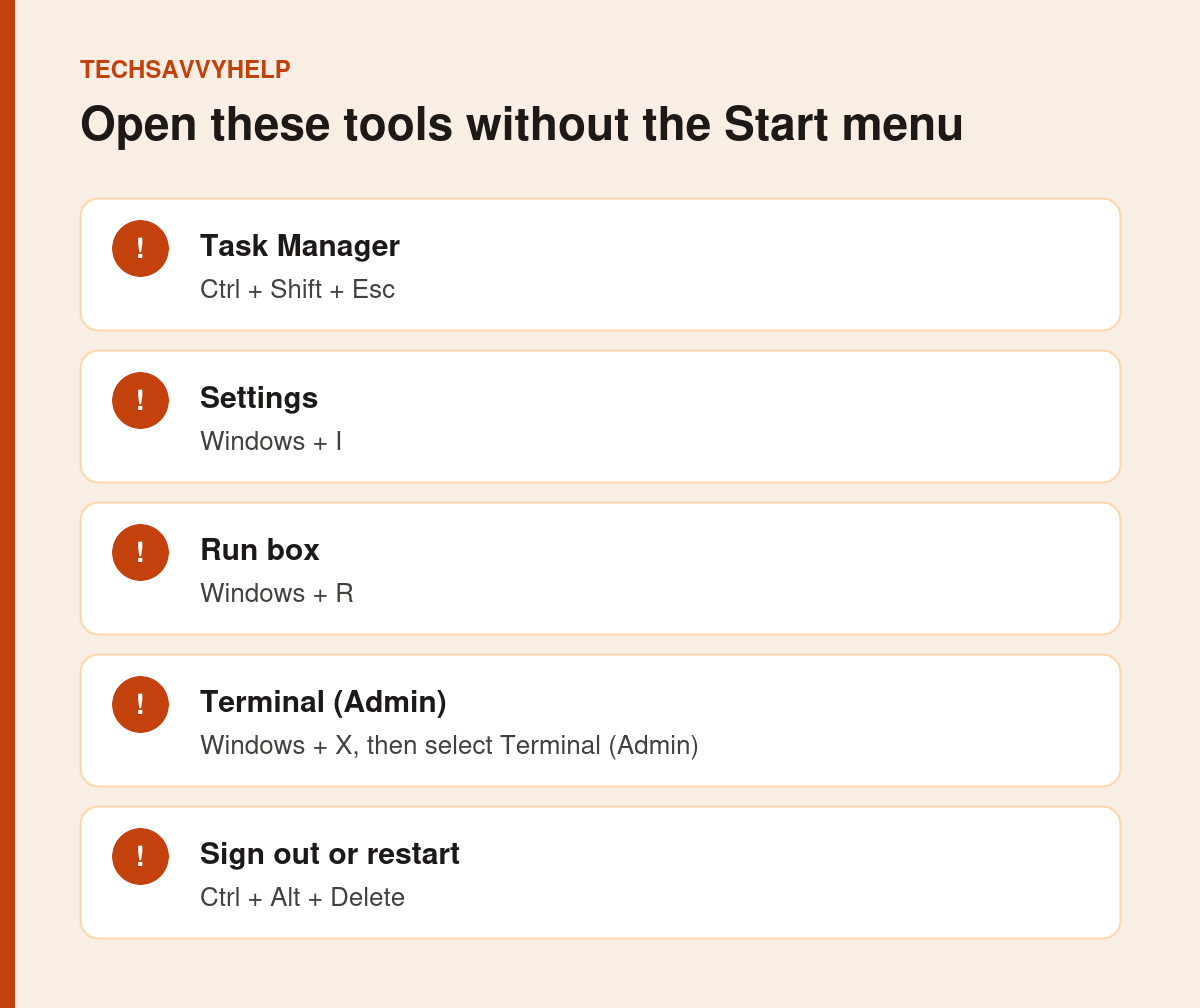
Table of Contents
ToggleFix 1: Restart Windows Explorer
Windows Explorer runs the taskbar and Start button. Restarting it fixes most frozen Start menus in seconds.
- Press
Ctrl + Shift + Escto open Task Manager. - On the Processes tab, find Windows Explorer.
- Right-click it and select Restart.
- Wait for the taskbar to reload, then try Start.
Fix 2: Restart the Start Menu Process
The Start menu has its own background process. In Task Manager, open Details, find StartMenuExperienceHost.exe, right-click it and choose End task. Windows starts it again automatically.
Fix 3: Sign Out or Restart the PC
Press Ctrl + Alt + Delete and choose Sign out, then sign back in. If that fails, restart from the same screen using the power icon. A full restart also finishes background updates, which a Microsoft moderator noted can cause Start to stop responding until they complete.
Fix 4: Install or Remove Recent Updates
Press Windows + I, open Windows Update and select Check for updates. Install everything and restart.
If the Start menu broke straight after an update, go to Windows Update > Update history > Uninstall updates and remove the newest one.
Fix 5: Repair System Files With DISM and SFC
Damaged system files can stop the Start menu loading. Microsoft says to run DISM first, then SFC.
- Press
Windows + Xand select Terminal (Admin). - Run
DISM.exe /Online /Cleanup-image /Restorehealth. It may take several minutes. - Run
sfc /scannowand leave the window open until it reaches 100%. - Restart the PC.
Commands are from Microsoft’s System File Checker guide.
Fix 6: Test in Safe Mode
Safe Mode loads only Windows’ own drivers and services. If Start works in Safe Mode, a third-party app or driver is to blame. Start menu replacement tools, taskbar tweakers and some antivirus apps are common causes.
To get there, hold Shift while selecting Restart on the sign-in or Ctrl + Alt + Delete screen, then choose Troubleshoot > Advanced options > Startup Settings > Restart and press 4.
Fix 7: Remove Start Menu Customisation Tools
Apps that change the Start menu or taskbar hook deep into Windows and often break after an update. Uninstall them, restart and test. Our guide to a program that won’t uninstall helps if one refuses to go.
Fix 8: Test a New User Account
If the Windows 11 Start menu is not working on your account but works on a new one, your user profile is damaged. Open Settings > Accounts > Other users > Add account, sign in to the new account and test Start. If it works, move your files to the new account.
Avoid PowerShell commands that re-register every built-in app. They are widely shared online but can break other apps, and Microsoft’s own steps do not require them.
Windows 11 Start Menu Not Working After All of This?
As a last step, you can reinstall Windows while keeping your files. Our guide on how to reset Windows 11 without losing files explains what is kept and what is removed. Back up first either way.
Once Start works again, set it up the way you like.
If other apps will not open either, the cause may be wider than the Start menu. These fixes cover repair and reinstall.
Frequently Asked Questions
Why is my Windows 11 Start menu not working?
Usually Windows Explorer or the Start menu process has frozen, an update is still finishing, or system files are damaged. Restart Explorer first, then repair files with DISM and SFC.
How do I open Settings without the Start menu?
Press Windows + I. You can also press Windows + X for a menu with Terminal, Device Manager and other tools.
Will DISM and SFC delete my files?
No. They only check and repair Windows system files. Your documents and apps are not touched.
Does a new user account fix the Start menu?
It does when the problem is a damaged user profile. Test Start on a new account; if it works, move your files across.







