
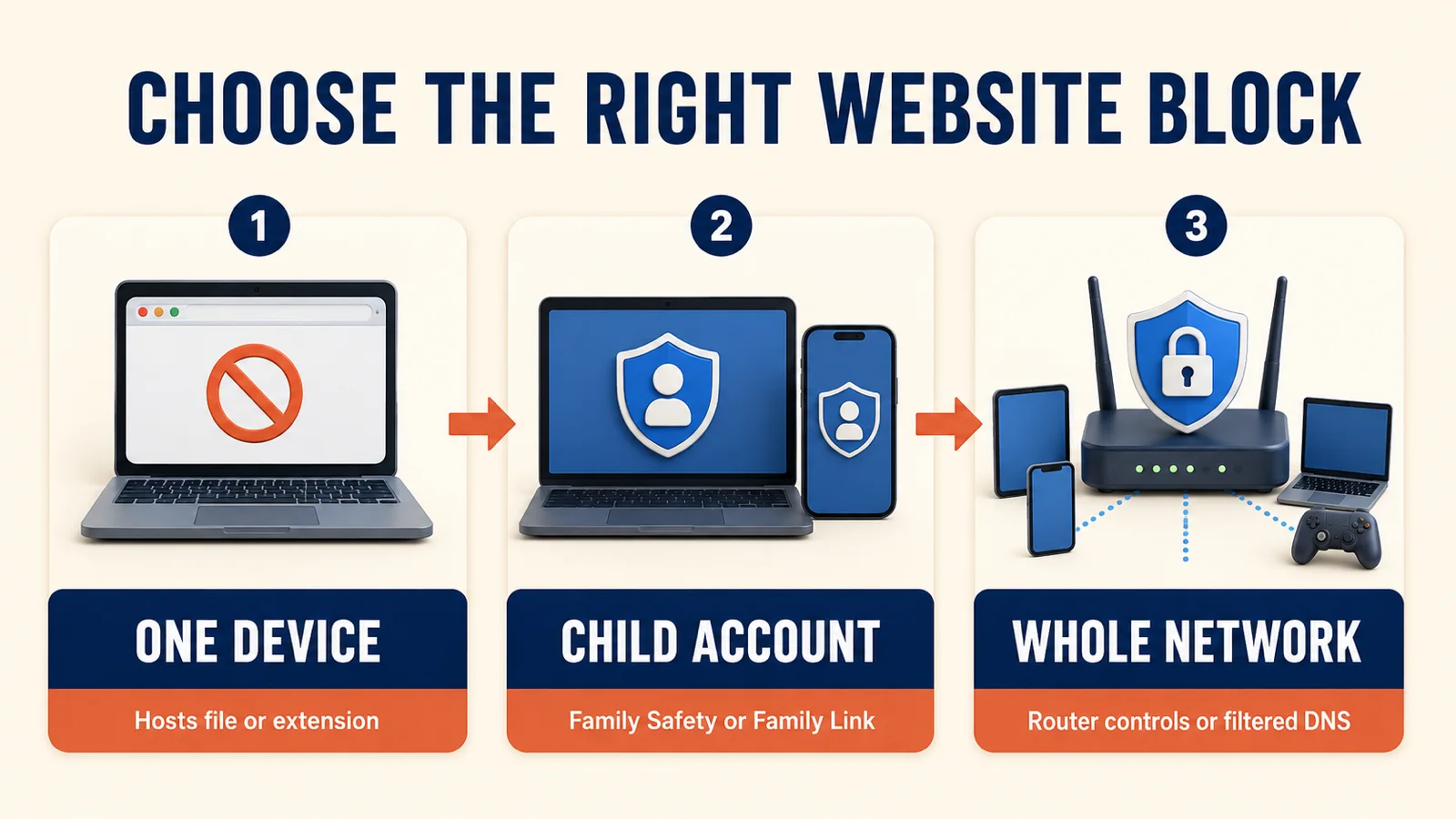
To block any website on one Windows PC, edit the hosts file or use a browser extension. For children, use Microsoft Family Safety in Edge, Apple Screen Time, or Google Family Link in Chrome. To cover every device on your home Wi-Fi, use router parental controls or filtered DNS. Choose the method by scope because no single option works everywhere.
You may want to block a distracting site during work, restrict unsafe content for a child, or stop devices on your home network from reaching a known domain. The quickest method depends on the device, browser, and whether the block must be difficult to bypass.
These six methods cover Windows, Mac, iPhone, Android, and a whole home network. Each section also explains what the block does not cover.
Table of Contents
ToggleChoose the Right Way to Block Any Website
- One Windows computer, every browser: edit the hosts file.
- One browser, with schedules: use a reputable blocking extension.
- A child using Microsoft Edge: use Microsoft Family Safety.
- An iPhone or Safari on a Mac: use Apple Screen Time.
- A child using Chrome: use Google Family Link.
- Every device on home Wi-Fi: use router controls or filtered DNS.
Method 1: Use the Hosts File on Windows
The hosts file can redirect a domain on one computer before the browser reaches it. This blocks the named domain in Chrome, Edge, Firefox, and most other apps on that PC.
- Search for Notepad, right-click it, and choose Run as administrator.
- In Notepad, open
C:\Windows\System32\drivers\etc\hosts. Change the file filter to All Files if the folder looks empty. - Add these lines at the bottom, replacing example.com with the site:
0.0.0.0 example.com0.0.0.0 www.example.com - Save the file, then open Command Prompt as administrator and run
ipconfig /flushdns.
Include both the bare domain and the www version. Add other subdomains separately if the site uses them.
Open the hosts file as administrator, delete the lines you added, save, and run ipconfig /flushdns again.
Method 2: Use a Browser Extension
A site-blocking extension is convenient when you want schedules, work sessions, or a block that applies to only one browser profile. Install one from the browser’s official add-on store, review its permissions, add the domain, and test the block in a new tab.
This is best for self-control. Anyone who can disable extensions, switch profiles, use another browser, or uninstall Chrome can bypass it. Avoid extensions that request more access than their job requires, and check recent reviews before installing.
A blocking extension may be able to read the addresses of sites you visit. Use the official store, confirm the developer, and grant the narrowest permissions available.
How to Lock Web Browser Access in Chrome — Protect the browser session itself on a shared device.
Method 3: Use Microsoft Family Safety
Microsoft Family Safety can allow or block specific sites for a family member. Open the Family Safety app or website, select the family member, open Content filters, and add the domain under blocked sites. You can also allow only approved websites.
The key limitation is browser support: Microsoft says its current web and search filters require Microsoft Edge while the family member is signed in to the managed Microsoft account. Blocking other browsers through app controls may be necessary so they cannot avoid the filter. Follow Microsoft’s current Family Safety website-filter instructions.
Set Up Parental Controls in Windows — Configure the child account, screen time, and app restrictions that support website filtering.
Method 4: Use Screen Time on iPhone or Mac
Block a Website on iPhone
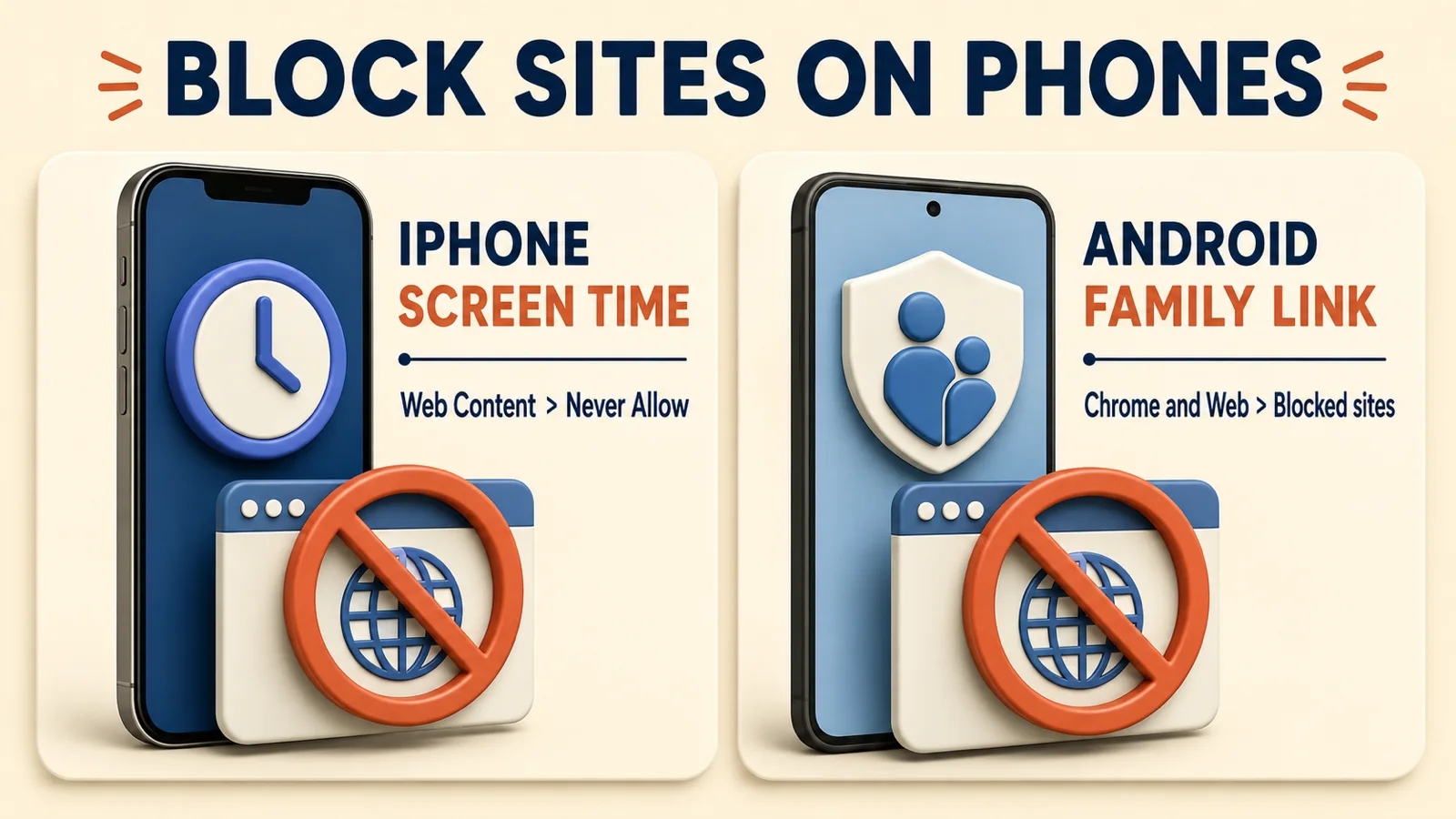
Open Settings > Screen Time > Content & Privacy Restrictions and turn the feature on. Tap App Store, Media, Web & Games > Web Content, choose Limit Adult Websites, then tap Add Website below Never Allow. Enter the full URL and set a Screen Time passcode.
Apple documents these current menu names in its iPhone website restriction guide.
Block a Website on Mac
Open System Settings > Screen Time > Content & Privacy. Under App Store, Media, Web & Games, set Safari web content to Limit Adult Websites, choose Customize, and add the domain to the Restricted list. Lock Screen Time settings so another user cannot remove it.
Apple’s Mac Screen Time guide documents this restriction for Safari. For Chrome or Firefox on Mac, use a hosts-file, extension, router, or DNS method.
Method 5: Use Google Family Link
Family Link lets a parent allow or block specific sites for a child’s supervised Google Account in Chrome. In the Family Link app, select the child and open Controls > Google Chrome and Web. Under Manage sites, choose Blocked sites and add either a specific website or the whole domain.
Google explains that a website entry may not cover other subdomains, while a domain entry applies more broadly. Its current Chrome and Family Link guide also warns that on Windows, Mac, and Linux a child may switch profiles or browsers, so pair Family Link with an operating-system child account when stronger control is needed.
Method 6: Block Sites on Your Router or With DNS
Router controls are useful when the same domain should be blocked on every device connected to home Wi-Fi. Sign in to the router, find Parental Controls, Access Control, or Website Blocking, add the domain, apply the change, and test from both a computer and a phone. Menu names vary, and some routers offer category filters instead of individual domains.
Filtered DNS is another network-wide option. Cloudflare’s current router setup guide lists 1.1.1.2 and 1.0.0.2 for malware blocking, or 1.1.1.3 and 1.0.0.3 for malware and adult-content filtering. DNS filters block provider-defined categories; they usually do not give you a custom list of every individual site.
A router or DNS block protects devices only while they use that network and resolver. Mobile data, a VPN, encrypted DNS with another provider, or another Wi-Fi network may bypass it.
How to Test and Unblock a Website
After adding a block, try both the plain domain and its www version in a private browser window. Test on every browser or device the rule is meant to cover. If the site still opens, restart the browser, flush the DNS cache, and confirm that the rule targets the correct domain rather than a single page URL.
To remove a block, reverse the same setting: delete the hosts-file lines, remove the extension rule, clear the parental-control entry, or restore the router’s previous DNS addresses. Keep a note of the method you used so the change is easy to undo later.
What Website Blocking Cannot Guarantee
No local block is permanent against a determined administrator. Another browser, account, network, VPN, proxy, or changed DNS setting may provide a route around it. For children, combine a supervised account with a standard user profile and protect the parent settings with a separate password.
Blocking also does not replace browser updates, malware protection, or safe link habits. For broader protection, follow the steps in How to Secure Windows 11.
Frequently Asked Questions
How do I block any website on Windows for free?
Edit the Windows hosts file as an administrator, add entries for the bare domain and its www version, save, and flush the DNS cache. This applies to browsers on that PC.
How can I block a website on all home devices?
Use your router’s parental controls or access controls. Filtered DNS can block categories such as malware or adult content across devices using that network.
How do I block a website on iPhone?
Use Screen Time: open Content & Privacy Restrictions, go to Web Content, choose Limit Adult Websites, and add the URL under Never Allow.
How do I block sites for a child on Android?
Use Google Family Link. Select the child, open Controls, then Google Chrome and Web, and add the website or domain under Blocked sites.
Does Microsoft Family Safety block websites in Chrome?
Microsoft’s current web and search filter works in Edge while the family member is signed in. Restrict other browsers if you need to prevent bypassing the filter.
Can I block a website only during work hours?
Yes. A reputable browser extension with scheduling is usually the easiest option for personal focus. Remember that it applies only to that browser or profile.