To change Windows password access without the old password, first identify the account type. Reset a Microsoft account online. For a local account, use the sign-in screen security questions, a password reset disk, or another administrator account on the same PC. If none is available, Reset this PC is the official last resort and removes apps and settings.
Table of Contents
ToggleChanging a Windows password without the old one is possible when you use an official recovery option on a computer you own or manage. The correct route depends on whether the sign-in belongs to a Microsoft account, a local account, or a work or school account.
Start with the least disruptive method. Do not download password-bypass utilities or follow instructions that modify system files from recovery media; those approaches can expose your data or leave Windows unable to start.
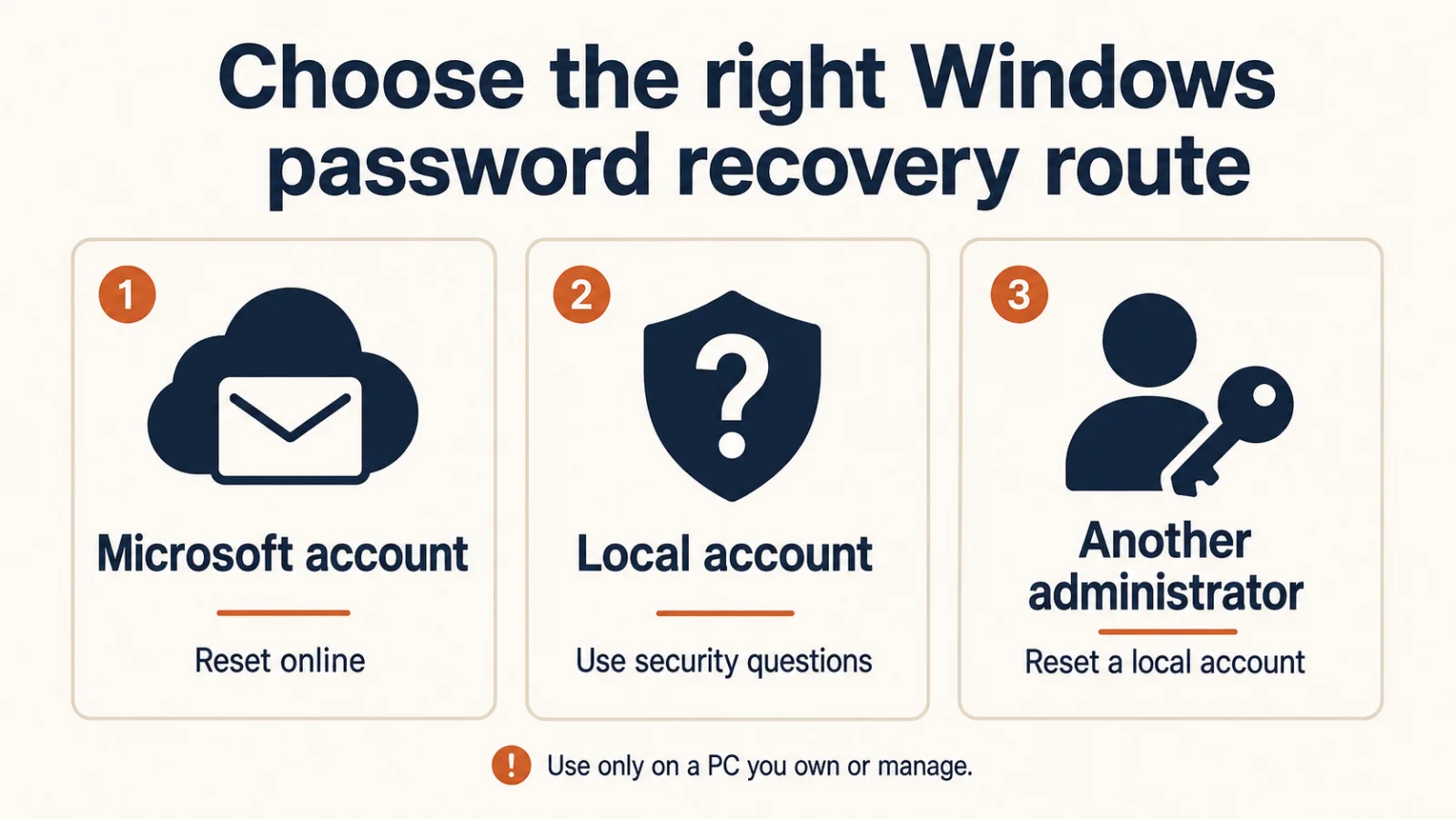
Before You Start: Identify the Account Type
A Microsoft account normally shows an email address on the Windows sign-in screen. A local account exists only on that PC and may show only a username. A work or school account is controlled by an organization and should be recovered through its IT administrator.
Also check whether you forgot the account password or only the Windows Hello PIN. A PIN is device-specific; selecting I forgot my PIN starts a different recovery flow and does not necessarily change the Microsoft account password.
Method 1: Reset a Microsoft Account Password Online
If Windows uses a Microsoft account, open Microsoft’s official password reset guidance on another phone or computer. Select the Reset password option there, enter the email address, choose an available verification method, enter the code, and create a new password.
If you cannot use the listed phone number or email address, try Microsoft’s Sign-in Helper. Microsoft support cannot bypass account verification or manually send a reset link. After resetting, connect the locked PC to the internet and sign in with the new password.
Method 2: Answer Local-Account Security Questions
For a local account, enter an incorrect password once at the sign-in screen, select OK, and then select Reset password. Answer the security questions created for that account and enter a new password.
This option appears only when security questions were configured. Microsoft documents the current process in Change or reset your local account password in Windows.
Method 3: Use a Password Reset Disk
If you created a password reset disk before being locked out, insert the USB drive, select Reset password, choose Use a password reset disk instead, and follow the wizard.
A reset disk works only for a local account and must be created while you can still sign in. Microsoft notes that the same disk remains usable after later password changes. Store it securely because anyone holding it could reset that local account.
Method 4: Reset the Local Password From Another Administrator Account
If another trusted administrator account already exists on the PC, sign in to it and open Computer Management. Go to Local Users and Groups > Users, right-click the affected local account, choose Set Password, and enter the replacement password.
This applies to local accounts, not Microsoft accounts. Windows warns that an administrator-forced reset can cause the affected user to lose access to certain protected information, including files encrypted with Encrypting File System, stored credentials, and personal certificates. Prefer security questions or a reset disk when either is available.
Use another administrator account only on a PC you own or are authorized to manage. An administrator-forced reset may make some encrypted files or stored credentials inaccessible.
Method 5: Use the Net User Command From Another Administrator Account
An administrator can also reset a local account from an elevated Command Prompt. First run net user to confirm the exact account name. Then use the command below, including quotation marks when the username contains spaces:
net user "Account Name" *
Press Enter, type the new password at the hidden prompt, and confirm it. The asterisk is safer than placing the password directly in the command because Microsoft specifies that the password is not displayed while you type it. This method has the same protected-data warning as an administrator reset in Computer Management.
See Microsoft Learn’s current net user command reference.
If No Recovery Method Is Available
For a Microsoft account, continue with Microsoft’s account-recovery tools. For a local account with no security questions, reset disk, or accessible administrator, Microsoft’s supported fallback is to reset the Windows device.
From Windows Recovery Environment, select Troubleshoot > Reset this PC. Keep my files reinstalls Windows and preserves personal files, but it removes installed apps and resets settings. Remove everything also deletes personal files. Back up anything accessible first and locate the BitLocker recovery key if the device is encrypted.
Reset this PC is disruptive even when you choose Keep my files. Review Microsoft’s Reset your PC guidance before continuing.
How to Change Windows Password When You Still Know It
If you can sign in and know the current password, press Ctrl + Alt + Delete and choose Change a password. Enter the old password, enter the new password twice, and submit the change. You can also open Settings > Accounts > Sign-in options > Password > Change.
This is different from an administrator reset because the account owner proves knowledge of the existing password.
Choose a Strong New Password
Use a unique password that is at least 14 characters long when the account accepts it. A memorable passphrase is easier to type correctly than a short complex string. Never reuse a password from email, banking, or another important account.
A password manager can generate and store unique passwords. For a Microsoft account, add current recovery information and enable multifactor authentication—or consider Windows Hello or another passwordless sign-in method.
Use a password manager to create and store strong, unique passwords.
Prepare Recovery Options Before the Next Lockout
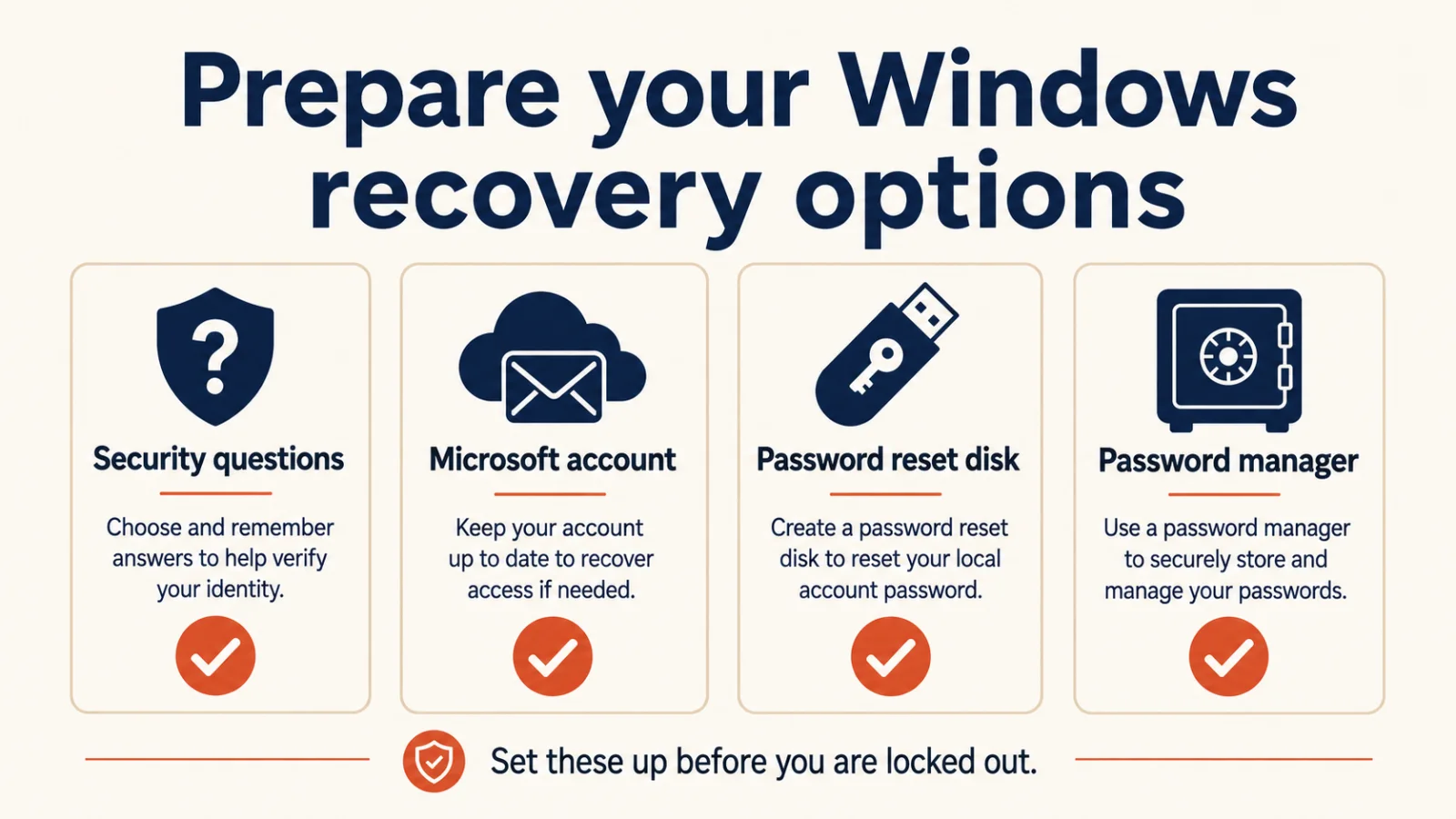
Once you are signed in again, make recovery easier next time. Verify the recovery email and phone number on a Microsoft account. For a local account, confirm its security questions and create a password reset disk. Keep at least one trusted administrator account on a shared family PC, and document who is authorized to use it.
Strengthen the rest of your Windows security after restoring access.
Frequently Asked Questions
Can I change a Windows password without knowing the old one?
Yes, if you can verify a Microsoft account online or use a configured local-account recovery option such as security questions, a password reset disk, or another administrator account.
Can Microsoft support bypass my password?
No. Microsoft support cannot retrieve or circumvent a forgotten password or manually change protected account details. Use the official reset page, Sign-in Helper, or account recovery form.
Does resetting a Windows password delete files?
An ordinary Microsoft-account reset or local security-question reset does not delete personal files. An administrator-forced local reset can affect encrypted files and stored credentials. Reset this PC removes apps and settings, and the Remove everything option also deletes personal files.
Can I use a password reset disk for a Microsoft account?
No. A password reset disk is for a local Windows account and must be created before you are locked out.
What does net user "Account Name" * do?
When run from an elevated Command Prompt by an authorized administrator, it prompts for a new password for that local account without displaying the password on screen.
What should I do on a work or school computer?
Contact the organization’s IT administrator. Account recovery policies may be centrally managed, and consumer recovery instructions may not apply.