Windows Store not working usually means the Microsoft Store will not open, gets stuck loading, or refuses to download apps. It often starts right after a Windows update, and most causes are simple: a wrong clock, a corrupted cache, or a sign-in glitch.
Work through the fixes below in order. They start with the quickest and stop at re-registering the Store. The first ten fixes do not remove your installed apps.
These steps still work on Windows 10, but Microsoft ended standard Windows 10 support on October 14, 2025. Move to Windows 11 when your PC supports it, or use an eligible Extended Security Updates option.
Restart the PC, check that the date and time are set automatically, then press Windows + R, type wsreset.exe, and press Enter to clear the Store cache. If it still fails, repair or reset the Microsoft Store in Settings > Apps > Installed apps and install any pending Windows updates.
Table of Contents
ToggleWindows Store Not Working? Common Causes
The Store depends on the system clock, your internet connection, your Microsoft account, a local cache, and a few background services. A problem with any one of them can stop it. Updates can reset settings or leave the cache in a bad state, which is why the Store often breaks right after one.
Fix 1: Restart Your PC
Use Restart, not Sleep or Shut down, to clear stuck background processes. Then open the Microsoft Store again.
Fix 2: Check the Date, Time, and Region
The Store uses secure connections, and a wrong clock breaks them.
- Open Settings > Time & language > Date & time.
- Turn on Set time automatically and Set time zone automatically, then select Sync now.
- Check your country or region under Language & region.
Fix 3: Check Your Connection, Proxy, and VPN
Open a website to confirm you are online. Then disconnect any VPN and turn off a manual proxy in Settings > Network & internet > Proxy, since both can block the Store from reaching Microsoft.
Fix 4: Sign Out and Back In
Open the Microsoft Store, select your profile picture, choose Sign out, then sign back in with your Microsoft account. This clears most account-related errors.
Fix 5: Reset the Store Cache With wsreset
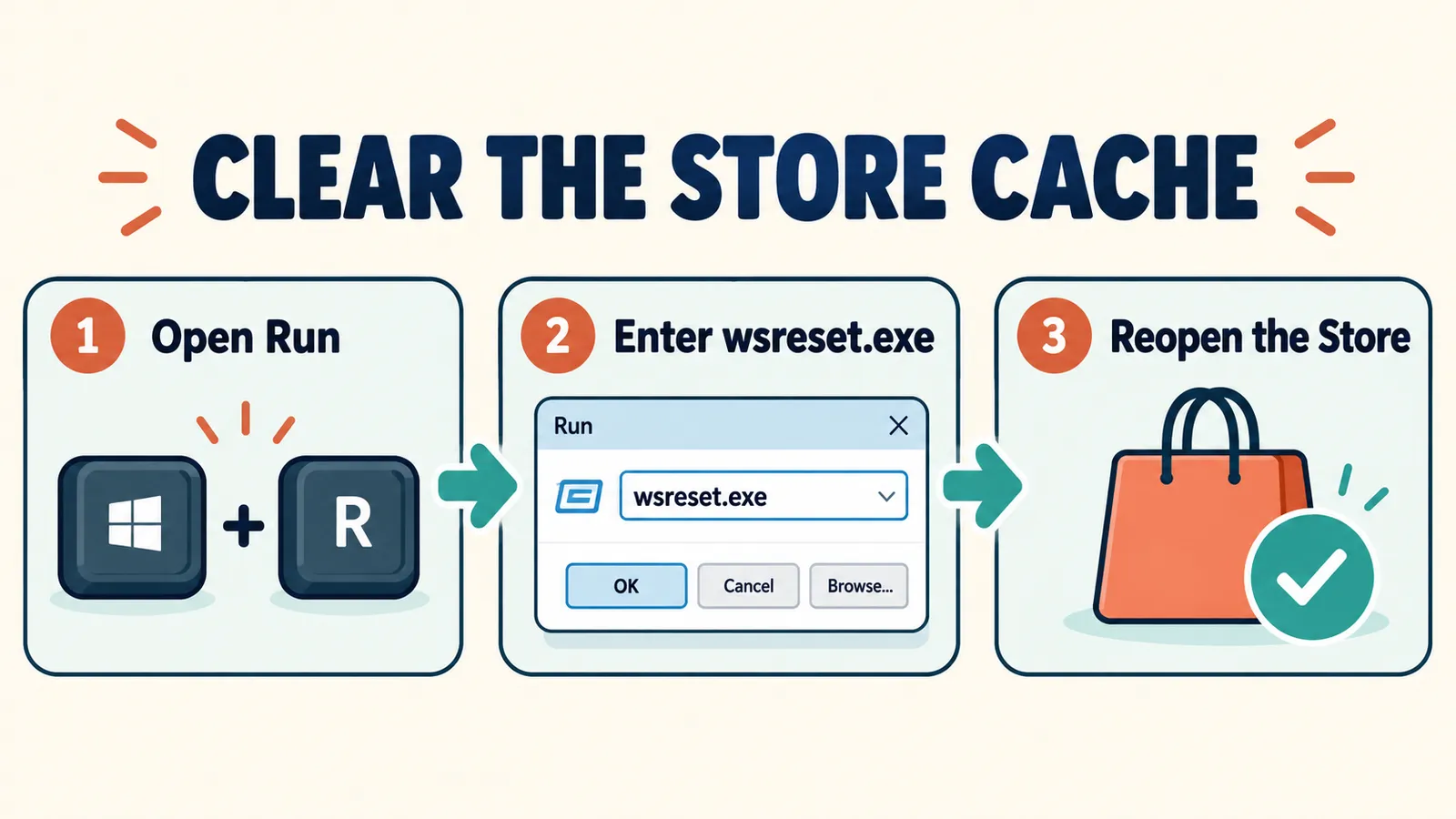
- Press Windows + R.
- Type wsreset.exe and press Enter.
- A blank window opens. After about ten seconds it closes, and the Microsoft Store opens automatically.
This is the first step in Microsoft’s own guide for when the Store does not open. It clears only the Store cache, not your apps or their data.
Fix 6: Run the Windows Store Apps Troubleshooter
Open Settings > System > Troubleshoot > Other troubleshooters and select Run next to Windows Store Apps. On current Windows 11 versions this opens the Get Help app, which runs the same checks. On Windows 10, the path is Settings > Update & Security > Troubleshoot > Additional troubleshooters.
Fix other everyday Windows problems the same way.
Fix 7: Repair or Reset the Microsoft Store App
- Open Settings > Apps > Installed apps.
- Find Microsoft Store, select the three dots, and choose Advanced options.
- Select Repair first and test the Store.
- If it still fails, select Reset.
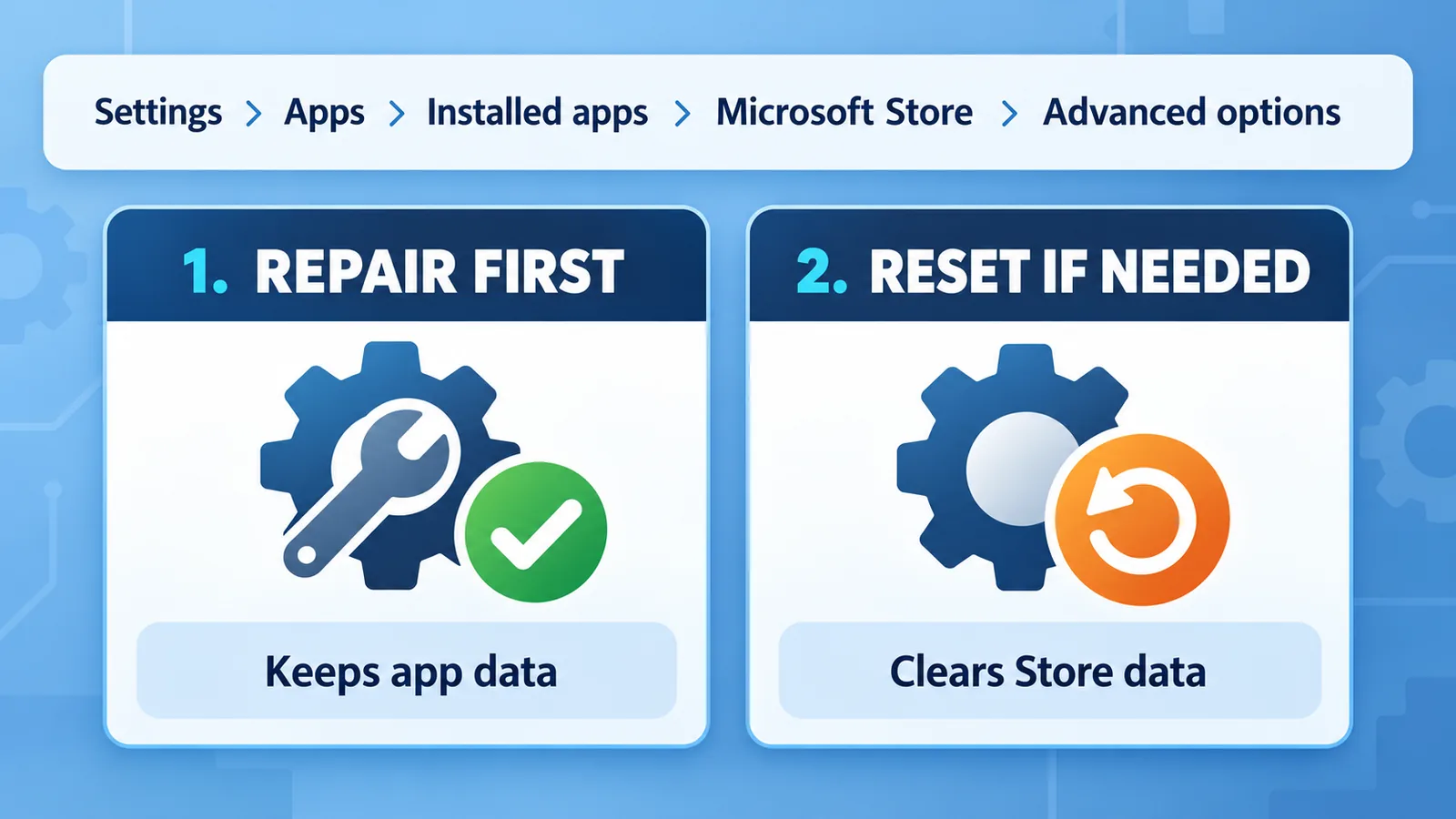
Repair keeps the Store’s data. Reset clears its data and signs you out of the Store. Neither removes the apps you have installed, so try Repair first and Reset second.
Fix 8: Update Windows and Store Apps
Open Settings > Windows Update, select Check for updates, install everything, and restart. If the Store opens, go to Library > Get updates to update the Store itself and your apps, as Microsoft recommends.
Windows Update failing too? Fix error 0x80073712.
Fix 9: Re-Register the Microsoft Store
If the Store is still broken, re-register its existing package for your Windows account.
- Search for Windows PowerShell and open it normally, without choosing Run as administrator.
- Paste this command and press Enter:
Get-AppxPackage Microsoft.WindowsStore | Foreach {Add-AppxPackage -DisableDevelopmentMode -Register "$($_.InstallLocation)\AppXManifest.xml"} - Restart the PC when it finishes.
If PowerShell says the package is in use, close open apps, restart the PC, and run the command again. If the command returns no package, continue to the new-account test below instead of downloading Store files from an unofficial site.
Fix 10: Check the Required Services
- Press Windows + R, type services.msc, and press Enter.
- Check Microsoft Store Install Service and Windows Update. If either service is Disabled, change its Startup type to Manual, select Start, and apply the change.
- Restart and try the Store again.
Learn how to check running services and processes.
Windows Store Not Working? Try These Deeper Repairs
- Repair system files: in an admin Terminal, run
sfc /scannow, thenDISM /Online /Cleanup-Image /RestoreHealth, and restart. - Test a new user account: add one in Settings > Accounts. If the Store works there, your original profile is the problem.
- Use System Restore: search for Create a restore point and roll back to before the problem started. Your files stay, but recent apps and updates may be removed.
- Work or school PC: your organisation may block the Store. Ask your IT team.
Downloads stuck on Pending: run wsreset, check free disk space, and restart the Microsoft Store Install Service. “Try again later”: usually a temporary server or network issue; wait and retry. Store icon missing: search Start for Microsoft Store first, then use Fix 9.
Windows Store Not Working: Frequently Asked Questions
Why is the Windows Store not working after an update?
The “Windows Store not working after update” symptom often points to a bad cache, an incorrect clock, or a service change. Run wsreset, check the date and time, and install any remaining updates.
Will wsreset or resetting the Store delete my apps?
No. wsreset clears only the Store cache, and Repair or Reset affects only the Store app. Your installed apps and their data stay in place.
Why does the Microsoft Store keep saying Try again later?
It is usually a temporary server problem, an unstable connection, or a wrong clock. Check the date and time, disable any VPN or proxy, and try again a little later.
How do I reinstall the Microsoft Store?
Re-register it with the PowerShell command in Fix 9, then restart. This restores a missing or broken Store without affecting your other apps.
Why can I not download apps even though the Store opens?
Check free disk space, make sure the Microsoft Store Install Service is running, run wsreset, and install pending Windows updates.