


To block an app from the internet on Windows 11, you don’t need extra software: Windows Defender Firewall can do it with a single outbound rule. The same rule works on Windows 10.
People usually want this to stop a game from auto-updating, keep an offline tool offline, save data on a mobile hotspot, or stop a program from phoning home. This guide covers three ways, from the built-in firewall to a one-switch app.
To block an app from the internet on Windows 11, open Windows Defender Firewall with Advanced Security, go to Outbound Rules > New Rule, pick Program, browse to the app’s .exe, choose Block the connection and finish. For a one-switch option that also covers Microsoft Store apps, use the free Netcurb app.
Table of Contents
ToggleBefore You Start
- You need an administrator account to create firewall rules.
- Windows Defender Firewall must be on. Check it in Settings > Privacy & security > Windows Security > Firewall & network protection. Microsoft explains each setting on its Firewall and network protection support page.
- Blocking works per program (.exe). Some apps use several executables, such as an updater or a launcher, and each one needs its own rule.
Method 1: Block an App from the Internet on Windows 11 with Firewall
This is the built-in way to block a program from the internet. It takes about two minutes per app.
- Press Start, type
wf.mscand press Enter. This opens Windows Defender Firewall with Advanced Security. - Click Outbound Rules in the left pane.
- Click New Rule… in the right pane.
- Choose Program, then click Next.
- Select This program path, click Browse and pick the app’s .exe file. It is usually in
C:\Program FilesorC:\Program Files (x86). - Choose Block the connection, then click Next.
- Leave Domain, Private and Public ticked, then click Next.
- Give the rule a clear name, such as Block – Photoshop, and click Finish.
The rule takes effect straight away. If the app was already open, restart it so any connections it had already made are closed.
Open Start, right-click the app and choose More > Open file location. That opens its shortcut. Right-click the shortcut and choose Open file location again to reach the real .exe.
An outbound rule stops the app from sending traffic out, which is what cuts it off from the internet. Inbound rules alone won’t do this, because almost every app starts its own connections.
Method 2: Block an App with One PowerShell Command
If you prefer typing to clicking, PowerShell lets you block an app from the internet on Windows 11 with the same rule in one line. Press Win + X and choose Terminal (Admin), one of several hidden Windows 11 shortcuts worth knowing. Then run this, with your own app path:
New-NetFirewallRule -DisplayName "Block - MyApp" -Direction Outbound -Program "C:\Program Files\MyApp\MyApp.exe" -Action BlockWhat each part does:
-DisplayNameis the rule name you’ll see in wf.msc.-Direction Outboundapplies the rule to traffic leaving your PC.-Programis the full path to the app’s .exe. Keep the quotes if the path has spaces.-Action Blockdrops the traffic instead of allowing it.
To list the block rules you’ve made this way:
Get-NetFirewallRule -DisplayName "Block -*" | Select DisplayName, EnabledTo remove a rule:
Remove-NetFirewallRule -DisplayName "Block - MyApp"This method suits power users and anyone blocking several apps at once, because you can paste a list of commands in one go. Microsoft documents every option in its New-NetFirewallRule reference.
Method 3: Block Apps with One Switch Using Netcurb (Free)
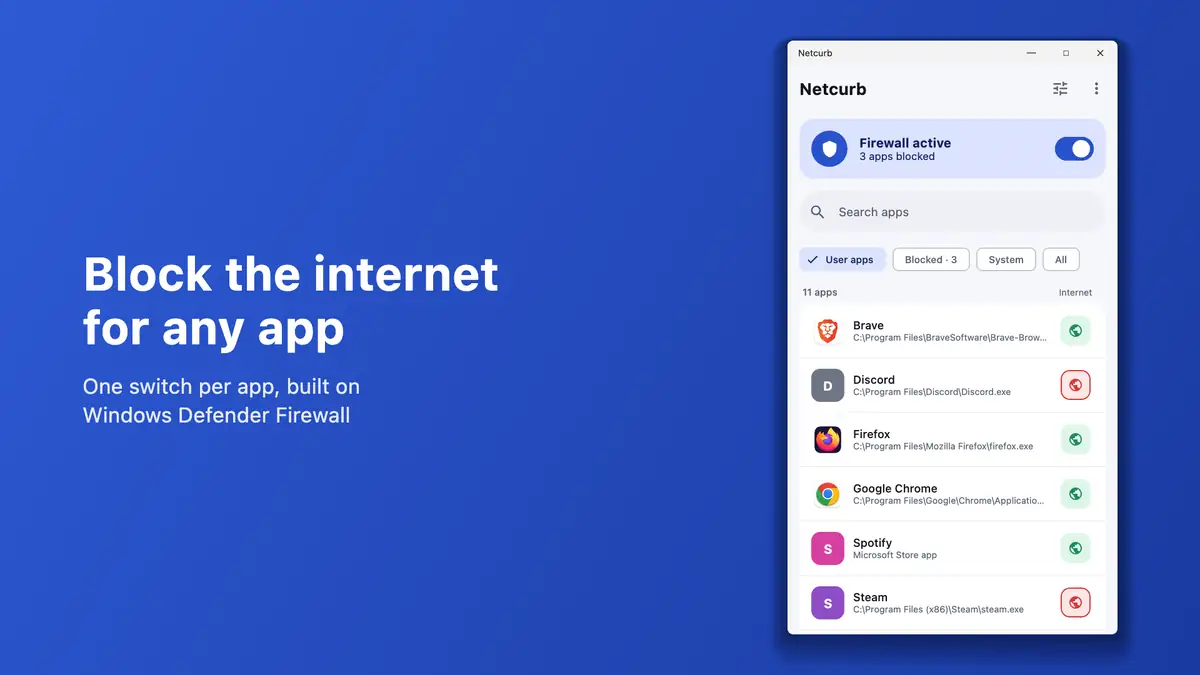
Netcurb is a free app made by TechSavvyHelp. It gives you a one-switch way to block an app from the internet on Windows 11. Full disclosure: we built it because Methods 1 and 2 get tedious.
Netcurb lists your installed apps, including Microsoft Store apps, each with its own switch. It uses Windows Defender Firewall underneath, so a blocked app stays blocked after you close Netcurb or restart your PC.
- Install Netcurb from the Microsoft Store.
- Open it and tap the switch next to the app you want to block, then turn the firewall on.
- The first time, approve the one-time administrator prompt. Netcurb sets up a small background service that keeps your rules in place.
- Restart the blocked app so any connections it already opened are closed.
It has no account, no ads and no analytics, and it collects no data. Uninstalling Netcurb removes all of its firewall rules and its background service. You can get Netcurb from the Microsoft Store or read more on the Netcurb page.
Some apps embed Microsoft Edge WebView2 or use separate helper processes. Blocking only the app’s main .exe may leave that helper traffic working, while blocking msedgewebview2.exe broadly can affect other WebView2-based apps. Netcurb marks apps it detects as WebView2-dependent so you know that a simple per-app rule may be incomplete.
How to Block Microsoft Store Apps
Store (packaged) apps live in the protected WindowsApps folder, so you can’t browse to their .exe in the firewall wizard the usual way. Method 1 doesn’t work well for them.
Netcurb handles them directly from its list. Advanced users can also target a Store app in PowerShell with the -Package parameter, which takes the app’s package security identifier (SID). If the Store itself is misbehaving, see Windows Store not working: 10 fixes.
How to Check the App Is Blocked (and Unblock It)
Check: after you block an app from the internet on Windows 11, open it and do something that needs the internet, such as signing in or checking for updates. You should see an offline or connection error.
To unblock it later:
- Method 1: open wf.msc, click Outbound Rules, right-click your rule and choose Disable Rule (temporary) or Delete.
- Method 2: run
Remove-NetFirewallRule -DisplayName "Block - MyApp", orDisable-NetFirewallRulewith the same name to keep the rule for later. - Netcurb: turn the app’s switch back.
App Still Connecting? Common Fixes
- It has more than one .exe. Block the updater, launcher or helper in the same folder too, for example
Updater.exe. - It was already open. Close and reopen the app. Existing connections can stay up until it restarts.
- The firewall is off, or another security suite has replaced it. Rules only work while Windows Defender Firewall is on.
- It’s a WebView2 or browser-based app. Its traffic comes from a shared process, so per-app blocking is unreliable.
- A different network profile is active. Open the rule’s properties and make sure Domain, Private and Public are all ticked on the Advanced tab.
- You’re not sure which process is online. Open Task Manager and sort the Processes tab by the Network column. Our Task Manager guide explains the columns.
Want to block a website instead of an app? These six methods cover Windows, Mac and phones.
Frequently Asked Questions
Does blocking an app from the internet slow down my PC?
No. Firewall rules are checked by Windows Defender Firewall, which is already running, so a few extra rules have no noticeable performance cost.
Do these steps work on Windows 10?
Yes. The same methods used to block an app from the internet on Windows 11 also work on Windows 10: wf.msc, the PowerShell commands and Netcurb. On Windows 10, the Win + X menu shows Windows PowerShell (Admin) instead of Terminal (Admin).
Will a Windows update remove my firewall rules?
No. Outbound rules survive normal Windows updates. They are removed if you choose Restore defaults in the firewall settings or reinstall Windows.
Can I block an app from the internet but still allow it on my local network?
Yes. Create a Custom outbound block rule for the program and set its remote address scope to Internet instead of Any. In PowerShell, add -RemoteAddress Internet to the rule. This leaves traffic to the local subnet outside that block rule. Test the app on your current network, because another overlapping block rule can still take precedence. Netcurb’s standard switch blocks all network access.
Is it safe to block system apps?
Avoid blocking Windows components such as Windows Update, Microsoft Defender or svchost.exe. Doing so can stop security updates and break core features.







