

An email account hacked is more dangerous than it looks. Your email resets the passwords for almost everything else, so an attacker with your inbox can take over shopping, banking and social accounts too.
Move quickly and in order. These steps follow Google’s and Microsoft’s own recovery guides.
From a trusted, clean device, change the password immediately or use the recovery page: accounts.google.com/signin/recovery for Gmail, or Microsoft’s sign-in helper for Outlook. If the affected PC may contain malware, scan it before entering the new password there. Then review security activity and devices, remove unknown apps, restore recovery details, check forwarding and filters, enable 2-step verification, and replace every reused password.
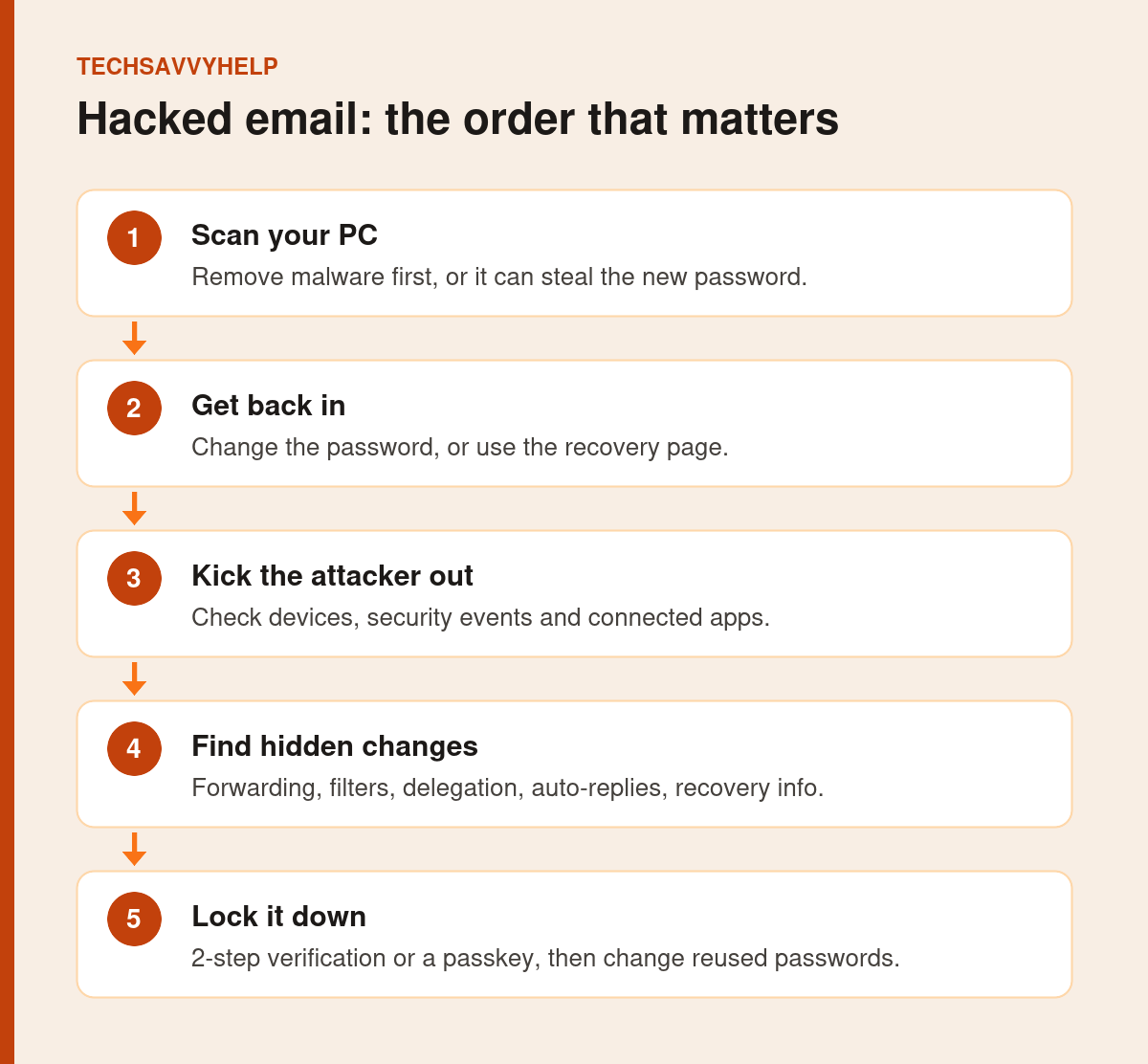
Table of Contents
ToggleEmail Account Hacked? The Warning Signs
- Friends get strange messages or links from your address.
- Your password stopped working, or the recovery phone or email changed.
- You see security alerts for sign-ins you did not make.
- Emails are missing, or sent items you did not write appear.
- Password reset emails arrive for other accounts.
Be careful: some security alerts are fakes. See our guide to the fake Google security alert before clicking any link in a warning email.
Step 1: Secure the Account From a Clean Device
From a trusted, clean device, change or recover the password immediately. If the affected Windows PC may contain malware, scan it before entering the new password on that PC. Microsoft recommends clearing malware before changing a password on an infected device so a keylogger cannot capture the replacement. In Windows Security, open Virus & threat protection > Scan options > Full scan > Scan now.
Step 2: Get Back Into the Account
Gmail
If you can still sign in, change the password at once. If you cannot, use Google’s account recovery page at accounts.google.com/signin/recovery. Google says to use it if your password or recovery phone was changed or you cannot sign in for another reason.
Outlook and Hotmail
Sign in and change the password, or reset it if you cannot sign in. Microsoft’s guide offers a sign-in helper that asks for your email address or phone number and points you to the right recovery route, including the account recovery form.
Step 3: Check Devices, Activity and Connected Apps
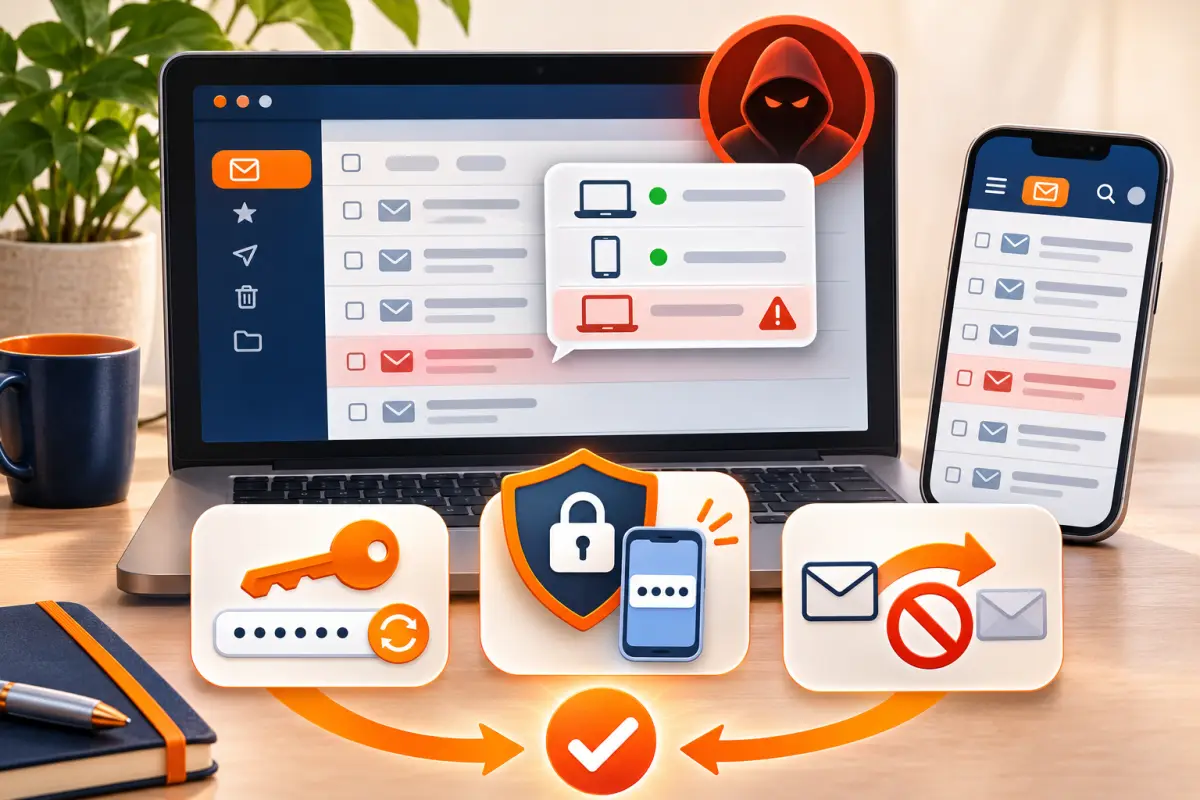
For Gmail, Google’s compromised account guide says to go to myaccount.google.com > Security & sign-in:
- Under Recent security events, choose No, it wasn’t me for anything you do not recognise.
- Under Your devices, sign out devices you do not recognise.
- Remove unknown apps under Review apps with access.
For Outlook, Microsoft says to check connected accounts after recovery.
Step 4: Fix Your Recovery Phone and Email
Attackers often add their own recovery details so they can get back in later. Check the recovery phone, recovery email and name on the account, and correct anything you did not set.
Step 5: Remove Hidden Forwarding and Filters
This is the step most people miss. Google lists these Gmail settings to check: mail delegation, automatic forwarding, automatic replies, the address on outgoing mail, blocked addresses, IMAP and POP access, filters and labels. Microsoft lists forwarding and automatic replies for Outlook.
A forwarding rule can copy every email you receive to the attacker, even after you change your password.
Delete any filter that skips the inbox, archives or deletes messages from banks, shops or security senders. Attackers use these to hide password reset emails from you.
Step 6: Turn On 2-Step Verification or a Passkey
Turn on 2-step verification so a stolen password is not enough. An authenticator app or a passkey is stronger than SMS codes. Our guides on two-factor authentication methods and setting up passkeys explain the options.
Step 7: Change Passwords You Reused
Google says to change the password on any site that used the same password, sends email to that address, or that you sign in to with it. Start with banking, shopping and social media. A password manager makes unique passwords easy, as our password management guide explains.
Step 8: Warn Your Contacts
Let friends and colleagues know your email account was hacked, and ask them not to click links or pay requests sent from your address during that time. If money was requested or sent, contact your bank straight away.
If You Cannot Recover the Account
Answer the recovery form as fully as you can, from a device and network you have used before, and do not create a new account with the same address. Avoid paid recovery services that contact you on social media: they are almost always scams.
Spot the phishing messages that lead to hacked accounts.
Frequently Asked Questions
What should I do first if my email account is hacked?
Scan your PC for malware, then change the password or use the official recovery page. After that, remove unknown devices, apps and forwarding rules.
Can a hacker still read my email after I change the password?
Yes, if they set up forwarding, a filter, delegation or a connected app. Check those settings after you regain access.
How do I recover a hacked Gmail account?
Use Google’s account recovery page at accounts.google.com/signin/recovery, then review Security & sign-in in your Google Account.
Should I delete my email account after it was hacked?
Usually not. Recover and secure it instead, because other accounts and contacts rely on that address.







