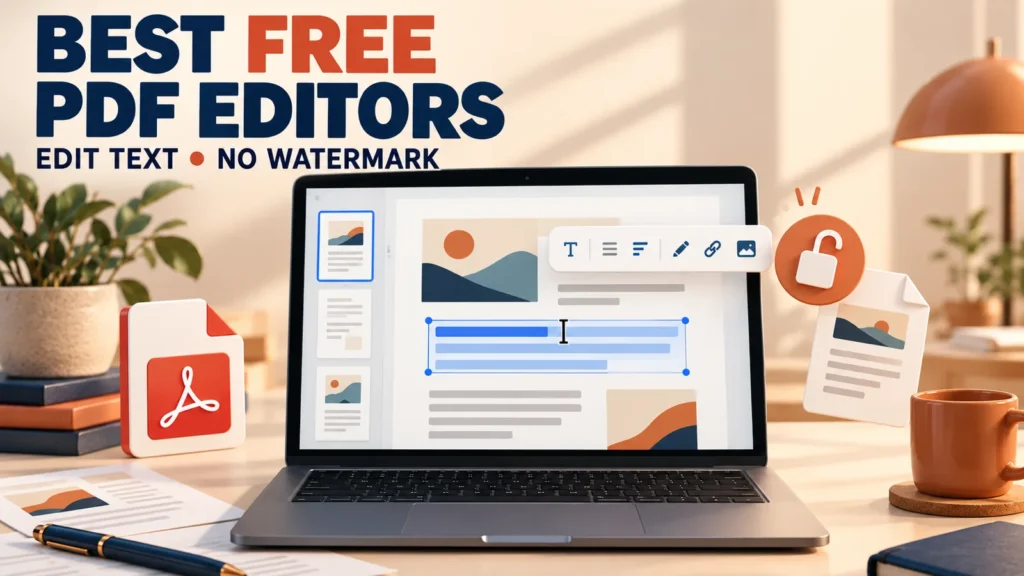
Most free PDF editors let you highlight, sign and add text boxes. Very few let you change the words that are already in the document.
This guide sorts each tool by one question first: can its free version edit existing text? Then it covers watermarks, limits, privacy, and how each company pays for the free tier. Every limit and price comes from the vendor’s own website, checked in October 2026.
PDFgear is the best free PDF editor for changing existing text. It edits text, images and form fields with no signup and no watermark, on Windows, Mac, iPhone and Android. Sejda is the best browser option for files under 200 pages or 50 MB. PDF24 Creator is the best fully offline Windows toolkit, but it adds text rather than changing existing text.
Table of Contents
ToggleFree PDF Editors Compared
| Tool | Edits existing text free? | Watermark on free? | Free limits | Files stay on your PC? |
|---|---|---|---|---|
| PDFgear | Yes | No | None published | Yes (desktop app)* |
| Sejda (web) | Yes (not scans) | No | 200 pages / 50 MB / 3 tasks per hour | No (deleted after 2 hours) |
| PDF Candy | Yes (Edit PDF Text tool) | No | Page and hourly limits | No (kept up to 2 hours) |
| iLovePDF | Listed in free Edit PDF | No | 1 file, 100 MB per edit task | No |
| PDF-XChange Editor | Licensed features add a watermark | Yes, on licensed features | 70% of features free | Yes |
| PDF24 Creator | No (adds text) | No | None | Yes |
| Stirling-PDF | No (adds text) | No | None on desktop | Yes (local backend where supported) |
| LibreOffice Draw | Sometimes | No | None | Yes |
| Adobe Acrobat (free online) | No | No | Account needed to download | No |
| Smallpdf (free) | No (Edit Text is Pro) | No | Daily download limits | No |
*PDFgear says some advanced conversion features are processed on its Amazon cloud server and deleted afterwards.
The Free PDF Editor Trap
A “free PDF editor” can mean three very different things.
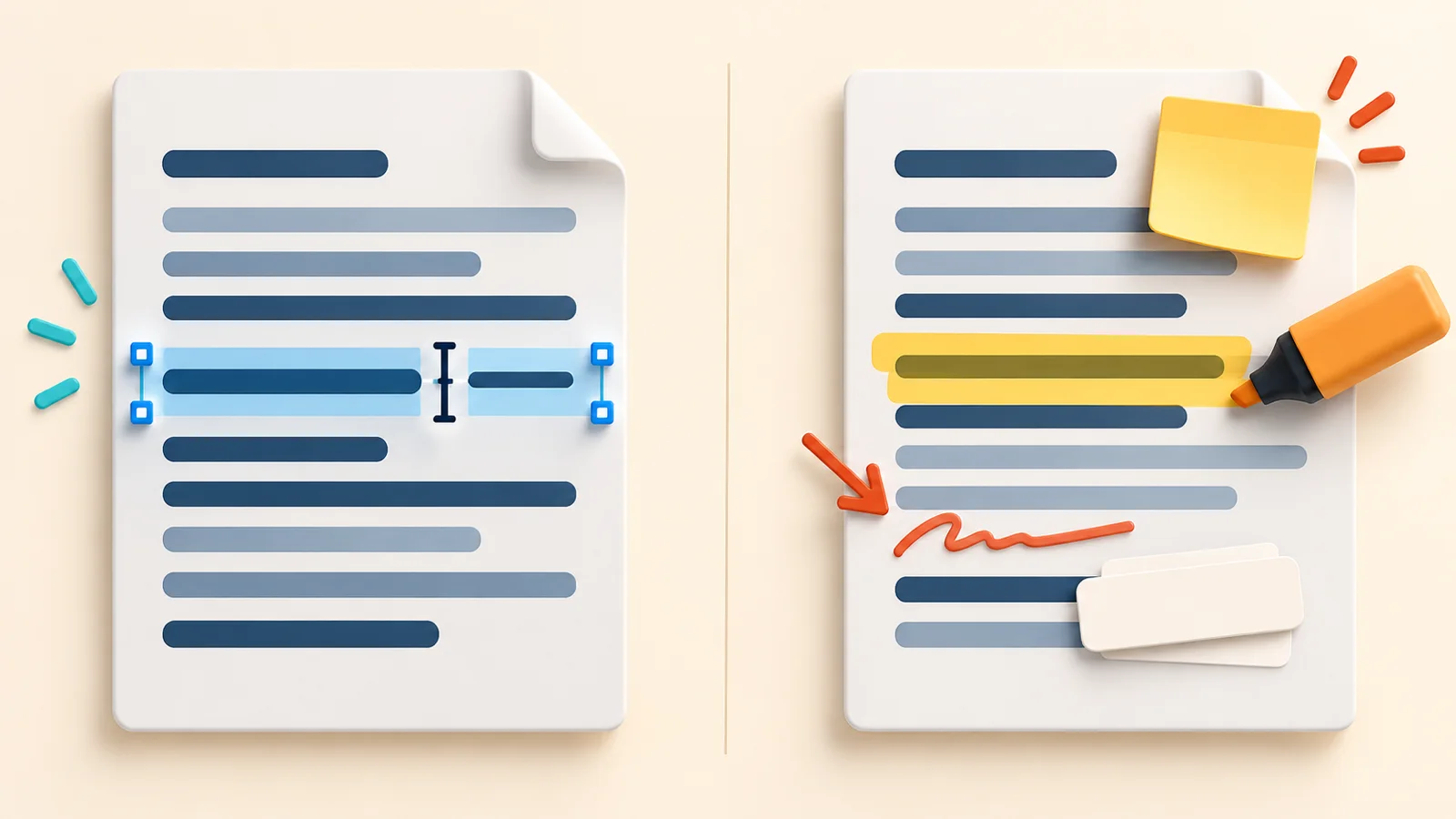
- Annotate only. You can highlight, comment, draw and drop a new text box on the page. The original words stay locked.
- Overlay editing. You cover old text with a white box and type over it. It looks edited, but the old text is often still underneath.
- Real text editing. You click a sentence and the actual words change.
Adobe states it plainly: the free version of its online editor “does not let you edit existing body text within a PDF.” Smallpdf lists “Edit Text” only under its Pro plan. Decide which of the three you need before you install anything.
1. PDFgear: Best Overall Free PDF Editor
PDFgear is the rare free editor that changes existing text without a paywall. Its site says you can “freely edit text, images, shapes, signatures, links, fillable form fields” without signing up.
- Real text and image editing
- OCR for scanned PDFs in 30+ languages
- Convert, merge, split, compress and sign
- Apps for Windows, Mac, iPhone, iPad and Android
How it stays free: PDFgear says it is funded by outside investment, shows no ads and does not sell user data.
The catch: it says “most features will remain free,” but it may charge for some advanced options later, such as cloud AI tools. No timeline is set. It also warns that copies from third-party download sites have triggered security alerts, so download only from pdfgear.com.
Best for: fixing typos, changing a date or name, and editing scanned documents with OCR.
2. Sejda: Best Browser Editor for Real Text Changes
Sejda edits existing text in your browser with no account and no watermark. Its free limit is printed on the upload page: “documents up to 200 pages or 50 MB and 3 tasks per hour.”
One major review says Sejda allows three tasks a day. Sejda’s own editor page says three tasks per hour. Trust the vendor page.
- Changing text inside scanned PDFs is not supported
- Free OCR is limited to 10 pages per task
- Right-to-left scripts such as Arabic are “not fully supported”
That last point matters if you work with Arabic documents.
Privacy: files are deleted after 2 hours. Sejda Desktop offers the same tools offline.
Paid plans: $5 for a 7-day pass, $7.50 a month, or $63 a year with desktop access.
Best for: quick one-off edits to a contract or form.
3. PDF Candy: Best Online Toolkit
PDF Candy has a dedicated Edit PDF Text tool. It says it can “add new, delete, format, or change PDF document text online” and uses OCR to make scanned text selectable.
Free plan: page and hourly restrictions, no batch processing and limited file size, with no account needed.
Privacy: uploaded files are kept for no longer than 2 hours.
Paid plans: $6 a month, $4 a month on a yearly plan, or $99 once for a lifetime licence.
4. iLovePDF: Most Popular PDF Website
iLovePDF is the most visited PDF site, with about 226 million visits in January 2026 according to Semrush. Its current Edit PDF page says you can “select text to edit, move, or delete the existing content,” and its pricing table lists Edit PDF on the free plan.
TechRadar says iLovePDF’s free plan “cannot edit a PDF’s original content.” The vendor’s current page says otherwise. Test it on your own file before relying on it.
Free limits: one file per Edit PDF task, up to 100 MB. The free plan shows ads.
Premium: $5 a month billed yearly ($60), or $9 billed monthly.
Best for: merging, compressing and converting. If the result is too big to share, see the best ways to send large files by email.
5. PDF-XChange Editor: Most Powerful Free Windows Editor
PDF-XChange Editor says “70% of features are unrestricted” in its free version. It runs on Windows 10 and later, including ARM64 laptops.
Licensed features carry a PRO symbol. You can still use them, but “watermarks will be present on output content,” and the company says these watermarks cannot be removed without a licence. Work on a copy when you try a PRO feature.
Price: $62 one-time for Editor or $79 for Editor Plus, with one year of updates.
Best for: Windows power users who annotate a lot.
6. PDF24 Creator: Best Free Offline Toolkit for Windows
PDF24 Creator is free for personal and business use “without any restrictions.” It works offline, and “files remain locally on your PC.” It runs on Windows 10 and 11, with x64, ARM64 and x86 installers. There is no Mac or Linux desktop version.
What it does well: merge, split, compress, OCR, protect, page tools and a PDF printer.
What it does not do: change existing text. PDF24’s own help suggests converting the PDF to Word, editing it there and converting it back.
How it stays free: its online tools are funded by advertising.
Best for: private documents that must never leave your computer.
More trusted free apps worth adding to a fresh Windows PC.
7. Stirling-PDF: Best Free Open-Source Option
Most best-of lists skip Stirling-PDF, even though it shows about 89,000 stars on GitHub. It offers 55+ tools, including signing, converting, merging, OCR and redaction. Desktop apps are available for Windows, macOS and Linux, with no login required.
Its docs say desktop tools “use the local backend where supported,” while tools routed to Stirling Cloud or a connected server send files there.
The catch: its documented editing tools add text, images and stamps. It does not list changing existing text.
Best for: privacy-focused users and IT teams.
8. LibreOffice Draw: Free, but Hit or Miss
LibreOffice opens PDFs in its Draw app, and text it recognises as text can be edited directly. Its own developers are clear about the limits: in their bug tracker they write that LibreOffice “is not a PDF editor,” and imports are not pixel-perfect. Fonts can change and layouts can shift.
Best for: simple PDFs when you already have LibreOffice installed.
What Windows Already Gives You
Before you install anything, try Microsoft Edge. Its built-in PDF reader now runs on Adobe’s PDF engine, and Microsoft said the old engine would be removed in early 2026.
Edge lets you highlight, draw, add comments and place a text box on the page for free. It does not change existing text. Microsoft says text and image editing, converting and combining files need an Acrobat subscription. If Edge misbehaves, see how to fix Microsoft Edge problems.
Edge is enough for filling a simple form or signing a document.
Warning: Fake Free PDF Converters Spread Malware
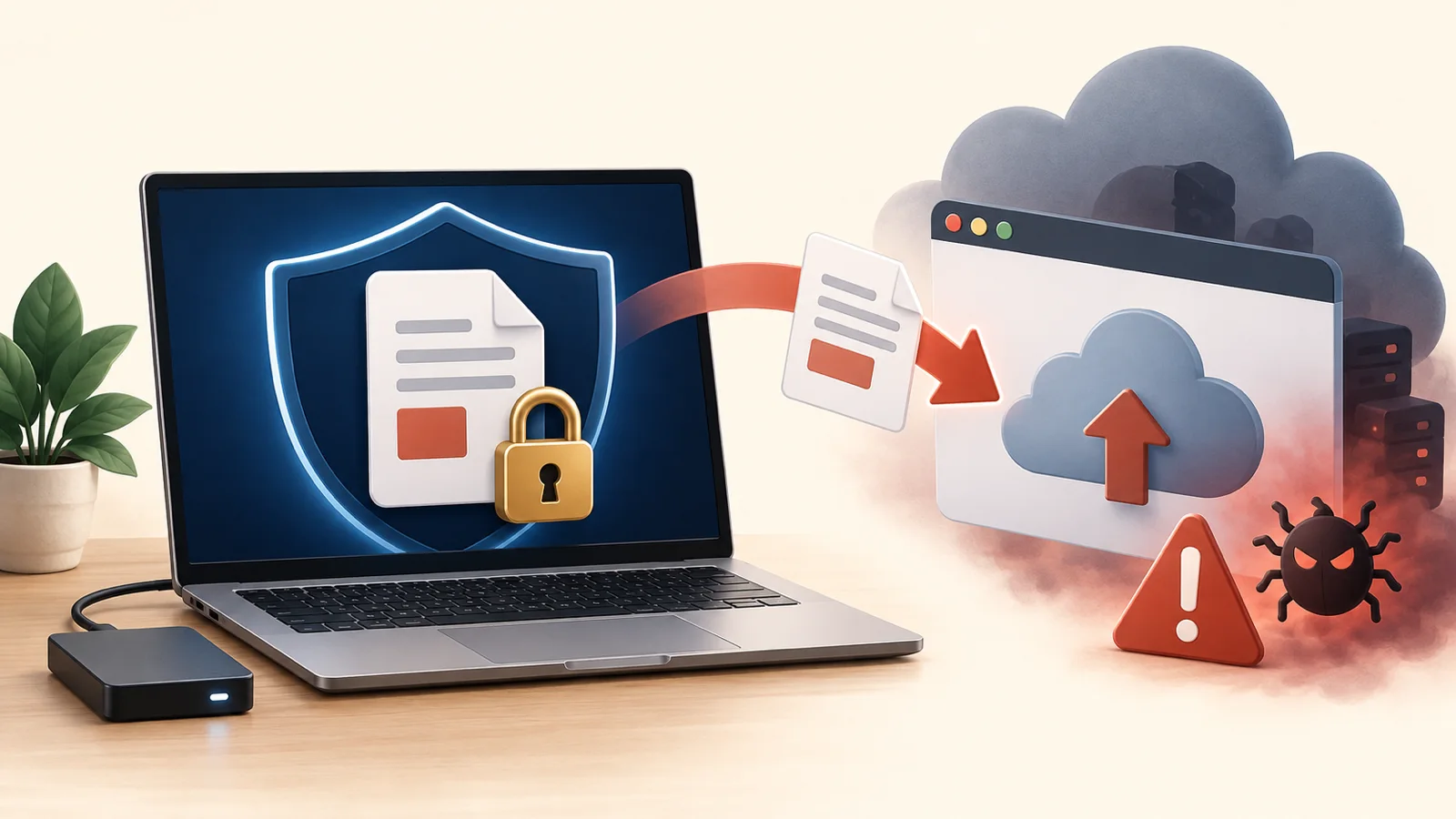
On March 7, 2025, the FBI Denver Field Office warned about a growing scam involving free online document converters. The FBI said these sites “will do the task advertised, but the resulting file can contain hidden malware.” Some also scrape uploaded files for personal data such as passwords and banking details.
How to stay safe
- Type the tool’s address yourself. Don’t click search ads for “free PDF converter.”
- Never upload passports, Emirates IDs, bank statements or contracts to an unknown site.
- Use an offline app such as PDF24 Creator or PDFgear desktop for private files.
- Scan downloaded files before opening them.
- Be suspicious if a “PDF” download ends in .exe or .js.
If you think you were hit, change your passwords from a different device and contact your bank.
What to do right away if a download infects your PC.
Which Free PDF Editor Should You Use?
| I want to… | Use this |
|---|---|
| Fix a typo in existing text | PDFgear or Sejda |
| Edit a scanned PDF | PDFgear (OCR first) |
| Fill and sign a simple form | Microsoft Edge |
| Edit a private file offline | PDF24 Creator or PDFgear desktop |
| Merge or compress files | PDF24 or iLovePDF |
| Hide sensitive information | A real redaction tool, not whiteout |
| Edit on Linux | Stirling-PDF or LibreOffice Draw |
Common Mistakes to Avoid
- Using whiteout as redaction. Sejda’s editor warns that whiteout “hides but will not completely remove underlying text.” Use a proper Redact tool for sensitive data.
- Trusting “free” on the homepage. Check the pricing page. “Edit Text” is often listed only under the paid plan.
- Editing your only copy. Some free tools add watermarks to licensed features. Always work on a copy.
- Expecting Arabic text to edit cleanly. Some browser editors don’t fully support right-to-left scripts. Test a small edit first.
How to Test Any Free PDF Editor in 2 Minutes
- Open a copy of a real PDF you need to change.
- Click an existing word and try to change it.
- Save and download the file.
- Open it in Edge and check for a watermark or shifted layout.
- Try selecting the old text. If it’s still underneath, the tool only covered it.
Frequently Asked Questions
What is the best free PDF editor with no watermark?
PDFgear edits existing text for free with no watermark and no signup. Sejda and PDF Candy also add no watermark, but they limit pages or tasks per hour.
Does Windows 11 have a free PDF editor?
Windows 11 includes Microsoft Edge, which can highlight, draw, comment and add text boxes to PDFs. It cannot change existing text.
Can I edit a PDF for free without uploading it?
Yes. PDF24 Creator and PDF-XChange Editor work offline on Windows, and PDFgear has desktop apps for Windows and Mac.
Can Adobe Acrobat edit PDF text for free?
No. Adobe says its free online editor cannot edit existing body text. That needs Acrobat Pro, which has a 7-day free trial.
Is it safe to use free online PDF converters?
Well-known tools are generally safer, but the FBI has warned about fake converter sites that deliver malware. Use an offline app for private documents.
Which free PDF editor works on Linux?
Stirling-PDF has a Linux desktop app, and LibreOffice Draw can open and edit simple PDFs. PDF24’s online tools also work in any browser.
Conclusion
If you need to change words already in a PDF, start with PDFgear. For a quick browser edit, Sejda’s free tier covers most single documents. For private files on Windows, PDF24 Creator keeps everything offline.
Whatever you choose, test the exact edit on a copy before trusting it with an important file. Then keep your PC safe while downloading new tools with our guide on how to protect yourself from online scams.