Turn off Copilot in Windows 11 by unpinning it when you only want a cleaner taskbar, or uninstall the Microsoft Copilot app when you do not want it on the PC. Current Windows versions use a packaged Copilot app, so older Group Policy and registry instructions for the retired sidebar are no longer the best choice.
This guide starts with the safest reversible option and explains what changes—and what does not—after Copilot is removed.
Right-click the Copilot taskbar icon and select Unpin from taskbar to hide it. To remove the app, open Settings > Apps > Installed apps, find Copilot, select the three-dot menu, and choose Uninstall. This does not remove Copilot from Edge, Microsoft 365, or the web.
Table of Contents
ToggleChoose How Far You Want to Turn Off Copilot in Windows 11
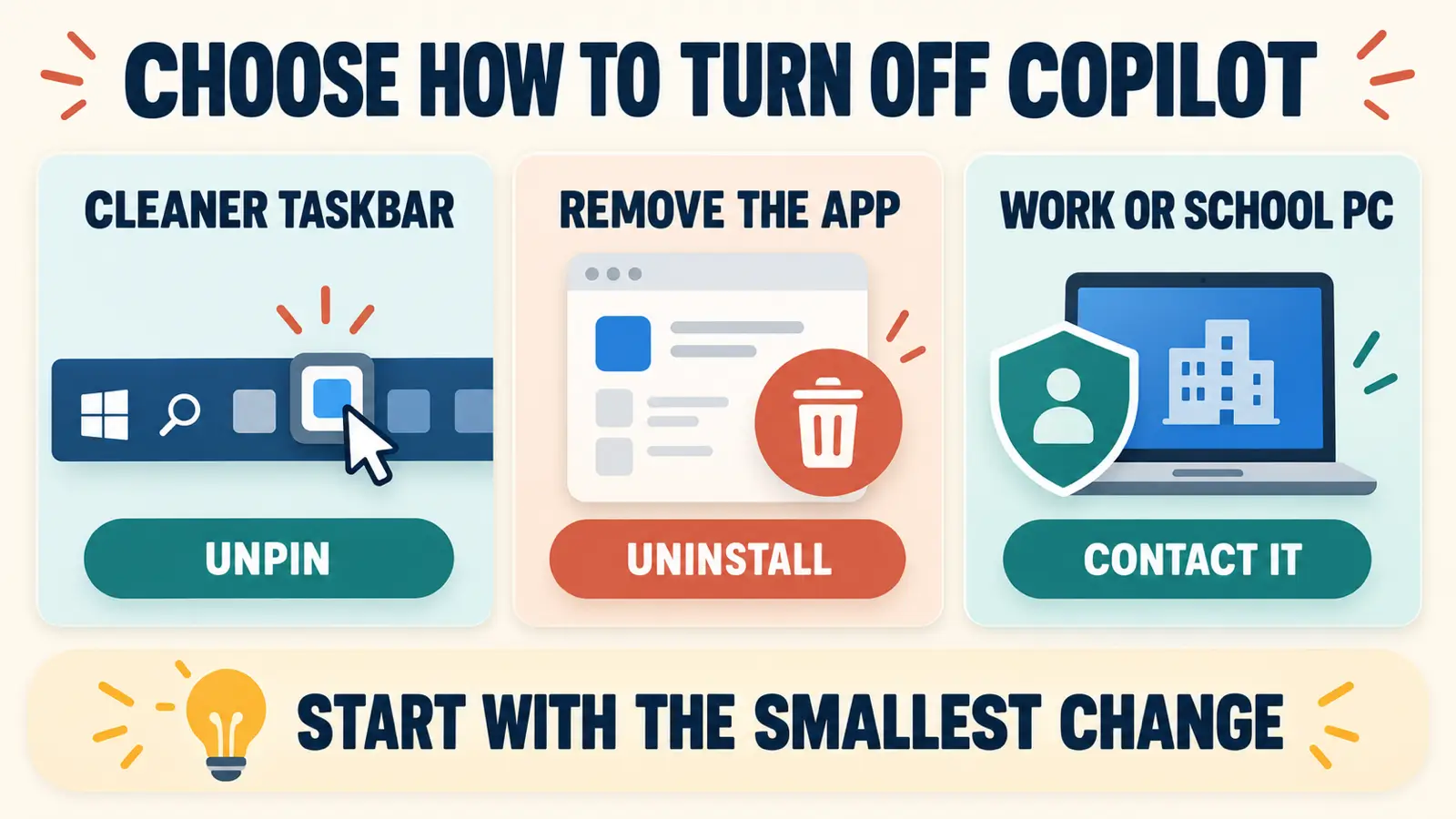
Windows now treats Microsoft Copilot as an app rather than the original built-in sidebar. Choose the smallest change that solves your problem:
- Unpin it if you only want to remove the taskbar shortcut.
- Uninstall it if you do not want the Copilot app installed.
- Change its keyboard shortcut if you keep opening it accidentally.
- Use organization policies only when you manage work or school computers.
Hiding or uninstalling this app does not disable every Microsoft AI feature. Edge Copilot, Microsoft 365 Copilot, and the Copilot website are separate experiences.
Method 1: Unpin Copilot From the Taskbar
- Find the Copilot icon on the taskbar.
- Right-click the icon.
- Select Unpin from taskbar.
The app remains installed and can still appear in Start or Windows Search. This is the quickest option when the taskbar button is the only annoyance.
If you later want it back, open Start, search for Copilot, right-click the result, and choose the available pin option.
Method 2: Uninstall the Microsoft Copilot App
- Press Windows + I to open Settings.
- Select Apps > Installed apps.
- Enter Copilot in the app search box.
- Select the three-dot menu beside Microsoft Copilot.
- Select Uninstall, then confirm.
Microsoft documents Installed apps as the normal Windows removal route. You can also open Start > All apps, right-click Copilot, and select Uninstall when that option is available.

Unpin Copilot first if you are unsure. Uninstalling the app is reversible, but hiding the shortcut is quicker and avoids downloading the app again if you change your mind.
Change the Copilot Key or Windows + C Shortcut
On supported versions, open the Copilot app and go to Account > Settings > Copilot Keyboard Shortcuts. Microsoft’s Copilot access guide says this page can control whether the Copilot key or Windows + C opens the full app or a smaller quick view.
Windows may also provide shortcut controls under Settings > Bluetooth & devices > Keyboard > Shortcuts and hotkeys. Available choices depend on the keyboard and Windows build. Changing a shortcut does not uninstall Copilot.
Review useful Windows shortcuts and choose alternatives that fit your workflow.
Why the Old Group Policy and Registry Method Is Outdated
Many older guides recommend Turn off Windows Copilot in Group Policy or the matching TurnOffWindowsCopilot registry value. Microsoft now labels that policy as legacy and says it does not control the newer Copilot app experience.
Do not edit the registry just to remove the current app. It adds risk without reliably solving the modern problem. Use Installed apps for a personal PC.
On a work or school computer, your organization may install or pin Copilot through management policies. Do not bypass those controls. Contact the IT administrator if the app returns or the Uninstall command is unavailable.
How Organizations Can Block the Copilot App
Microsoft recommends AppLocker instead of the legacy Turn Off Windows Copilot policy for the current consumer app. An administrator can create a rule for the Microsoft Copilot package to prevent installation or launch. Microsoft also documents a PowerShell removal method for managed devices.
These options are intended for administrators and multiple-device management. They are unnecessary for most home users, and a poorly scoped application-control rule can block legitimate software.
What Happens After You Remove Copilot?
- The Microsoft Copilot app no longer launches from Start or its former taskbar shortcut.
- Your Windows files and ordinary settings remain unchanged.
- Copilot in Edge and Microsoft 365 is not automatically removed.
- Your online Copilot account history is not deleted by uninstalling the Windows app.
- A future Windows, Store, or organization-managed update may offer or reinstall the app.
If you want to use Copilot again, install the Microsoft Copilot app from the Microsoft Store and pin it where convenient.
Explore more supported Windows 11 settings for a cleaner and more comfortable desktop.
Copilot Keeps Returning: What to Check
- Confirm whether the app was reinstalled or merely pinned again.
- Unpin the shortcut if the app itself can remain installed.
- Check Settings > Apps > Installed apps and uninstall it again if necessary.
- On a managed PC, ask IT whether a deployment policy is restoring it.
- Keep Windows updated because Microsoft continues to change the Copilot app and shortcut behavior.
Avoid cleanup utilities and copied registry scripts. They can change unrelated Windows components and may not apply to the current packaged app.
Frequently Asked Questions
How do I turn off Copilot in Windows 11?
Unpin the taskbar icon if you only want to hide it. To remove the current app, open Settings > Apps > Installed apps, find Copilot, open its three-dot menu, and select Uninstall.
Does unpinning Copilot disable it?
No. Unpinning removes the taskbar shortcut but leaves the app installed and available through Start or Search.
Is it safe to uninstall Microsoft Copilot?
Yes, for a personal PC when Windows offers the Uninstall command. Removing the app does not remove Windows security features or ordinary system files.
Does the Turn Off Windows Copilot policy still work?
Microsoft describes it as a legacy policy and says it does not control the newer Copilot app experience. Organizations should use current application-management guidance.
Will uninstalling Copilot remove it from Edge or Microsoft 365?
No. Those are separate Copilot experiences with their own settings, accounts, licenses, and organization policies.
Use the Current Copilot App Controls
For most people, the cleanest way to turn off Copilot in Windows 11 is to unpin or uninstall the current app. Skip outdated registry tweaks, use organization controls only on managed devices, and remember that Edge and Microsoft 365 Copilot must be managed separately.