

Windows Hello PIN not working? Windows usually shows a message such as Something went wrong and your PIN isn’t available. Your files are fine. The PIN is a device-only sign-in method, and its stored data has become damaged or out of sync with your account.
Sign in another way first, then rebuild the PIN with the steps below.
On the sign-in screen, select Sign-in options and sign in with your account password. Then open Settings > Accounts > Sign-in options > PIN (Windows Hello) and choose I forgot my PIN, or remove the PIN and add a new one. If that fails, delete the contents of the Ngc folder as an administrator, restart and set up a new PIN.
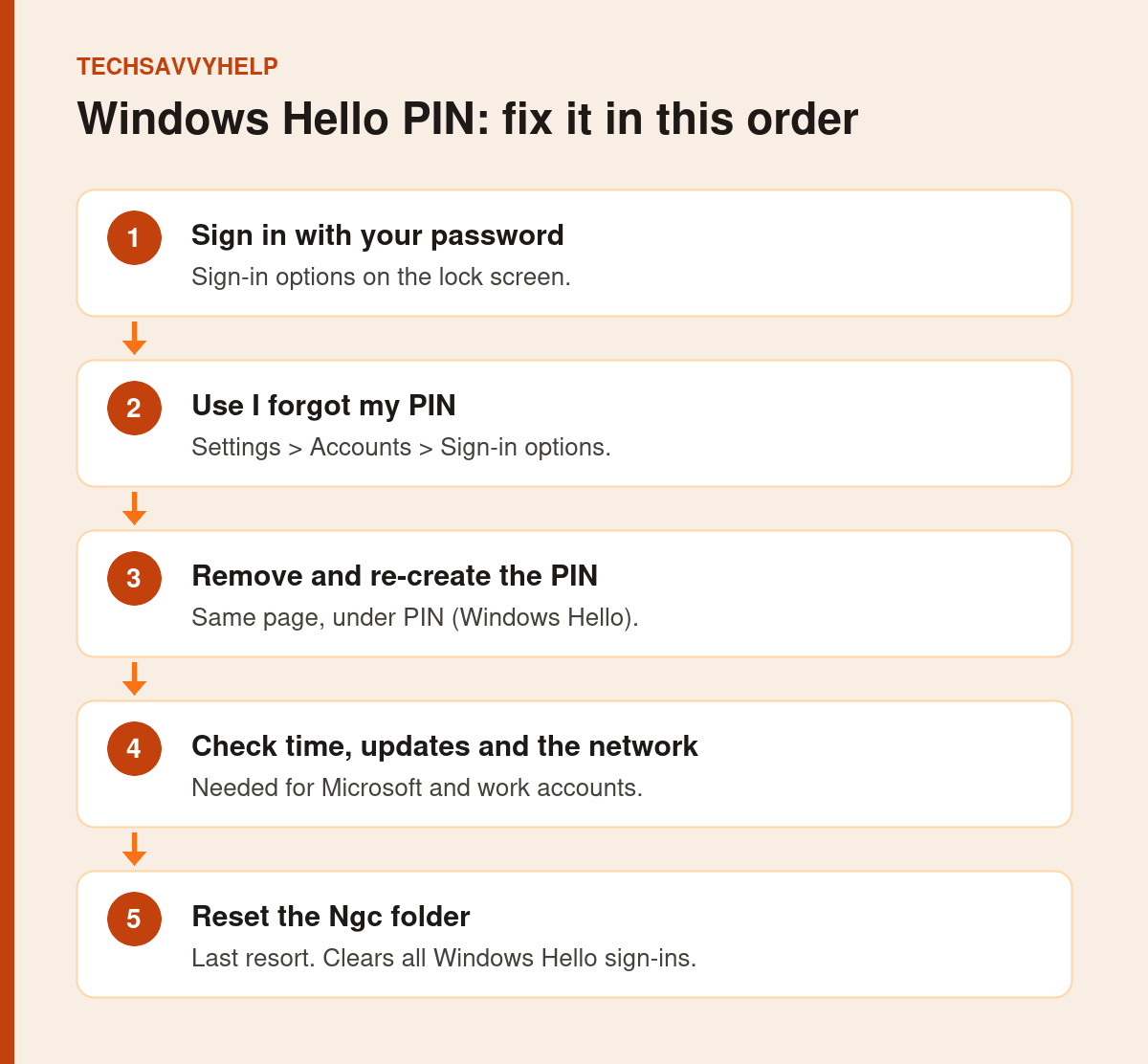
Table of Contents
ToggleFix 1: Sign In With Your Password
On the lock screen, select Sign-in options and choose the key icon for Password. Enter your Microsoft account or local account password. If you do not know it, select I forgot my password, or reset a Microsoft account password from another device at account.live.com.
Prefer to sign in with your password? The section below on removing your PIN explains how, including what to do if Remove is greyed out.
Fix 2: Use I Forgot My PIN
- Open Start > Settings > Accounts > Sign-in options.
- Select PIN (Windows Hello).
- Select I forgot my PIN and follow the prompts.
- Verify with your account password and set a new PIN.
The same option appears on the lock screen under the PIN box. You need an internet connection when the PIN is linked to a Microsoft or work account.
Fix 3: Remove the PIN and Add a New One
If I forgot my PIN does not help, go to Settings > Accounts > Sign-in options > PIN (Windows Hello), select Remove, confirm with your password, restart, then return and select Set up to create a new PIN.
If Remove is greyed out, turn off the setting that only allows Windows Hello sign-in for Microsoft accounts on the same page, then try again.
Fix 4: Check the Date, Time and Network
A wrong clock or no internet can stop Windows confirming your account. Go to Settings > Time & language > Date & time, turn on Set time automatically and select Sync now. Make sure the PC is online before re-creating the PIN.
On work or school PCs, PIN rules are set by your organisation. Contact your IT team if a PIN error mentions policy or the organisation.
Fix 5: Install Windows Updates
Go to Settings > Windows Update > Check for updates and install everything. If the PIN stopped working right after an update, check Update history and remove the newest update to test.
Fix 6: Reset the Ngc Folder
Windows stores Windows Hello data in a protected folder called Ngc. Clearing it forces a clean start. This is a last resort: it removes every Windows Hello sign-in on the PC, including fingerprint and face recognition, and you must know your account password.
- Sign in with your password.
- Right-click Start and select Terminal (Admin).
- Run
takeown /f "C:\Windows\ServiceProfiles\LocalService\AppData\Local\Microsoft\Ngc" /r /d y - Run
icacls "C:\Windows\ServiceProfiles\LocalService\AppData\Local\Microsoft\Ngc" /grant Administrators:F /t - Run
rd /s /q "C:\Windows\ServiceProfiles\LocalService\AppData\Local\Microsoft\Ngc" - Restart, then go to Sign-in options and set up a new PIN.
These commands come from a Microsoft Q&A answer on this error. They take ownership of the folder, grant administrators access and delete it so Windows rebuilds it.
Do not run these commands on a work or school PC without your IT team. Make sure you can sign in with your password first, or you could lock yourself out.
Fix 7: Last Resort Options
If no sign-in method works, try another administrator account on the PC, or reset Windows while keeping your files. See our guide to resetting Windows 11 without losing files. If BitLocker asks for a key during recovery, see how to find your BitLocker recovery key.
Why Windows Hello PIN Not Working Errors Happen
Common triggers are a damaged Ngc folder after an update or crash, a recent Microsoft account password change, a wrong system clock, or changes to the PC’s security chip settings. In each case the PIN data no longer matches what Windows expects, so rebuilding the PIN fixes it.
How to Remove Your PIN and Sign In With a Password Instead
If you would rather stop using a PIN altogether, make sure you know your account password first, because Windows switches to it as soon as the PIN is removed. Your files, apps and account are not affected.
- Press Windows + I and go to Accounts > Sign-in options.
- Open PIN (Windows Hello), select Remove, confirm, and enter your account password.
Remove is greyed out? On the same page, turn off For improved security, only allow Windows Hello sign-in for Microsoft accounts on this device, then try again. Restart the PC if the button stays greyed out. On a work or school PC the option can be locked by policy, so ask IT rather than working around it.
Windows keeps asking you to set up a PIN again? Go to Settings > System > Notifications > Additional settings and clear Suggest ways to get the most out of Windows and finish setting up this device. Face and fingerprint sign-in use a PIN as their backup, so Windows will ask for one again if you set either of those up.
Set up sign-in options and other protections the right way.
Frequently Asked Questions
Why does my PC say something went wrong and your PIN isn't available?
The Windows Hello data on the PC is damaged or out of sync. Sign in with your password, then use I forgot my PIN or remove and re-create the PIN.
Will resetting my PIN delete my files?
No. Re-creating the PIN or clearing the Ngc folder only affects sign-in data. Your files and apps stay where they are.
Why is my Windows Hello PIN not working after an update?
Updates can damage stored PIN data. Install the latest updates, then re-create the PIN. Reset the Ngc folder only if that fails.
Can I sign in without a PIN?
Yes. Choose Password under Sign-in options on the lock screen and sign in with your account password.







