Windows may refuse to delete a file when an app still has it open, File Explorer is stuck, your account lacks permission, or security software is scanning it. The message may say the file is in use, access is denied, or the action cannot be completed.
Start with the least disruptive fix. Do not jump straight to ownership changes or force commands, especially for files inside Windows, Program Files, or an application folder.
To force delete a locked file, close the app using it and try again. If Windows still says the file is in use, restart File Explorer or end the identified process in Task Manager. For stubborn files, use Microsoft Process Explorer to find the lock, delete the file in Safe Mode, or use an exact quoted path in Command Prompt. Confirm the file is safe to remove before using any force option.
Table of Contents
ToggleBefore You Delete a Locked File
First confirm that the file belongs to you and is not required by Windows or an installed program. Search the exact filename if you do not recognize it. A file in C:\Windows, C:\Program Files, a driver folder, or an antivirus quarantine area should not be removed simply because it looks unfamiliar.
Copy irreplaceable work elsewhere before changing permissions or deleting from an external drive. Command-line deletion normally bypasses the Recycle Bin, so recovery may be difficult or impossible.
Do not use wildcards or recursive deletion commands while troubleshooting one file. Confirm the full path first. Stop if the target is a Windows, boot, driver, application, or workplace-managed file.
1. Close the App Using the File
Save your work, then close the application most likely to be using the file. For example, close Word for a document, Photos for an image, or a media player for a video. Also check the notification area near the clock because backup, sync, compression, and editing tools may continue running after their windows close.
- Right-click the file and note the app named in the error, if Windows identifies one.
- Close that app normally.
- Wait a few seconds for syncing or scanning to finish.
- Try deleting the file again.
If the file is stored in OneDrive, Dropbox, or another sync folder, pause syncing briefly instead of terminating random background services.

2. Restart Windows Explorer
File Explorer itself can keep a preview, thumbnail, or folder handle open. Restarting it refreshes the desktop and taskbar without rebooting the entire PC.
- Press
Ctrl + Shift + Escto open Task Manager. - Select Windows Explorer in the Processes list.
- Select Restart task.
- Open the folder again and retry the deletion.
If Task Manager opens in a compact view, select More details. Your taskbar may disappear briefly while Explorer restarts; that is expected.
3. End the Identified Process in Task Manager
If a normal close does not release the file, Task Manager can end the responsible app. Use this only for a process you recognize because ending it can discard unsaved work.
- Open Task Manager with
Ctrl + Shift + Esc. - Find the named application under Processes.
- Right-click it and select End task.
- Delete the file, then reopen the application if needed.
For an identified process, the official Windows command-line alternative is taskkill /pid PID. Microsoft documents that /f forces termination and /t also ends child processes. Avoid broad image-name wildcards because they can close unrelated processes.
4. Find the Lock With Microsoft Process Explorer
When the error does not name the app, Microsoft Process Explorer can search open handles and show which process is holding the file.
- Download Process Explorer from Microsoft Sysinternals.
- Run it, then press
Ctrl + F. - Enter the filename or a distinctive part of its path.
- Select a result to identify the owning process.
- Save work in that app and close it normally. End the process only if a normal close fails.
Do not close an individual handle unless you understand the risk. Microsoft warns that forcibly closing handles can make an application or Windows unstable. Identifying and closing the owning app is safer.
5. Delete the File With Command Prompt
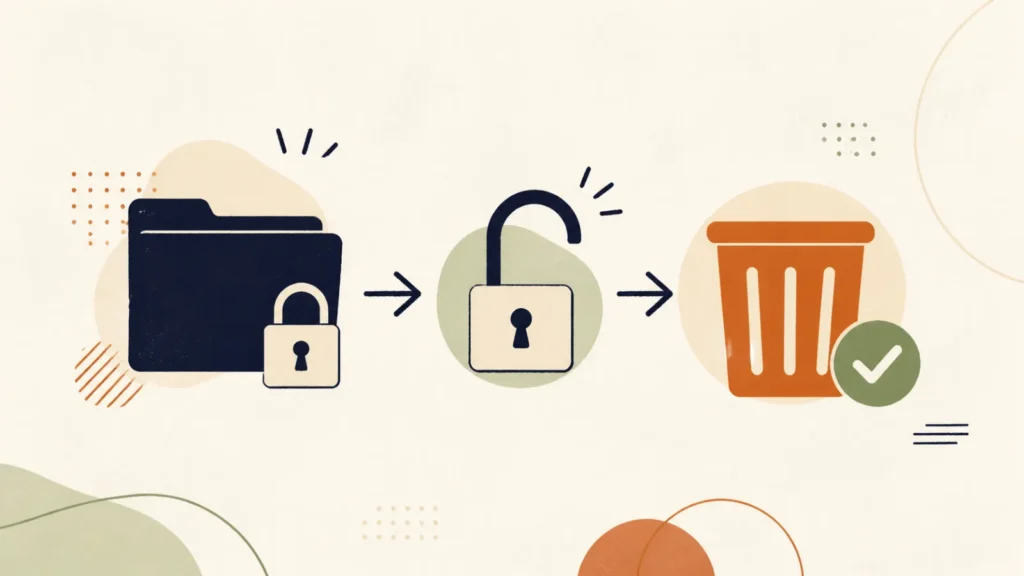
Command Prompt is useful when File Explorer cannot remove a file with a difficult path or read-only attribute. It does not unlock a file that an active process still owns, so close the process first.
- Open Start, type Command Prompt, and select Run as administrator only if the location requires it.
- Verify the exact file path in File Explorer.
- Run
dir "C:\full\path\file.ext"first to confirm the target. - Then run
del /p /f "C:\full\path\file.ext". - Review the confirmation and press Y only when the displayed file is correct.
Microsoft documents /p as the confirmation prompt and /f as the option for read-only files. Avoid /q, /s, and wildcards for a one-file repair because they reduce safeguards or expand the deletion scope.
6. Remove the File With PowerShell
PowerShell handles paths with brackets and other special characters more predictably when you use -LiteralPath. The -Force option can remove hidden or read-only files, but Microsoft notes that it does not override security restrictions and it cannot defeat an active file lock.
- Open Windows Terminal or PowerShell.
- Confirm the target with
Get-Item -LiteralPath "C:\full\path\file.ext". - Preview the operation with
Remove-Item -LiteralPath "C:\full\path\file.ext" -Force -WhatIf. - If the preview is correct, repeat the command without
-WhatIf.
Use -Recurse only when you intentionally want to remove a folder and everything inside it. It is not required for a single file.
7. Delete the File in Safe Mode
Safe Mode starts Windows with a limited set of drivers and services. That often prevents a startup app, shell extension, or third-party service from reopening the file.
- Open Settings > System > Recovery.
- Under Advanced startup, select Restart now.
- Choose Troubleshoot > Advanced options > Startup Settings > Restart.
- Select Enable Safe Mode.
- Delete the confirmed file, then restart normally.
Use ordinary Safe Mode unless you specifically need network access. Microsoft explains that Safe Mode with Networking loads additional network drivers and services, which are unnecessary for a local deletion.
8. Fix Ownership or Permissions
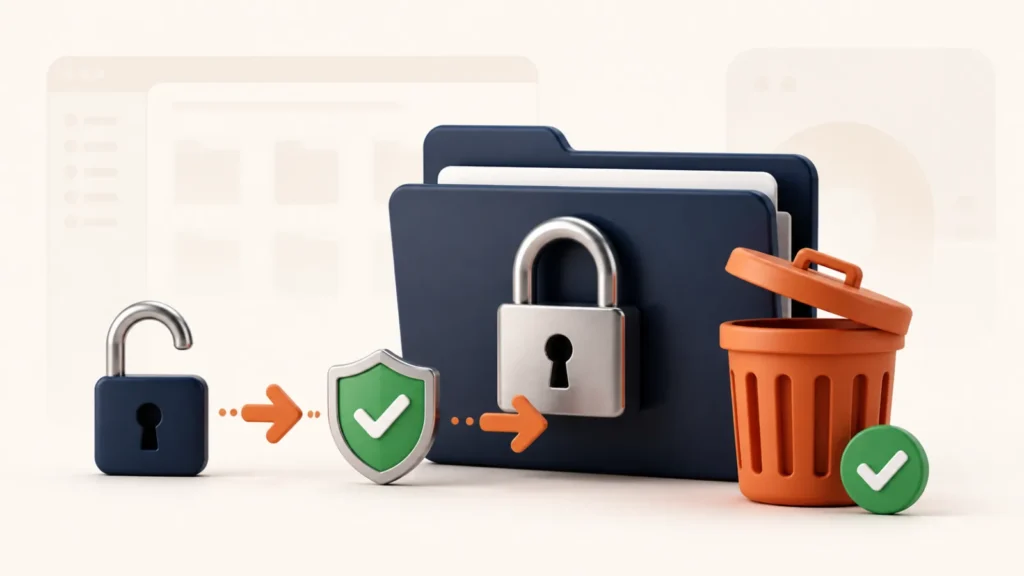
An Access denied message can be a permissions problem rather than a lock. Check permissions only after closing apps and trying Safe Mode.
- Right-click the file and select Properties.
- Open Security > Advanced.
- Check the listed owner and your account permissions.
- If it is clearly your personal file, correct the ownership or grant your account the required permission.
- Apply the change and retry the deletion.
Do not take ownership of Windows system folders, WindowsApps, recovery partitions, or files managed by your workplace. Changing inherited permissions can break updates, applications, or organizational controls.
Locked Folders, External Drives, and Files That Return
Locked folder: close every app using a file inside it. Delete the contents only after checking them; never use a recursive command on a path you have not verified.
External drive or USB: stop transfers, close backup and antivirus scans, and check the drive for file-system errors if locks recur. Repeated corruption, disconnects, or unusual noises can indicate a failing drive. Copy important data before repair attempts.
File returns after deletion: a sync client, updater, scheduled task, or unwanted program may be recreating it. Check the file’s creation time and location, review startup apps, and run a Windows Security scan instead of repeatedly deleting the symptom.
Very long or unusual filename: try PowerShell with -LiteralPath. Rename the parent folder to shorten the path before using more invasive methods.
The Safest Order for Removing a Locked File
The safest order is to close the app, restart File Explorer, identify the locking process, and then try Command Prompt, PowerShell, or Safe Mode. Change ownership only when the message is genuinely about permissions.
For broader organization and storage guidance, see our Windows file management guide. If files disappear or a drive begins failing, review the Windows data recovery guide before writing more data to the drive.
Frequently Asked Questions
A background process, preview handler, sync client, antivirus scan, or File Explorer itself may still hold the file. Restart Explorer or use Microsoft Process Explorer to identify the owner.
Command Prompt and PowerShell deletion normally bypass the Recycle Bin. Confirm the exact path and keep a backup when the file matters.
Not necessarily. The force option commonly handles read-only or hidden attributes, but an active process lock must usually be released by closing or ending the owning process.
No, not unless trusted documentation for a specific repair tells you to remove that exact file. Deleting Windows, driver, boot, or application files can prevent the PC or program from working.
Find what recreates it. Check sync software, startup apps, scheduled tasks, installers, and security scan results. Repeated deletion will not fix the responsible process.
Remove the Lock, Then Delete Safely
A locked file is usually a symptom of an open app, background process, permission problem, or storage issue. Identify what is holding the file, confirm that it is safe to remove, and use the least destructive method first.
Avoid broad force commands and never delete unfamiliar Windows or application files simply to clear an error. When the file keeps returning or a drive behaves unpredictably, investigate the underlying process or storage problem instead of repeatedly deleting the symptom.