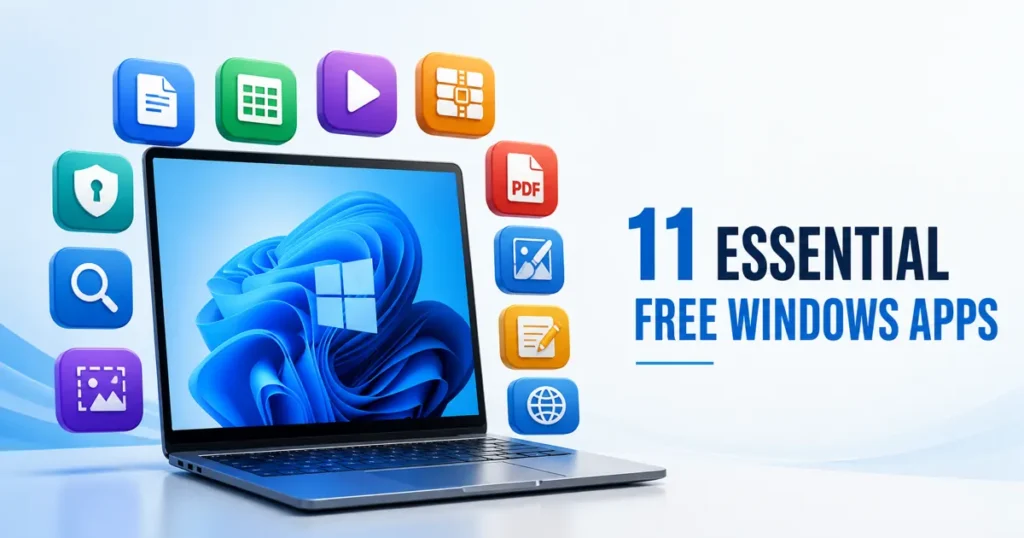
Looking for free Windows software for a new laptop? These 11 picks cover everyday work, passwords, media and files. Each recommendation explains when it is worth installing and links to the official developer.
Start with Bitwarden for passwords, LibreOffice for offline documents and VLC for media playback. This free Windows software list is designed for a new laptop: install only the apps that solve a real task for you.
Table of Contents
Toggle11 free Windows software apps for a new laptop
1. Bitwarden — passwords
Bitwarden stores and generates passwords, with unlimited passwords and devices on its free plan. Use the browser extension for filling logins; the Windows app is optional.
Use it if: you want one password vault across your laptop and phone. Choose a unique master password and enable two-step login. Get Bitwarden. Premium extras are optional.
2. LibreOffice — documents and spreadsheets
LibreOffice includes Writer, Calc and Impress for documents, spreadsheets and presentations. It is useful for offline work without an office subscription.
Use it if: you need a desktop office suite. Check formatting when exchanging complex Microsoft Office files, especially before submitting school or work documents. Get LibreOffice.
3. VLC — video and music
VLC plays many audio and video formats without separate codec packs. Subtitle support and playback-speed controls make it useful for downloaded lessons and local movies.
Use it if: your usual player cannot open a media file or handle its subtitles. It is a local media player, so it does not provide a film library. Get VLC.
4. 7-Zip — compressed files
7-Zip opens archives including ZIP, RAR and 7z, and creates ZIP or 7z files. It also supports encrypted archives.
Use it if: you need password-protected archives or more compression controls. There is little reason to add another app if your current archive tools already handle your downloads. Get 7-Zip.
5. PowerToys — Windows productivity
Microsoft PowerToys adds tools such as FancyZones for window layouts, PowerRename for batch renaming and Keyboard Manager for remapping keys.
Use it if: you frequently arrange multiple windows or repeat file tasks. Start with one utility and enable others as needed; the collection can be more than a casual user needs. Get PowerToys.
Windows already covers browsing, security and basic file handling. Add free Windows software only when a specific task exposes a gap, so your new laptop stays simple and quick to start.
6. Everything — finding files
Everything from voidtools quickly finds files and folders by name. It is especially useful when you remember part of a filename but cannot remember its folder.
Use it if: searching large download or project folders is a regular chore. Its fast index is based on names; searching file contents works differently and is slower. Get Everything.
7. ShareX — screenshots
ShareX offers region and scrolling captures, annotation and screen recording. Its configurable actions are useful for tutorials and support requests.
Use it if: you regularly explain things with screenshots. Review after-capture tasks and upload destinations before capturing private information; choose local saving when you do not want to share a capture. Get ShareX.
Download installers only from the official developer or a verified Microsoft Store listing. Check the publisher shown by Windows before approving an installer, and decline unrelated tools or browser extensions.
8. SumatraPDF — reading PDFs
SumatraPDF is a lightweight reader for PDFs, EPUB books and several other document formats. An official portable version is available too.
Use it if: you want a dedicated reader with a simple interface. Choose a different tool for substantial PDF editing or redaction; reading and editing are different jobs. Get SumatraPDF.
9. GIMP — image editing
GIMP is a free image editor for photo retouching and more detailed graphics work. It suits projects that need more control than a basic crop or resize.
Use it if: you edit images regularly and are willing to learn a fuller editing workflow. For occasional simple changes, start with your existing photo app. Get GIMP.
10. Notepad++ — text and code
Notepad++ is a Windows text and source-code editor with syntax highlighting and advanced search tools.
Use it if: you work with code, logs or configuration files. It is optional for everyday laptop use, and it does not replace a word processor for formatted documents. Install only plugins you need. Get Notepad++.
11. Firefox — an alternative browser
Firefox offers browser extensions, tracking protection and synchronization across devices.
Use it if: you prefer its privacy controls or already use Firefox on another device. You can keep your current browser if it meets your needs; a new laptop does not require a browser switch. Review extension permissions before installing add-ons. Get Firefox.
Before you install
- Use the official links above and check the developer’s current Windows requirements.
- Choose the installer for your laptop’s processor when offered, such as x64 or ARM64.
- Check free-plan limits and decline unrelated extras or trial offers.
- Keep installed apps updated and remove tools you stop using.
Pick the app that solves your next task, then stop there. If you are still deciding what your PC needs, start with our beginner Windows software setup guide.
See which Windows tools are already included before adding more software.