

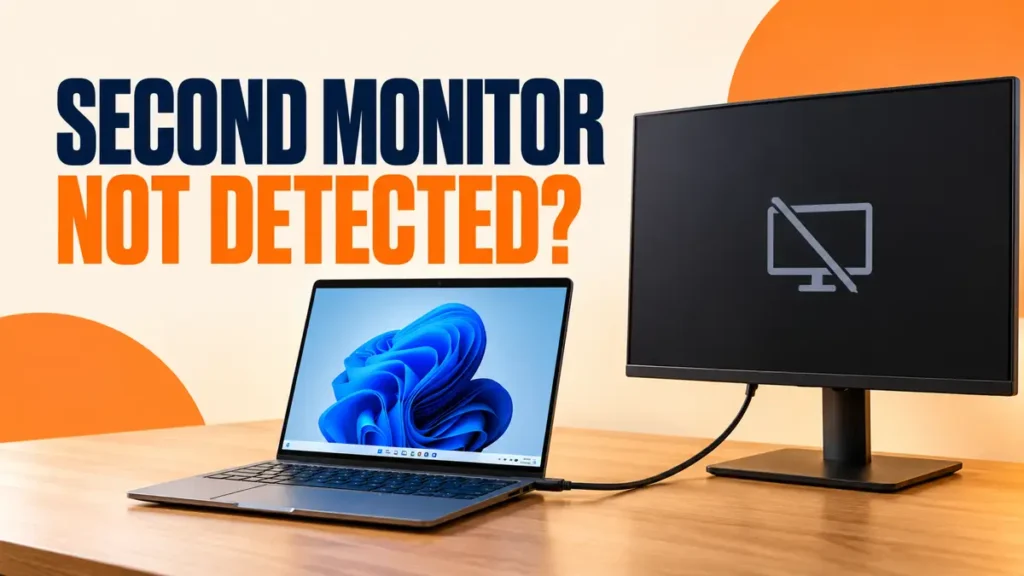
Second monitor not detected? Windows 11 then behaves as if nothing is plugged in: the screen stays black or shows No signal, and it does not appear in display settings.
The cause is usually the cable, the monitor’s input setting, or a port that does not carry video. The fixes below start there and finish with the graphics driver.
Check the cable is firmly connected and the monitor is set to the right input. Open Settings > System > Display > Multiple displays and select Detect, then press Windows + P and choose Extend. Remove docks and adapters to test a direct connection, press Windows + Ctrl + Shift + B, and update, roll back or reinstall the display driver.
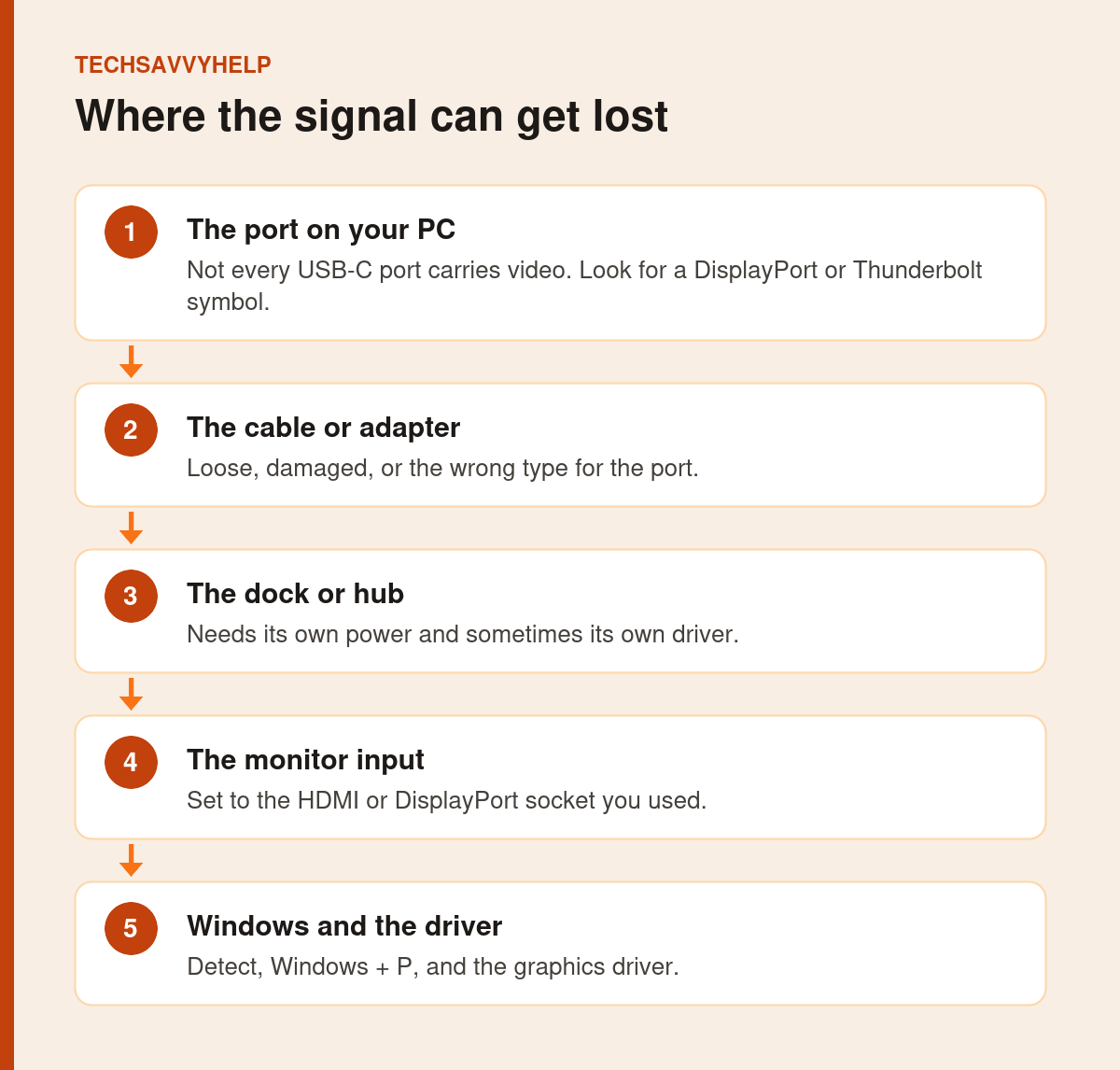
Table of Contents
ToggleFix 1: Check the Cable and the Monitor Input
- Unplug and firmly reconnect the cable at both ends.
- Use the monitor’s buttons to choose the input you are using, such as HDMI 1 or DisplayPort.
- Make sure the monitor is switched on at the wall and at the power button.
- Try a different cable. Microsoft also suggests testing the monitor on another computer to see whether the monitor or the PC is at fault.
Fix 2: Use Detect in Display Settings
- Open Start > Settings > System > Display.
- Select Multiple displays to expand it.
- Select Detect.
Microsoft’s multiple monitors guide recommends this when a connected display does not appear.

Fix 3: Press Windows + P and Choose Extend
Windows may be set to show on the PC screen only. Press Windows + P and select Extend to use both screens, or Duplicate to mirror them.
Fix 4: Check Your USB-C Port Supports Video
Many laptops have USB-C ports that only carry data and charging. Video needs DisplayPort Alt Mode or Thunderbolt, usually marked with a small DisplayPort or lightning-bolt symbol next to the port. Check your laptop’s specifications if there is no symbol.
Fix 5: Remove Docks and Adapters
Microsoft notes that docks, dongles and adapters can cause conflicts. Connect the monitor straight to the PC with a single cable to test. If that works, the dock or adapter is the problem: make sure it has its own power, install its driver or firmware from the maker, or replace it.
Fix 6: Reset the Graphics Output
Press Windows + Ctrl + Shift + B. The screens flash black for a moment while Windows resets the graphics output, and a second monitor often appears afterwards. If not, restart the PC, or use Power > Shut down and switch it back on, as Microsoft suggests.
Fix 7: Update, Roll Back or Reinstall the Display Driver
Update
Install all updates in Settings > Windows Update, then get the latest graphics driver from your PC maker or from Intel, AMD or NVIDIA.
Roll Back
If the monitor stopped working after an update, open Device Manager, expand Display adapters, right-click your graphics card and select Properties > Driver > Roll Back Driver.
Reinstall
In Device Manager, right-click the adapter, select Uninstall device, tick the option to remove the driver and restart. Then right-click the adapter and choose Update driver > Search automatically for drivers. These steps follow Microsoft’s external monitor troubleshooting guide.
AMD graphics users who lost a display after a recent update can also check our guide to AMD graphics issues after a Windows update.
Fix 8: Check Resolution and Refresh Rate
If the monitor is detected but shows No signal or flickers, the PC may be sending a resolution or refresh rate the monitor or cable cannot handle. In Display settings, select the second monitor and choose its recommended resolution, then open Advanced display and pick a lower refresh rate to test.
Second Monitor Not Detected After Every Fix?
Check the hardware limit: Confirm that the graphics adapter or dock supports the total number and resolution of displays you are connecting. A basic HDMI or DisplayPort splitter normally duplicates one signal; it does not create two independent extended desktops.
Test the monitor with another PC and the PC with another monitor. If the monitor fails everywhere, it needs repair. If only your PC fails with every monitor and cable, the graphics port or chip may be faulty, so contact the PC maker.
Laptop screen black too? An external monitor test is part of that fix.
Frequently Asked Questions
Why is my second monitor not detected in Windows 11?
Usually a loose or wrong cable, the monitor set to the wrong input, a USB-C port without video support, or a dock problem. Check these first, then use Detect and Windows + P.
How do I force Windows 11 to detect a second monitor?
Go to Settings > System > Display > Multiple displays and select Detect. Pressing Windows + Ctrl + Shift + B also resets the graphics output.
Why does my monitor say no signal when connected?
The monitor may be on the wrong input, the cable may not carry video, or the PC is sending an unsupported resolution or refresh rate.
Do all USB-C ports support a second monitor?
No. Only ports with DisplayPort Alt Mode or Thunderbolt carry video. Look for a DisplayPort or lightning symbol, or check the laptop’s specifications.







