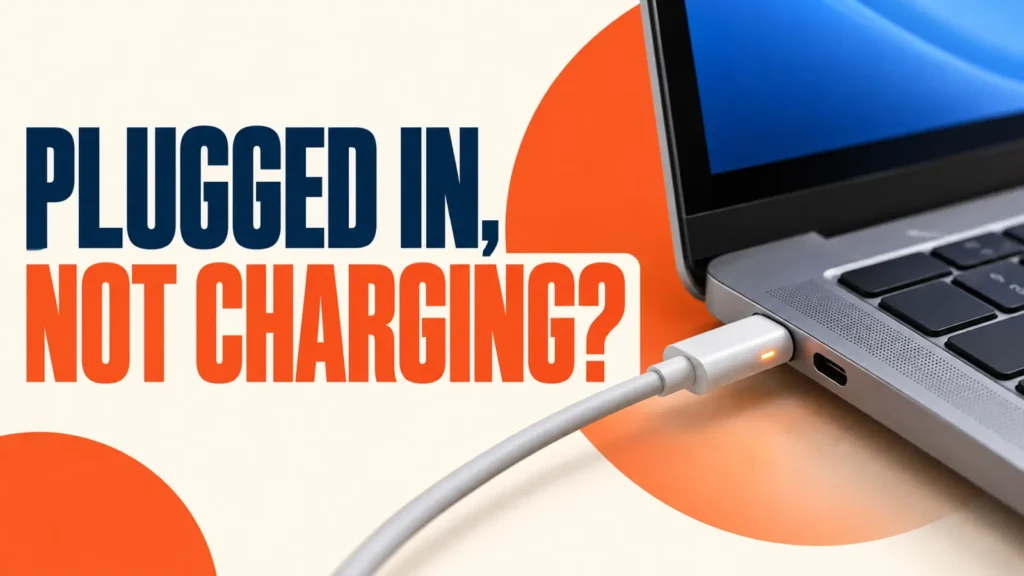
Laptop plugged in not charging? Windows may show the battery level stuck with a message such as Plugged in, not charging. Before you buy a new charger or battery, check one thing: many laptops stop charging on purpose to protect the battery.
This guide starts with those battery-saving limits, then works through the charger, driver and battery health.
Check for a charge limit first. Windows Smart charging, Lenovo Conservation mode, ASUS Battery Health Charging and HP Battery Health Manager all stop charging early by design. If none is on, try a charger with the correct wattage, reinstall the Microsoft ACPI-Compliant Control Method Battery driver in Device Manager, update the BIOS and run a battery report.
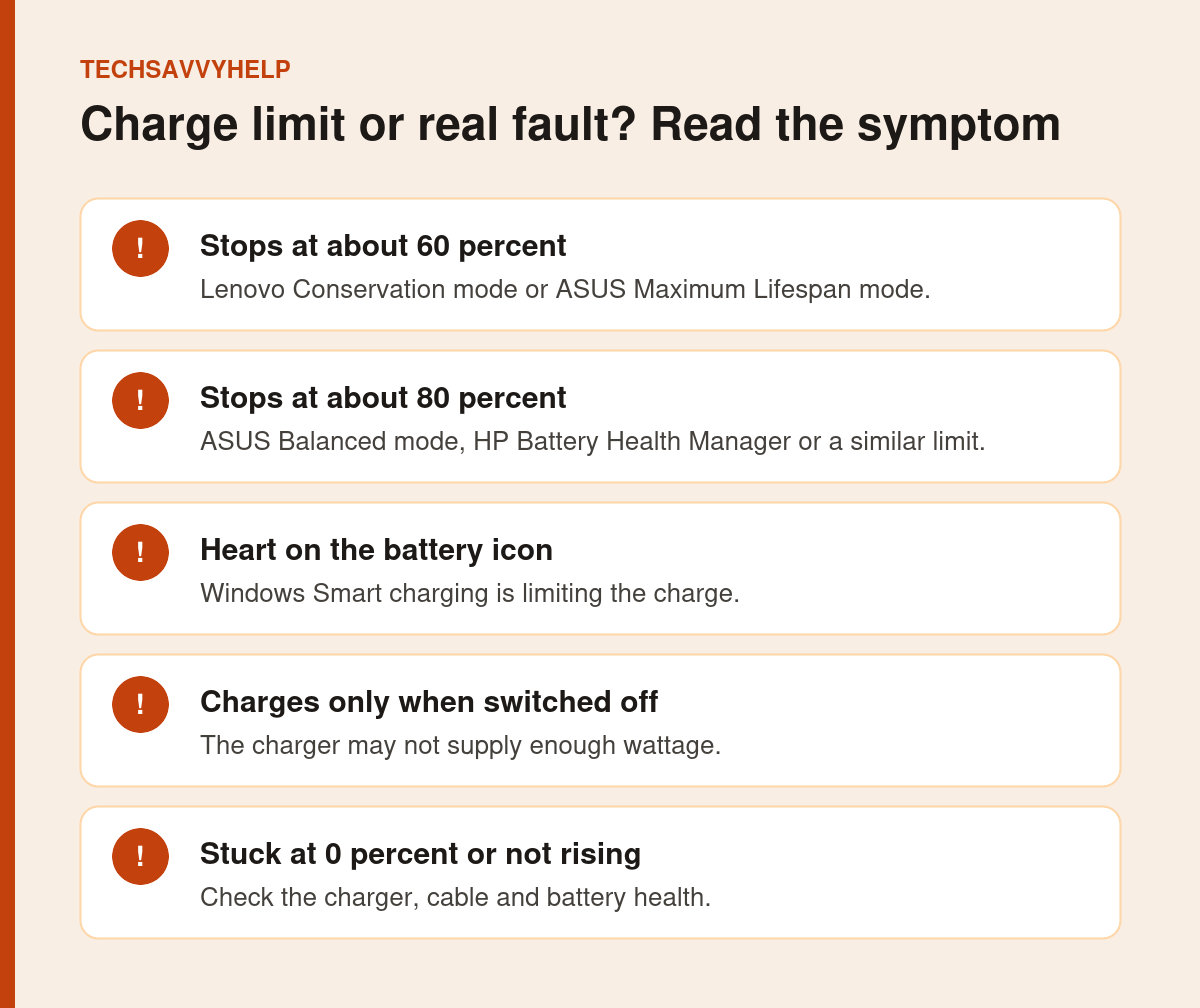
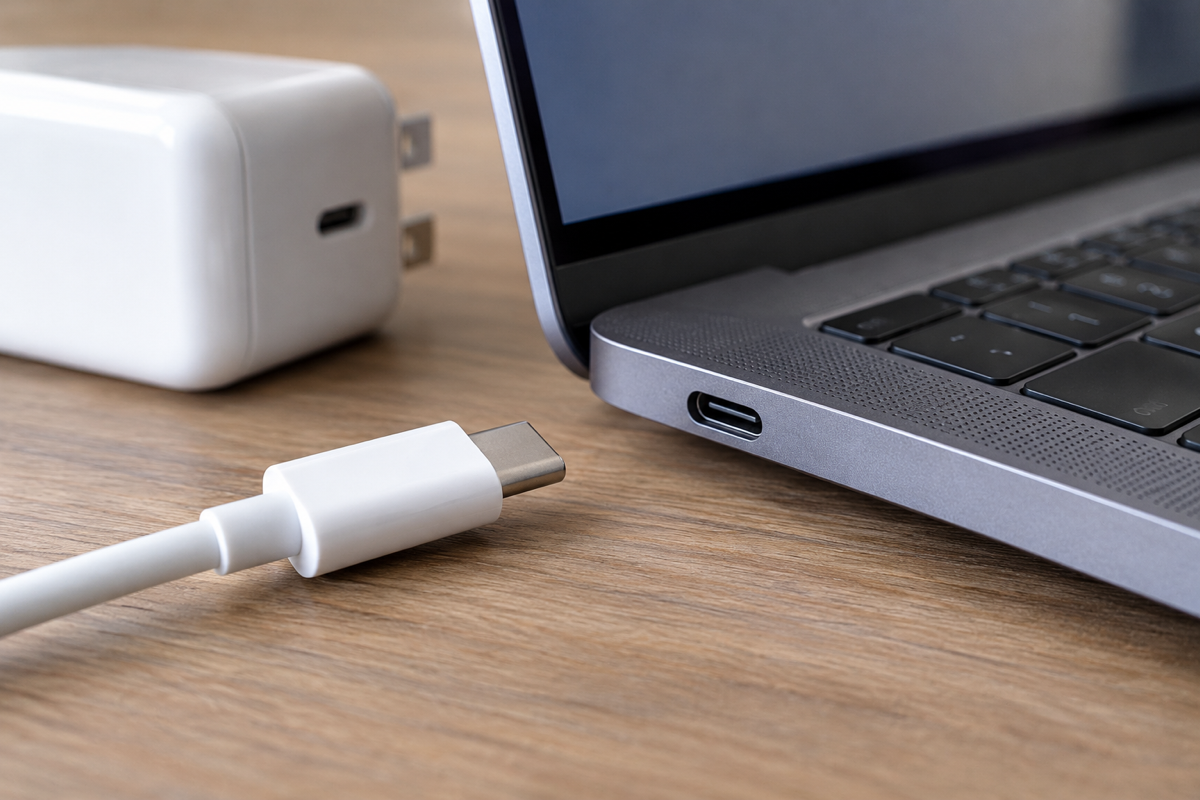
Table of Contents
ToggleLaptop Plugged In Not Charging? Check the Charge Limit
Lithium-ion batteries wear faster when they sit at 100 percent. To slow that wear, Windows and most laptop makers can cap the charge. When the cap is reached, Windows reports that the laptop is plugged in but not charging. Nothing is broken.
Windows Smart Charging
Some manufacturers turn on Smart charging in Windows 11. Microsoft says a heart appears on the battery icon, and hovering over it shows Fully Smart charged. The battery may stay below 100 percent. Microsoft’s Smart charging page says to check your device maker’s site to change it, because each brand handles it differently.
Lenovo Conservation Mode
Lenovo says a battery that stops at 55 to 60 percent is usually Conservation mode. Open Lenovo Vantage > Device > My Device Settings > Battery and turn Conservation mode off. On ThinkPads, turn off the custom battery charge threshold.
Lenovo also notes that with Conservation mode off, a battery between 95 and 100 percent may not start charging again. That is self-protection and is normal.
ASUS Battery Health Charging
ASUS offers three modes. Full Capacity Mode charges fully. Balanced Mode stops above 80 percent and restarts below 78 percent. Maximum Lifespan Mode stops above 60 percent and restarts below 58 percent. Change the mode in MyASUS or by right-clicking the battery icon in the system tray, as shown in the ASUS Battery Health Charging FAQ.
HP Battery Health Manager
On many HP laptops, the BIOS setting Battery Health Manager, under Advanced > Power Management, can be set to Maximize My Battery Health. HP says this limits charging to 80 percent of the available capacity, while Windows may still display 100 percent.
Dell Battery Settings
Dell laptops manage charging through Dell Power Manager, MyDell or the BIOS setting Battery Charge Configuration, depending on the model. Dell lists five options: Adaptive (the default), Standard, ExpressCharge, Primarily AC use and Custom. If Primarily AC use or a Custom range is selected, switch to Standard or Adaptive to charge fully.
If you keep the laptop plugged in most of the day, leaving a charge limit on is good for the battery. Turn it off only before a trip when you need the full runtime.
Fix 2: Check the Charger, Cable and Port
A charger that supplies less power than the laptop needs can keep it running without filling the battery. This is common with USB-C phone chargers and cheap replacement adapters.
- Use the charger that came with the laptop, or one with at least the same wattage.
- For USB-C, Microsoft advises a USB-C Power Delivery charger that provides at least the wattage of the original supply, plugged straight into the laptop rather than through a hub.
- Use the cable supplied with the device. Not every USB-C cable supports charging at full power.
- Try another wall socket, and another USB-C port if your laptop has more than one.
Fix 3: Do a Power Reset
The controller that manages charging can get stuck. Draining residual power often clears it. Shut down, unplug the charger, remove the battery if it is removable, and hold the power button for about 15 seconds. Dell, HP and Lenovo use slightly different steps, which we list in our guide to a laptop that won’t turn on but the power light is on.
Fix 4: Reinstall the Battery Driver
Windows talks to the battery through a standard driver. If that driver is damaged, Windows can misread the charge state.
- Right-click Start and open Device Manager.
- Expand Batteries.
- Right-click Microsoft ACPI-Compliant Control Method Battery and select Uninstall device.
- On the toolbar, select Action > Scan for hardware changes to reinstall it.
- Restart the laptop with the charger connected.
Do not uninstall Microsoft AC Adapter or any other entry under Batteries. Only remove the Control Method Battery entry.
Fix 5: Update the BIOS and Run the Battery Test
Charging is controlled by firmware, and manufacturers fix charging bugs in BIOS updates. Install the latest BIOS and chipset drivers for your exact model from the maker’s support site or app.
Then run the built-in hardware diagnostics. On Dell, press F12 at startup and choose Diagnostics. HP, Lenovo and ASUS include battery checks in their own diagnostic tools. A failed battery test means the battery needs replacing.
Keep the charger connected for the whole BIOS update and do not switch the laptop off. Some BIOS updates refuse to start below a minimum battery level, so charge the laptop with it switched off first if needed.
Fix 6: Check Battery Health With a Battery Report
Windows can produce a detailed battery report. It shows whether the battery has worn out, which is a common reason for charging problems on older laptops.
- Right-click Start and open Terminal.
- Type
powercfg /batteryreportand press Enter. - Open the file path shown, usually
battery-report.htmlin your user folder. - Compare Design Capacity with Full Charge Capacity.
If the full charge capacity is far below the design capacity, the battery has lost much of its original life. Our guide to laptop battery issues explains when to replace it.
Fix 7: Let a Hot Battery Cool Down
Many laptops pause charging when the battery is too hot or too cold, as a safety measure. This often happens during gaming or when the laptop sits in the sun or on a bed. Move it to a hard, cool surface, close heavy apps and let it cool. Charging usually resumes by itself.
Stop using the laptop if the battery is swollen, the case bulges, the touchpad lifts or you smell burning. Unplug it and have the battery replaced by a technician.
USB-C Laptop Not Charging or Charging Slowly
USB-C chargers, cables and ports look identical but can carry very different amounts of power. If Windows shows Slow charger or PC isn’t charging, one link in the chain is too weak for your laptop.
- Charger wattage: check the label on the original charger, for example 45W, 65W or 100W, and use a USB Power Delivery charger with the same or a higher rating. A 20W phone charger may only slow the battery drain.
- Cable rating: a standard USB-C cable carries up to 3A, about 60W. Laptops that need more need a 5A cable, usually sold as a 100W or 240W cable.
- Right port, no hub: plug straight into the port marked with a battery or power icon. Docks and monitors often pass through only 60W to 65W.
- Firmware: USB Power Delivery is managed by firmware, so install BIOS, chipset and USB-C or Thunderbolt updates from your laptop maker.
Test with the charger and cable that came with the laptop first. If that pair charges normally, your spare charger or cable is the problem, not the laptop.
Simple habits that keep your battery healthy for longer.
Charging or connecting displays through a dock? If something drops out, check the dock first.
Frequently Asked Questions
Why is my laptop plugged in not charging?
Most often a charge limit has been reached, such as Smart charging, Conservation mode or an 80 percent cap. Otherwise the charger may be too weak, the battery driver may be faulty, or the battery may be worn or too hot.
Is it bad to keep my laptop plugged in all the time?
Modern laptops stop charging when full, and charge limits reduce wear further. If you use the laptop on a desk most of the time, turning on your maker’s battery-saving mode is a good idea.
Can a USB-C phone charger charge my laptop?
It may power the laptop slowly or not at all. Use a USB-C Power Delivery charger with at least the same wattage as the laptop’s original charger.
How do I know if my laptop battery needs replacing?
Run powercfg /batteryreport and compare Full Charge Capacity with Design Capacity. A large gap, a failed diagnostic test or a swollen battery all mean it is time for a replacement.