Windows 11 can make File Explorer slow, unresponsive, or prone to freezing. Start with the low-risk fixes below. Microsoft is actively improving Explorer performance, but local cache, cloud, network, extension, or system-file problems can still cause lag.
Restart Windows Explorer in Task Manager first. Then install pending Windows updates and restart the PC.
If File Explorer remains slow, clear the thumbnail cache and test whether cloud sync, network folders, or a third-party shell extension is causing the delay.
Table of Contents
ToggleWhy Windows 11 Makes File Explorer Slow
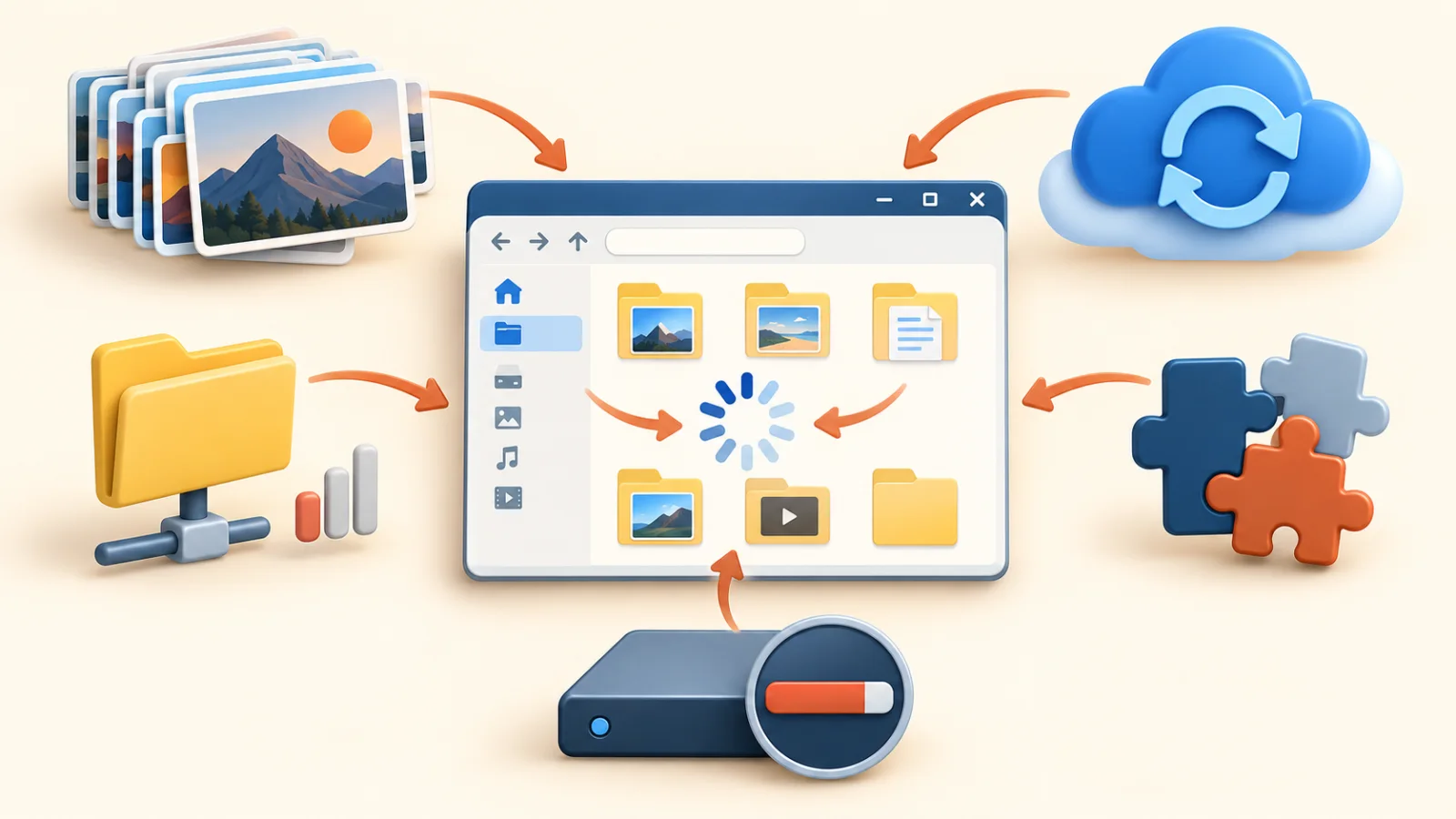
File Explorer can slow down while it builds thumbnails, loads recent or cloud files on Home, waits for a network location, or calls a third-party shell extension.
A damaged thumbnail cache or corrupted Windows component can also make File Explorer slow or cause repeated freezes. Microsoft has acknowledged Explorer responsiveness and reliability as an active Windows 11 quality focus.
If the whole PC feels slow, not just Explorer, see our full slow-PC diagnosis guide first.
Fix 1: Restart Windows Explorer in Task Manager
Press Ctrl + Shift + Esc to open Task Manager. Find Windows Explorer, right-click it, and select Restart.
The taskbar and desktop may briefly disappear while Explorer restarts. This does not delete files or require a full reboot.
Fix 2: Clear the Thumbnail Cache
Open Disk Cleanup, select your system drive, and check Thumbnails.
Run the cleanup, then restart File Explorer.
If thumbnail-heavy folders make File Explorer slow, clearing the thumbnail cache forces Windows to rebuild it. If you’re also low on space, see our guide to freeing up C drive space.
Fix 3: Disable Problematic Shell Extensions
Antivirus tools, cloud storage apps, and other software often add shell extensions and right-click menu entries.
A free tool like ShellExView lets you view and selectively disable these without uninstalling the software.
Disable extensions one at a time and relaunch File Explorer to spot the culprit.
Fix 4: Open File Explorer to This PC Instead of Home
Open File Explorer, select the three-dot menu > Options, and change Open File Explorer to from Home to This PC.
Cloud-backed Home content can make File Explorer slow while items sync or an unavailable location times out. You can switch it back at any time.
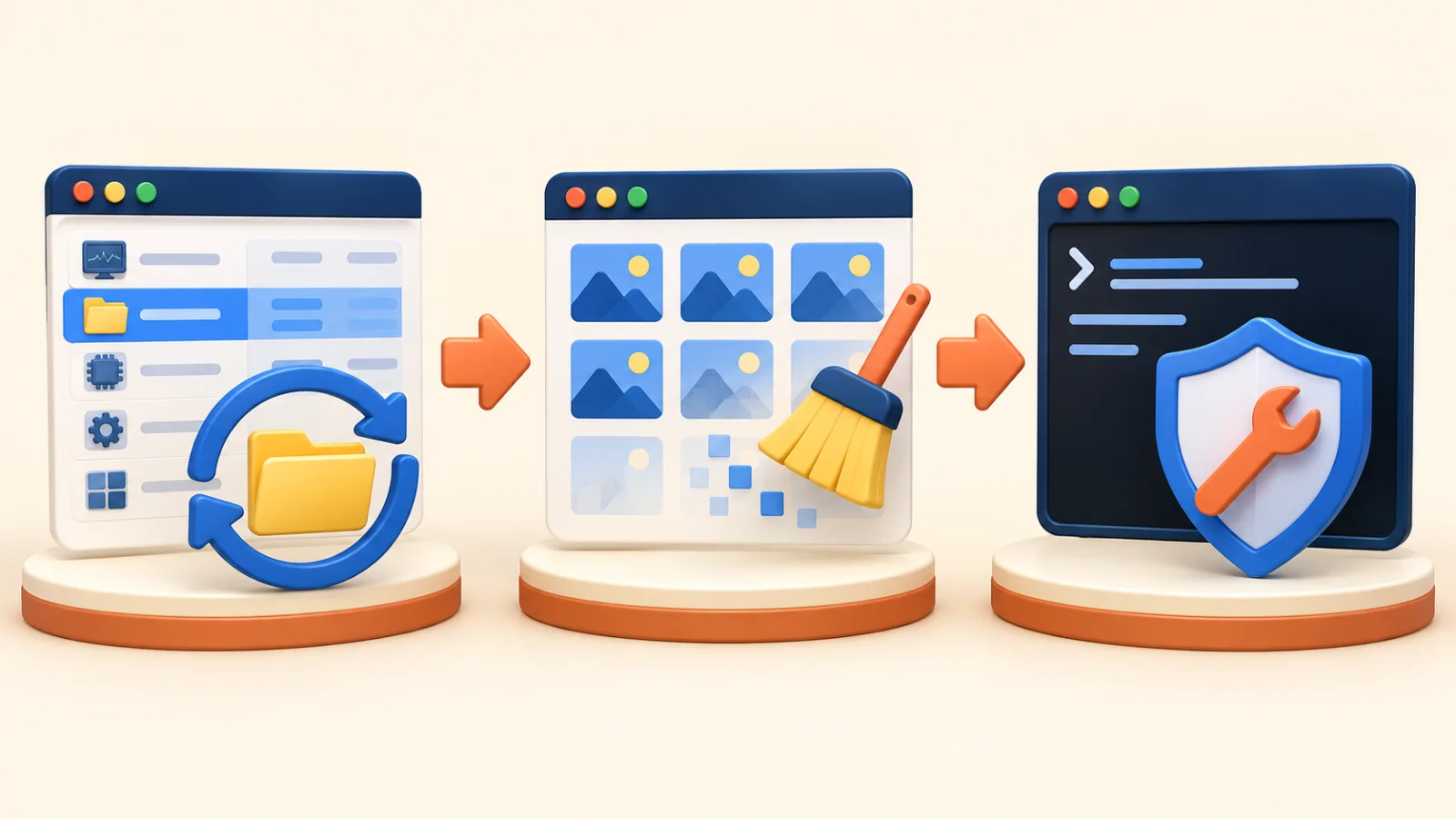
Fix 5: Run SFC and DISM Scans
Open Command Prompt as administrator and run DISM.exe /Online /Cleanup-image /Restorehealth. When it completes successfully, run sfc /scannow.
Microsoft recommends DISM before SFC because DISM supplies the files Windows uses for repair. Do not close the window until each command finishes. See Microsoft’s System File Checker guidance.
Fix 6: Turn Off Previews and Quick Access History
Thumbnail previews and Quick Access history add overhead, especially on network drives or very large folders.
In View > Options > General, uncheck “Show recently used files” and “Show frequently used folders.”
Keeping folders organized also helps — see our practical file management guide.
Fix 7: Make Sure Windows Is Fully Updated
Microsoft continues to ship File Explorer launch, navigation, reliability, and context-menu improvements. Some changes roll out gradually, so availability can vary by build.
Open Settings > Windows Update, select Check for updates, install available updates, and restart if prompted. Microsoft also lists updating and restarting among its first steps when File Explorer will not open or start.
Fix 8: Reset File Explorer Settings
If nothing else works, open the three-dot menu > Options. Use Restore Defaults on the General, View, and Search tabs, then select Apply.
This clears custom folder view settings but won’t delete any files.
Avoid registry tweaks you don’t fully understand — a bad edit can cause bigger problems than a slow File Explorer.
DISM and SFC are built-in repair tools, but keep an up-to-date backup before deeper recovery steps. Do not jump to Reset this PC for an Explorer-only slowdown.
For broader PC slowdowns beyond File Explorer, see our full Task Manager guide.
Frequently Asked Questions
Why did File Explorer get slower after a Windows 11 update?
Microsoft has documented ongoing work to improve File Explorer launch, navigation, responsiveness, and reliability in Windows 11.
Can cloud folders make File Explorer slow?
Yes. File Explorer can pause while a cloud provider syncs files or while Windows waits for an unavailable network location. Pause syncing briefly or test a local folder to compare.
Is it safe to disable shell extensions?
Yes. Disabling them through a tool like ShellExView doesn’t uninstall anything and can be reversed anytime.
Will resetting File Explorer delete my files?
No. It only resets view and folder settings, not your actual files.
Is Microsoft actually fixing this?
Yes. Microsoft has publicly acknowledged the issue and shipped real performance updates through 2026.
Bottom Line
When Windows 11 File Explorer is slow, restart Explorer first, update Windows, and then isolate cache, Home, cloud, network, and extension delays.
Use DISM and SFC only after the simpler checks. If Explorer still freezes, note which folder or action triggers it before considering broader Windows recovery.