Table of Contents
ToggleWhat's Going On
If you find File History not working after a Windows update, first confirm that Windows can still access the backup drive. Then reselect the drive in Control Panel and run a manual backup.
Microsoft’s public Windows release-health pages do not currently list a general File History failure caused by the September 2026 updates. That means the update may be related on an individual PC, but it should not be presented as a confirmed cause.
With File History not working, first confirm the external or network drive is available, then open Control Panel > System and Security > File History, reselect the drive if necessary, and choose Run now. Do not use an unverified registry edit. If File History still fails, protect current files with a separate external copy or Windows Backup while you report the problem to Microsoft.
What Microsoft Has Confirmed
Microsoft documents File History as a feature that saves versions of personal files to an external drive or network location. Its supported recovery advice starts with reconnecting or reselecting that destination.
As of September 13, 2026, Microsoft’s public release-health pages do not list File History as a known issue for the September updates. Check Windows release health for any later confirmation.
Because Microsoft has not published an update-specific workaround, avoid registry commands, deleting backup catalogs, or uninstalling security updates based only on forum posts. Use the supported drive checks below first.
File History Not Working: Basic Checks
File History depends on a background service and a connected drive with free space. Rule these out first.
- Reconnect the external drive and confirm that File Explorer can open it.
- Check that the destination has enough free space for another backup.
- For a network destination, confirm the share is online and accessible.
- Open Control Panel > System and Security > File History.
- Choose Select drive and reselect the external drive or network location.
- Choose Run now, then confirm that the latest-backup time changes.
If File History keeps failing you, it’s worth having a backup plan that doesn’t depend on just one tool.
Reconnect or Reselect the File History Drive
If Windows says to reconnect the File History drive, make sure the external drive is connected and readable. For a network destination, confirm that the PC or storage device is online and that you can open the share.
Microsoft’s supported instructions are to open Control Panel > System and Security > File History, reselect the external drive or network location, and wait for the next scheduled backup. You can select Run now to test it immediately. (Microsoft Support)
After reselecting the drive, choose Run now. Confirm that the latest backup time changes and that you can browse a recent file version before relying on File History again.
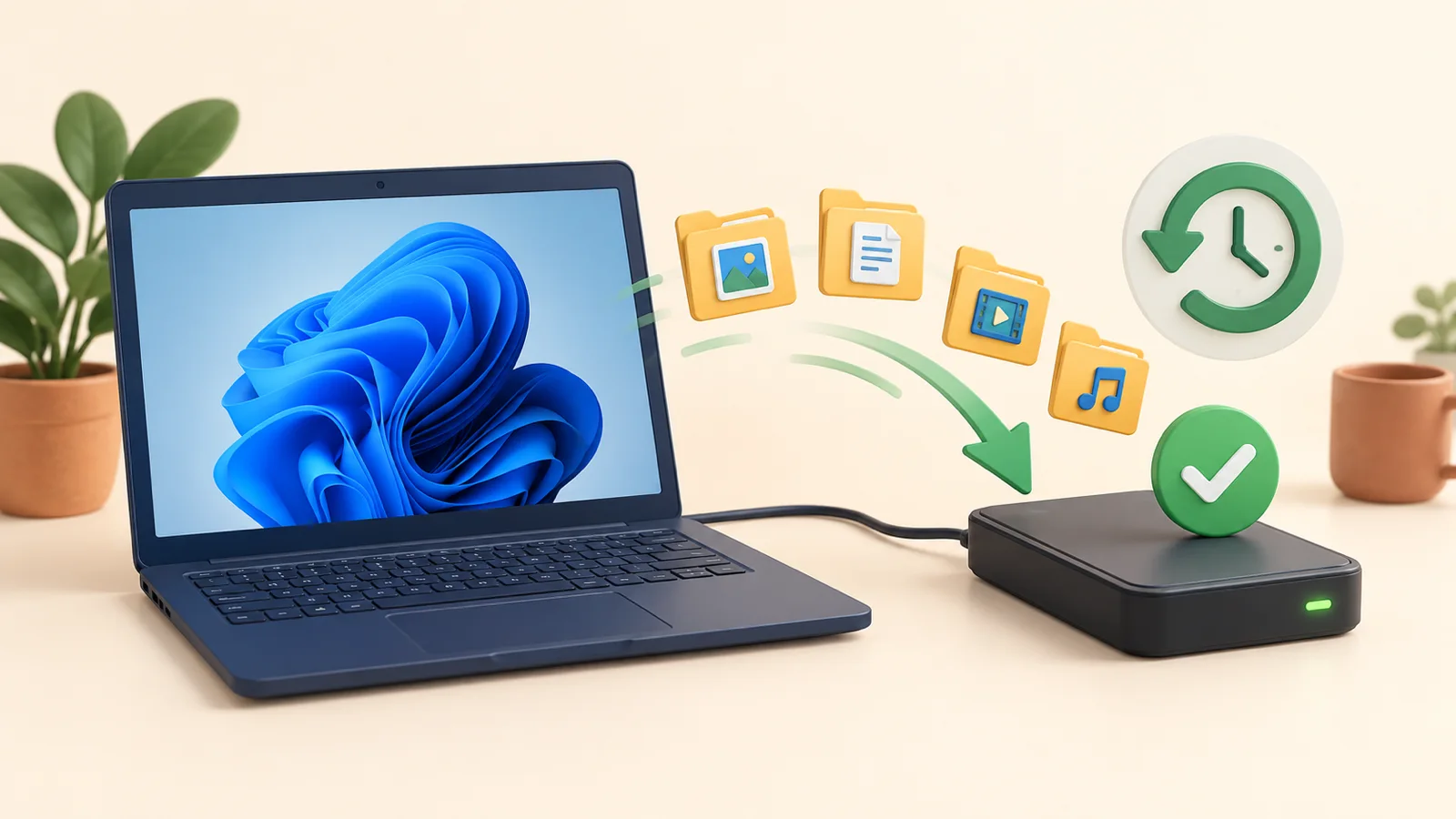
Do not delete the existing FileHistory folder or its catalog while troubleshooting. Those files may contain the older versions you still need to restore.
Try a Different Drive or Network Location
If reselecting the same destination does not work, test another external drive or a different network location through Select drive. This separates a destination or permission problem from a broader File History problem.
Keep the original backup drive unchanged until you have recovered any versions you need. Starting fresh on a different drive is safer than deleting the only existing File History archive.
Update-related glitches often show up elsewhere too — here’s what to do if File Explorer itself is acting up.
What to Do If Nothing Works
With File History not working after these checks, do not leave your files unprotected while you investigate or wait for an update.
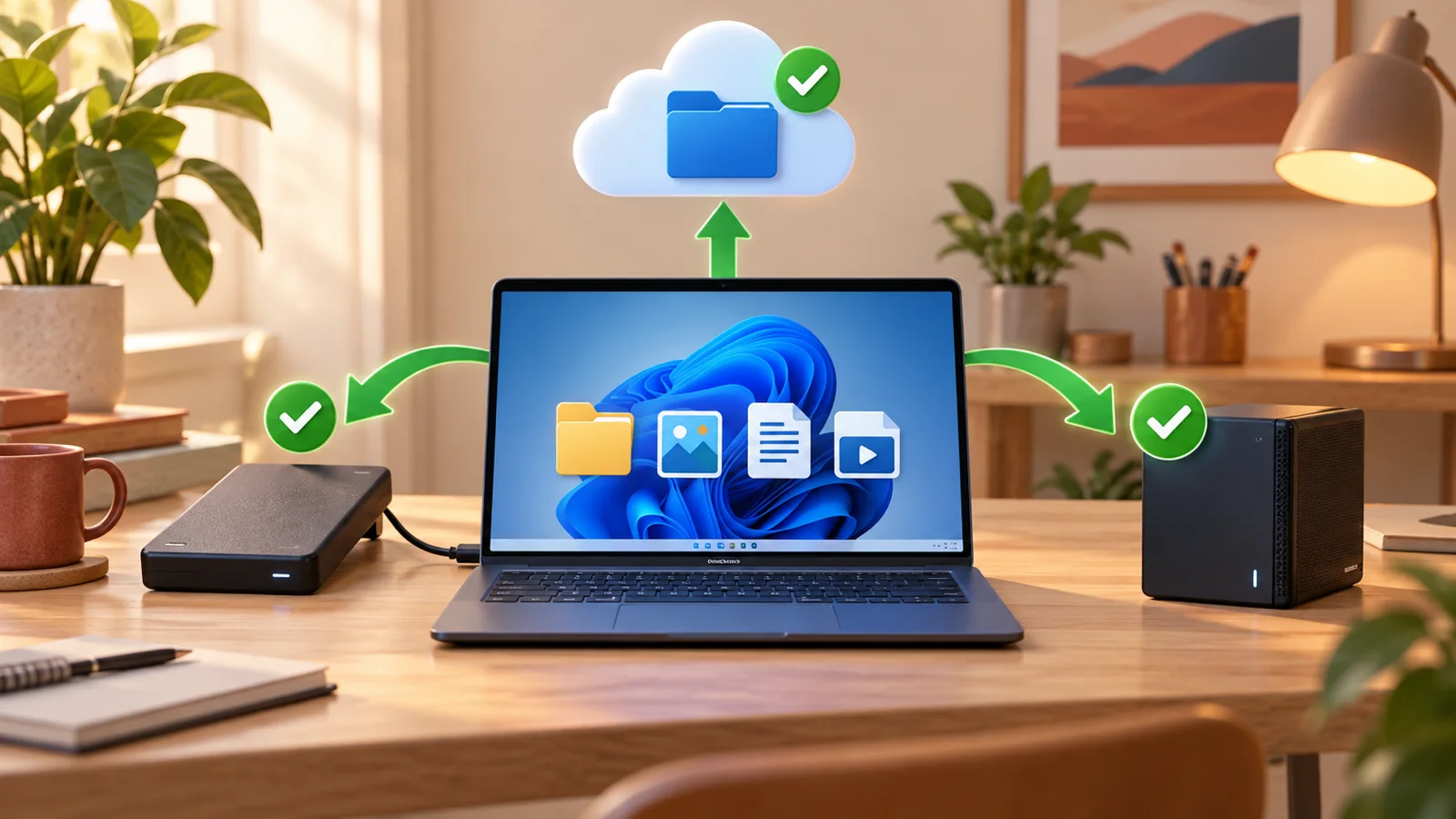
Windows Backup, a separate cloud copy, or a manual copy to another external drive can protect current files temporarily. Remember that syncing alone can also replicate deletions, so keep an independent copy of anything irreplaceable.
Frequently Asked Questions
Has Microsoft confirmed File History is broken after the September 2026 updates?
No public Windows release-health entry currently confirms a general File History failure caused by the September 2026 updates. Check Microsoft’s release-health page for changes.
Should I use a registry fix from a forum?
Not for this guide. Microsoft has not published that registry edit as an official workaround, so use the supported reconnect and reselect-drive steps instead.
Will uninstalling the recent update fix File History?
Do not uninstall a security update solely on the basis of forum reports. Try Microsoft’s supported drive checks, protect current files separately, and use Feedback Hub or Get Help if the failure continues.
What's the safest backup option while File History is unreliable?
With File History not working, Windows Backup, a separate cloud copy, or a manual copy to another external drive can protect current files temporarily. Keep an independent copy of anything irreplaceable.
Will I lose my old File History backups if I reset the configuration?
Yes. Deleting the FileHistory folder can remove the version archive you are trying to preserve. Keep the original drive unchanged and test with a different destination instead.