Windows 11 is finally bringing back the option to place the taskbar at the top or sides of the screen, along with controls for a smaller taskbar and a resizable Start menu. There is one important catch: Microsoft is still rolling these features through Windows Insider preview channels, so many stable Windows 11 PCs will not show them yet.
This guide explains how to move Windows taskbar controls in Windows 11 and resize the Start menu when the new controls are available, how to check your PC, and what you can safely customize on a stable build.
Open Settings > Personalization > Taskbar > Taskbar behaviors. If your Insider build includes the feature, use Taskbar position to choose Bottom, Top, Left, or Right. To change Start, open Settings > Personalization > Start and look for the new size and section controls. If those options are missing, your current build has not received them.
Table of Contents
ToggleCan You Move the Windows 11 Taskbar?
Yes, but availability depends on your Windows build and rollout group. Microsoft first introduced alternate taskbar positions and Start-menu sizing to the Windows Insider Experimental channel in May 2026. In July, Microsoft expanded alternate taskbar positions and the smaller-taskbar control to selected Beta builds.
The preview supports taskbars on the bottom, top, left, or right edge. Start, Search, and other flyouts open from the selected edge. Icon alignment can also change according to the taskbar position.
On many stable Windows 11 installations, the taskbar still stays at the bottom. The familiar Taskbar alignment setting moves the icons between the center and left; it does not move the entire taskbar to another screen edge.

Microsoft uses staged rollouts, so two PCs on a similar Windows version may not receive a preview feature at the same time. Do not force-enable hidden shell features or apply old registry hacks just because the documented setting is missing.
Check Whether the New Controls Are Available
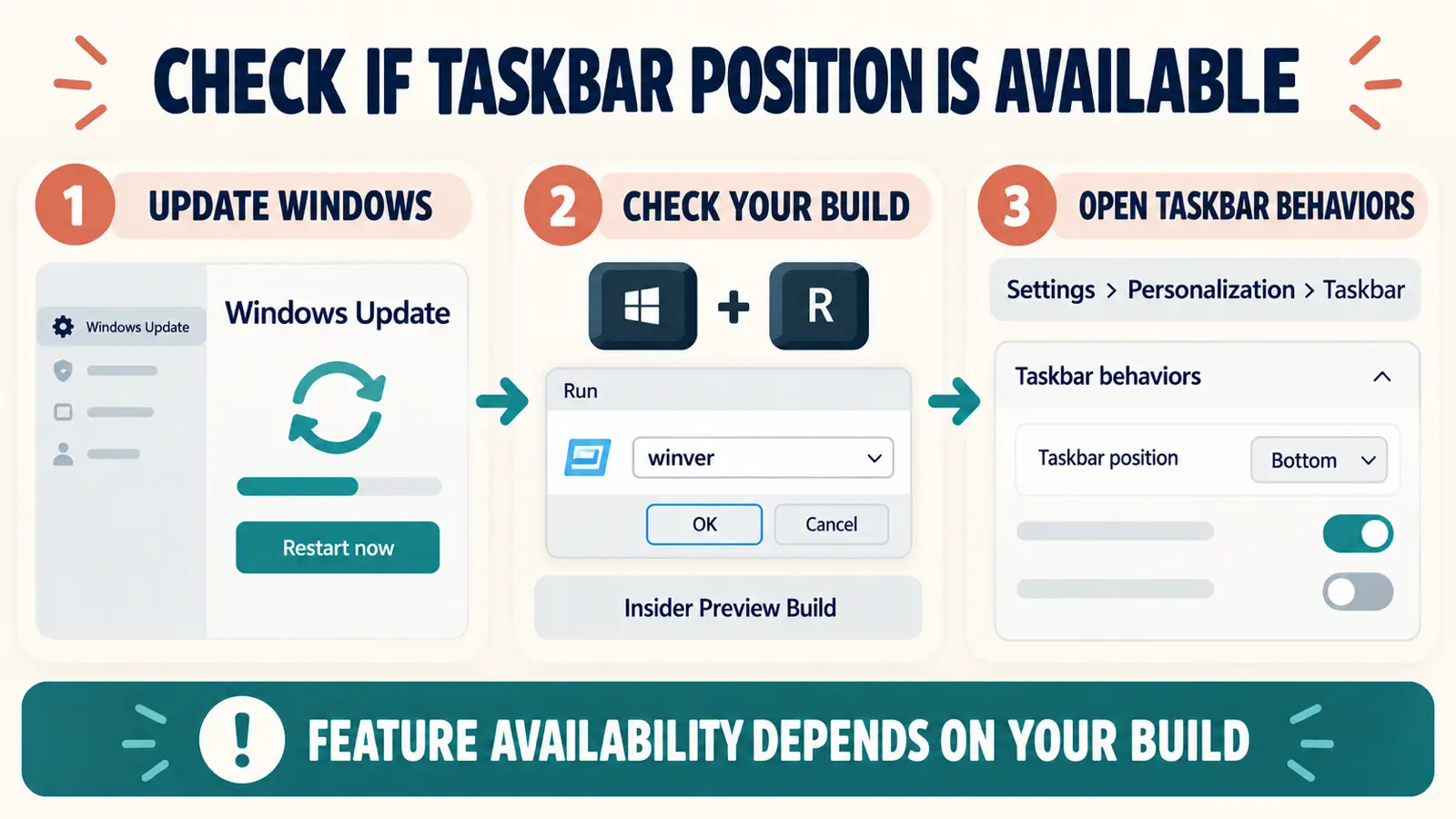
- Check Windows Update. Open Settings > Windows Update, install the available preview build, and restart if Windows requests it.
- Check your build. Press Windows + R, enter
winver, and select OK. The dialog shows your Windows version and OS build. - Open Taskbar behaviors. Go to Settings > Personalization > Taskbar > Taskbar behaviors. Look for a taskbar-position or taskbar-size control.
- Open Start settings. Go to Settings > Personalization > Start. Look for the newer size and section controls.
If the settings do not appear after updating and restarting, wait for Microsoft to expand the rollout. A missing option does not necessarily mean that Windows Update is broken.
How to Move Windows Taskbar Controls in Windows 11
- Right-click an empty area of the taskbar and select Taskbar settings.
- Expand Taskbar behaviors.
- Open Taskbar position.
- Select Bottom, Top, Left, or Right.
- Choose the available icon alignment that feels most comfortable for that edge.
The change should apply without editing the registry. On a vertical taskbar, you can combine the position with labels and the Never combine option when your build supports those controls.
Microsoft lists preview limitations for alternate positions. Touch gestures, the full Search box, and Ask Copilot support may still be incomplete. Auto-hide and the touch-optimized taskbar may also be unavailable at the left or right edge.
How to Make the Taskbar Smaller
In a supported Insider build, open Settings > Personalization > Taskbar > Taskbar behaviors, find Taskbar size, and select Small. Microsoft says the setting reduces both icon size and taskbar height.
The smaller taskbar is currently intended for the top and bottom positions. If you place the taskbar vertically, the size control may be unavailable. Return the taskbar to the top or bottom before checking again.
How to Resize and Simplify the Start Menu
Open Settings > Personalization > Start. On a build with Microsoft’s newer personalization controls, choose a Small or Large Start-menu size. You may also find separate switches for showing or hiding Pinned, Recent or Recommended, and All apps.
These controls work together. For a compact Start menu, choose the smaller size and hide sections you do not use. For easier access to more apps and recent files, choose the larger size and keep the relevant sections visible.
Windows 11 does not use the old Windows 10 method of dragging the Start menu border on every build. Use the documented Settings controls when present. If they are missing, you can still pin, unpin, and rearrange apps and change the settings your current Start page exposes.
Explore more built-in Windows 11 settings that can improve everyday navigation and productivity.
What Stable Windows 11 Users Can Change Now
If you are not using an Insider build, start with the supported options already visible on your PC:
- Move taskbar icons between the center and left using Taskbar alignment.
- Pin, unpin, and reorder taskbar apps.
- Show or hide Search, Task view, Widgets, and system-tray items.
- Pin, unpin, and rearrange Start-menu apps.
- Adjust the Start recommendations, folders, and layout options offered by your current version.
Avoid third-party shell replacement tools unless you understand their update and recovery risks. Major Windows updates can break tools that replace Explorer, Start, or taskbar components.
Learn the keyboard shortcuts that help you navigate Windows quickly while customizing the desktop.
Frequently Asked Questions
Why can’t I move my Windows 11 taskbar?
Your stable build or rollout group may not have the alternate-position feature. Check Windows Update and Taskbar behaviors. If the setting is absent, wait for Microsoft to expand availability instead of applying an old registry workaround.
Can Windows 11 put the taskbar on a second monitor?
Windows can show the taskbar on multiple displays, but Microsoft was still evaluating separate positions for each monitor when it introduced the preview. Available behavior depends on your current Insider build.
Can I drag the Windows 11 Start menu to resize it?
Not on every Windows 11 build. Newer preview builds provide Small and Large choices in Start settings. Stable builds may expose only the layout and section controls included with that release.
Is it safe to use a registry hack to move the taskbar?
It is not the recommended route. Older taskbar registry workarounds can produce broken flyouts, icons, or Explorer behavior after updates. Use the native Settings control when Microsoft makes it available.
Use the Native Controls When They Appear
The new controls make it easier to move Windows taskbar elements and resize the Start menu, but the rollout is still build-dependent. Check Settings first, use the native options your PC exposes, and avoid forcing preview features onto a stable installation.