Table of Contents
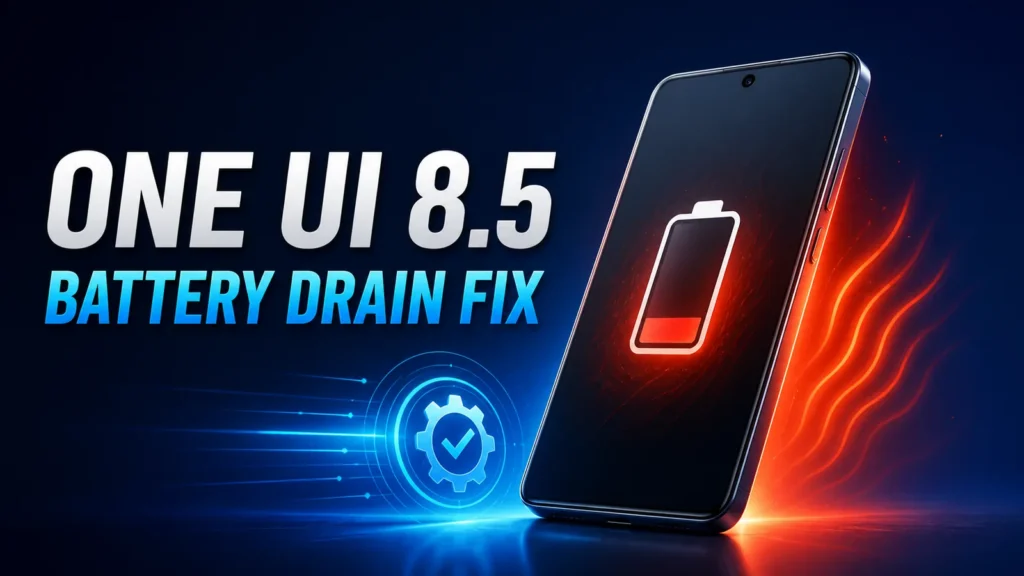
ToggleMost One UI 8.5 battery drain comes from three things: a Samsung Keyboard bug (Samsung already pushed a fix through the Galaxy Store), a WhatsApp chat-backup loop, and the normal Adaptive Battery relearning period after any big update. Start by updating all your apps from the Galaxy Store and Play Store, turn off WhatsApp’s auto chat backup, then give the phone 7–14 days to settle. If it’s still bad, check Battery usage to find the culprit app.
Why One UI 8.5 Is Draining Your Battery
- Samsung Keyboard bug. Samsung traced a major drain to the Samsung Keyboard and pushed a fix through the Galaxy Store — so updating your apps often solves it outright.
- WhatsApp backup loop. Some phones get stuck in an encrypted WhatsApp backup that runs constantly in the background, heating the phone and draining it. Turning off auto backup fixes it.
- Adaptive Battery is relearning. After any big update, Android rebuilds caches, re-indexes apps, and Adaptive Battery resets — so battery can look worse for 7–14 days even with no bug.
Before you panic: if you just updated, give it a few days. The first 2–3 days after a major update are always the worst as the phone re-optimizes in the background. If it’s still draining hard after that, keep going.
Fix 1: Update All Your Apps (Gets Samsung’s Keyboard Fix)
- Open the Galaxy Store → menu → Updates → Update all.
- Open the Play Store → your profile → Manage apps & device → Update all.
- Restart your phone once the updates finish.
See Samsung’s official guide on updating apps on a Galaxy phone for more detail.
Fix 2: Turn Off WhatsApp Auto Backup
If WhatsApp is on your phone, stop its automatic chat backup — a stuck backup is a common cause of both drain and heat.
- Open WhatsApp and tap the three dots (top right).
- Go to Settings → Chats → Chat backup.
- Tap Back up to Google Drive and choose Never (or set it to a manual/weekly schedule).
You can still back up manually now and then. Turning off automatic backup just stops the constant background process that’s draining the phone.
Fix 3: Find the App That’s Draining Your Battery
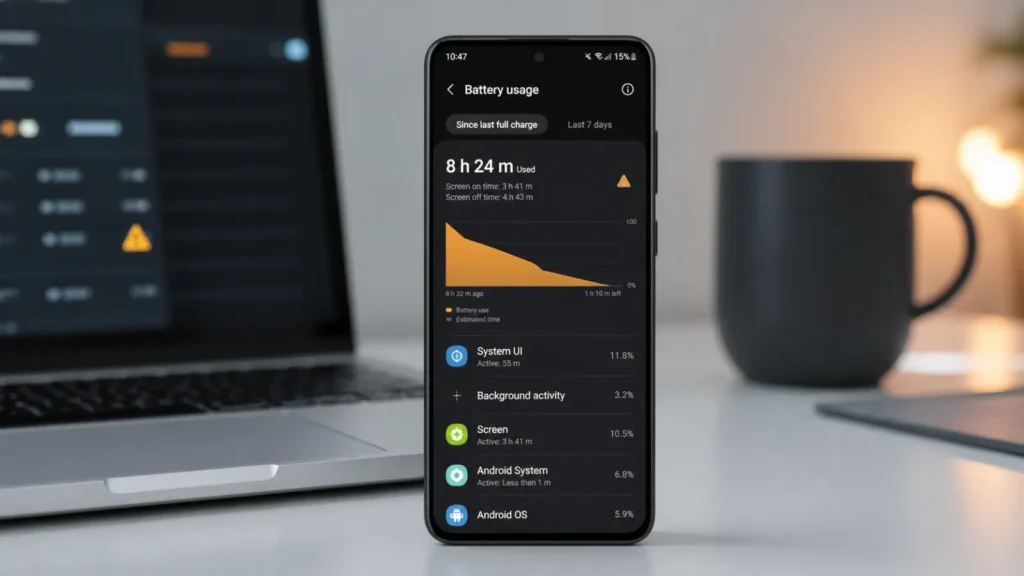
See exactly what’s eating your battery so you’re fixing the right thing:
- Go to Settings → Battery.
- Look at usage since the last full charge and tap into the list.
- If one app is way out of proportion, tap it and set it to Restricted, or update/reinstall it.
Habits that keep any phone’s battery healthy over the long term.
Fix 4: Turn On Adaptive Battery and Sleep Unused Apps
Let the phone manage power for you:
- Settings → Battery → Background usage limits → turn on Put unused apps to sleep.
- Make sure Adaptive Battery is on (Settings → Battery → more battery settings).
- Run Settings → Battery and device care → Optimize now.
Fix 5: Switch Off Background Drains
Turn off the background drains that add up, especially while the phone is still settling:
- Nearby device scanning: Settings → Connections → More connection settings → turn it off.
- Always On Display: Settings → Lock screen → Always On Display → off (or set it to tap-to-show).
- Motion smoothness: Settings → Display → set to Standard (60Hz) for a few days.
- Brightness: drop it and turn on Adaptive brightness.
Fix 6: Clear the Cache and Restart
A stale cache from the update can cause both drain and heat:
- Restart the phone — this clears temporary system cache.
- For a specific misbehaving app, go to Settings → Apps → [app] → Storage → Clear cache (this does not delete your data).
Fix 7: Check for a Newer Software Update
Samsung often ships a follow-up patch after a rocky rollout. Check Settings → Software update → Download and install and grab anything newer than the build that caused the trouble.
Fix 8: Test in Safe Mode
If drain is still severe, restart into Safe mode (press and hold Power, then long-press Power off until Safe mode appears, and tap it). Safe mode disables third-party apps. If the battery behaves normally there, a downloaded app — not One UI itself — is the culprit; uninstall recently updated apps one by one.
For more detail, see Samsung’s official guide to Safe mode on Galaxy devices.
Last resort: if nothing works, back up your data (Settings → Accounts and backup) and do a factory reset (Settings → General management → Reset → Factory data reset). This clears any corrupted settings the update left behind. Only do this after the steps above — it wipes the phone.
How to Stop the Overheating
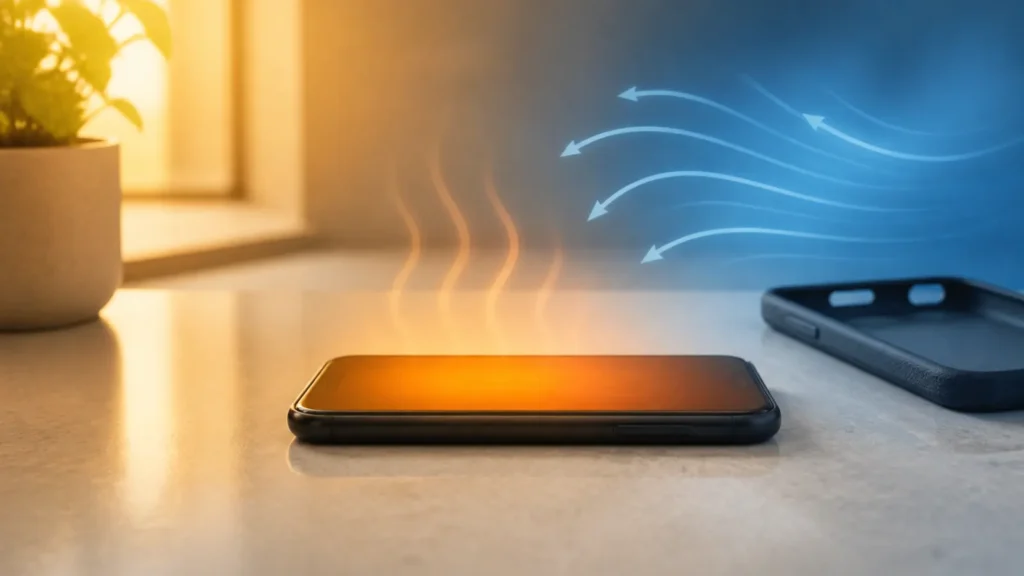
- Take the case off while charging or gaming so heat can escape.
- Keep the phone out of direct sunlight and hot cars.
- Close the camera and heavy games if it’s getting hot — those push the processor hardest.
- Avoid fast wireless charging until the drain issue is resolved.
More Mobile Guides
For more general help keeping your phone healthy, see our guides on mobile battery management, optimizing your phone’s performance, and common mobile problems and fixes.
Keep your Galaxy fast, smooth, and cool with these everyday tweaks.
Common Mistakes to Avoid
- Panicking on day one. Give a major update a few days before judging battery life.
- Force-stopping system apps. Don’t disable core Samsung services chasing drain — it can break features.
- Skipping app updates. The keyboard fix ships through the store, so out-of-date apps stay broken.
- Killing apps constantly. Swiping every app away actually hurts battery, because they reload from scratch.
- Jumping straight to a factory reset. Try the targeted fixes first — a reset is rarely needed.
The Bottom Line
One UI 8.5 battery drain and overheating are almost always fixable without a factory reset. Update your apps to get Samsung’s keyboard fix, turn off WhatsApp auto backup, trim the background drains, and give Adaptive Battery a week or two to settle. If one app still stands out in Battery usage, that’s your target.
Next step: update everything in the Galaxy Store and Play Store right now, then restart your phone.
Frequently Asked Questions
How long does battery drain last after the One UI 8.5 update?
Usually 7–14 days. Adaptive Battery resets after a major update and needs time to relearn your habits, so battery can look worse for up to two weeks even without a bug.
Which phones are affected by One UI 8.5 battery drain?
Reports span the Galaxy S25, S24, and S23 series and the Z Fold and Z Flip, most often on Ultra models — but not every device is affected.
Does turning off WhatsApp backup really help?
Yes, for many users. A stuck WhatsApp chat backup can run constantly in the background. Setting auto backup to Never stops it; you can still back up manually.
Is it safe to keep using my phone while it overheats?
Occasional warmth is normal, but if it’s hot to the touch, stop charging or gaming, remove the case, and let it cool. Persistent heat after these fixes is worth a Samsung service check.
Should I factory reset to fix the battery drain?
Only as a last resort. Update apps, fix WhatsApp backup, and wait out the Adaptive Battery period first — a reset is rarely necessary and wipes your phone.
Will Samsung release a fix?
Samsung already pushed a Samsung Keyboard fix through the Galaxy Store and typically follows a rough rollout with a firmware patch. Keep checking Settings → Software update.