Wifi connected but no internet means your device has joined the router, but online access is failing. Test another device on the same Wi-Fi. If all devices are offline, check the router and your provider. If only this Windows PC is affected, reconnect, run the network troubleshooter, and check its IP, DNS, VPN, and driver before using Network Reset.
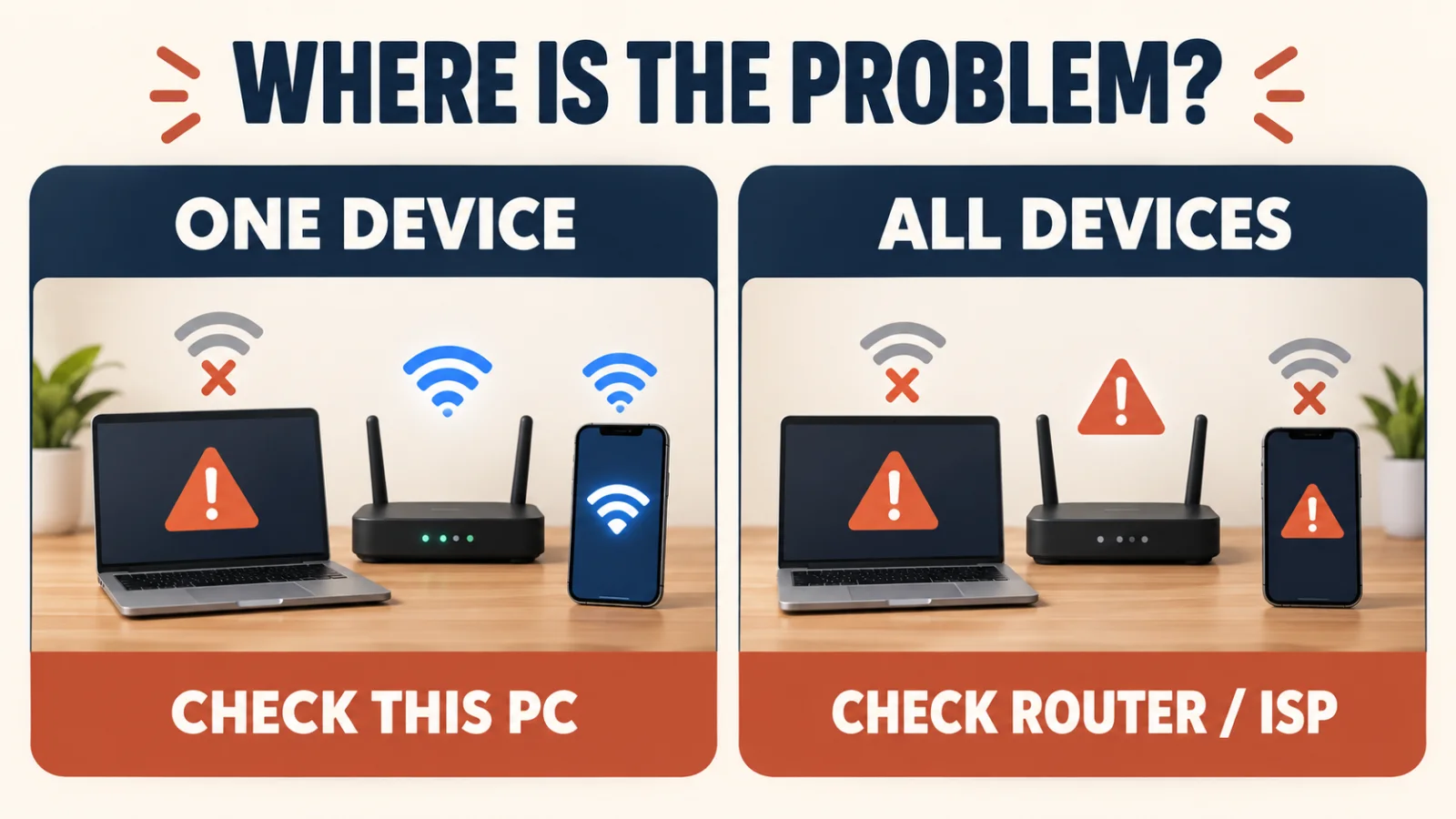
The phrase “Wifi connected but no internet” means the local wireless link works, but online access may still fail. Use the quick split below to avoid changing Windows settings when the outage is at the router or internet provider.
Table of Contents
ToggleFirst, Check One Device or All Devices
Open a website on another phone or computer connected to the same Wi-Fi; turn off mobile data on the phone for this test. If both devices fail, focus on the router or provider. If the second device works, troubleshoot this Windows PC. If apps work but only one website fails, test another site before treating it as a full outage.
On hotel or café Wi-Fi, open a browser and check whether the network requires a sign-in page. If the Wi-Fi option itself is missing, use the related adapter guide below instead of these connection steps.
If Every Device Has No Internet
“Wifi connected but no internet” on every device points to the router, modem, or provider. Check power, cable connections, and status lights against the device manual. Restart the modem and router once, wait for them to reconnect, then try another device.
Check your provider’s outage page using mobile data or contact them if the internet light stays out. Do not factory-reset the router just because Windows says “No internet”; that can erase your network configuration.
Wifi Connected but No Internet on This PC
1. Reconnect and Restart
Turn Wi-Fi off and back on, reconnect to your network, then restart Windows. If the saved connection seems corrupted, choose Forget and reconnect, but confirm you know the Wi-Fi password first.
2. Run the Network Troubleshooter
On Windows 11, open Get Help and run the Network and Internet troubleshooter. You can also find it in Settings > System > Troubleshoot > Other troubleshooters. Follow the result it gives rather than changing several settings at once.
3. Check VPN and Proxy Settings
Disconnect a VPN temporarily to test the connection. In Settings > Network & internet > Proxy, turn off a manual proxy you did not intend to use. On a work or school PC, ask the administrator before changing managed VPN or proxy settings. Microsoft explains these options in its proxy settings guide.
4. Renew the IP Address and Clear DNS
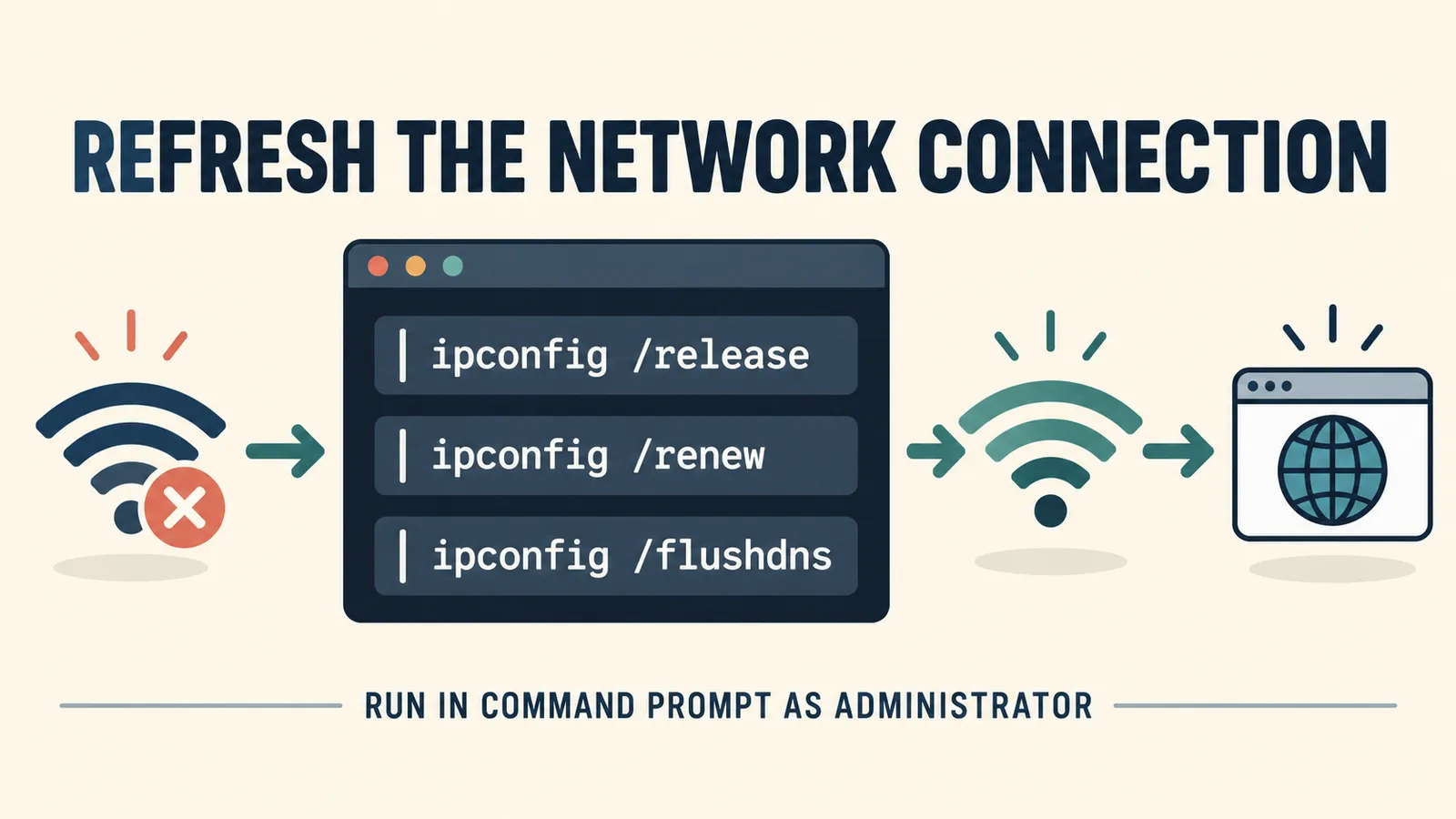
If Windows still shows no internet, open Command Prompt as administrator and run ipconfig /release, then ipconfig /renew. This requests a fresh address from the router. If apps connect but websites do not resolve, run ipconfig /flushdns to clear cached DNS entries. These commands briefly interrupt the connection; restart and test again.
5. Check the Wireless Driver
If the issue began after a Windows update, open Device Manager > Network adapters and check the Wi-Fi adapter for a warning symbol. Install the correct driver from the PC maker if needed. Before uninstalling a driver, save a replacement installer using another device or Ethernet so you can get back online.
Use this guide if Windows no longer lists the wireless adapter or the Wi-Fi option disappeared entirely.
6. Use Network Reset Last
If the other PC-specific steps fail, open Settings > Network & internet > Advanced network settings > Network reset in Windows 11, then choose Reset now. On Windows 10, use Settings > Network & Internet > Status > Network reset. Windows reinstalls network adapters and restores their settings after the restart. Microsoft treats this as a last-step Wi-Fi fix.
Your personal files remain, but you may need to reconnect to Wi-Fi and set up VPN software, virtual switches, or custom network settings again.
Frequently Asked Questions
Why does Wi-Fi say connected but no internet?
“Wifi connected but no internet” means the PC can reach the router, but a website or internet service is not reachable. The break may be on this PC, the router, or the provider’s side.
How do I tell whether the router or my PC is the problem?
Test another device on the same Wi-Fi with mobile data turned off. If all devices fail, check the router and provider. If only this PC fails, follow the Windows steps above.
What if apps work but websites do not load?
Try more than one website. If apps still work, check the browser, proxy, and DNS before resetting the whole network. Clearing the DNS cache may help when cached addresses are stale.
Will Network Reset delete my files?
No. It resets network adapters and their settings, not personal files. You may need to reconnect to Wi-Fi and reconfigure VPN or other networking software.