

Google Search tips and tricks can turn a vague query into a useful answer in seconds. A handful of typed operators and built-in tools now handle jobs that used to need a separate app: a calculator, a unit converter, a flight tracker, a package tracker, and more.
Each of the 30 tips below includes the exact syntax to copy. Most work on desktop and mobile, though filters can look different by device, language, and region; Google’s official Search Help documents the operators. For more practical guides, browse our How To tutorials.
Get better Google results fast: wrap an exact phrase in quotes, remove an unwanted meaning with a minus sign, search one site with site:, and limit results to a file type with filetype:. For quick answers instead of links, let the built-in calculator, unit converter, and timer handle the question directly on the results page. This guide covers 30 tricks in total, from search operators to hidden built-in tools.
Table of Contents
ToggleGoogle Search tips and tricks at a glance
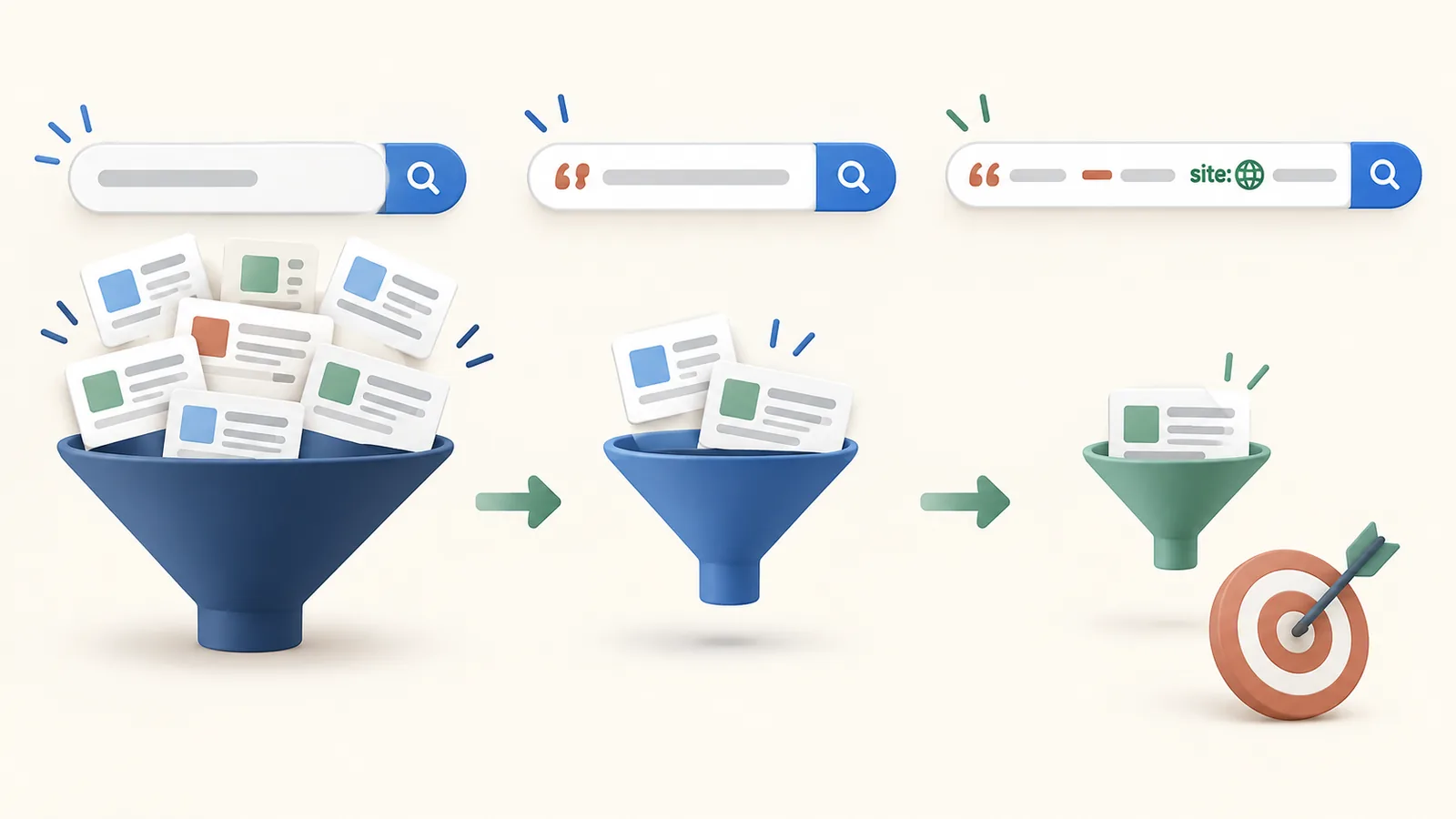
"exact phrase"finds words together in that order.-wordremoves an unwanted meaning or topic.site:example.comsearches a specific website or domain.filetype:pdflooks for a particular document format.before:andafter:narrow results by a date range.ORin capital letters matches either of two terms.intitle:"phrase"requires a phrase in the page title.- Natural-language calculations, conversions, definitions, translations, and nutrition facts produce instant answers.
- Flight numbers, tracking numbers, and stock tickers return live status cards.
- Incognito or signed-out searches can reduce personalization, but they do not make results fully anonymous or identical for everyone.
Search Operators That Narrow Results
1. Search for an exact phrase with quotation marks
Put quotation marks around a phrase when exact wording matters, such as "do a barrel roll". Google matches those words together, in that order, instead of treating each word separately. Use it for song lyrics, error messages, or a specific product name.
2. Exclude an unwanted word with a minus sign
Add a minus sign immediately before a word you do not want, with no space, such as jaguar -car to find the animal instead of the vehicle. Combine it with quotation marks for tighter control, for example "python" -snake.
3. Search one website with the site: operator
Use site: to search inside one website when its own search box is weak or missing, for example site:support.microsoft.com blue screen. It also works with a specific subdomain or a whole top-level domain, such as site:.gov.
4. Find PDFs and other documents with filetype:
Add filetype: followed by a format to limit results to that document type, such as cybersecurity report filetype:pdf. It also works for .docx, .xlsx, and .pptx when an editable file is needed instead of a web page.
5. Limit results by date with before: and after:
Use before:2025-01-01 and after:2025-01-01 when freshness matters, combined like after:2025-06-01 before:2025-12-31 firmware update. Google documents these date operators, though the results can still vary by query and indexed page. If a date search looks incomplete, switch to Tools > Any time for the visual filter instead of retyping the operator.
6. Match either term with the OR operator
Type OR in capital letters between two terms to match either one, such as "wifi router" OR "wireless router". Lowercase or is treated as an ordinary word and ignored, which is the most common reason this trick appears not to work.
7. Fill in a blank with the wildcard *
Use an asterisk as a placeholder for a word that cannot be recalled, such as "a * saved is a * earned". Modern Google already fills in likely words for many plain searches, so a wildcard search and a plain search sometimes return similar results. It remains most useful for quotes, lyrics, and set phrases.
8. Find a word in the page title with intitle:
Add intitle: before a word to require it in the page title, such as intitle:"router firmware". Quoting the phrase gives a noticeably tighter match than an unquoted intitle: search. Useful for finding guides and reviews rather than pages that only mention the term in passing.
9. Use Google Advanced Search without memorizing operators
Open Google Advanced Search (google.com/advanced_search) for a form-based version of the same filters: exact phrase, excluded words, site, file type, and date range, without typing operator syntax. It is the easier starting point when operators feel unfamiliar.
10. Filter by date visually with the Tools menu
Click Tools below the search box, then Any time, to pick Past hour, Past 24 hours, Past week, Past month, Past year, or a custom range. On mobile, the Tools option can sit inside a filter icon or a More menu depending on the Google app version and screen size, so look there if it is not visible right away.
Quick Answers and Built-In Tools
11. Use the calculator directly in Search
Type an equation into Google, such as 247 * 38, 15% of 200, or sqrt(144), and Google returns the answer with an on-screen scientific calculator for follow-up equations. No separate calculator app or site needed.
12. Convert units, time, and currency
Enter a conversion in plain language, such as 5 miles in kilometers, 200 fahrenheit in celsius, or 50 usd in eur, and Google returns a live converted value with an adjustable input field. Currency conversions use recent exchange rates, not guaranteed real-time trading prices.
13. Get a definition and pronunciation
Search define:ubiquitous or simply type define ubiquitous. Google shows the definition, part of speech, an audio pronunciation, and example sentences without opening a separate dictionary site.
14. Set a timer or stopwatch
Search timer 10 minutes or stopwatch. Google shows a working countdown or stopwatch on the results page, complete with an alarm, handy for cooking, workouts, or timed tests without opening a separate app.
15. Check the weather without opening an app
Search weather plus a place name, such as weather Dubai, for the current conditions and a multi-day forecast. Add “hourly” for an hour-by-hour breakdown when timing an outdoor plan closely.
16. Find the local time or time zone anywhere
Search time in Tokyo or time zone New York to see the current local time instantly, along with the time difference from your own location, useful before scheduling an international call.
17. Translate a phrase without leaving Search
Type translate hello to french or translate "good morning" to japanese directly into Google, and a translation box appears with audio playback for both languages. No separate Google Translate tab needed for a quick phrase.
18. Run a real internet speed test
Search internet speed test and press Run Speed Test. Google runs an actual download and upload measurement using Measurement Lab infrastructure and returns real numbers, not just an estimate.
19. Check calories and nutrition facts instantly
Search calories in an avocado or nutrition facts banana for calories, protein, fat, and other nutrients per serving, sourced from public nutrition databases. Handy for a quick check without opening a separate app.
20. Find sunrise and sunset times
Search sunset time Dubai or sunrise London for the exact times on the current day, useful for planning a flight, a photo shoot, or an outdoor schedule around daylight.
Live Status, Tracking, and Streaming
21. Track a flight by its flight number
Type an airline and flight number, such as Emirates EK202, to see live status, gate, terminal, and delay information. This works most reliably in the Google app and mobile browser search; on some desktop browsers the flight card can be less detailed or missing for smaller regional airlines.
22. Track a package without visiting the carrier site
Paste a tracking number directly into Google Search and it usually recognizes the carrier automatically, showing the current shipping status. Recognition depends on the carrier and tracking number format, so if nothing appears, search the carrier name plus “tracking” and use their tool directly.
23. Check live sports scores and schedules
Search a team or league name, such as Manchester United or NBA scores, for live scores, upcoming fixtures, and standings without opening a separate sports app.
24. Look up a stock price or market index
Search a company name or ticker symbol, such as Apple stock or AAPL, for a live price, daily chart, and key figures. Prices can be delayed by a few minutes depending on the exchange.
25. Find where to watch a movie or show
Search a title plus “where to watch,” such as Dune where to watch, and Google lists the streaming services that currently carry it. Availability is licensed per country, so the list changes by region and does not guarantee every service listed is free.
Visual Search, Privacy, and Extras
26. Search by image instead of by words
Click the camera icon in Google Search, or the Lens icon in the Google app, then upload a photo or point the camera at something to search visually. Useful for identifying a plant, a product, or the source of an image already saved on a device.
27. Hum or sing to identify a song
In the Google app, tap the microphone icon and hum, sing, or whistle a tune for about ten to fifteen seconds. Google matches the melody against its song database and suggests the closest tracks, even without knowing the lyrics. This feature lives in the Google app rather than desktop search.

28. A few more built-in tools worth knowing
Google Search also handles small day-to-day jobs without a dedicated app: tip calculator for splitting a bill, metronome for practicing music, color picker for a hex or RGB value, and flip a coin or roll a die for a quick random decision.
29. Play a hidden game while something loads
Search solitaire, tic tac toe, or snake to play a short game directly in the results page while waiting on something else, no download required. A harmless way to spend two minutes rather than a genuine productivity trick.
30. Reduce personalization with a private or signed-out search
Search history and account activity shape which results and suggestions Google shows first. Use an Incognito or private window, or sign out of your Google account, to reduce account history effects. Results can still differ by location, language, device, and other factors, so this is not a reliable way to measure how a page ranks for everyone.
Frequently Asked Questions
What are the most useful Google Search operators?
The most useful everyday operators are quotation marks for an exact phrase, a minus sign to exclude a word, site: to search one domain, filetype: to find a document format, and before: or after: to filter by date.
Do Google Search operators work on mobile?
Yes. The same operators work in Google Search on a phone or tablet. The location and availability of visual filters, such as the Tools menu, may differ from the desktop version.
Can I combine several search operators?
Yes. For example, site:support.microsoft.com "blue screen" filetype:pdf after:2025-01-01 combines a domain, exact phrase, file type, and date. Start with one or two operators; too many restrictions can remove useful results.
Why does Google ignore part of my search?
The query may be too broad, the wording may be interpreted differently, or no indexed page may match every condition. Put essential wording in quotation marks, remove unnecessary terms, or use Advanced Search to make the intent clearer.
Does the related: operator still work?
Not reliably. Google confirmed the related: operator was being phased out because it had stopped returning consistently useful results and was rarely used. It may still return something for a handful of sites, but treat it as retired rather than as a dependable trick.
Are Google Search results always accurate?
No. Search helps you discover information, but rankings and answer cards are not guarantees of accuracy. Open the source, check its author and date, and confirm important information with an official or primary source. Last reviewed: September 2026. Google may change Search operators, filters, and answer cards without notice.








One Response
nice