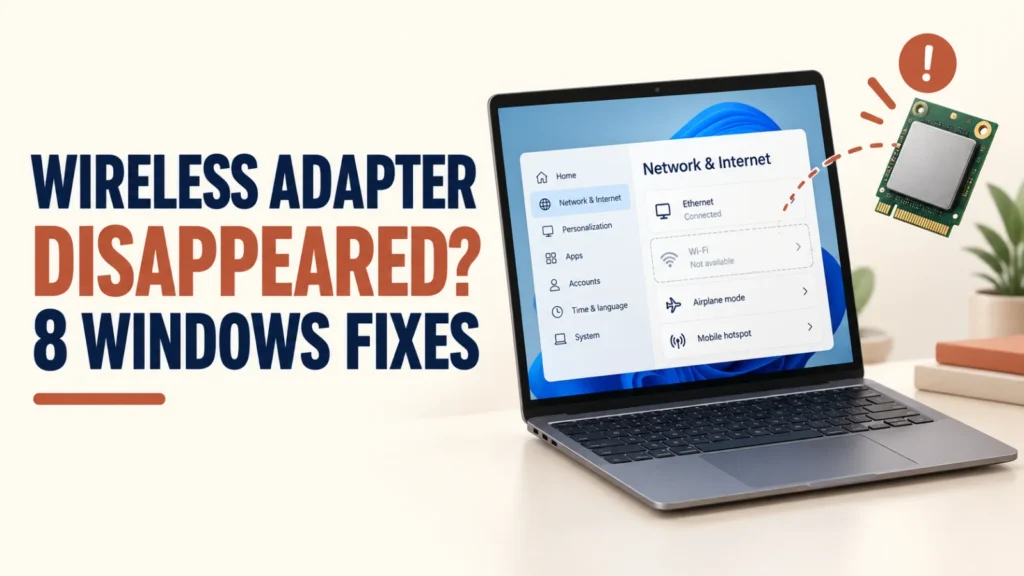
Wireless Adapter Disappeared? 8 Proven Fixes for Windows

Anwar AlamAnwar AlamPublished May 23, 2022Updated Nov 28, 202212 min read0 comments
Quick Answer

If your wireless adapter disappeared after a Windows 10 or 11 upgrade, the driver was usually removed or disabled during the update. The quickest fixes are to restart, run the network troubleshooter, and reinstall the wireless driver in Device Manager. If that fails, a network reset or the manufacturer’s driver usually brings your Wi-Fi back. This guide covers every fix in order.

It is a nasty surprise when your wireless adapter disappeared after updating Windows and the Wi-Fi option is simply gone.

In most cases the hardware is fine, and the update just removed, disabled, or broke the driver.

This guide works through the fixes in order, from the quickest to the most thorough, to get your wireless connection back.

Why Your Wireless Adapter Disappeared After a Windows Upgrade

A Windows upgrade replaces many system files, and network drivers are often affected.

The update may install a generic driver that does not match your adapter, or disable the device.

Sometimes the adapter is simply hidden rather than gone, which is easy to fix.

Knowing this, the goal is usually to restore or reinstall the correct driver.

Fix 1: Restart Your PC

Always start with a full restart, which reloads drivers and can bring the adapter back.

Save your work and restart the computer completely rather than sleeping it.

After it boots, check whether the Wi-Fi option has returned.

This simple step resolves a surprising number of post-update glitches.

Fix 2: Run the Windows Network Troubleshooter

Windows can detect and fix many adapter problems automatically.

  1. Open Settings, then System, then Troubleshoot
  2. Choose Other troubleshooters
  3. Run the Network and Internet or Network Adapter troubleshooter
  4. Follow the prompts and restart if asked

It often re-enables a disabled adapter or resets a broken setting without any manual work.

Fix 3: Show Hidden Devices in Device Manager

The adapter may still be present but hidden after the upgrade.

  1. Right-click the Start button and open Device Manager
  2. Click View, then Show hidden devices
  3. Expand Network adapters
  4. Look for your wireless adapter, which may appear greyed out

If you find it, right-click and choose Enable device to switch it back on.

If it shows a warning icon, the driver needs updating or reinstalling.

Fix 4: Update the Wireless Driver

An updated driver often restores an adapter that vanished after an upgrade.

  1. Open Device Manager and expand Network adapters
  2. Right-click your wireless adapter
  3. Choose Update driver
  4. Select Search automatically for drivers

If Windows finds a newer driver, install it and restart.

This fixes many cases where the update left an outdated or wrong driver in place.

Fix 5: Reinstall the Wireless Driver

If updating does not help, reinstalling the driver gives it a clean start.

  1. In Device Manager, right-click your wireless adapter
  2. Choose Uninstall device
  3. Confirm, then restart your PC
  4. Windows reinstalls the driver automatically on boot

A fresh install often clears a corrupted driver left behind by the upgrade.

Note

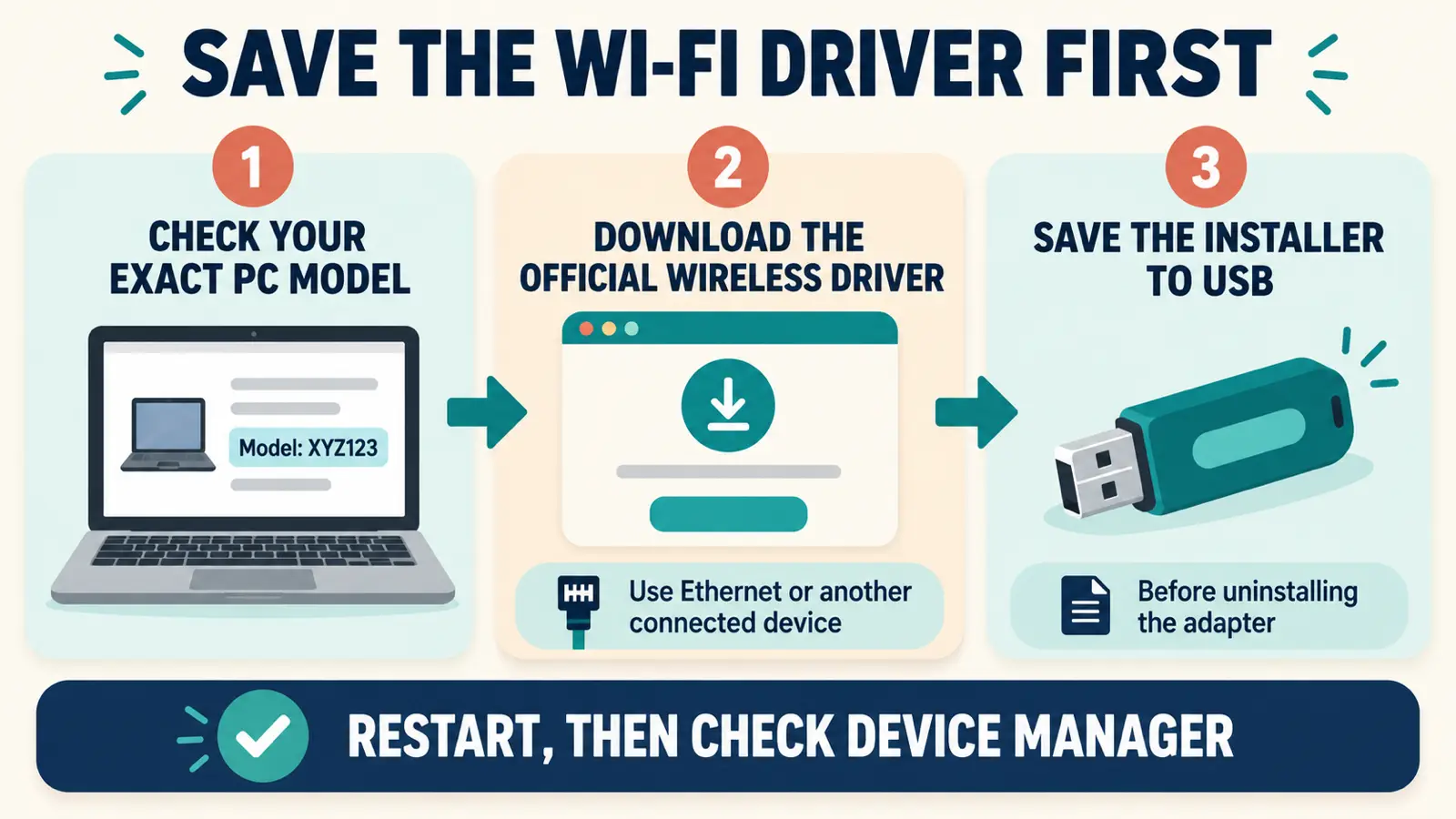
If you can, download your wireless driver from the manufacturer first using another device or a wired connection, in case Windows cannot reinstall it automatically.

Fix 6: Roll Back the Driver

If the adapter worked before the upgrade, rolling back the driver can undo a bad update.

  1. Open Device Manager and right-click your wireless adapter
  2. Choose Properties, then the Driver tab
  3. Click Roll Back Driver if it is available
  4. Restart your PC

This returns to the previous working driver and often fixes the problem instantly.

Related guide

Wifi Connected but No Internet: 12 Proven Fixes That Work

Adapter back but still no internet? Here is the full fix in order.

Fix 7: Reset the Network Stack

Resetting the network components can revive an adapter that will not appear.

  1. Open Command Prompt as an administrator
  2. Type netsh winsock reset and press Enter
  3. Type netsh int ip reset and press Enter
  4. Restart your PC

This clears broken network settings that an upgrade can leave behind.

!
Warning

WarningAfter these commands you must restart for them to take effect. Save any open work before restarting.

Fix 8: Perform a Network Reset

A full network reset reinstalls every network adapter and clears all settings.

  1. Open Settings, then Network and internet
  2. Open Advanced network settings
  3. Choose Network reset
  4. Confirm and let your PC restart

This is a strong fix that often restores a missing wireless adapter completely.

Afterwards you will need to rejoin your Wi-Fi network, so have your password ready.

Check the WLAN AutoConfig Service

Wi-Fi relies on a background service that an upgrade can occasionally disable.

  1. Press Windows + R, type services.msc, and press Enter
  2. Find WLAN AutoConfig in the list
  3. Make sure it is Running and set to Automatic
  4. Start it if it is stopped, then restart

If this service is off, Wi-Fi will not appear, so enabling it can bring the adapter back.

Check the Physical Wi-Fi Switch or Key

Some laptops have a physical Wi-Fi switch or a keyboard shortcut that can turn the adapter off.

Look for a switch on the side of the laptop and make sure it is on.

Try the function key with the wireless symbol, often Fn plus one of the F keys.

It is easy to knock these off by accident, so it is always worth a quick check.

Install the Driver From the Manufacturer

When Windows cannot find the right driver, the manufacturer’s website has it.

On another device, visit the site for your PC or the adapter and download the latest wireless driver.

Copy it to a USB stick, then install it on the affected PC and restart.

This is the most reliable fix when the built-in driver simply will not work.

i
Pro tip

Read NextCommon Computer Problems: 15 Proven Fixes Everyone Should KnowFix other everyday PC faults with this complete troubleshooting guide.

Use System Restore as a Last Resort

If nothing else works, System Restore can return Windows to before the upgrade broke the adapter.

Search for Create a restore point, then open System Restore.

Choose a restore point dated before the problem began and follow the prompts.

Your files stay safe, but recently installed apps and updates may be removed.

How to Prevent This Happening Again

A few habits reduce the chance of an adapter vanishing after a future update.

Note your exact adapter model and keep its driver saved somewhere safe.

Create a restore point before major Windows updates.

Keep a wired connection or a USB Wi-Fi adapter handy as a backup for downloading drivers.

Common Mistakes When Fixing a Missing Adapter

A few missteps can slow down the fix.

The first is assuming the hardware is broken, when it is almost always a driver issue.

The second is uninstalling the driver with no way to reinstall it, leaving you with no internet.

The third is skipping the simple checks, like the physical switch, before diving into settings.

Final Thoughts on a Wireless Adapter That Disappeared

When your wireless adapter disappeared after a Windows upgrade, the fix is usually quick and the hardware is fine.

Restart, run the troubleshooter, and reinstall or roll back the driver, and Wi-Fi almost always returns.

For stubborn cases, a network reset or the manufacturer’s driver finishes the job.

For more help, Microsoft’s Windows support covers network troubleshooting in detail.

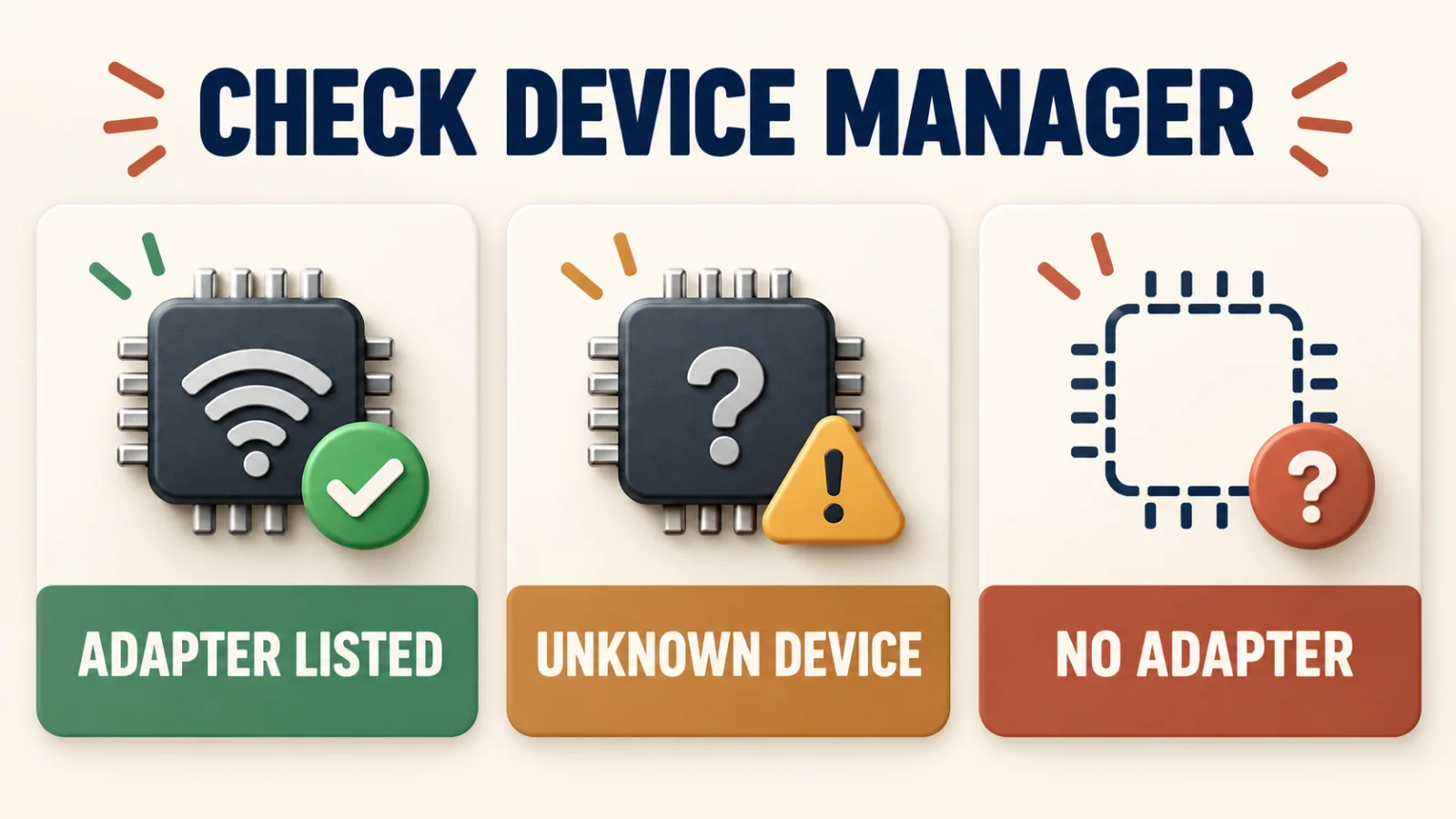
Confirm Whether the Wireless Adapter Really Disappeared

Before fixing, confirm the adapter is actually missing rather than just the Wi-Fi icon.

Open Device Manager and expand Network adapters to see if your wireless adapter is listed.

If it is there with a warning icon, it is a driver problem, not missing hardware.

If it is not listed at all, use Show hidden devices, since it may simply be hidden after the upgrade.

Disable Power Management for the Adapter

Windows can turn off a network adapter to save power, and an upgrade may set this too aggressively.

  1. Open Device Manager and right-click your wireless adapter
  2. Choose Properties, then the Power Management tab
  3. Uncheck Allow the computer to turn off this device to save power
  4. Click OK and restart

This stops Windows from disabling the adapter and can keep it from disappearing again.

Check for a Pending Windows Update

Sometimes the fix for a broken upgrade is another update.

Open Settings, Windows Update, and check for updates.

Microsoft often releases a fix soon after an update causes a common problem.

Install anything waiting, then restart and check for your Wi-Fi.

Try a USB Wi-Fi Adapter as a Quick Workaround

If you need internet right away while you fix the built-in adapter, a USB Wi-Fi adapter helps.

These plug into any USB port and install their own driver, giving you Wi-Fi in minutes.

Use it to get online and download the correct driver for your built-in adapter.

It is also a handy backup to keep for future update problems.

Scan for Hardware Changes

Prompting Windows to look for hardware again can make a hidden adapter reappear.

  1. Open Device Manager
  2. Click the Action menu at the top
  3. Choose Scan for hardware changes
  4. Wait for Windows to detect and reinstall the adapter

This quick step sometimes restores an adapter that vanished without any other fix.

When the Adapter Is Missing in the BIOS

In rare cases the wireless adapter is switched off at a deeper level.

Restart the PC and enter the BIOS or UEFI settings, usually by pressing a key like F2 or Delete at startup.

Look for a wireless or WLAN option and make sure it is enabled.

Save and exit, then check whether Windows now sees the adapter.

!
Warning

WarningChange only the setting you came for in the BIOS. Altering other options can cause your PC to behave unexpectedly.

Signs the Problem Is Hardware, Not the Update

Almost always this is a driver issue, but a few signs point to hardware.

If the adapter is missing even in the BIOS and after a clean driver install, hardware may be at fault.

A laptop that has been dropped or exposed to liquid could have a damaged adapter.

In these cases, a USB adapter or a professional repair is the way forward.

Getting Back Online Step by Step

To pull it all together, here is the order that solves most cases.

  1. Restart the PC
  2. Run the network troubleshooter
  3. Show hidden devices and enable the adapter
  4. Update, reinstall, or roll back the driver
  5. Perform a network reset
  6. Install the driver from the manufacturer if needed

Following this order fixes the vast majority of missing adapter problems within minutes.

When your wireless adapter disappeared, this checklist is the fastest path back to Wi-Fi.

Keep Your Wi-Fi Working Through Future Updates

A little preparation means an update never leaves you without Wi-Fi again.

Save your wireless driver and note your adapter model today, while everything works.

Create a restore point before big updates, and keep a USB Wi-Fi adapter as backup.

With these safeguards, even if the adapter disappears, you can restore it in minutes.

Final Word on a Disappearing Wireless Adapter

A wireless adapter that disappeared after an update is common and almost always fixable.

The hardware is usually fine, and the right driver brings your connection straight back.

Work calmly through the fixes, keep a backup way online, and your Wi-Fi will return.

What to Do the Moment Your Wireless Adapter Disappeared

The instant you notice your wireless adapter disappeared, a calm first response saves time.

Do not panic or assume the worst, since the hardware is almost always fine.

Note exactly when it happened, especially if it followed a Windows update.

Then start with a restart before trying anything more involved.

Reinstalling Windows Network Components

If the network area of Windows itself is damaged, reinstalling its components can help.

A network reset, covered earlier, reinstalls every adapter and clears all settings at once.

For deeper repair, running the built-in system file checker can fix corrupted system files.

Open Command Prompt as an administrator and run sfc /scannow, then restart.

Getting Help From Your PC Maker

Your computer’s manufacturer is a valuable resource for adapter problems.

Their support site lists the exact wireless driver for your model.

Many also offer a driver update tool that finds and installs the right one automatically.

Using the maker’s driver is often more reliable than the generic one Windows installs.

Understanding Generic vs Manufacturer Drivers

Not all drivers are equal, which matters when an adapter disappears.

Windows installs a generic driver that works for many adapters but not always perfectly.

The manufacturer’s driver is built for your exact hardware and tends to be more stable.

If the generic driver leaves your adapter missing or unstable, switch to the manufacturer’s version.

Avoiding the Problem on Your Next Upgrade

With a little planning, a future upgrade need not repeat this trouble.

Back up your current wireless driver before you install a major update.

Keep a note of your adapter model and where to download its driver.

These small steps turn a stressful outage into a quick, confident fix.

Back to a Reliable Connection

A missing wireless adapter feels serious, but you now have a full toolkit to restore it.

From a simple restart to the manufacturer’s driver, one of these fixes will bring your Wi-Fi back.

Keep a backup way online, and you will never be stuck offline for long again.

A Reassuring Fact About Missing Adapters

It helps to remember that a wireless adapter almost never truly breaks during a Windows update.

Updates change software, not the physical chip inside your PC.

That means the fix is nearly always a matter of restoring the right driver or setting.

With that in mind, you can approach the problem calmly and expect a good result.

Wrapping Up Your Wi-Fi Recovery

You have now seen every practical way to bring back a missing wireless adapter.

Start simple, escalate only as needed, and keep a backup route online while you work.

Follow the steps in order, and your connection should return quickly and stay stable.

Save this guide, and any future adapter scare will be a five-minute fix rather than a lost afternoon.

One Last Tip to Stay Connected

Keep a spare USB Wi-Fi adapter in a drawer, since it costs little and turns any future adapter problem into a minor inconvenience rather than a crisis.

With that safety net and this guide, a disappearing wireless adapter will never leave you stranded offline again.

Frequently Asked Questions

Why did my wireless adapter disappear after a Windows update?

The update usually removed, replaced, or disabled the network driver. The hardware is almost always fine, so reinstalling or updating the correct wireless driver typically brings the adapter back.

How do I get my wireless adapter back?

Restart your PC, run the network troubleshooter, and reinstall the wireless driver in Device Manager. If it is still missing, try a network reset or install the driver from your manufacturer.

Why is there no Wi-Fi option in Windows at all?

The adapter may be disabled, its driver may be missing, or the WLAN AutoConfig service may be off. Check Device Manager and services, and make sure any physical Wi-Fi switch is on.

Can I fix a missing adapter without internet?

Yes. Use another device to download the correct driver from your manufacturer, copy it to a USB stick, and install it on the affected PC. A wired connection also works for downloading drivers.

Will a network reset delete my files?

No. A network reset only removes network adapters and settings, then reinstalls them. Your files are untouched, but you will need to rejoin your Wi-Fi and set up any VPN again.

How do I stop this happening after future updates?

Save your adapter’s driver somewhere safe, create a restore point before major updates, and keep a wired or USB Wi-Fi backup so you can always download drivers if needed.

Facebook
X
LinkedIn
Get the Weekly Fix

One email a week. Real fixes, no fluff.

Subscription Form

Join the discussion

Leave a Reply

Your email address will not be published. Required fields are marked *