Make Your Laptop Faster: 12 Free Ways That Actually Work

Anwar AlamAnwar AlamApr 21, 202212 min read0 comments
Quick Answer

To make your laptop faster, free up storage, disable startup programs you do not need, uninstall unused software, and keep Windows updated. For a bigger boost, upgrading to an SSD and adding more RAM make an older laptop feel new. This guide covers 12 free and paid ways to speed up your laptop, in order from the quickest wins to the most powerful upgrades.

A slow laptop is one of the most common frustrations, but most of the time you can make your laptop faster without spending anything.

Programs pile up, storage fills, and background tasks multiply, all of which drag performance down over time.

This guide starts with free fixes that take minutes, then covers the upgrades that give the biggest speed boost.

Why Your Laptop Slows Down Over Time

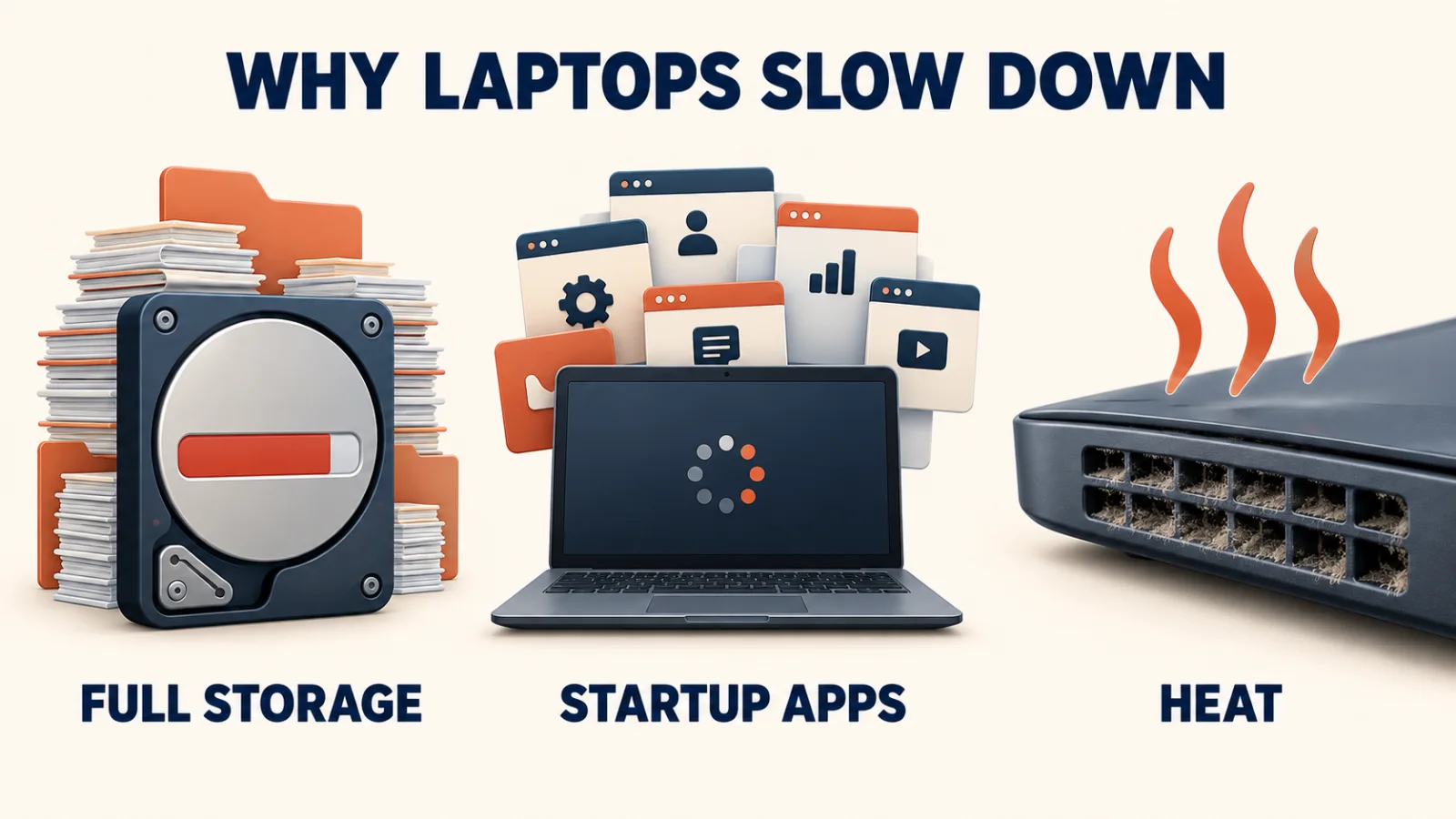
Laptops rarely slow down all at once, and the causes build up gradually.

Storage fills with files and programs, leaving less room for the system to work.

More apps launch at startup and run in the background, using memory and processing power.

Software grows heavier with updates, while dust and heat can throttle older hardware.

Restart Your Laptop Regularly

The simplest way to make your laptop faster is also the most overlooked.

Restarting clears memory and closes background tasks that build up over days of use.

If you only ever close the lid, try a full restart once or twice a week.

Many slow laptops feel noticeably quicker straight after a restart.

Free Up Storage Space

A nearly full drive is one of the biggest causes of a slow laptop.

Delete files you no longer need and uninstall programs you never use.

Use Disk Cleanup or Storage Sense to clear temporary files automatically.

Aim to keep at least ten to fifteen percent of your drive free for smooth performance.

Disable Startup Programs

Too many programs launching with Windows is a leading cause of a slow start and sluggish performance.

  1. Press Ctrl + Shift + Esc to open Task Manager
  2. Go to the Startup apps tab
  3. Look at the Startup impact column
  4. Right-click any high-impact app you do not need and choose Disable

Disabling startup apps does not uninstall them, so you can still open them whenever you want.

Related guide

How to Use Windows Task Manager for Performance Monitoring

Task Manager is the key to a faster startup. Master it here.

Uninstall Programs You No Longer Use

Unused programs take storage and sometimes run background processes that slow you down.

  1. Open Settings, then Apps, then Installed apps
  2. Sort by size or name
  3. Select a program you no longer need
  4. Choose Uninstall

Removing bloatware and forgotten apps frees space and reduces background activity at once.

Update Windows and Your Drivers

Updates often include performance improvements as well as security fixes.

Open Settings, Windows Update, and install anything waiting.

Update your graphics and other drivers too, since outdated ones can slow the system.

Keeping everything current is a simple, ongoing way to make your laptop faster.

Scan for Malware

Hidden malware can quietly use your processor and slow the whole laptop.

Run a full scan with Windows Security or a trusted antivirus.

Remove anything it finds, then restart.

A clean system often regains speed you did not realise you had lost.

Adjust Windows for Best Performance

Windows uses animations and visual effects that look nice but use resources.

  1. Search for View advanced system settings and open it
  2. Under Performance, click Settings
  3. Choose Adjust for best performance, or turn off the effects you do not need
  4. Click Apply

On an older laptop, this can make the whole system feel noticeably snappier.

Manage Background Apps

Apps running in the background use memory and processing power even when you are not using them.

Open Settings, Apps, and review which apps are allowed to run in the background.

Turn off background activity for apps that do not need it.

This frees resources for whatever you are actually working on.

Set Your Power Plan to High Performance

A power-saving plan can limit your laptop’s speed to save battery.

Open Settings, System, Power, and choose a balanced or best performance mode.

Use best performance when plugged in for the fastest response.

Switch back to a battery-saving mode when you are away from a charger.

Upgrade to an SSD

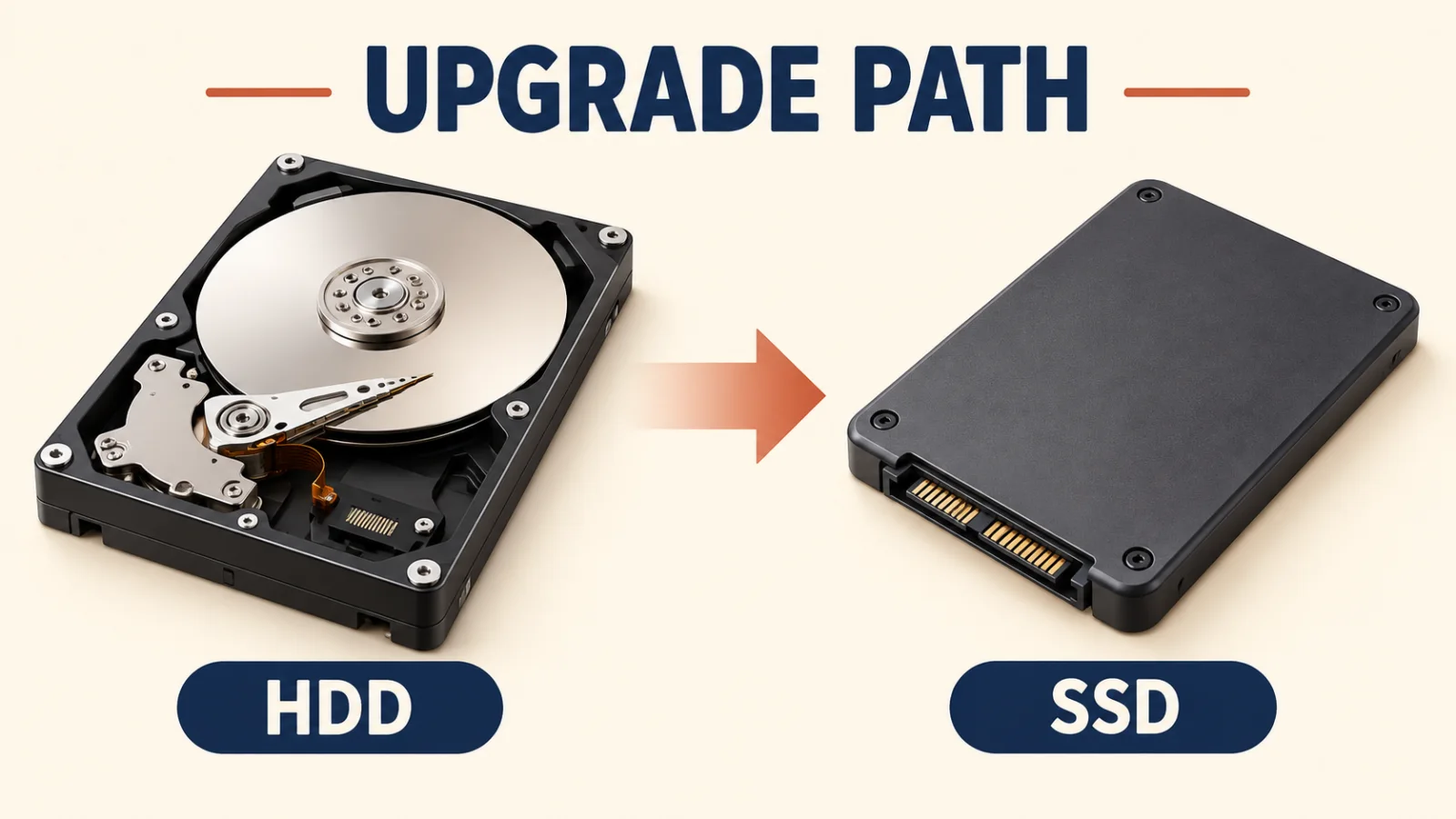
If your laptop still uses an older hard drive, switching to an SSD is the single biggest speed upgrade.

An SSD makes the laptop start faster, open programs quicker, and feel far more responsive.

It is a paid upgrade, but it transforms an old, slow laptop more than anything else.

Many laptops allow this upgrade, though some newer, thinner models do not.

!
Warning

WarningBack up your files before replacing a drive. Upgrading storage means moving or reinstalling your data, so a backup keeps everything safe.

Add More RAM

If your laptop struggles when you have many programs or tabs open, more memory helps.

Extra RAM lets the laptop hold more open at once without slowing down.

Check whether your model allows a memory upgrade, as some do and some do not.

Together with an SSD, more RAM can make an older laptop feel almost new.

i
Pro tip

Read NextCommon Computer Problems: 15 Proven Fixes Everyone Should KnowA slow laptop is one issue. Fix other common PC faults here.

Keep Your Laptop Cool

Heat forces a laptop to slow itself down to protect the hardware.

Keep the vents clear and use the laptop on a hard surface, not a bed or cushion.

Clean dust from the vents gently every few months.

A cooler laptop runs faster and lasts longer.

Common Mistakes When Speeding Up a Laptop

A few popular fixes do more harm than good.

The first is installing several booster or cleaner apps, which add clutter and background activity.

The second is constantly force-closing every app, which the laptop then has to reload.

The third is ignoring updates, which leaves you without performance and security fixes.

Final Thoughts on How to Make Your Laptop Faster

You can make your laptop faster in minutes with free steps, and dramatically with a couple of upgrades.

Start by freeing storage, trimming startup apps, and updating Windows.

For an older laptop, an SSD and more RAM give the biggest boost of all.

For more tips, Microsoft’s Windows support covers performance in detail.

Clear Temporary Files and Cache

Temporary files build up quietly and take space that slows your laptop.

  1. Open Settings, System, Storage
  2. Click Temporary files
  3. Tick the categories to clear, such as temp files and the Recycle Bin
  4. Click Remove files

You can also run Disk Cleanup for a deeper clear-out.

Doing this every few weeks keeps your laptop lean and quick.

Turn On Storage Sense

Storage Sense clears junk automatically so you never have to remember.

Open Settings, System, Storage, and turn on Storage Sense.

Set it to remove temporary files and empty the Recycle Bin on a schedule.

With it on, your laptop keeps some free space without any effort from you.

Reduce Browser Slowdown

A heavy browser is one of the most common reasons a laptop feels slow.

Close tabs you are not using, since each one uses memory.

Remove extensions you do not need, as they run in the background.

Clear the browser cache now and then to keep it responsive.

Check What Is Using Your Resources

Task Manager shows exactly what is slowing your laptop down.

  1. Press Ctrl + Shift + Esc
  2. Open the Processes tab
  3. Click the CPU, Memory, and Disk columns to sort by each
  4. Note any app using far more than its share

Once you find the culprit, close it, update it, or change its settings.

Often a single app or browser tab is behind most of the slowdown.

Keep Your Desktop Tidy

A cluttered desktop with many files and shortcuts can slow a laptop, especially at login.

Move files into folders in your Documents rather than leaving them on the desktop.

Remove shortcuts you no longer use.

A clean desktop loads faster and is easier to work with too.

Run a Disk Check

Errors on the drive can cause freezing and slow performance.

Right-click your drive in File Explorer, choose Properties, then Tools.

Under Error checking, click Check to scan and repair the drive.

Fixing drive errors can smooth out a laptop that stutters or hangs.

Consider a Clean Windows Reinstall

If your laptop is slow after every other fix, a clean reinstall of Windows gives it a fresh start.

This removes years of build-up and returns performance close to new.

Back up all your files first, since a reinstall erases everything.

It is more effort than the other fixes, but it is the most thorough software solution.

!
Warning

WarningA clean reinstall erases everything on the laptop. Back up all your files, photos, and documents before you begin.

Free vs Paid Ways to Speed Up a Laptop

It helps to know which fixes cost nothing and which need spending.

  • Free — free up storage, disable startup apps, update Windows, scan for malware, adjust visual effects
  • Paid — upgrade to an SSD, add more RAM, or replace an ageing battery

Start with every free step first, since together they often solve the problem.

Only consider the paid upgrades if the laptop is still slow afterwards.

How Long Should a Laptop Last?

Knowing what to expect helps you decide between fixing and replacing.

Most laptops stay useful for several years with good care and the odd upgrade.

An SSD and more RAM can extend a capable laptop’s life by years.

If a laptop is very old and slow even after every fix, it may simply be time to replace it.

A Quick Plan to Make Your Laptop Faster Today

If you only have ten minutes, this quick plan delivers the biggest wins.

  1. Restart the laptop
  2. Delete files and apps you no longer need
  3. Disable high-impact startup apps
  4. Install pending Windows updates
  5. Run a malware scan

Do these five things and most laptops feel noticeably quicker straight away.

Repeat them every month or two to keep the speed.

Maintaining a Fast Laptop Long-Term

Keeping a laptop fast is about light, regular maintenance rather than one big effort.

Restart weekly, keep storage free, and install updates promptly.

Review your apps and startup list every month.

With these habits, your laptop stays quick for far longer.

Enjoy a Faster, Smoother Laptop

With these steps, you can make your laptop faster whether it is a year or five years old.

Begin with the free fixes, add an SSD or RAM if you want a bigger leap, and maintain it with simple habits.

The result is a laptop that starts quickly, runs smoothly, and stays out of your way.

Signs Your Laptop Needs Speeding Up

A few clear signs tell you it is time to make your laptop faster.

It takes a long time to start up and be ready to use.

Programs and the browser open slowly or hang.

The fan runs loud and the laptop feels warm during simple tasks.

If you notice these, the steps in this guide will bring back real speed.

Why an SSD Makes Such a Big Difference

Of all the upgrades, an SSD gives the most dramatic result, so it is worth understanding why.

Old hard drives use spinning parts, which are slow to read and write data.

An SSD has no moving parts and reads data almost instantly.

That is why a laptop with an SSD starts in seconds and opens programs without delay.

Getting the Most From Limited RAM

If you cannot upgrade your memory, a few habits help you work within it.

Keep fewer programs and browser tabs open at once.

Close apps fully when you finish rather than leaving them running.

Restart when the laptop feels sluggish, which frees memory instantly.

Cleaning the Inside of Your Laptop

Dust build-up inside a laptop traps heat and forces it to slow down.

If you are comfortable, gently clean the vents and fan with compressed air.

If not, a professional can clean it safely during a service.

A dust-free laptop runs cooler and therefore faster.

Should You Repair or Replace a Slow Laptop?

At some point it is worth weighing a repair against a new laptop.

For a capable laptop, an SSD and RAM upgrade are far cheaper than replacing it.

For a very old or damaged laptop, replacing it may cost less in the long run.

Try every free fix and a cheap upgrade first, then decide based on the result.

Keeping Your Laptop Fast on Battery

A laptop can feel slower on battery because it lowers power to save charge.

For demanding work, plug in and use a higher performance mode.

For light tasks on battery, a balanced mode keeps a good mix of speed and battery life.

Knowing this helps you get the speed you need when it matters.

Make Your Laptop Faster Without Any Downloads

Every free method here uses tools already built into Windows, so you never need extra software.

Disk Cleanup, Storage Sense, Task Manager, and Windows Security handle the whole job.

Avoid third-party boosters, which often add background load and rarely help.

Trusting the built-in tools keeps your laptop both faster and safer, and set up once, much of the upkeep happens on its own.

A Final Word on Laptop Speed

A slow laptop is rarely beyond help, and most of the time the fix costs nothing.

Work through the free steps first, then add an SSD or RAM for a bigger leap.

Keep a few simple habits going, and you will make your laptop faster and keep it that way.

Save this guide, and the next time your laptop drags, the fix is right at hand.

Ready for a Faster Laptop

You now have a complete plan to make your laptop faster, from quick free tweaks to worthwhile upgrades.

Pick the steps that suit your laptop, start with the easy ones today, and enjoy a machine that feels responsive again.

A little regular care is all it takes to keep that speed for years to come.

Frequently Asked Questions

How can I make my laptop faster for free?

Free up storage, disable startup programs, uninstall unused apps, update Windows, scan for malware, and restart regularly. These steps cost nothing and make the biggest everyday difference.

What is the best upgrade to speed up a laptop?

Switching from an older hard drive to an SSD is the single biggest upgrade. It makes the laptop start, load, and respond far faster. Adding more RAM helps too if you run many apps at once.

Why is my laptop so slow all of a sudden?

A sudden slowdown is often caused by full storage, a recent update, malware, or a background app using the processor. Restart, check storage, and scan for malware to find the cause.

Do cleaner and booster apps make a laptop faster?

Usually not. Most add clutter and run in the background themselves. Stick to the built-in tools like Disk Cleanup, Storage Sense, and Task Manager for safe, effective results.

Does adding RAM make a laptop faster?

It helps if your laptop slows down when many programs or browser tabs are open. More RAM lets it hold more at once without lag, though an SSD gives a bigger boost for general speed.

Will a factory reset make my laptop faster?

Often yes, since it reinstalls Windows cleanly and removes years of build-up. Back up your files first, as a reset erases everything on the laptop.

Facebook
X
LinkedIn

Get the Weekly Fix

One email a week. Real fixes, no fluff.

Subscription Form

Join the discussion

Leave a Reply

Your email address will not be published. Required fields are marked *