

Windows 11 apps not opening is frustrating because nothing happens: you click the icon, the app flashes or does nothing at all. The cause is usually a damaged app cache, a pending update, or corrupted system files after an update.
These fixes go from the quickest and safest to the ones that remove data, so stop as soon as the app opens.
Restart the PC, install Windows updates and Microsoft Store app updates, then open Settings > Apps > Installed apps, select the three dots next to the app, choose Advanced options and select Repair. If that fails, select Reset, which deletes the app’s data on this PC. For desktop programs, use Control Panel > Programs and Features > Repair or Change.
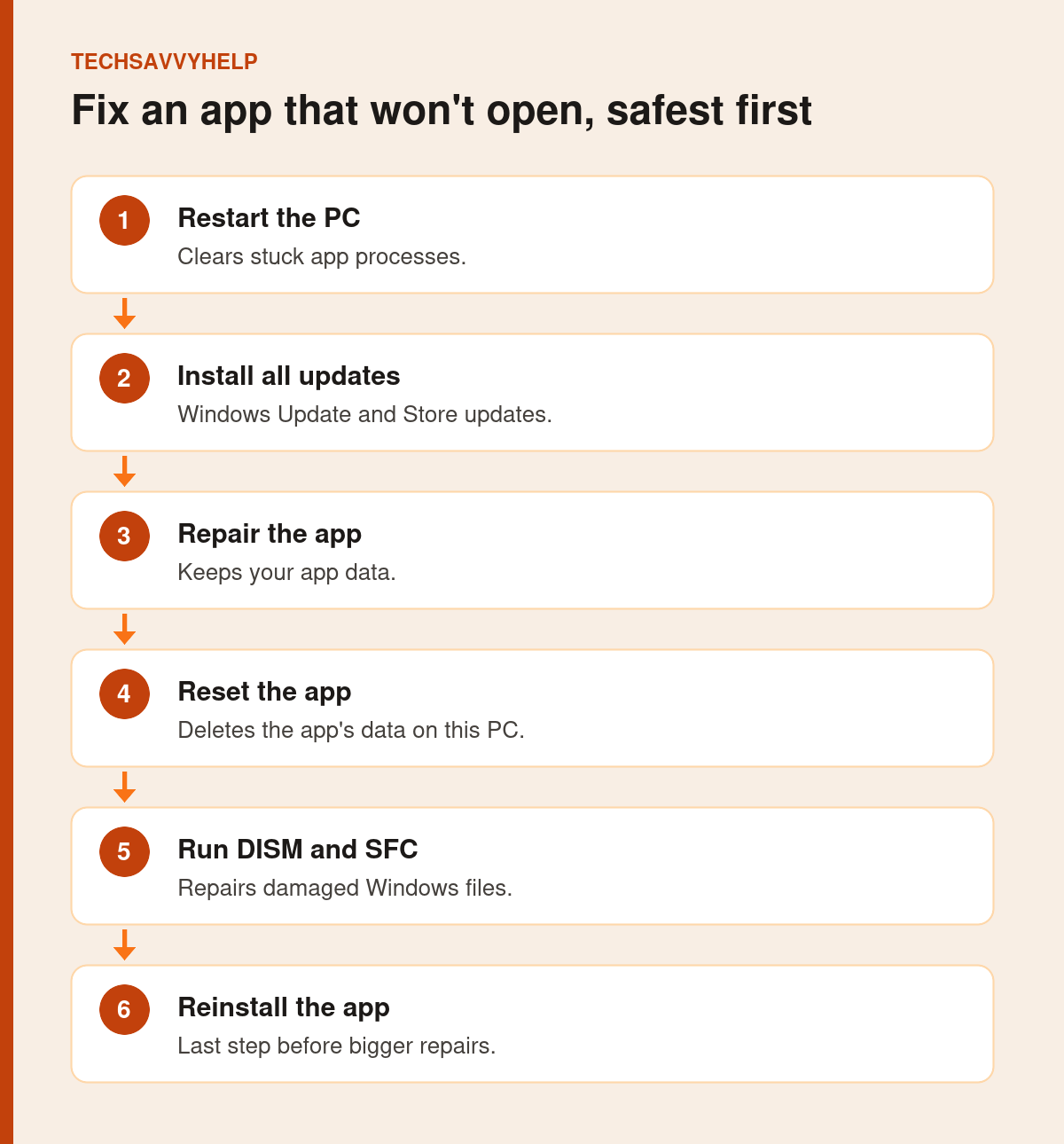
Table of Contents
ToggleFix 1: Restart and Check Task Manager
An app can fail to open because an old copy is still running in the background. Press Ctrl + Shift + Esc, find the app under Processes, select it and choose End task. Then restart the PC, not just sleep it, and try again.
Fix 2: Install Windows and Store Updates
Open Settings > Windows Update and install everything waiting, then restart. Next, open the Microsoft Store, go to your Library or Downloads page and select Get updates. Apps such as Photos, Calculator and the new Outlook are updated through the Store, not Windows Update.
Fix 3: Repair the App
Microsoft’s Repair apps and programs in Windows page gives this order: Repair first, Reset if Repair is missing or does not help.
- Open Settings > Apps > Installed apps.
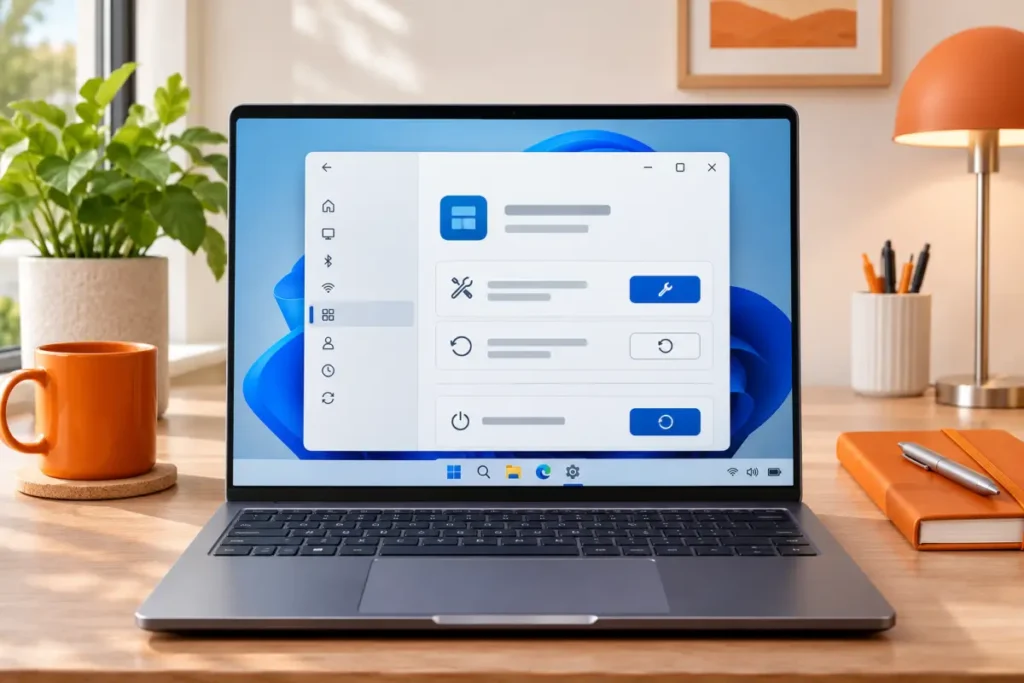
- Select the three dots next to the app and choose Advanced options. Some apps do not have this option.
- Under Reset, select Repair and wait for the tick.
- Try opening the app.
Fix 4: Reset the App
On the same page, select Reset. Windows warns that the app’s data will be deleted. That means sign-ins and settings stored on this PC for that app. Files you saved in Documents or OneDrive are not removed.
Fix 5: Clear the Microsoft Store Cache
If several Store apps will not open, press Windows + R, type wsreset.exe and press Enter. A blank window opens, then the Store starts on its own when the cache is cleared. If the Store itself is broken, see Microsoft Store not working after an update.
Fix 6: Repair Windows Files When Windows 11 Apps Are Not Opening
If many apps fail at once, the problem is Windows, not the apps. Right-click Start, open Terminal (Admin) and run these two commands, one at a time. Restart when both finish.
DISM /Online /Cleanup-Image /RestoreHealth
sfc /scannow
Fix 7: Repair a Desktop Program
Older programs installed from a website do not appear with Advanced options. Open Control Panel > Programs > Programs and Features, right-click the program and select Repair, or Change if Repair is not offered. Microsoft notes that not every program has these options.
Fix 8: Reinstall the App
Uninstall the app from Settings > Apps > Installed apps, restart, then install it again from the Microsoft Store or the developer’s official site. If it refuses to uninstall, follow our guide to a program that won’t uninstall.
Only one app affected, and only on your account? Create a second Windows user and try the app there. If it works, your user profile settings for that app are the problem, and Reset is the right fix.
New Outlook or Teams closing on launch? There is a specific fix for that, including a recent Arm PC bug: see new Outlook not opening.
If an App Is Blocked or Still Won’t Open
- Blocked by Windows Security. Smart App Control or Microsoft Defender can stop an app from starting, sometimes with only a brief notification. Open Windows Security > Virus & threat protection > Protection history to see if the app was blocked or quarantined. If it was, get a fresh copy from the Microsoft Store or the developer’s official site rather than allowing the old file. If you use another antivirus, check its quarantine as well.
- “This app can’t run on your PC.” The app was built for a different type of Windows, such as a very old 16-bit program or a version made for a different processor. Download the current Windows 11 version from the developer, and on an Arm-based PC check that they support Arm.
- Apps stopped opening after a specific change. If apps broke after you installed a driver, program or update, open Control Panel > Recovery > Open System Restore and pick a restore point from before the change. System Restore does not touch your personal files, but programs installed after that point will need reinstalling.
When to stop: if one paid or work app still fails after a reinstall, contact its developer or your IT team; they can check for known problems with your Windows version. If many apps still fail after the DISM and SFC scans and a test in a second user account, back up your files and use Reset this PC with Keep my files.
Start menu frozen as well? Some of the same Windows app repairs fix both.
Frequently Asked Questions
Why are Windows 11 apps not opening?
Usually a stuck background process, a pending app or Windows update, a damaged app cache, or corrupted Windows files after an update.
Does resetting an app delete my files?
Reset deletes the app’s own data and settings on this PC, such as sign-ins. Your documents, photos and OneDrive files are not deleted.
What is the difference between Repair and Reset?
Repair fixes the app and keeps its data. Reset returns the app to how it was when first installed and removes its data.
What if no apps open at all?
Run DISM and SFC from an admin Terminal, restart, and install all Windows updates. If that fails, reset Windows while keeping your files.







