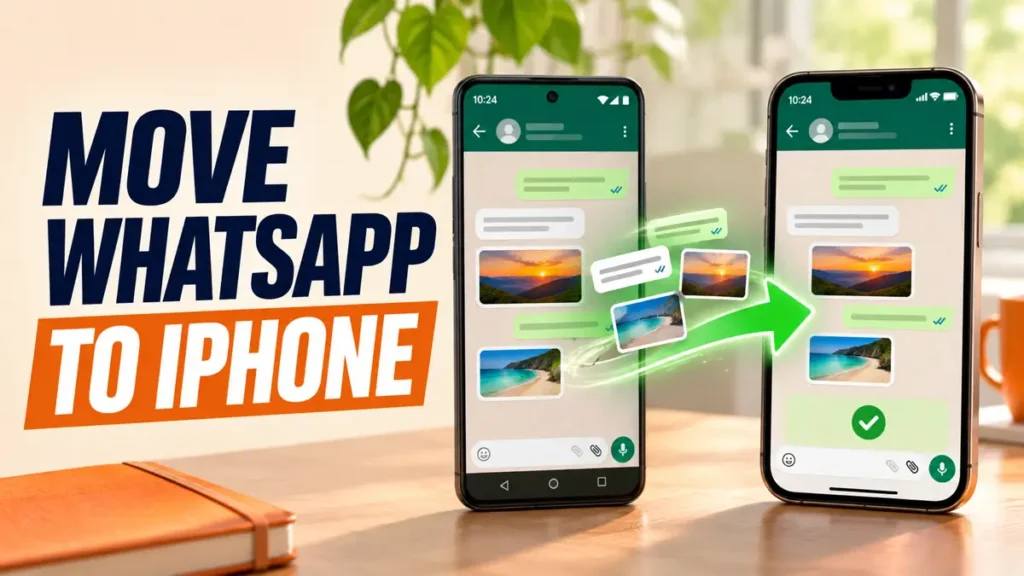
You can move WhatsApp from Android to iPhone for free, with your chats, photos and voice notes, using Apple’s Move to iOS app. There is one catch most guides bury: it only works while you are setting up the iPhone for the first time.
Check the requirements first, then follow the steps in order.
Use Apple’s Move to iOS app on the Android phone while setting up a new or factory-reset iPhone. Keep both phones plugged in and on the same Wi-Fi, select WhatsApp on the Transfer Data screen, then install WhatsApp on the iPhone and sign in with the same phone number. You need Android 5 or later and iOS 15.5 or later.
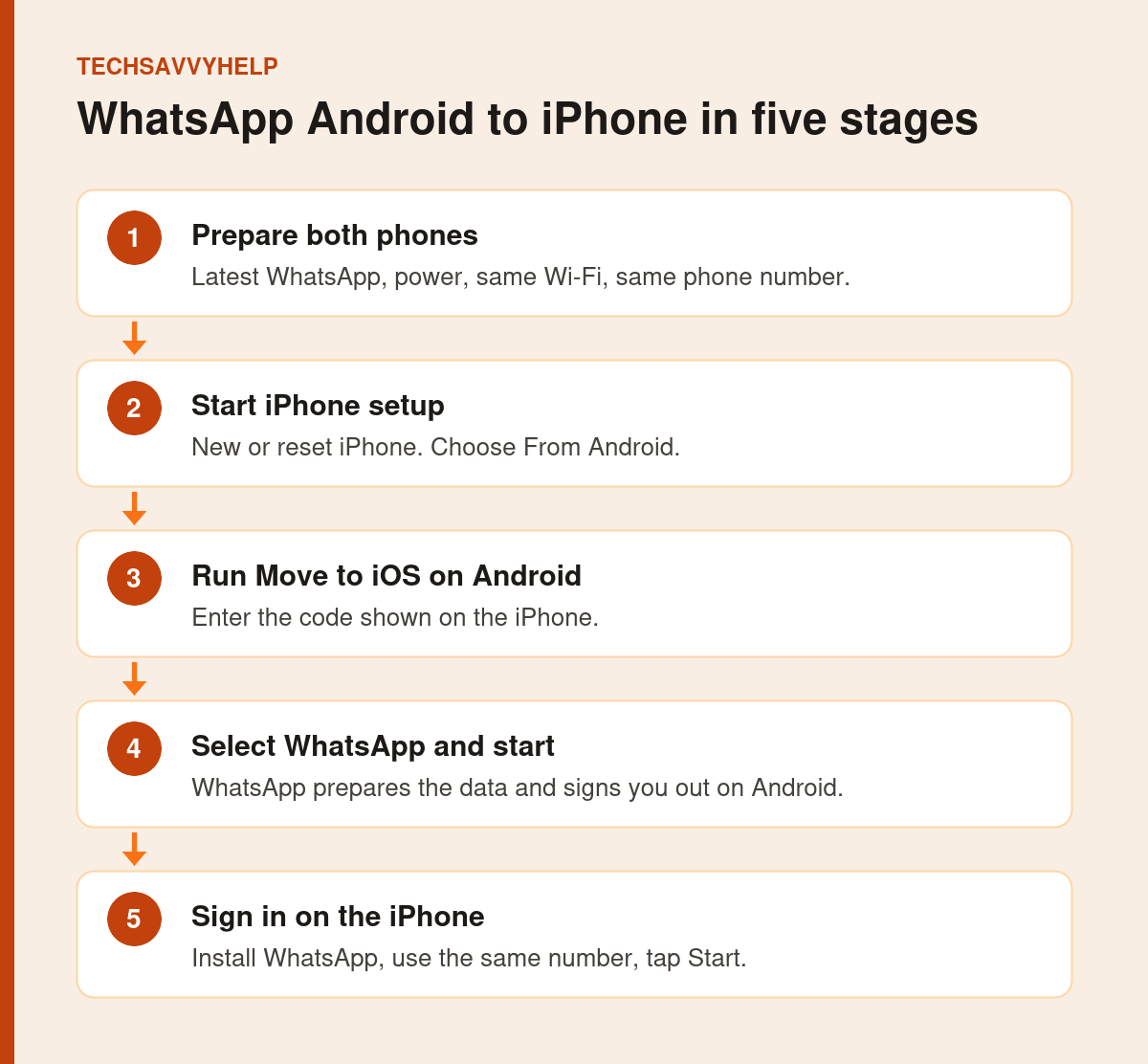
Table of Contents
ToggleWhat You Need Before You Start
According to WhatsApp’s official migration requirements:
- Android 5 or later on the old phone.
- iOS 15.5 or later on the iPhone.
- Apple’s Move to iOS app installed on the Android phone from Google Play.
- The latest WhatsApp on both phones.
- The same phone number on the new iPhone.
- An iPhone that is factory new or reset to factory settings.
- Both phones plugged into power and on the same Wi-Fi, or the Android phone connected to the iPhone’s hotspot.
If your iPhone is already set up, the only official route is to reset it, which erases it. Back up the iPhone first if you have added anything you want to keep.
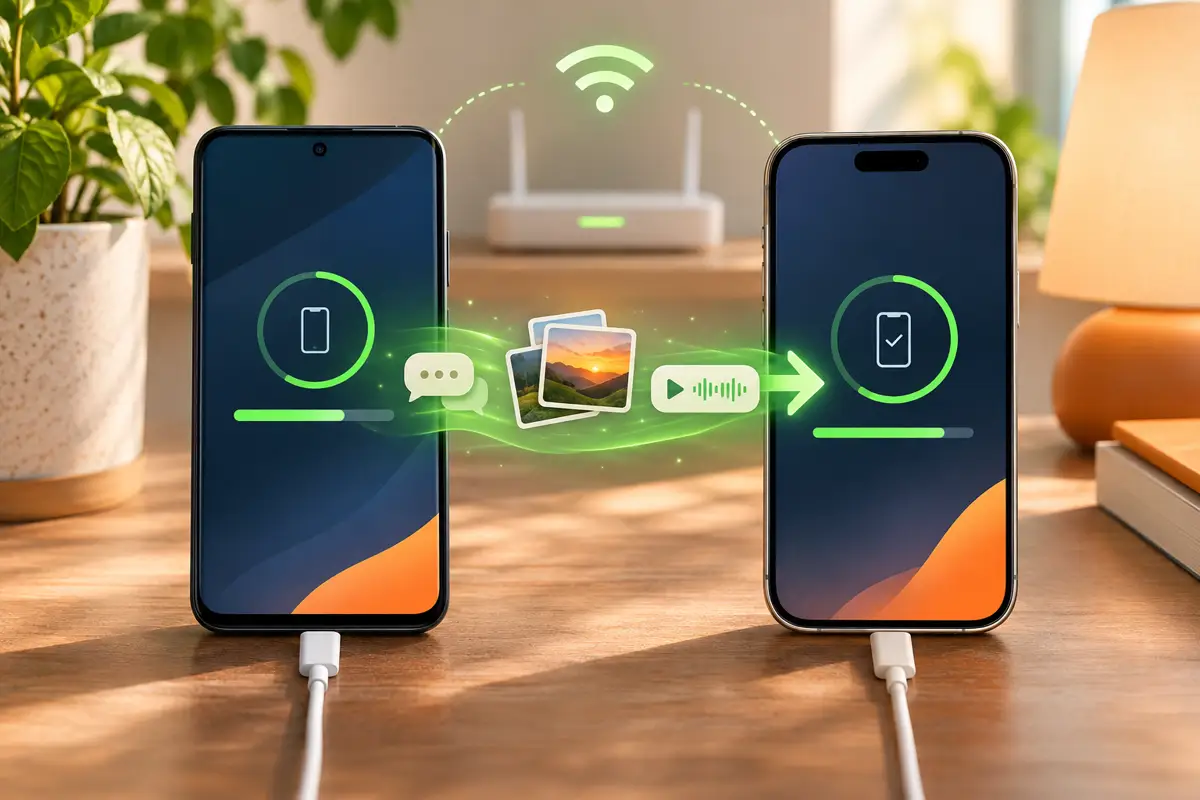
How to Move WhatsApp From Android to iPhone
- Switch on the new iPhone and start setup until you reach Apps & Data or Transfer Your Apps & Data.
- Choose From Android. A code appears on the iPhone.
- Open Move to iOS on the Android phone, follow the prompts and enter the code.
- On the Transfer Data screen, select WhatsApp and tap Start.
- Wait while WhatsApp prepares the data. You will be signed out of WhatsApp on the Android phone.
- Tap Continue in Move to iOS and wait for the transfer to finish.
- On the iPhone, install WhatsApp from the App Store.
- Sign in with the same phone number and tap Start when WhatsApp offers to import your chats.
Large chat histories with lots of photos and videos can take a long time. Start the transfer when you do not need either phone for a while, and keep both screens awake and plugged in.
What Transfers and What Does Not
Transfers: account information, profile photo, individual and group chats, communities, Channel updates, chat history, media and settings.
Does not transfer: WhatsApp call history, your display name, media received through WhatsApp Channels, or peer-to-peer payment messages.
Common Problems and Fixes
WhatsApp Does Not Appear in Move to iOS
Update WhatsApp and Move to iOS on the Android phone, then restart the transfer. Check that the Android phone is on Android 5 or later.
Chats Do Not Import on the iPhone
Make sure you signed in with exactly the same phone number. Chats cannot move straight to a new number, and old and new chats on the iPhone cannot be merged.
The Transfer Stops Halfway
Keep both phones plugged in, close to each other and on the same Wi-Fi. Turn off any VPN on the Android phone and avoid using either phone during the transfer.
Your data stays on the Android phone after the transfer unless you delete WhatsApp or reset the phone. Keep it until you have checked everything arrived. WhatsApp’s current Help Center says Android-to-iPhone chat migration is not supported in the WhatsApp Business app.
Should You Use Paid Transfer Apps?
Many paid apps promise WhatsApp transfers without resetting the iPhone. The official Move to iOS method is free and keeps your data with WhatsApp and Apple. If you use a third-party tool, you are handing your full chat history to another company, so check who makes it and read reviews first.
Move WhatsApp From Android to iPhone: Then Move the Rest
Move to iOS also moves contacts, photos and other data. If you need to move photos separately, see our guide to moving photos between iPhone and Android, or transferring iPhone photos to a PC for a backup.
Set up security on your new iPhone straight away.
Photos stuck sending in Google Messages? These RCS fixes help.
Frequently Asked Questions
Can I move WhatsApp from Android to iPhone without resetting the iPhone?
Not with the official method. Move to iOS only works during iPhone setup, so an iPhone already in use must be reset first.
Is it free to move WhatsApp from Android to iPhone?
Yes. Apple’s Move to iOS app and WhatsApp’s transfer are free.
Will my WhatsApp photos and voice notes transfer?
Yes. Chats, media, voice notes, communities, Channel updates and settings transfer. WhatsApp call history, your display name, Channel media and peer-to-peer payment messages do not.
Can I transfer WhatsApp to a new phone number?
No. You must sign in on the iPhone with the same number you used on Android.