You can reset Windows 11 without losing files by choosing Keep my files in Reset this PC. Windows reinstalls itself and keeps your documents, photos and other personal files.
It does remove your installed apps and settings, so a little preparation saves hours afterwards. This guide shows exactly what stays, what goes, and how to run the reset safely.
Open Settings > System > Recovery, select Reset PC and choose Keep my files. Pick Cloud download for a fresh copy of Windows or Local reinstall to use files already on the PC. Your personal files stay, but apps and drivers you installed and your settings are removed. Back up first and have your BitLocker recovery key ready.
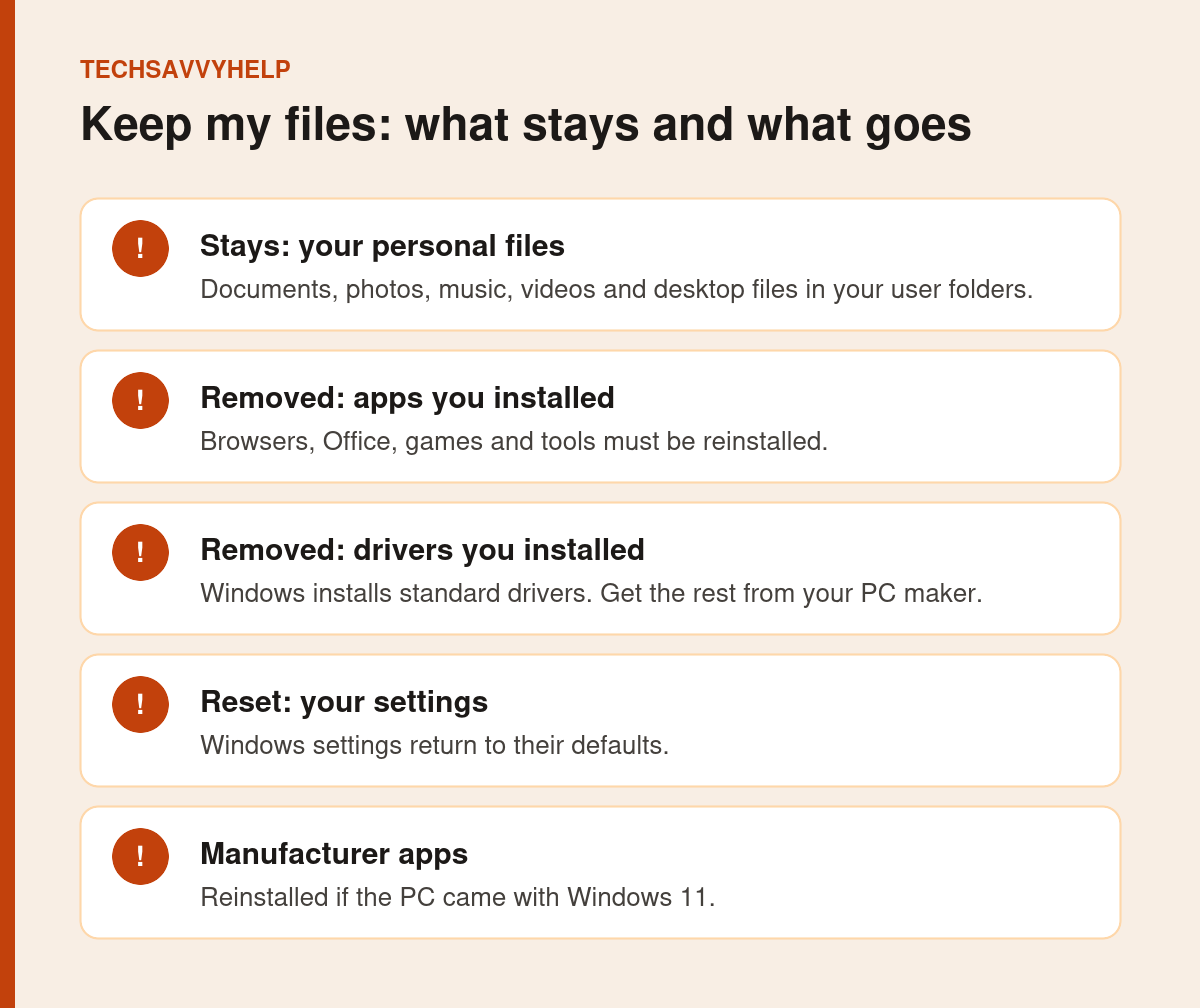
Table of Contents
ToggleWhat Keep My Files Keeps and Removes
Microsoft describes Keep my files as reinstalling Windows while preserving your documents, photos and other personal data. Dell’s reset guide lists the details:
- Keeps: your personal files.
- Removes: apps and drivers you installed.
- Removes: changes you made to settings.
- Reinstalls: apps your PC maker installed, if the PC came with Windows 11.
Windows saves a list of removed apps on your desktop in an HTML file called Removed Apps, so you know what to reinstall.
Files stored outside your user folders, such as a folder you created directly on C:\, are not guaranteed to survive. Copy anything important to an external drive or cloud storage before you reset.
Before You Reset Windows 11
Try the less disruptive repair first: If Settings > System > Recovery shows Fix problems using Windows Update, choose Reinstall now. Microsoft says this reinstalls the current Windows version while preserving your apps, files and settings. Keep the PC connected to power and the internet.
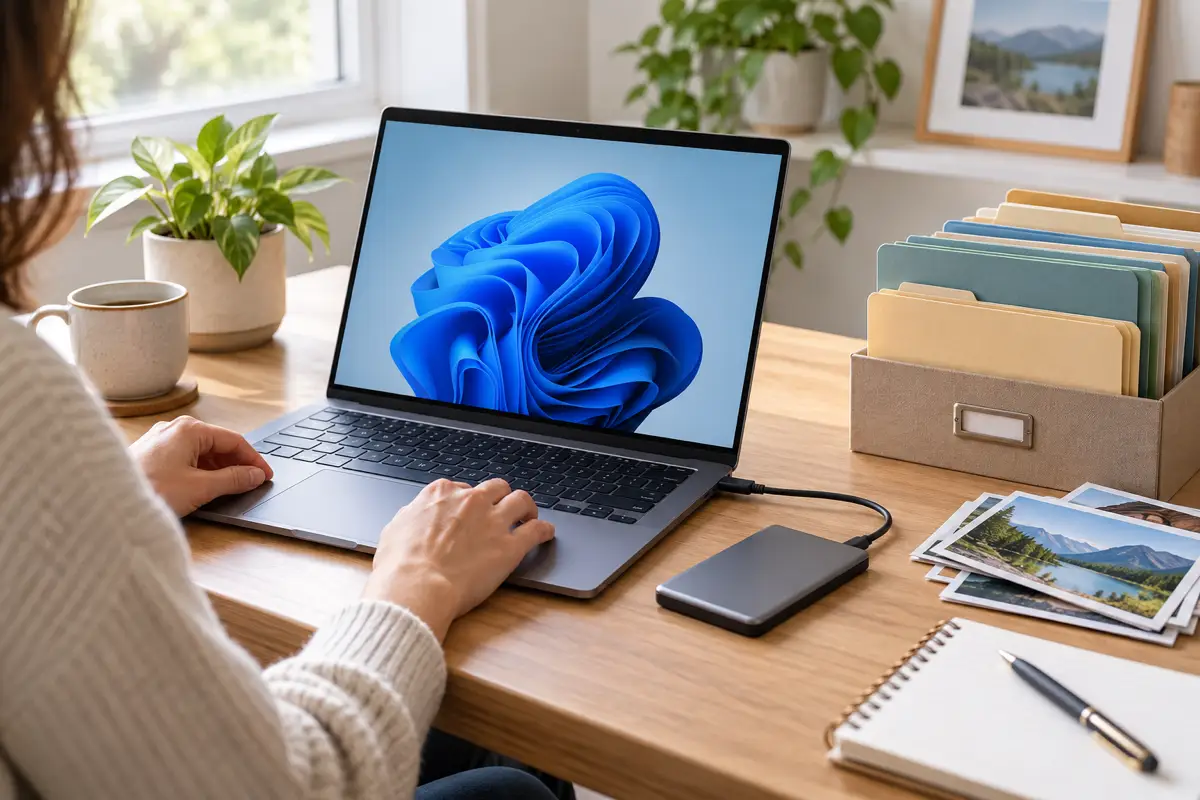
- Back up your files to an external drive or OneDrive. Our 3-2-1 backup plan shows how.
- Find your BitLocker recovery key. Microsoft warns you may need it on encrypted PCs, especially when resetting from recovery mode.
- List your apps and licence keys for paid software you will reinstall.
- Plug in the charger on a laptop. A reset takes a long time.
- Note your Wi-Fi password if you will need it during setup.
How to Reset Windows 11 Without Losing Files
- Open Start > Settings > System > Recovery.
- Next to Reset this PC, select Reset PC.
- Choose Keep my files.
- Choose Cloud download or Local reinstall.
- Review the summary, then select Reset.
- Wait. The PC restarts several times.
Microsoft says the screen may stay black for a long time during the reset, and that restarting the PC yourself during the process could make the reset fail. Leave it running.
Cloud Download or Local Reinstall?
- Cloud download fetches a fresh copy of Windows from Microsoft. Microsoft recommends it if your local Windows files are damaged or missing. It needs a working internet connection and downloads several gigabytes.
- Local reinstall rebuilds Windows from files already on the PC. It is quicker on a slow connection but may not include the latest updates.
If you are resetting to fix errors, Cloud download is usually the safer choice. See Microsoft’s Reset your PC guide.
Reset From Recovery Mode If Windows Will Not Start
If Windows does not start, it opens the recovery environment after a few failed boots. You can also hold Shift while selecting Restart on the sign-in screen. Choose Troubleshoot > Reset this PC > Keep my files. You will need your BitLocker key here if the drive is encrypted.
After the Reset
- Open Removed Apps on the desktop and reinstall what you need.
- Run Windows Update until no more updates appear, including optional driver updates.
- Install drivers and utilities from your PC maker’s support site.
- Check your files are all there before deleting your backup.
When to Reset Windows 11 Without Losing Files
A reset is a last resort, not a first fix. Try simpler repairs first, such as DISM and SFC in our Start menu fix guide. Reset when Windows stays slow, unstable or full of errors after those repairs, or after removing malware.
If something goes missing, these methods can bring it back.
Before you reset, make a recovery drive so you can still repair Windows if it will not start afterwards.
Frequently Asked Questions
Will I lose my files if I reset Windows 11?
Not with Keep my files. It keeps your personal files but removes apps, drivers and settings you changed. Back up anyway, especially files outside your user folders.
How long does it take to reset Windows 11 without losing files?
Often between 30 minutes and a couple of hours, depending on the PC and whether you choose Cloud download. Do not switch the PC off during the reset.
Does reset this PC remove viruses?
It removes installed apps and reinstalls Windows, which removes most malware. Files you keep could still contain infected documents, so scan them afterwards.
Do I need a Windows product key after a reset?
Usually not. Windows reactivates automatically on the same PC if it was activated before.