If you want to turn off Recall in Windows 11, the good news is that the feature is opt-in and the controls are easy to find. The harder part is knowing what Recall actually stores, what “off” really covers, and how to clean up snapshots that already exist.
This guide explains what Recall is, which PCs have it, and four ways to pause it, switch it off, delete what it saved, or remove it completely. Every step uses the setting names Microsoft documents.
To turn off Recall in Windows 11, open Settings, go to Privacy & security, select Recall & snapshots, and switch Save snapshots to Off. To erase what it already saved, use Delete snapshots on the same page. Recall only runs on supported Copilot+ PCs, and you must verify with Windows Hello to change its settings.
Table of Contents
ToggleWhat Recall does in Windows 11
Recall takes snapshots of your screen as you work so you can search for something you saw earlier. Before you turn off Recall in Windows 11, it helps to understand that the feature is designed to find a page, document, or message without remembering where it lived.
That convenience is exactly why some people want it off. A searchable record of everything on screen can include private browsing, messages, and documents.
Microsoft’s Recall privacy documentation says snapshots are processed and stored locally, with no cloud connection used to save or analyse them. Snapshots and related search data are encrypted and are not shared with Microsoft, third parties, or other Windows users on the PC.
Microsoft describes parts of Recall as a preview feature, so menus can change. Check the official Recall privacy and control page if a setting looks different on your PC.
Do you even have Recall on your PC?
Recall is not on every Windows 11 computer. Microsoft’s management documentation lists the requirements: a Copilot+ PC that meets the Secured-core standard, a 40 TOPS NPU, 16 GB of RAM, 8 logical processors, and 256 GB of storage. Device Encryption or BitLocker must be on, and Windows Hello Enhanced Sign-in Security needs at least one biometric sign-in, either face or fingerprint.
By default, snapshots are not saved. You have to opt in yourself. If your PC is older or is not a Copilot+ PC, you will probably not see the Recall settings at all, and there is nothing to turn off.
To check quickly, open Settings > Privacy & security. If you do not see Recall & snapshots, your PC either does not support Recall or it has not been set up.
Pause, turn off, or delete: what is the difference?
Pause until tomorrow: Temporarily stops saving from the Recall system-tray icon. Use it when you only need a short break.
Turn off Save snapshots: Stops future snapshots until you switch the setting on again. Existing snapshots remain.
Delete snapshots: Erases snapshots already saved. You can remove individual snapshots, everything from a website or app, a selected time range, or all snapshots.
Remove Recall: Removes the optional Windows feature. Microsoft says previously saved snapshots are deleted when Recall is removed.
How to turn off Recall in Windows 11 in Settings
- Open Settings with Windows + I.
- Select Privacy & security, then Recall & snapshots.
- Confirm your identity with Windows Hello when prompted.
- Set Save snapshots to Off.
When you turn off Recall in Windows 11 with the Save snapshots switch, Windows stops future snapshots but does not erase old ones. Continue with the next section if you want a clean slate.
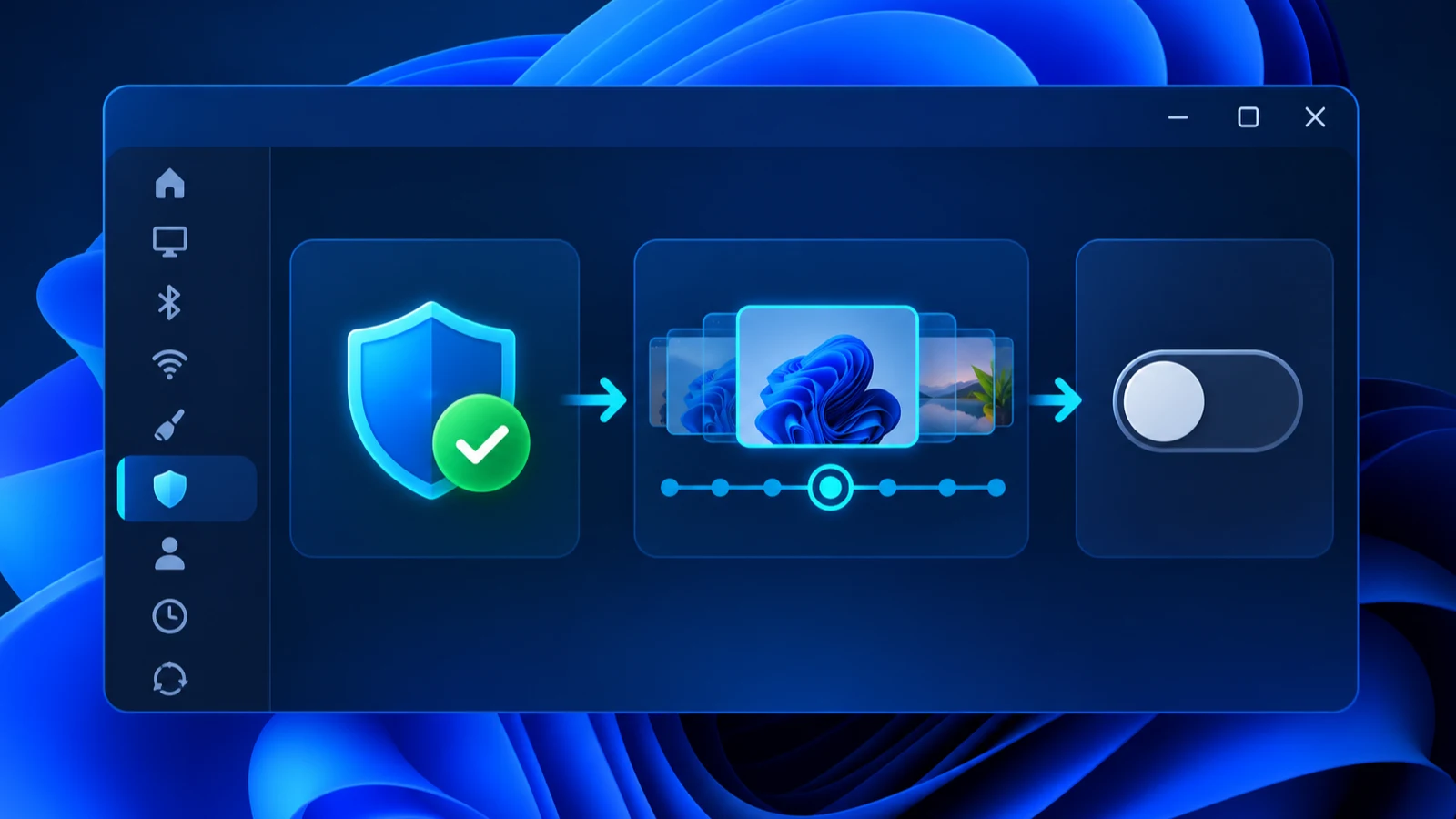
Pause Recall for a short time
Select the Recall icon in the system tray and choose Pause until tomorrow. This temporarily stops snapshots without changing the permanent setting, which is useful before a banking session or private call.
How to delete Recall snapshots you already have
- Go to Settings > Privacy & security > Recall & snapshots.
- Expand Delete snapshots.
- Pick a time range: the past hour, 24 hours, 7 days, or 30 days. Then select Delete snapshots, or choose Delete all.
You can also delete one snapshot at a time from the search results by selecting the three-dot menu and choosing Delete. To remove everything from a single site or app, open the menu on one of its snapshots and select Delete all. Windows tells you how many will be removed before you confirm.
Deleted snapshots cannot be recovered. If you want to keep a record of something, save it as a file or bookmark before deleting.
Keep Recall but limit what it saves
If you do not want to turn off Recall in Windows 11 completely, use the storage, retention, and filtering controls on the same page to save fewer snapshots.
Set storage and retention limits
Under Storage, choose Maximum storage for snapshots. Microsoft lists options by drive size, for example 25 GB or 10 GB on a 256 GB drive. Set Maximum storage duration to 30, 60, 90, or 180 days, or unlimited. When a limit is reached, the oldest snapshots are deleted first.
Filter apps and websites
On the same page, add apps and websites you never want captured. Website filtering works in Microsoft Edge, Firefox, Opera, and Google Chrome. For other browsers, add the browser itself as an app.
Microsoft notes that filtering does not stop browsers, internet providers, or websites from knowing you visited a site. It only keeps the page out of your snapshots.
Leave sensitive information filtering on
This setting is on by default and tries to keep passwords, national ID numbers, and credit card numbers out of snapshots. It is not a guarantee, so treat it as a safety net rather than a reason to rely on Recall.
How to remove the Recall feature completely
Microsoft says you can remove Recall through Turn Windows features on or off. Open Start, search for that name, clear the Recall checkbox, and restart the PC. Removing Recall also deletes previously saved snapshots. See Microsoft’s Recall privacy and control guide.
On managed PCs, ask the IT team to turn off Recall in Windows 11 through policy. Microsoft documents Allow Recall to be enabled under Computer Configuration > Administrative Templates > Windows Components > Windows AI. Setting it to Disabled removes Recall components and deletes saved snapshots after a restart. Microsoft’s Manage Recall documentation explains the controls for IT teams.
For a personal PC, use the documented Windows Features method above instead of an unofficial registry edit. In commercial environments where an administrator enabled Recall, Microsoft also documents the elevated PowerShell command Disable-WindowsOptionalFeature -Online -FeatureName "Recall" -Remove. Managed devices should follow the organisation’s IT policy.
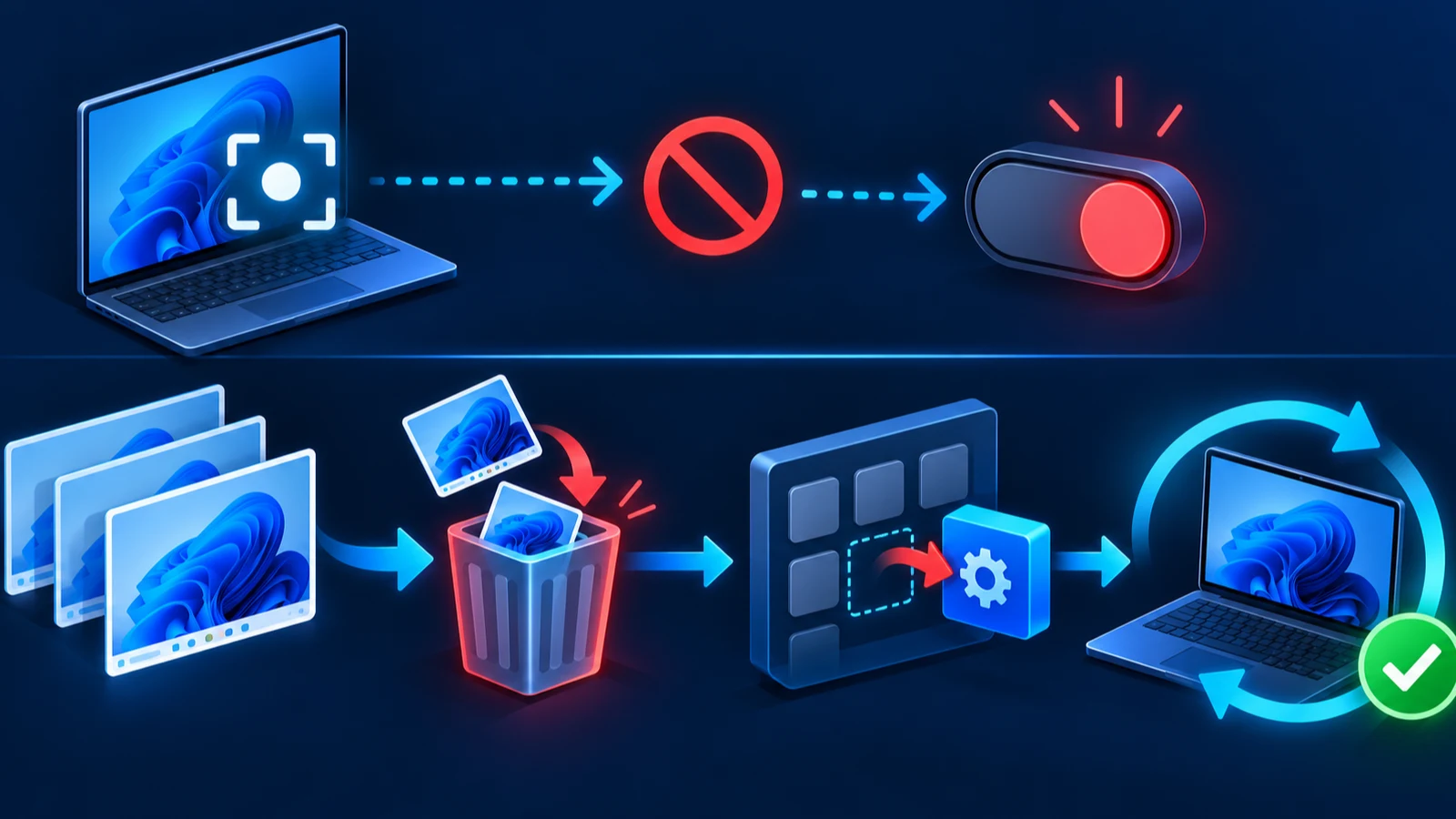
Do not edit the registry unless you are comfortable undoing the change. A wrong value can cause problems elsewhere. For most people the Settings toggle is enough.
Recall and Copilot are separate features. Turn off Copilot too if you want fewer AI features on your PC.
How to confirm Recall is really off
- Return to Settings > Privacy & security > Recall & snapshots and check that Save snapshots reads Off.
- Look in the system tray. The Recall icon should not show it is saving.
- After a day of normal use, try to open Recall search. It should show no new entries.
If the setting is unavailable or controlled by your organisation, do not try to bypass it. Ask the IT administrator to review the documented Allow Recall to be enabled and Turn off saving snapshots for Recall policies.
Other privacy steps worth taking
Turning off Recall is one piece of a good privacy setup. Our guide to securing Windows 11 covers updates, firewall, and account settings, and protecting personal data online explains the habits that matter outside Windows.
On a shared family PC, remember that each person controls their own Recall opt-in, so check every account if you manage a family computer.
Should you leave Recall on? Pros and cons
Recall is not good or bad for everyone. The right choice depends on how you use your PC.
Reasons to keep it
It can help you find a page, chat, or document you saw but did not save. Microsoft protects snapshots with encryption, ties access to Windows Hello, and keeps the data on the device.
Reasons to turn it off
A searchable history of your screen is sensitive by nature. It may capture other people’s messages, work documents, or private pages. If you share your PC, handle client data, or simply prefer not to be recorded, switching it off is reasonable.
A middle path is to keep Recall but filter out banking, email, and password-manager apps, set a short retention period, and pause it when you handle private tasks.
Recall on a work or school PC
Managed PCs behave differently. Microsoft says Recall is disabled and removed by default on managed devices, and administrators cannot turn on snapshot saving for users. Users have to opt in themselves.
If your employer or school controls your PC, ask the IT team before changing anything. Some settings are locked by policy, and changing them yourself may not be allowed.
Frequently Asked Questions
Is Recall on by default in Windows 11?
Microsoft says snapshots are not saved by default. Users must opt in, and on shared PCs each user decides separately.
Does turning off Recall delete my old snapshots?
No. Turning off Save snapshots only stops future captures. Use Delete snapshots on the Recall & snapshots page to erase what already exists.
Where does Recall store snapshots?
Microsoft says snapshots are stored locally on the PC and encrypted, with keys protected by the TPM and Windows Hello. No cloud connection is used to save or analyze them.
Why can I not see Recall & snapshots in Settings?
Your PC probably does not meet the Copilot+ PC requirements, so Recall is not available. In that case there is nothing to turn off.
Will turning off Recall affect Copilot?
No. They are separate features. You can disable one and keep the other. See our guide to turning off Copilot if you want to remove both.