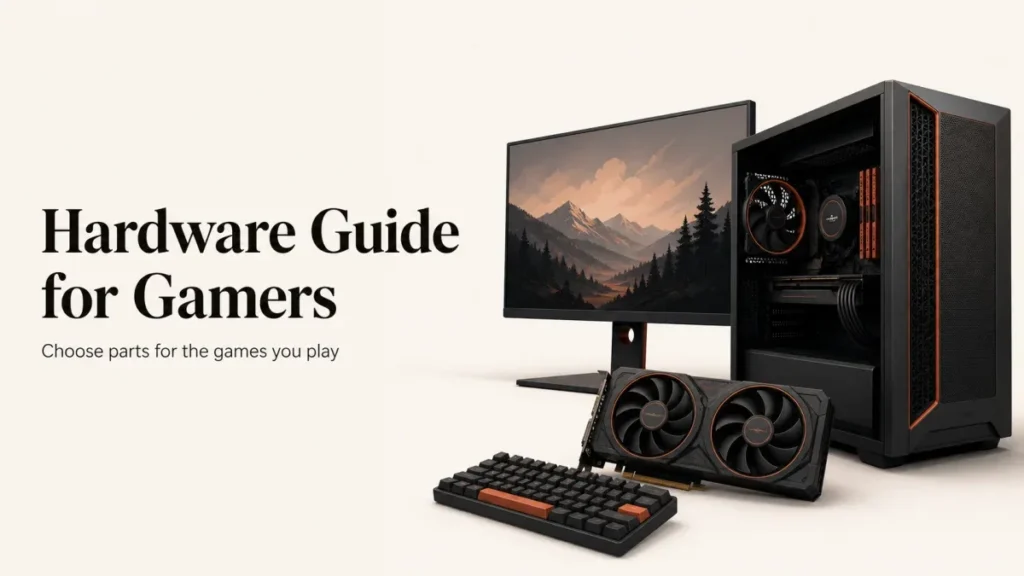
This hardware guide for gamers starts with three decisions: which games you play, the resolution you want, and how much you can spend on the complete setup. Those answers matter more than an impressive model name or a case full of lights.
Use this guide to choose a desktop, laptop, or console setup, compare the hardware that matters, and catch compatibility problems before ordering.
Choose your games, display resolution, and frame-rate target first. Compare CPU and GPU results at those settings, then allow enough RAM and SSD space for your actual workload. Check motherboard support, case clearance, cooling, and power connectors before buying. Include the display and peripherals in your budget, and choose a laptop or console when portability or simplicity matters more than component upgrades.
Table of Contents
ToggleSet a gaming target before choosing hardware
Write down your three most-played games and one demanding game you want to try. Read their official system requirements, but treat minimum specifications as an entry point rather than a promise of smooth performance at your preferred settings. A recommended configuration is more useful when the publisher also names a resolution, graphics preset, and frame-rate target.
Next, choose a display target: 1920 × 1080, 2560 × 1440, or 3840 × 2160. These are usually called 1080p, 1440p, and 4K. Higher resolution means more pixels to render. A competitive player chasing high frame rates and a player prioritizing detailed 4K scenery can need different spending priorities.

Set a total budget that includes the monitor, keyboard, mouse or controller, headset, operating-system licence where needed, and delivery or assembly charges. Leave room for Wi-Fi, extra fans, or a larger SSD if they are not included. Reusing a suitable display or controller can free up money for the components that affect your games.
Hardware guide for gamers: balance the core components
Graphics card: compare settings, not just memory size
The graphics card is central to rendering games, especially at higher resolutions and demanding visual settings. Compare the exact GPU model in the games you care about. A card with more video memory, or VRAM, is not automatically faster than a different GPU with less memory.
Check three separate results where available: ordinary rendering, ray tracing, and any upscaling mode you plan to use. Keep resolution and graphics presets consistent across comparisons. Do not compare a native-resolution result with an upscaled result as though they were the same test.
Read beyond average frames per second. Frame-time graphs and low-frame-rate results help reveal interruptions that an average can hide. Also check whether a benchmark includes generated frames, because that changes what the displayed frame-rate figure represents. Choose enough VRAM for the games and texture settings you use rather than treating a capacity number as a guarantee.
Processor: look at the exact model and workload
A CPU handles game logic and other work needed to deliver frames. High-frame-rate competitive play, simulations, and background tasks can make processor performance particularly important. Buying a premium CPU while leaving too little money for the GPU can still produce an unbalanced system.
Compare the exact processor generation and model, not just a brand tier, core count, or advertised clock speed. Extra cores may help streaming or editing, but do not produce the same gaming gain in every title. Intel explains this interaction in its guide to balancing gaming components.
Memory: buy sufficient capacity before chasing speed
Check the recommended RAM for your games and allow for voice chat, browser tabs, mods, and recording tools. For a new general-purpose gaming PC, 16GB is a useful budget starting point; 32GB is a sensible planning target if you regularly multitask or play memory-heavy games. These are buying guidelines, not universal minimums.
Choose a matched kit supported by the motherboard, and use the slots its manual specifies. DDR4 and DDR5 are not interchangeable. Faster advertised memory settings may rely on an overclocking profile rather than the default boot speed; AMD describes EXPO as a DDR5 overclocking technology.
Verify kit support and stability instead of assuming every advertised profile will work on every board.
Storage: plan for your installed library
Use an SSD for the operating system and actively played games. A compatible NVMe SSD is a practical choice for a new build, but capacity, reliability, warranty, and your motherboard slots matter alongside headline transfer speed. A faster SSD does not replace an underpowered CPU or GPU.
Add up the space needed for the games you want installed together, then leave room for updates, recordings, and ordinary files. A 1TB or 2TB drive may be convenient depending on your library, but neither is a requirement for everyone. Keep a separate backup of important files; a second internal game drive is not automatically a backup.
Understand where an SSD improves responsiveness and how it differs from a hard drive before allocating storage money.
Check compatibility, power and cooling before ordering
A component can be fast and still be wrong for your build. Confirm the exact motherboard CPU-support list and any required BIOS version, memory generation, and available storage slots. Check physical dimensions with front fans, radiators, and drive cages installed, not just the empty case dimensions.

- CPU and motherboard: matching socket, supported processor model, and suitable firmware.
- RAM and board: correct DDR generation, supported kit, capacity limits, and slot layout.
- GPU and case: card length, thickness, expansion slots, and room for its power cable.
- Cooler and case: CPU mounting support, air-cooler height, or radiator mounting clearance.
- PSU and components: suitable total power capacity and the exact required connectors.
Follow the graphics-card manufacturer’s power-supply recommendation for the chosen model, considering the rest of the system. A wattage label alone says little about build quality, protections, or cable compatibility. Keep the PSU model in the parts list rather than accepting a listing that only says “gaming power supply.”
Do not reuse modular PSU cables unless the manufacturer explicitly confirms compatibility with the exact power-supply model. Matching plugs are not proof of matching wiring. Corsair’s power-supply safety guidance requires model-compatible cables.
Cooling should keep the chosen components within their documented limits at a noise level you can tolerate. Liquid cooling is not a requirement for every gaming PC. Check cooler suitability, case ventilation, and reviews of sustained temperature and noise. A more powerful part can be a poor choice if the case cannot cool it comfortably.
Once the parts list is settled, follow the separate assembly and first-boot guide rather than improvising connector placement.
Choose a monitor the system can actually use
Resolution controls pixel count; refresh rate describes how often the display can update each second. Neither specification guarantees the frame rate your PC produces. Compare them together, and verify the monitor supports your intended resolution and refresh rate over the specific input you will use.
Variable refresh rate can help when frame rates fluctuate. AMD’s FreeSync setup guidance explains how a compatible display synchronizes its refresh rate with the graphics output. Check the monitor, graphics hardware, cable, and connection support rather than assuming any adaptive-sync label guarantees every combination.
Screen size, text clarity, glare, stand adjustment, and viewing distance also matter. Judge motion handling from tests at the refresh rates you expect to use, not one advertised response-time number. If considering OLED, check the manufacturer’s care guidance and warranty coverage for your mix of games and static desktop work.
After connecting a new monitor, confirm its selected resolution and refresh rate in the operating system and enable supported adaptive sync as instructed. Buying a high-refresh display does not guarantee that it is already running at its maximum supported refresh rate.
Decide between a desktop, laptop and console
Custom desktop or prebuilt PC
Building gives you control over each part and makes the trade-offs visible. It also makes you responsible for assembly and initial troubleshooting. A prebuilt can offer a simpler support route, but its value depends on the exact configuration and warranty, not the word “gaming” on the case.
For a prebuilt, ask for the GPU and CPU model, RAM capacity and module arrangement, SSD model and size, PSU model, motherboard, cooling, and networking. Check whether standard replacement parts fit. Compare the full delivered price with a similar self-build; neither route is always cheaper. Intel’s prebuilt selection guide covers the main system choices.
Gaming laptop
Choose a laptop when you genuinely need to carry the computer. Compare the complete laptop model, because cooling, power limits, display quality, and noise are part of the product. A desktop GPU and a laptop GPU with similar names should not be assumed to perform identically.
Check plugged-in game results separately from battery-life claims, and confirm whether memory and storage can be upgraded. CPU and GPU replacement is generally not a practical upgrade path. Intel’s gaming-laptop guide highlights these portability, cooling, and expansion considerations.
Console setup
A console can make sense when the games, controllers, and living-room experience fit your needs better than a PC. Check the games available on the exact platform, online-play costs where applicable, controller accessibility, and display support before comparing hardware specifications.
Storage rules are platform-specific. For example, Sony states that PS5 games stored on USB extended storage must be copied back to console storage or a compatible internal M.2 SSD before play. Check Sony’s PS5 storage requirements rather than assuming any fast external SSD can run every game directly.
Buy peripherals for comfort and control
Choose a mouse that fits your grip and a keyboard layout you can use comfortably. Maximum DPI, RGB lighting, and the number of extra keys are not substitutes for fit. Try the shape and key feel where possible, and check return terms when buying without a hands-on trial.
For a headset, prioritize long-session comfort, microphone clarity, and a connection supported by your system. Wired and wireless models each involve trade-offs; do not assume every wireless connection has identical latency. Check the exact product’s supported connection modes and whether it needs a USB receiver.
Make the final buying decision
- Write the target: games, resolution, settings, frame-rate preference, and total budget.
- Compare equivalent results: same game, preset, resolution, and rendering mode.
- Check every model: include PSU, motherboard, cooling, and memory layout, not just CPU and GPU.
- Confirm the physical fit: use manufacturer manuals and support lists.
- Read the purchase terms: warranty, return window, shipping, assembly, and who handles faults.
- Keep a baseline: save receipts and record the stable configuration after setup.
If you already own a PC, identify what is limiting the games you play before replacing parts. A system that meets your target does not need a scheduled upgrade simply because newer hardware exists. Keep firmware changes, driver updates, and performance tuning separate so you can trace a problem to one change.
Use the upgrade guide when improving an existing PC rather than selecting a complete new setup.
Frequently asked questions
Is 16GB of RAM enough for gaming?
It can be enough for many games, especially with few background applications. Check each game’s requirements and your actual memory use. Consider 32GB for heavier multitasking, mods, or memory-intensive titles rather than upgrading solely because a larger number is available.
Should I spend more on the CPU or graphics card?
That depends on your games and target settings. Demanding high-resolution graphics can justify more GPU spending; high-frame-rate or CPU-heavy games also need a capable processor. Compare both in your intended workload instead of using one fixed budget percentage.
Does a faster SSD increase gaming frame rates?
Its clearest benefits are usually loading and data access. Storage demands vary by game, and a slow drive can affect asset streaming, but an SSD upgrade does not guarantee higher average frame rates or fix every stutter.
Do I need a 4K gaming monitor?
No. Choose resolution for your screen size, viewing distance, budget, and graphics performance. A suitable 1080p or 1440p display can be a better match than a 4K display your system cannot drive at your desired settings.
Can a gaming PC be future-proof?
No parts list guarantees performance in unknown future games. Leave practical upgrade options, use a suitable power supply and case, and buy enough performance for the games you expect to play. Upgrade when a real need appears, not on a fixed calendar.
Final takeaway
Buy for the games you actually play, not the biggest numbers on a specification sheet. If your current setup already meets your target, keep it; if not, build a model-by-model shortlist that includes the monitor, power supply, cooling, and peripherals.