


If Word crashed, the PC shut down, or you closed a file without saving, you can often recover unsaved Word document changes. Word keeps AutoRecover copies in the background, and Windows keeps temporary files that may hold your work.
Try the methods in order and stop as soon as you find your file. Do not install new software on the drive first, because it can overwrite the files you are trying to get back.
Reopen Word and check the Document Recovery pane. If nothing appears, go to File > Info > Manage Document > Recover Unsaved Documents. Then check the AutoRecover folders, search the PC for *.asd and *.wbk files, and look in the Recycle Bin. Files saved to OneDrive can also be restored from version history.
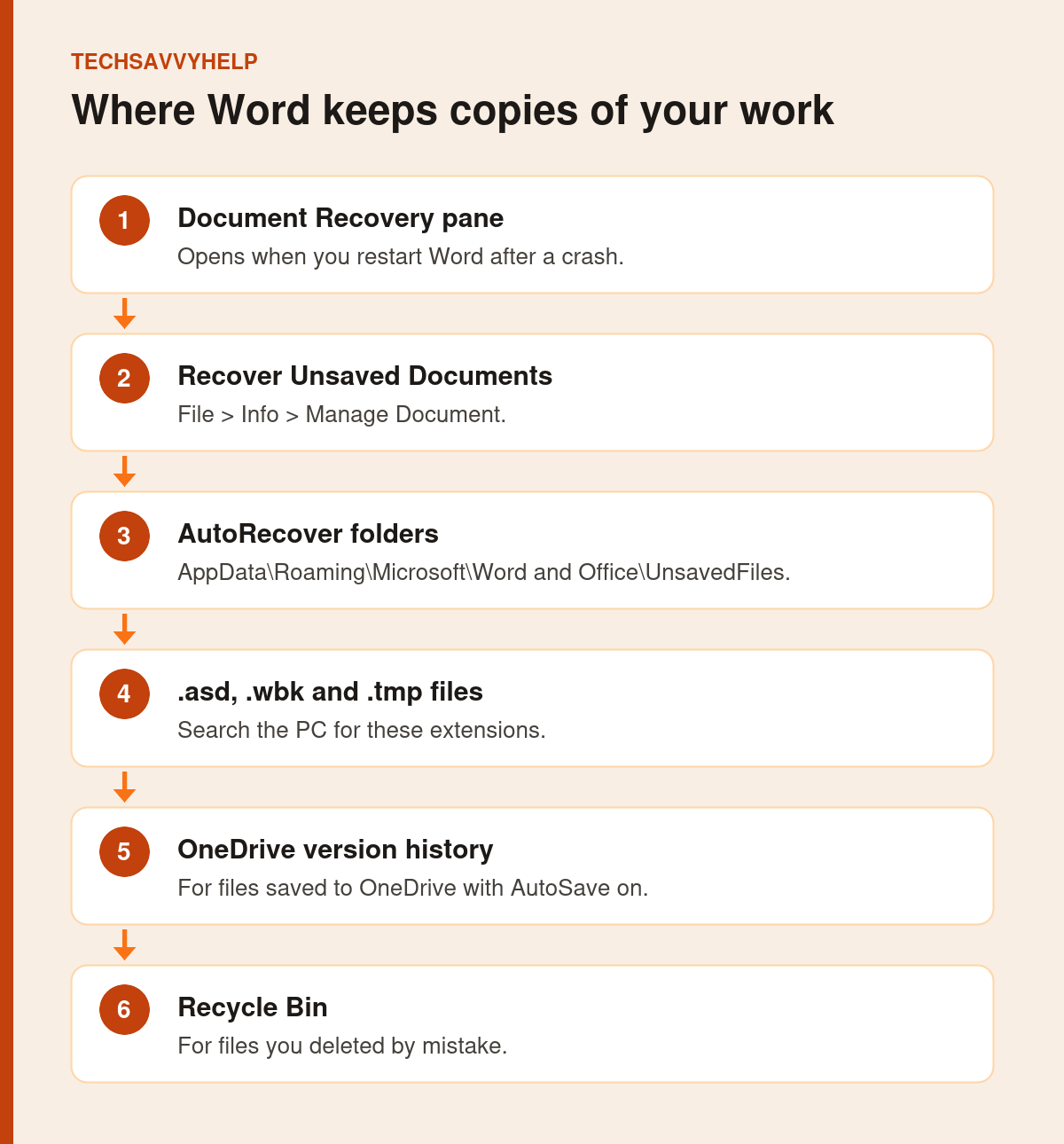
Table of Contents
ToggleMethod 1: Restart Word and Use Document Recovery
Word looks for AutoRecover files every time it starts. If it finds one, the Document Recovery pane opens on the left and lists files as [Original] or [Recovered].
- Open Word again.
- In the Document Recovery pane, double-click the newest version.
- Check that it has your latest changes.
- Select File > Save As and save it as a
.docxfile straight away.
Method 2: Recover Unsaved Word Document From Manage Document
This finds files you closed without ever saving.
- Open Word and select File > Info.
- Select Manage Document > Recover Unsaved Documents.
- Select the file and click Open.
- Click Save As in the bar at the top and save it.
If you had saved the file before but lost your latest changes, open it, go to File > Info, and under Manage Document choose the version marked (when I closed without saving). Then click Restore or Compare. Microsoft explains both in Recover an earlier version of a Word file.
Method 3: Check the AutoRecover Folders
Microsoft lists two folders where Word stores recovery files. Paste each into the File Explorer address bar, replacing <UserName> with your Windows user name:
C:\Users\<UserName>\AppData\Roaming\Microsoft\WordC:\Users\<UserName>\AppData\Local\Microsoft\Office\UnsavedFiles
Sort by Date modified and look for files from around the time you lost your work.
AppData is hidden by default. Typing the full path in the address bar opens it anyway, so you do not need to change any folder settings.

Method 4: Search for .asd and .wbk Files
AutoRecover files end in .asd. Backup copies end in .wbk and are named Backup of followed by the file name, but only exist if Always create backup copy was turned on.
- Open Start and search for
*.asd, then for*.wbk. - Note the folder of any match.
- In Word, select File > Open > Browse.
- Change the file type list to All Files, open the file, and save it as
.docx.
Method 5: Look for Temporary Files
Word also writes temporary files that end in .tmp or start with a tilde (~). Search the PC for *.tmp, sort the results by date, and look for files from the time you were working. Open likely matches in Word using the All Files type, as in Method 4.
Method 6: Restore From OneDrive Version History
If the document was saved to OneDrive or SharePoint, AutoSave keeps earlier versions. Open the file, select the file name at the top of the window and choose Version History, or right-click the file in OneDrive on the web. Open an older version and restore it.
Method 7: Check the Recycle Bin
If you deleted the file, open the Recycle Bin on the desktop, look for .doc or .docx files, right-click the one you need and select Restore.
For files deleted from the Recycle Bin as well, see our guide to Windows data recovery, which covers Microsoft’s free Windows File Recovery tool.
How to Avoid Losing Word Documents Again
- Turn on AutoSave by saving documents to OneDrive. Changes save every few seconds.
- Shorten AutoRecover: go to File > Options > Save and set AutoRecover to save every 5 minutes or less, as Microsoft recommends.
- Keep backups: under File > Options > Advanced > Save, turn on Always create backup copy.
- Back up your files: follow a simple 3-2-1 backup plan.
Microsoft’s full list of recovery methods is in its Word document recovery article.
For any file type, not just Word documents.
Frequently Asked Questions
Can I recover an unsaved Word document after closing it?
Often, yes. Open Word, go to File > Info > Manage Document > Recover Unsaved Documents, and check the AutoRecover folders.
Where are unsaved Word documents stored?
Usually in AppData\Local\Microsoft\Office\UnsavedFiles or AppData\Roaming\Microsoft\Word under your user folder, as .asd files.
How do I recover unsaved Word document changes after a crash?
Reopen Word and check the Document Recovery pane. Open the newest version and save it as a .docx file straight away.
Does AutoSave work on files saved to my PC?
No. AutoSave works for files stored on OneDrive or SharePoint. Files on your PC rely on AutoRecover instead.







