

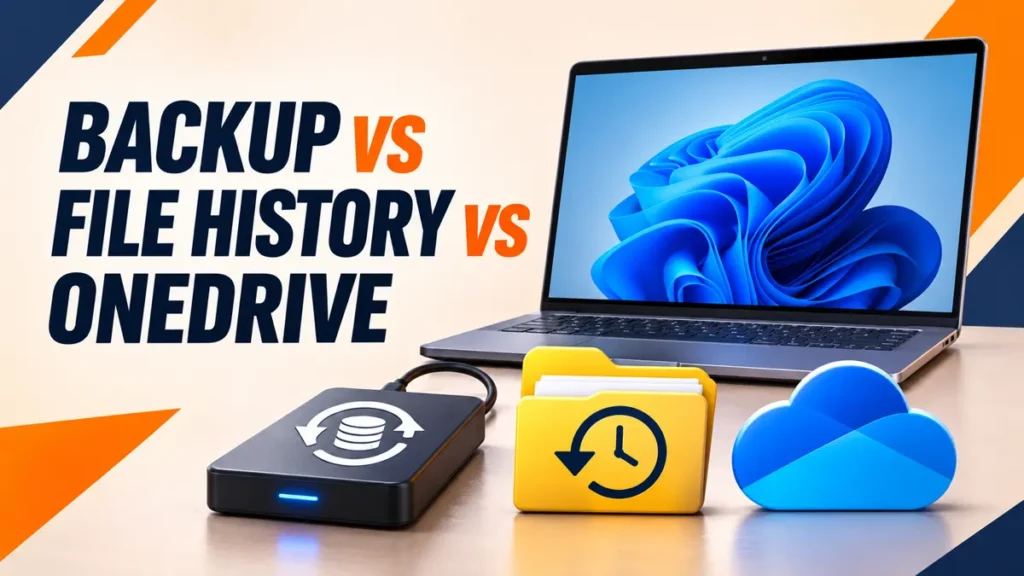
Windows Backup vs File History is a confusing choice, because Windows 11 includes both, plus OneDrive, and all three sound like backup. They protect different things. Windows Backup saves your folders, apps list and settings to OneDrive. File History keeps older copies of your files on a drive you own. OneDrive keeps files in sync across devices.
None of them restores Windows itself. That needs a recovery drive.
Use Windows Backup to move your folders and settings to a new PC easily. Use File History with an external drive to keep a local, versioned copy of your files that survives deletion and works without internet. Treat OneDrive as sync, not your only backup, because deletions sync too. For most home PCs, turn on Windows Backup and File History, and make a recovery drive.
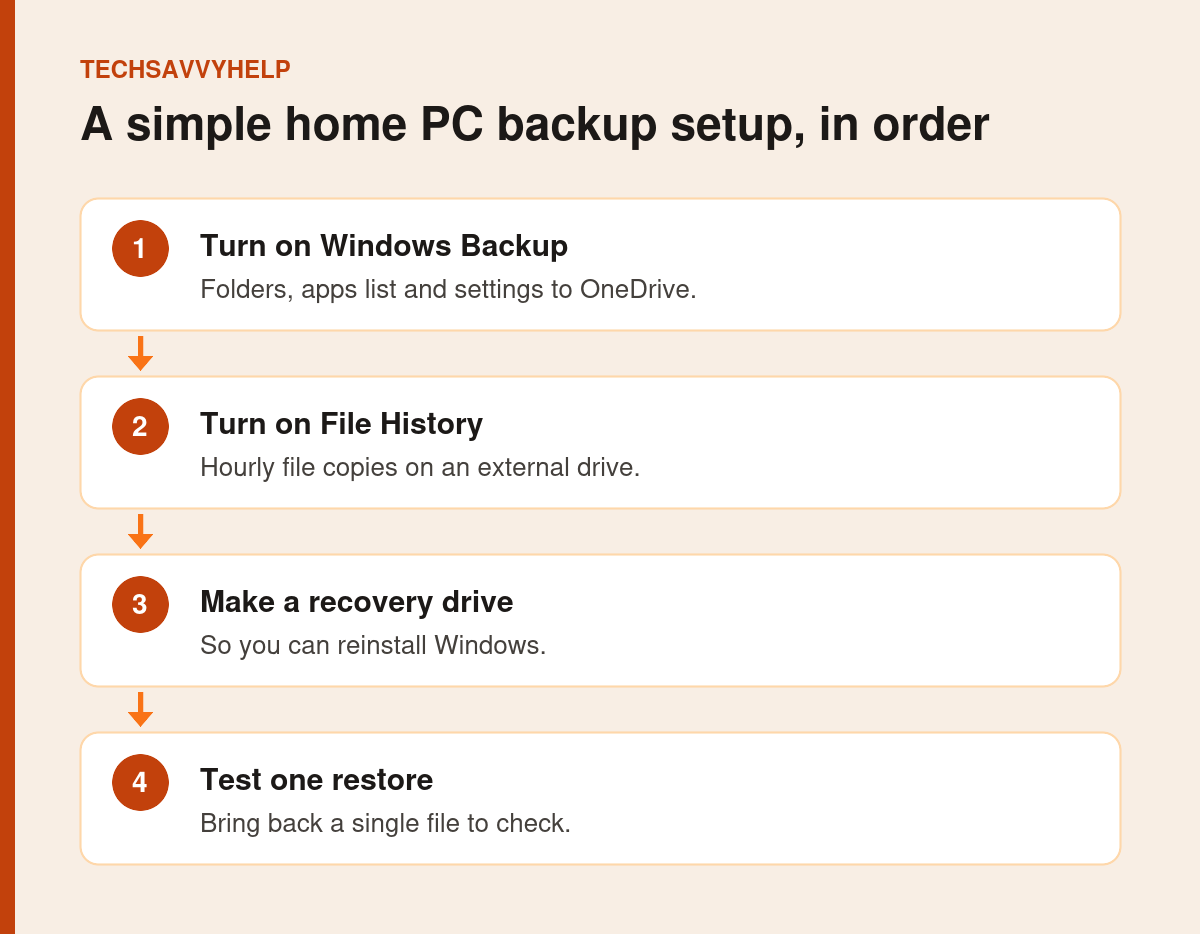
Table of Contents
ToggleWindows Backup vs File History vs OneDrive at a Glance
| Windows Backup | File History | OneDrive sync | |
|---|---|---|---|
| What it saves | Desktop, Documents, Pictures, Videos and Music folders, your app list and Windows settings | Copies of files in your libraries, Desktop and offline OneDrive files | Files in your OneDrive folders |
| Where it goes | Your OneDrive (Microsoft account) | An external drive or network folder you choose | OneDrive cloud |
| Old versions | Through OneDrive version history | Yes, saved on a schedule, hourly by default | Version history for each file |
| If you delete a file | The deletion syncs to OneDrive | Earlier copies stay on the backup drive | The deletion syncs; the recycle bin keeps it for 30 days |
| Works without internet | No | Yes | No |
| Restores Windows itself | No | No | No |
| Cost | Free 5 GB, then paid storage | Free, you supply the drive | Free 5 GB, then paid storage |

What Windows Backup Does
According to Microsoft’s Back up and restore with Windows Backup page, Windows Backup can send your Desktop, Documents, Pictures, Videos and Music folders to OneDrive, remember your installed apps, and save settings such as Wi-Fi networks and passwords, accessibility, language and personalisation. Everything goes to your Microsoft account’s OneDrive, and a free account includes 5 GB.
When you set up a new PC or reinstall Windows and sign in with the same account, Windows offers to restore that backup. Store apps reinstall from their pins, and other apps link you to their installers. Microsoft notes backups can fail if OneDrive is full or not signed in.
What File History Does
File History copies your files to an external drive or network folder on a schedule, every hour by default, and keeps older versions. If you overwrite a document or delete a photo, you can bring back an earlier copy, even with no internet. It covers your libraries (Documents, Music, Pictures, Videos), the Desktop and OneDrive files stored on the PC.
Turn it on in Control Panel > System and Security > File History, then choose a drive. If it stops working, see our File History not working fixes.
Why OneDrive Sync Is Not a Full Backup
OneDrive keeps the same files on all your devices. That is useful, but if you delete a file or ransomware scrambles it, the change syncs everywhere. You can recover deleted items from the OneDrive recycle bin, which keeps them for 30 days on personal accounts, and older file versions from version history. Microsoft 365 subscribers can also restore their whole OneDrive to an earlier point within the last 30 days.
If OneDrive is stuck, see OneDrive not syncing. If you do not want your folders in OneDrive at all, see how to stop OneDrive backing up folders.
What None of Them Restore
None of these tools makes a full image of your PC with Windows and every program. If Windows will not start, you need a Windows 11 recovery drive to reinstall it, then you restore your files from File History or OneDrive. For a complete disk image, you need a separate backup program.
Which Should You Use?
- Moving to a new PC: Windows Backup.
- Accidentally deleted or overwritten files: File History, or the OneDrive recycle bin within 30 days.
- Working across laptop and phone: OneDrive.
- PC will not start: a recovery drive, then restore your files.
The strongest home setup uses Windows Backup plus File History to an external drive you unplug when it is not backing up. That follows the 3-2-1 idea in our data backup guide: more than one copy, on more than one kind of storage, with one copy away from the PC.
Test a restore once. Delete a test file, then bring it back from File History. A backup you have never restored from is only a hope.
Frequently Asked Questions
Windows Backup vs File History: which should I use?
Windows Backup saves folders, your apps list and settings to OneDrive so you can set up a new PC quickly. File History keeps older versions of your files on an external drive you control.
Is OneDrive a backup?
Not on its own. It syncs files, so deletions and damage sync too. Its recycle bin and version history help, but a separate File History copy is safer.
Does Windows Backup back up my whole PC?
No. It saves certain folders, your app list and settings. It does not create a full system image of Windows and every program.
Can I use File History and OneDrive together?
Yes. File History also copies OneDrive files stored on the PC, which gives you a local, versioned copy of them.







