

Windows 11 microphone not working? Then people on calls cannot hear you, even though everything looks connected. The most common cause is a privacy setting that blocks apps from using the microphone, followed by Windows choosing the wrong input device.
Work through these fixes in order and use Windows’ built-in microphone test after each one.
Open Settings > Privacy & security > Microphone and turn on Microphone access, Let apps access your microphone and Let desktop apps access your microphone. Then go to Settings > System > Sound, choose the right input device, raise the input volume and select Start test. Finally, check the input device inside Teams, Zoom or your browser.
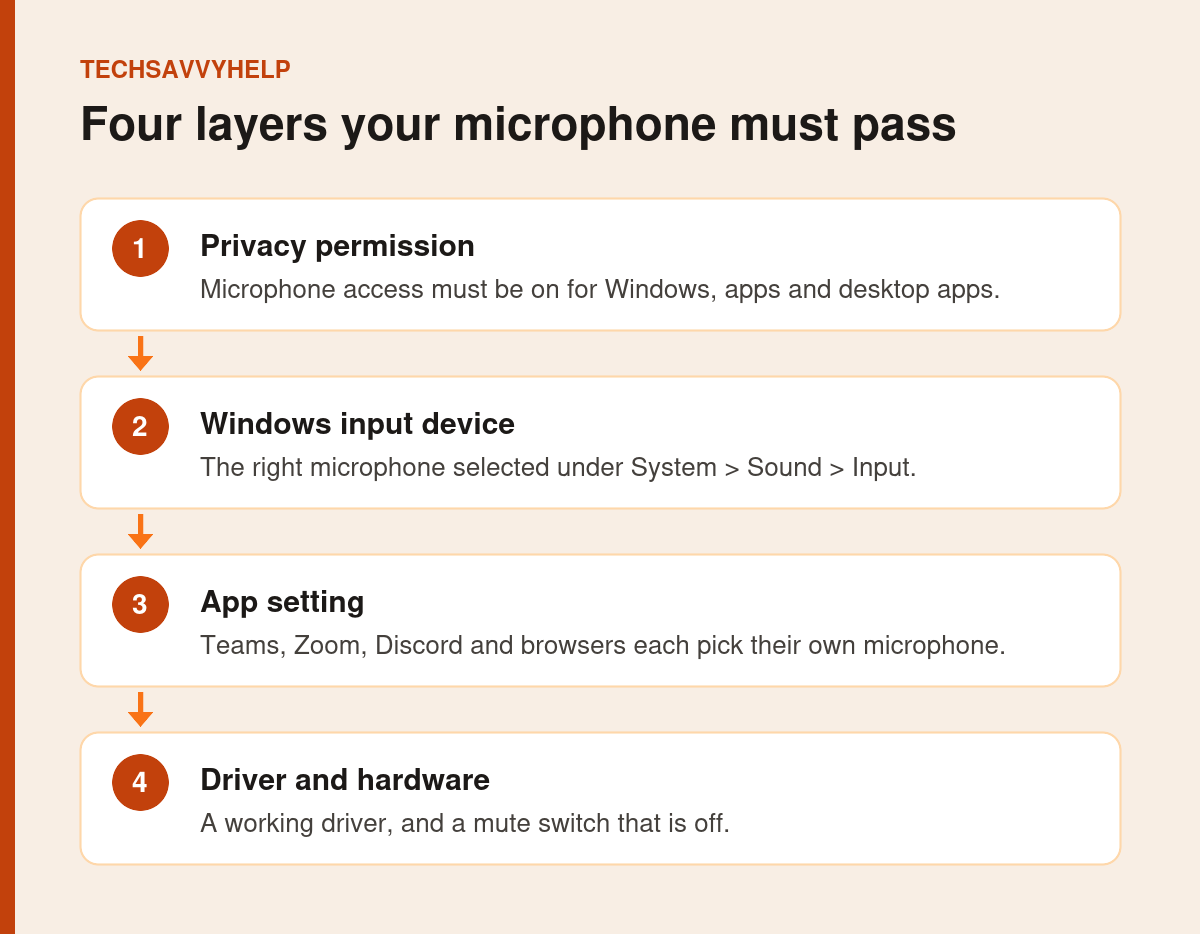
Table of Contents
ToggleFix 1: Turn On Microphone Privacy Access
Windows 11 can block every app from using the microphone. This is the first thing to check.
- Open Start > Settings > Privacy & security.
- Under App permissions, select Microphone.
- Turn on Microphone access.
- Turn on Let apps access your microphone and enable the apps you use.
- Scroll down and turn on Let desktop apps access your microphone. Teams, Zoom and Discord desktop apps need this.
Microsoft explains these switches in Turn on app permissions for your microphone.
Watch the 25-second version

Fix 2: Choose the Right Input Device and Test It
- Open Settings > System > Sound.
- Under Input, select the microphone you want to use.
- Check that Allow apps and Windows to use this device for audio is allowed.
- Raise Input volume if it is low.
- Select Start test and speak. If the bar moves, Windows can hear you.
These steps come from Microsoft’s Test your microphone guide.
Fix 3: Check the Microphone Inside Your App
If the Windows test works but people still cannot hear you, the app is using a different microphone. Open the app’s audio or device settings and choose the same microphone you selected in Windows.
- Teams and Zoom: Settings > Devices or Audio > Microphone.
- Browsers: select the padlock or site settings icon in the address bar and allow the microphone for that site.
Fix 4: Check Mute Switches and Connections
- Many headsets have a mute switch on the cable or earcup.
- Some laptops have a microphone mute key with a small light.
- Try a different USB port, or a different 3.5 mm socket on desktops.
- For Bluetooth headsets, Microsoft notes the device should show Connected voice, music in Bluetooth & devices settings.
Fix 5: Close Other Apps Using the Microphone
Some apps take exclusive control of the microphone. Close other call, recording or voice apps, then try again. A microphone icon in the taskbar’s system tray shows when an app is using it.
Fix 6: Run the Audio Troubleshooter
Open the Get Help app and run the audio troubleshooter for recording devices. It checks permissions, disabled devices and common driver faults.
Fix 7: Update, Reinstall or Roll Back the Driver
Open Device Manager and expand Audio inputs and outputs. Right-click the microphone and choose:
- Update driver > Search automatically for drivers.
- Uninstall device, then restart so Windows reinstalls it.
- Properties > Driver > Roll Back Driver if the microphone stopped after an update.
Laptop microphones often need the audio driver from the PC maker’s support site.
Fix 8: Install Windows Updates
Go to Settings > Windows Update > Check for updates and install everything, including optional driver updates. Restart and test again.
Windows 11 Microphone Not Working on Any App?
If the microphone test bar never moves after every fix, test the microphone on another device, or try another microphone on this PC. If no microphone works on the PC, the problem is likely the audio hardware or driver, and the PC maker’s support should check it.
No sound from your speakers as well? Our guide to Windows 11 no sound covers output problems.
Control which apps can use your microphone and camera.
Frequently Asked Questions
Why is my Windows 11 microphone not working in Teams or Zoom?
Usually Let desktop apps access your microphone is off, or the app is set to a different microphone. Check the privacy setting, then choose the same microphone inside the app.
How do I test my microphone in Windows 11?
Open Settings > System > Sound, select your microphone under Input and choose Start test. If the bar moves while you speak, Windows can hear it.
Why is my microphone detected but not picking up sound?
The input volume may be very low, a mute switch may be on, or another app may be using it. Raise the input volume and close other voice apps.
Can a Windows update break my microphone?
Yes. If it stopped after an update, roll back the driver in Device Manager or install the latest update.







