

Windows 11 no sound problems usually have a simple cause: Windows is sending audio to the wrong device, something is muted, or the audio driver broke after an update.
The fixes below follow Microsoft’s own order. Start at the top and test sound after each one.
Select the speaker icon on the taskbar, open the arrow next to the volume slider and choose the right speakers or headphones. Check nothing is muted, then run the audio troubleshooter in Get Help. If sound is still missing, turn off audio enhancements, restart the Windows Audio service, and update, reinstall or roll back the audio driver in Device Manager.
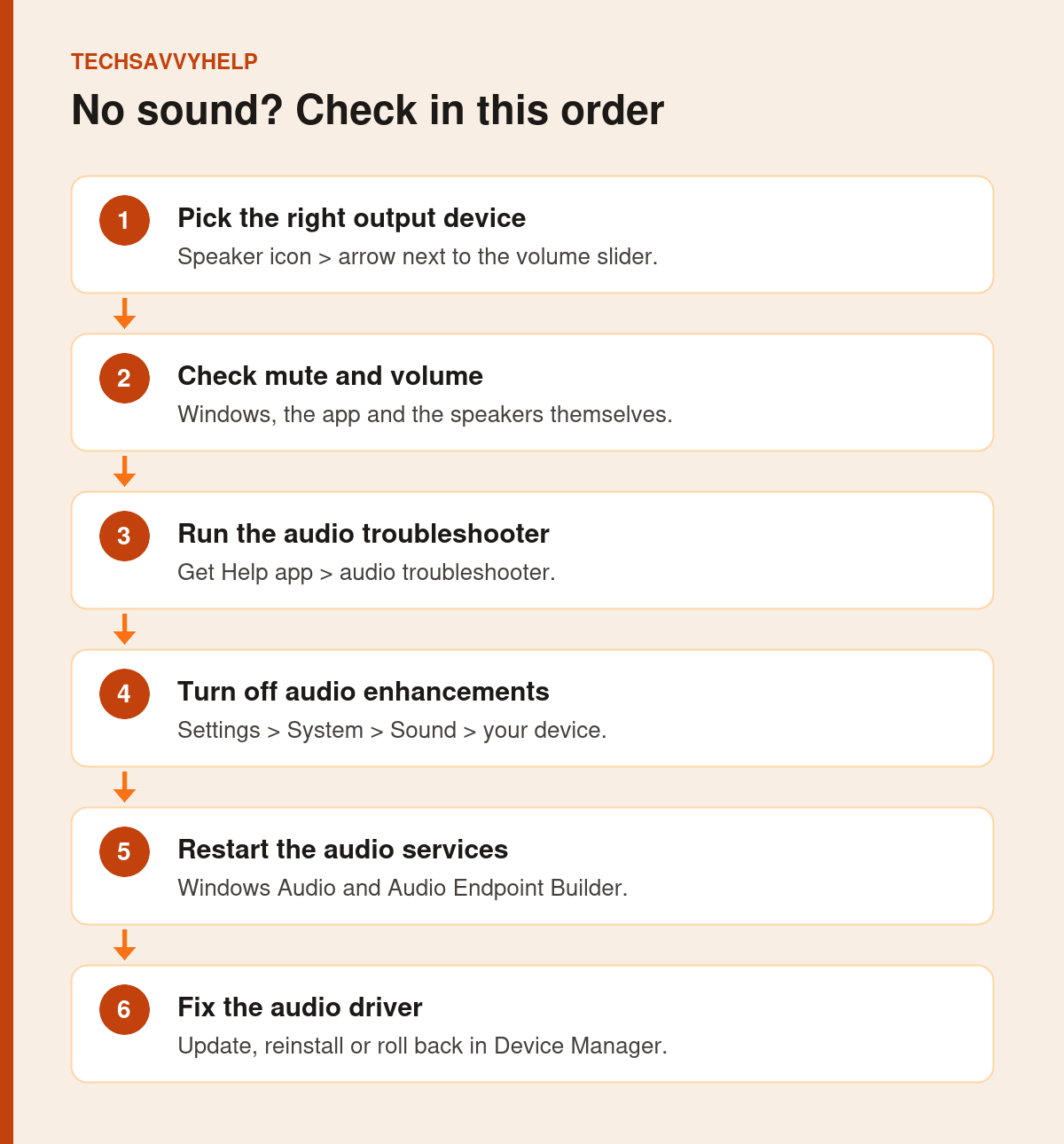
Table of Contents
ToggleFix 1: Choose the Right Output Device
Windows may be sending sound to a monitor, a Bluetooth headset or a device that is not connected any more.
- Select the speaker icon at the right of the taskbar.
- Select the arrow next to the volume slider.
- Choose your speakers or headphones from the list.
- Play a sound to test.
Watch the 25-second version
Fix 2: Check Volume, Mute and Cables
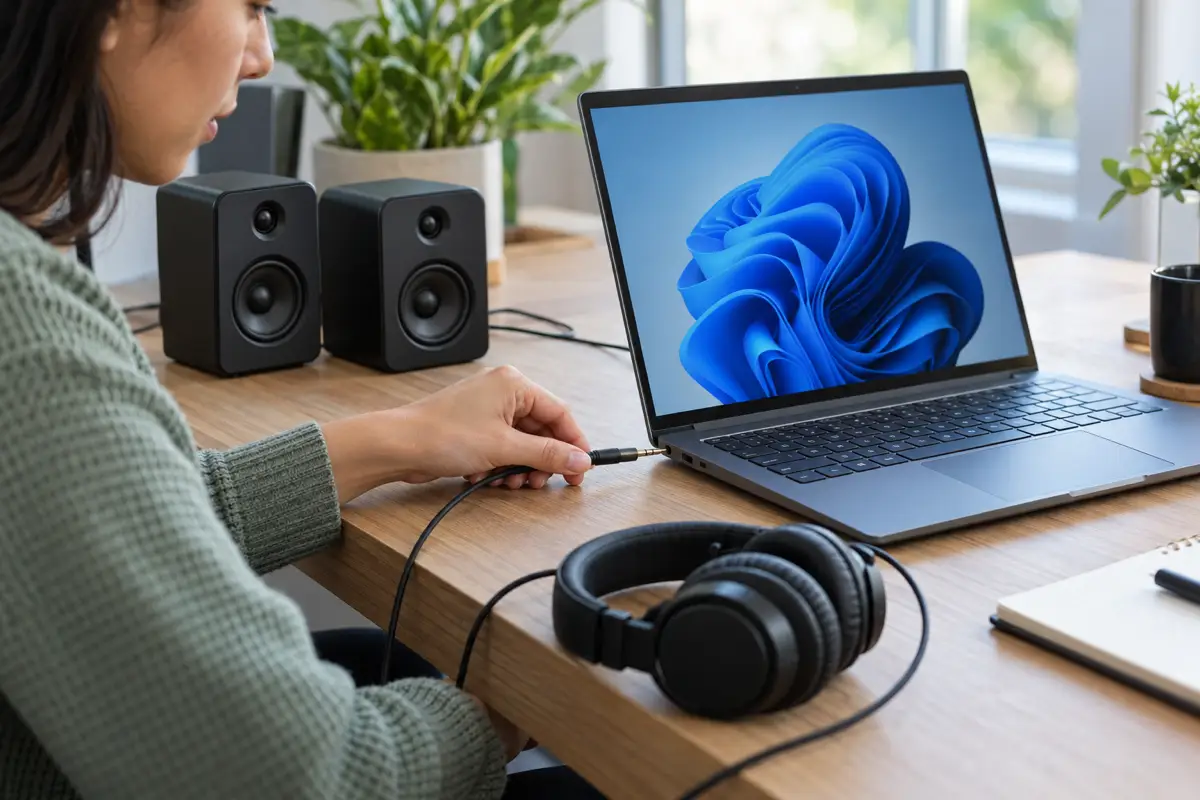
- Check the volume on the taskbar, inside the app you are using, and on the speakers or headphones.
- Make sure the speakers are switched on and plugged into the right socket.
- For USB headsets, try another USB port.
- Unplug headphones if you expect sound from the speakers.
Open Settings > System > Sound > Volume mixer and make sure no app is muted or set to zero.
Fix 3: Run the Audio Troubleshooter
Microsoft recommends this first on Windows 11. Open the Get Help app, search for the audio troubleshooter and run it. It checks for muted devices, disabled services and common driver faults, and fixes many of them automatically. See Microsoft’s Fix sound or audio problems in Windows page.
Fix 4: Turn Off Audio Enhancements
Audio enhancements can clash with some drivers and cut sound completely.
- Open Start > Settings > System > Sound.
- Under Output, select your speakers or headphones.
- Under Advanced settings, set Audio enhancements to Off.
- Test the sound again.
Fix 5: Make Sure the Device Is Enabled
A disabled device does not show in the output list. In Settings > System > Sound, select More sound settings. On the Playback tab, right-click an empty area, turn on Show Disabled Devices, then right-click your speakers and select Enable.
Fix 6: Restart the Windows Audio Services
- Press
Windows + R, typeservices.mscand press Enter. - Right-click Windows Audio and select Restart.
- Do the same for Windows Audio Endpoint Builder.
- Check that Remote Procedure Call (RPC) shows as Running.
Fix 7: Update the Audio Driver
Open Device Manager and expand Sound, video and game controllers. Right-click your audio device, select Update driver, then Search automatically for drivers. Also check your PC maker’s support site, because laptop audio often needs the maker’s own driver.
Fix 8: Reinstall the Driver or Use the Generic One
In Device Manager, right-click the audio device, select Uninstall device, tick the option to remove the driver if shown, and restart. Windows reinstalls it automatically.
If that fails, choose Update driver > Browse my computer for drivers > Let me pick from a list and select High Definition Audio Device. Microsoft lists this generic driver as a fallback.
Fix 9: Roll Back the Driver After an Update
If sound stopped right after an update, open the audio device’s Properties in Device Manager, go to the Driver tab and select Roll Back Driver. For USB audio that broke after a specific update, see USB audio not working after a Windows update. If your sound plays through an HDMI monitor or TV, a Windows update can also replace your graphics card’s audio driver. Reinstall the latest driver from Intel, NVIDIA or AMD, then reopen your speaker’s settings and turn Spatial sound (Dolby Atmos or DTS:X) back on if you use it.
Fix 10: Install Windows Updates
Go to Settings > Windows Update > Check for updates, install everything offered, including optional driver updates, and restart. Microsoft often fixes audio bugs in later updates.
Still Windows 11 No Sound? Check the Hardware
Test the speakers or headphones on another device. If they work there, plug a known-good pair into your PC. No sound from any device on the PC points to a hardware fault in the audio jack or chip, and a repair shop or the manufacturer should check it.
If your microphone has stopped working too, see our guide to a Windows 11 microphone not working. Many of the same fixes apply.
Bluetooth headphones connected but silent? Start here.
Frequently Asked Questions
Why is there no sound on Windows 11 suddenly?
Usually Windows switched to another output device, something is muted, or an update changed the audio driver. Check the output device first, then the driver.
How do I reset audio settings in Windows 11?
Restart the Windows Audio services, turn off audio enhancements, and reinstall the audio driver from Device Manager. This returns most audio settings to a working state.
Why does Windows 11 no sound only affect one app?
The app may be muted or set to the wrong device. Open Settings > System > Sound > Volume mixer and check that app’s volume and output.
Can a Windows update cause no sound?
Yes. If sound stopped after an update, roll back the audio driver in Device Manager or install the latest update, which often contains a fix.







