To transfer photos from iPhone to Android, choose a method that fits the size of your photo library and the phones you have.
There are several ways to move a photo library across platforms, including Quick Share interoperability with AirDrop on compatible Android phones, first introduced in November 2025.
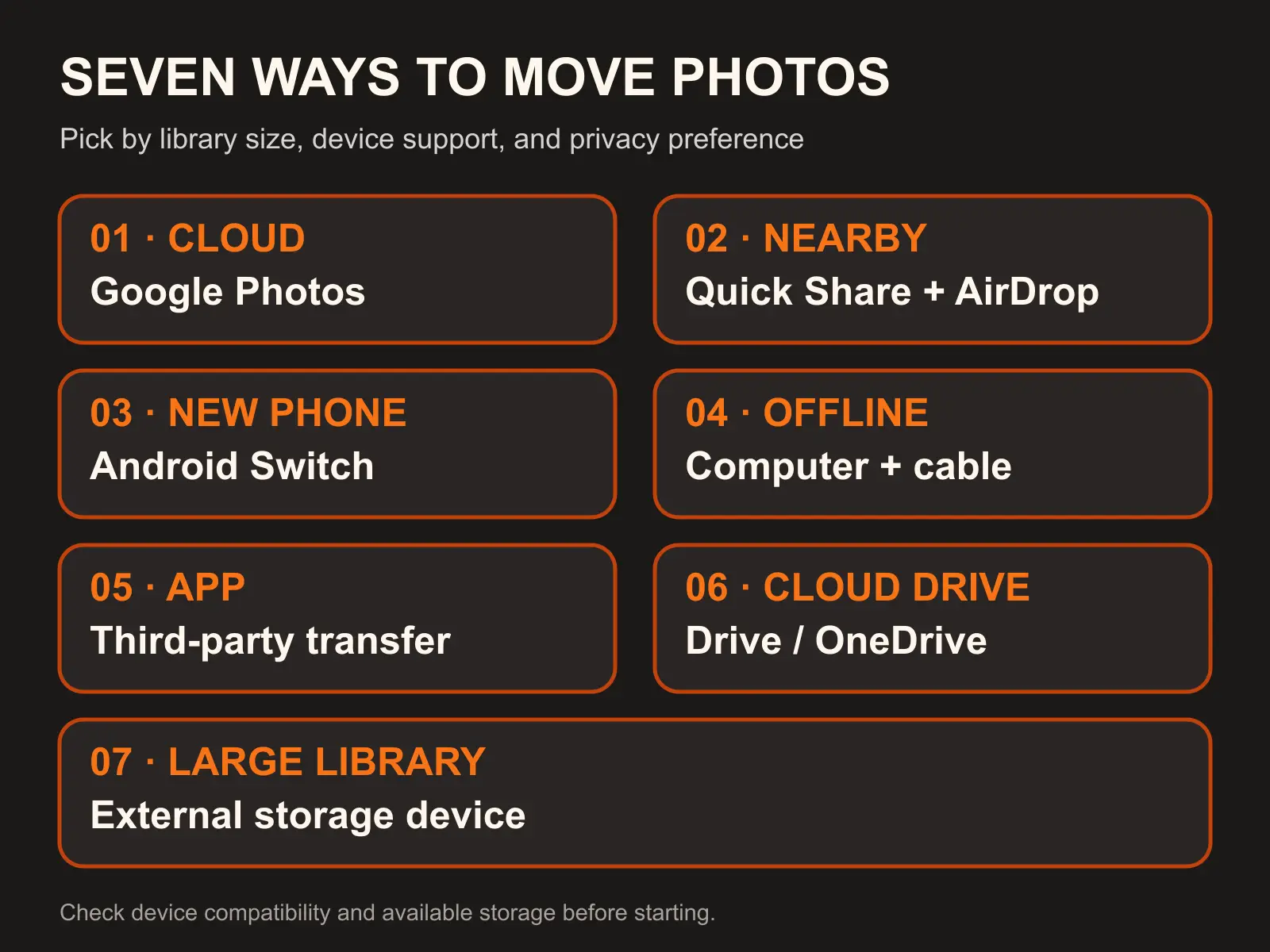
This guide covers seven practical methods, from sharing a handful of photos to moving an entire library, so you can pick the one that fits your situation.
For most people, the easiest option is Google Photos backup and restore: turn on backup in the Google Photos app on your iPhone, then sign into the same Google account on your Android phone. For a few photos, use Quick Share with AirDrop if your Android phone supports it; otherwise, use Google Photos or a cloud-sharing option. Setting up a brand-new Android phone? Google’s Switch to Android app can move your whole library during setup.
Table of Contents
ToggleGoogle Photos: Back Up and Restore (Best for Full Libraries)
Google Photos is still the most reliable way to move an entire library between platforms, because it doesn’t require both phones to be nearby or on the same network at the same time.
On your iPhone, install the Google Photos app and sign in. Tap your profile picture in the top right, open Photos settings, then Backup, and turn it on.
A large library can take several hours over Wi-Fi, so it is worth starting well before you actually switch phones.
Once backup finishes, install Google Photos on your new Android phone and sign into the same account; everything you backed up shows up automatically, and you can also browse it from photos.google.com on any device.
Google Photos backs up JPG, HEIC, PNG, WebP, and GIF files, plus common video formats, with a 200 MB limit per photo and 10 GB per video, and it counts against your shared Google Account storage. See Google’s official backup instructions for the current storage settings and supported formats.
Quick Share and AirDrop: Google's New Cross-Platform Transfer
Google introduced Quick Share interoperability with AirDrop in November 2025, initially for the Pixel 10 family. It now supports additional compatible Android phones. This is useful for sending a few photos directly without a third-party app.
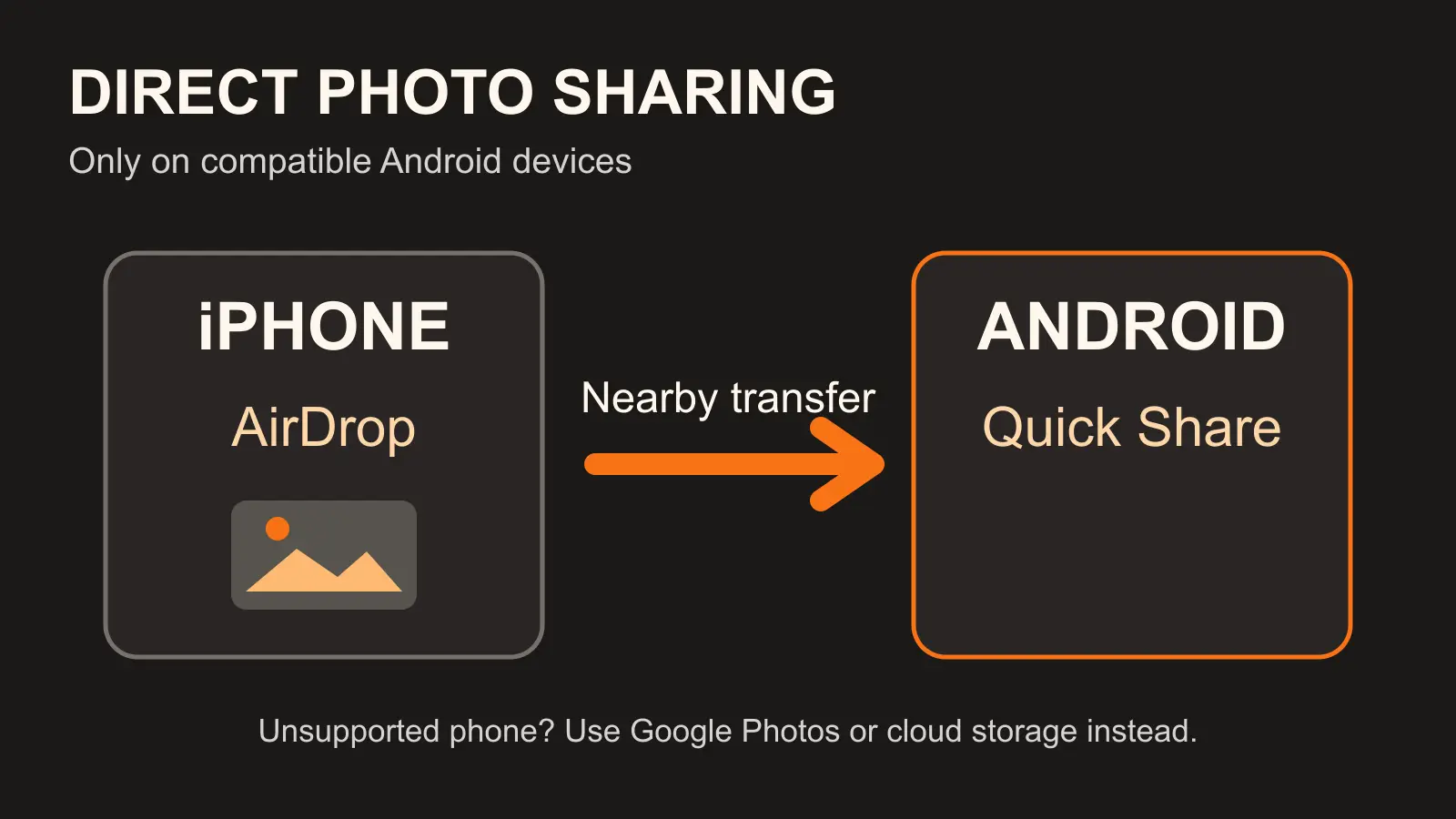
To send from iPhone to Android: open Photos on the iPhone, select the photos, tap Share, choose AirDrop, and pick the nearby compatible Android phone. On the Android side, turn on Quick Share receive mode; on supported Samsung phones, also enable “Share with Apple devices” in Quick Share settings.
The Quick Share QR-code option described by Google goes the other direction: an Android phone creates a code so an iPhone can receive its files through a web link. It is not a fallback for sending iPhone photos to an unsupported Android phone. For that direction, use Google Photos, cloud storage, or another method below.
Direct AirDrop-to-Quick-Share transfers currently work on Samsung Galaxy S24 and newer (including the Z Fold and Z Flip line), Google Pixel 8a and newer, and select recent phones from OnePlus, Xiaomi, OPPO, HONOR, and vivo.
If your Android phone is not on Google’s compatibility list, use Google Photos or another cloud transfer method for iPhone-to-Android photos. See Google’s Quick Share page for the current device list.
Google's Switch to Android App: Best When Setting Up a New Phone
If you are moving everything, not just photos, while setting up a new Android phone, Google’s own Switch to Android tool is built for that. Depending on the Android device and setup flow, it offers cable or wireless transfer; some newer devices provide an upgraded QR-code pairing process.
Google’s current support table lists photos and videos as transferable with the classic wireless Android Switch app, the classic cable method, and the upgraded transfer process. The upgraded process can also include photo albums on supported devices. Check the choices shown during setup and confirm the transferred photos afterward. Photos stored only in iCloud need a separate iCloud-to-Google Photos transfer.
Manual Transfer via Computer: Full Control, No Account Needed
If you would rather not depend on a Wi-Fi transfer or signing into a cloud account, a computer works as a go-between. On Windows, connect the iPhone with a cable, open the Photos app, and use Import to copy the originals to a folder. On a Mac, use Image Capture or the Photos app the same way.
Once the photos are on the computer, connect the Android phone with a USB-C cable. On Windows, it shows up in File Explorer; drag the photos into the phone’s DCIM or Pictures folder.
On a Mac, the Android phone may not appear in Finder as a drive; use a compatible file-transfer app that supports your phone and macOS version, or use a cloud-storage method instead.
This method also works as a free backup step even if you end up moving the photos some other way too.
Third-Party Transfer Apps: Use With Caution
Apps like SHAREit, Xender, and Send Anywhere transfer photos directly between phones over a local connection, without needing an internet connection or a cloud account. They can be fast for a large batch, but they are worth a second look before installing.
SHAREit in particular has a long history of documented security research flagging vulnerabilities in the app, including flaws that exposed user data and, in some versions, allowed remote code execution.
If you use a third-party transfer app, keep it fully updated, only grant the permissions it actually needs for the transfer, and consider removing it afterward if you do not plan to use it regularly.
Cloud Storage Services: Google Drive, Dropbox, OneDrive
Any general-purpose cloud storage app works as a simple bridge: upload photos from the Files app on your iPhone, then download them from the same app on Android.
It is slower than a direct transfer for very large batches and uses your storage quota on that service, but it is a familiar option if you already use one of these apps for other files, and it doubles as an off-device backup.
External Storage Devices: For Very Large Libraries
For a library too large to comfortably move over Wi-Fi, a physical storage device skips the network entirely.
A USB-C flash drive with a Lightning adapter, or a USB-C-to-USB-C drive if your iPhone has a USB-C port, lets you copy photos directly off the iPhone’s Files app, then plug the same drive into the Android phone to copy them over.
SD card readers work the same way if your drive uses one.
Which Method Should You Use?
For a handful of photos right now, Quick Share/AirDrop is a fast option on compatible Android phones; otherwise use Google Photos or cloud sharing.
For your entire library, especially if you want it to stay backed up going forward, Google Photos backup and restore is the most dependable choice.
If you are setting up a new Android phone from scratch, use Switch to Android so photos move alongside your other settings. If you would rather avoid the cloud and a Wi-Fi transfer entirely, connect both phones to a computer.
And for a genuinely huge library, tens of thousands of photos, a physical drive is usually faster than any wireless method.
Troubleshooting Common Transfer Problems
Photos are out of order after the transfer. Most transfer methods sort by file name rather than the original date taken. Open the gallery app’s sort settings and switch to sort by date, or use Google Photos, which preserves the original timestamp in each file’s metadata.
A large batch stops partway through. This is usually a dropped Wi-Fi connection or the app being closed or put to sleep mid-transfer. Keep both phones awake and nearby for the duration, or switch to a wired method for anything over a few hundred photos.
I am worried about privacy during the transfer. Google Photos uploads backed-up photos to your Google Account in the cloud. Direct Quick Share/AirDrop and a cable transfer can avoid a cloud copy. Check a third-party app’s permissions and privacy policy before using it.
Photos look lower quality after the transfer. If Google Photos storage saver is turned on, photos are compressed slightly to save space; switch to original quality in backup settings if you want exact copies, keeping in mind that uses more of your account storage.
If storage space is tight during the move, this guide to managing storage on your phone covers freeing up space before a big transfer.
Frequently Asked Questions
What's the fastest way to transfer just a few photos?
Quick Share paired with AirDrop, or its QR code fallback, moves a handful of photos in seconds without installing anything extra. It is the quickest option when you do not need your whole library.
Will I lose photo quality during the transfer?
Not with Google Photos at original quality, a direct cable transfer, Quick Share/AirDrop, or a physical drive. Only Google Photos’ storage saver setting compresses files, and that is optional.
Is it safe to use third-party transfer apps like SHAREit or Xender?
They work, but some have a documented history of security issues. Google Photos, Quick Share/AirDrop, and Switch to Android are built by the platform owners and do not carry that same risk.
Why don't my photos appear in the correct order after transfer?
Most methods sort by file name instead of capture date. Switch your gallery app to sort by date, or use Google Photos, which keeps the original timestamp.
Do these transfers use mobile data?
Quick Share, AirDrop, and a cable connection do not use mobile data at all. Google Photos backup and cloud storage apps use Wi-Fi by default but can fall back to mobile data unless you turn that off in the app’s settings.
Can I transfer photos without using a computer at all?
Yes. Google Photos backup and restore, Quick Share/AirDrop, Switch to Android, and third-party transfer apps all work phone-to-phone without ever touching a computer.