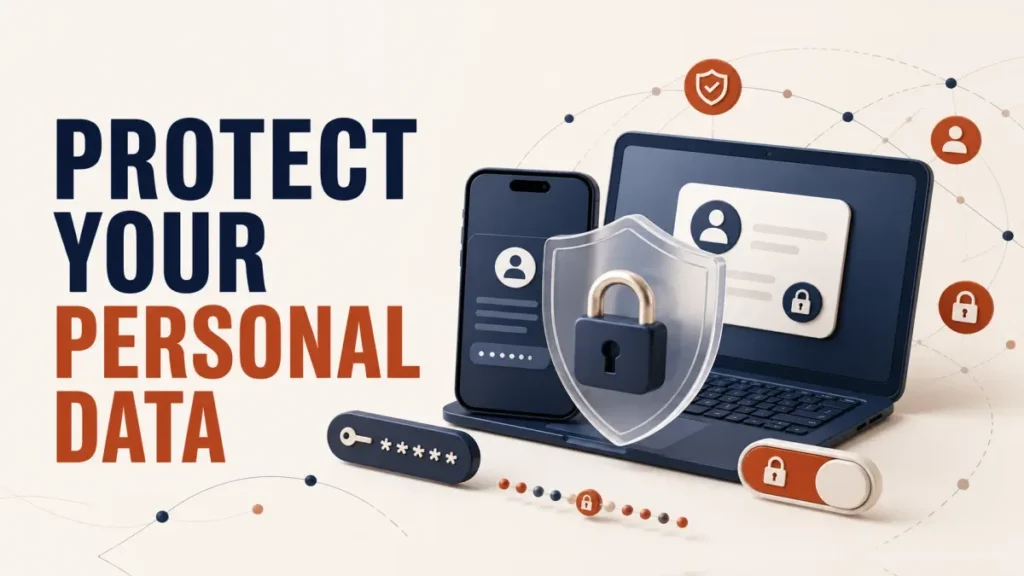
Data privacy is less about hiding everything and more about controlling access to personal information. Your email address, location, photos, contacts, account history, payment details, and device identifiers can be useful to criminals when they are combined.
The strongest privacy plan starts with the accounts that unlock everything else, reduces unnecessary collection, and gives you a clear response if something is exposed. The steps below explain how to protect personal data online across phones, computers, browsers, and popular services.
Protect personal data online by securing your email and financial accounts first, using unique passwords and multifactor authentication, installing updates, reviewing app permissions, limiting public profile details, and keeping recoverable backups. If an account is exposed, open the service directly, change its password, end unknown sessions, and monitor related accounts.
Table of Contents
ToggleData privacy: what should you protect first?
Not every piece of information creates the same risk. Prioritize data that can unlock accounts, prove your identity, move money, reveal your location, or expose private conversations.
- Account access: email addresses, passwords, recovery codes, passkeys, and security answers.
- Identity data: passport or national ID images, birth date, signatures, tax records, and insurance details.
- Financial data: card numbers, bank details, transaction records, and payment-app access.
- Location and routine: home address, live location, travel plans, school details, and workplace patterns.
- Private content: photos, messages, health information, contacts, and cloud files.
Your primary email account deserves special attention because password resets for many other services arrive there. A criminal who controls it may be able to take over shopping, social, cloud, and financial accounts even when those accounts have different passwords.

Build a strong account-security foundation
Use a unique password for every important account
Reusing a password turns one breach into a chain reaction. If an old shopping site exposes your login, attackers can try the same combination on email, banking, and social accounts. Use a reputable password manager to generate and store long passwords so each account is different.
Current NIST digital identity guidance supports password managers and paste or autofill functionality. Length and uniqueness matter more than predictable substitutions such as changing “password” to “P@ssw0rd.”
Turn on multifactor authentication
Multifactor authentication, or MFA, requires another proof in addition to a password. Prefer a passkey or security key when a service offers one. An authenticator app is also a strong practical choice. Text-message codes are better than password-only access, but they can be exposed through SIM-swap fraud or convincing phishing pages.
Start with email, banking, cloud storage, password manager, mobile carrier, and social accounts. Save recovery codes somewhere separate and secure. Our two-factor authentication guide explains the available methods and recovery planning.
Never share a verification code, recovery code, or password in response to an unexpected call or message. A legitimate support agent should not need your one-time sign-in code.
Secure account recovery before you need it
Check that recovery email addresses and phone numbers still belong to you. Remove old devices, app passwords, connected apps, and active sessions you do not recognize. Add a second recovery method where available, then store backup codes offline or in an encrypted vault.
A strong password is not enough if an abandoned email address or easily guessed security answer can reset it. Avoid answers that appear on your public profile; generated answers stored in a password manager are safer.
Reduce how much data apps and websites collect
Review permissions instead of approving everything
A flashlight app does not need your contacts, and a simple game rarely needs precise location at all times. On your phone, review access to location, camera, microphone, contacts, photos, Bluetooth, and nearby devices. Choose “only while using” or selected-photo access when that is enough.
Also review browser extensions and connected-account permissions. Extensions can read more of your browsing activity than many people expect. Remove tools you no longer use, and install replacements only from the official store after checking the developer and requested access.
Limit tracking and public profile details
Use each service’s privacy controls to restrict who can see posts, friends, activity status, birth date, phone number, and location. Disable ad personalization or cross-app tracking when you do not want it, but remember that a setting may reduce personalized ads without stopping all collection.
Before posting a photo, check the background for addresses, school badges, boarding passes, QR codes, work screens, or documents. Avoid announcing an empty home through real-time travel updates. Share an album with selected people when a public post is unnecessary.
Do a quarterly privacy check. Search your name, review public profile pages while signed out, remove unused accounts, and revoke access for apps or devices you no longer recognize.
Give optional forms less information
If a field is optional, decide whether the service genuinely needs it. Do not upload identity documents to an unverified support form or send them through ordinary email when a secure portal is available. For newsletters and low-risk sign-ups, consider a separate email address that cannot reset your critical accounts.
Read the short privacy summary and deletion controls before trusting a new service with sensitive data. Look for what is collected, why it is needed, how long it is retained, who receives it, and how to download or delete it.
Keep devices, connections, and backups secure
Install security updates promptly
Enable automatic updates for the operating system, browser, apps, router, and security software. Updates often close vulnerabilities that attackers already understand. Restart when an update requires it, and remove unsupported software that no longer receives fixes.
CISA’s Secure Our World guidance emphasizes strong passwords, MFA, phishing awareness, and software updates as core actions. On Windows, use our Windows 11 security checklist for system-specific controls.
Lock and encrypt every device
Use a strong PIN, password, fingerprint, or face authentication, and set the screen to lock automatically. Turn on device encryption where supported. Encryption makes stored data harder to read if a phone or laptop is lost, but it cannot protect an already unlocked session.
Enable the platform’s lost-device feature before anything goes missing. Confirm that you can sign in to the recovery account from another device, and never remove a lost phone from your account until you understand how that affects tracking and remote erase.
Treat public Wi-Fi as an untrusted network
Modern HTTPS protects the connection to correctly configured websites, so public Wi-Fi is not automatically unsafe. The bigger risks are joining a fake hotspot, ignoring certificate warnings, sharing files locally, or exposing traffic from an outdated or poorly configured app.
Confirm the network name with the venue, disable automatic joining and local sharing, keep the firewall enabled, and use mobile data for especially sensitive work when possible. A VPN can protect traffic between your device and the VPN provider, but it does not make phishing sites trustworthy. See our guide to securing your home Wi-Fi network.
Keep backups that ransomware cannot easily reach
Back up irreplaceable photos, documents, and recovery information. Keep at least one copy separate from the main device or continuously connected storage. Test that important files can be restored; a sync service can mirror an accidental deletion or encrypted file and is not automatically a complete backup.
Recognize phishing and social engineering
Phishing messages create urgency: a payment failed, an account will close, a parcel is waiting, or someone needs a code immediately. The sender name and logo can be copied, and caller ID can be spoofed.
- Pause. Do not click, download, call the supplied number, or approve a sign-in prompt.
- Open the service yourself. Use a saved bookmark, official app, or address you already know.
- Check the request in context. Look for the same alert inside the real account.
- Verify through another channel. Contact the person or organization using independently found details.
- Report and delete. Use the provider’s phishing-report feature so it can investigate.
Passkeys and hardware security keys are valuable because properly implemented phishing-resistant authentication binds the sign-in to the real service. Still, no authentication method replaces judgment when a message asks you to send money, expose a recovery code, or install remote-control software.
Apply the same privacy and account controls to smartphones and tablets.
What to do if personal data or an account is exposed
Act from a device you trust. If the warning arrived by email or text, do not use its link. Open the service directly and check recent activity, security alerts, recovery details, forwarding rules, connected apps, and active sessions.

- Change the affected password and every other account where it was reused.
- Sign out unknown sessions and remove unfamiliar devices, passkeys, recovery methods, and connected apps.
- Enable or replace MFA and store new recovery codes safely.
- Secure the email account connected to the service, including forwarding and filter rules.
- Contact the institution through an official number if payment, banking, mobile-carrier, tax, or identity data may be involved.
- Preserve evidence such as alert dates, transaction references, and messages without forwarding harmful attachments.
- Monitor related accounts for password resets, new payees, address changes, or unfamiliar transactions.
For U.S. identity theft, the Federal Trade Commission’s IdentityTheft.gov recovery service creates a situation-specific plan. If you live elsewhere, use your national cybercrime, identity, or consumer-protection authority.
If money was transferred or card details were exposed, contact the bank or payment provider immediately through a trusted number. Changing a password does not reverse a transaction or replace a compromised card.
Common privacy mistakes to avoid
- Using one password everywhere: one breach can unlock several accounts.
- Approving every MFA prompt: repeated prompts may mean someone already has the password.
- Posting documents: boarding passes, badges, prescriptions, and forms can reveal more than expected.
- Trusting incognito mode as anonymity: it mainly limits local browser history; websites, employers, schools, and network providers may still observe activity.
- Keeping unused accounts: forgotten services retain data and may have outdated security.
- Assuming a VPN solves privacy: it changes who can see network traffic, but not what you give to websites or apps.
- Ignoring recovery settings: old phone numbers and email addresses can become takeover paths.
Personal Data Privacy: Frequently Asked Questions
What is personal data?
Personal data is information linked or reasonably linkable to a person. It can include names, contact details, account identifiers, device or location data, financial records, photos, online activity, and sensitive identity or health information.
Can I remove all of my personal information from the internet?
Usually not. You can delete unused accounts, tighten privacy controls, request removal where a service or local law allows it, and reduce future sharing. Copies may remain in backups, legal records, archives, or data held by other people.
Is a password manager safe?
A reputable password manager protected by a strong master password and MFA is generally safer than reusing passwords or keeping predictable variations. Keep the app updated, protect its recovery method, and understand how account recovery works.
Does HTTPS make a website trustworthy?
No. HTTPS encrypts the connection to the site, but a phishing site can also use HTTPS. Check the domain, purpose, organization, and request before entering sensitive information.
Should I accept every cookie banner?
No. Use the reject or manage option when available and allow only what you need. Cookie choices can reduce some tracking, but other technologies and account activity may still collect data.
Make privacy a repeatable habit
You do not need to fix every account in one day. Start with email, banking, cloud storage, your password manager, and the mobile-carrier account. Then review one group of apps or services each month.
A short routine—unique passwords, MFA, updates, permission reviews, restrained sharing, and tested backups—protects personal data better than a one-time privacy cleanup. Keep recovery information current so you can respond quickly when a real alert appears.